

On this page
Products are added in a four-step form: Basics, Stock, Selling and Details. Only the first step (the name and the prices) is required to save; the rest can come later. Once saved, the product is ready to sell at the till.
Before you begin
- You need permission to manage products. The Owner, Admin and Staff roles all have it.
- Your plan allows a certain number of products; when it is used up, no new product can be added.
Open the product form
The quickest way: on the Dashboard, choose Add product under Quick actions. Or from the product list:
On a computer
- Open Products in the menu on the left.
- Click Add product at the top right.

On a phone or tablet
- Open Products from Menu at the bottom.
- Tap the round green button in the middle at the bottom.
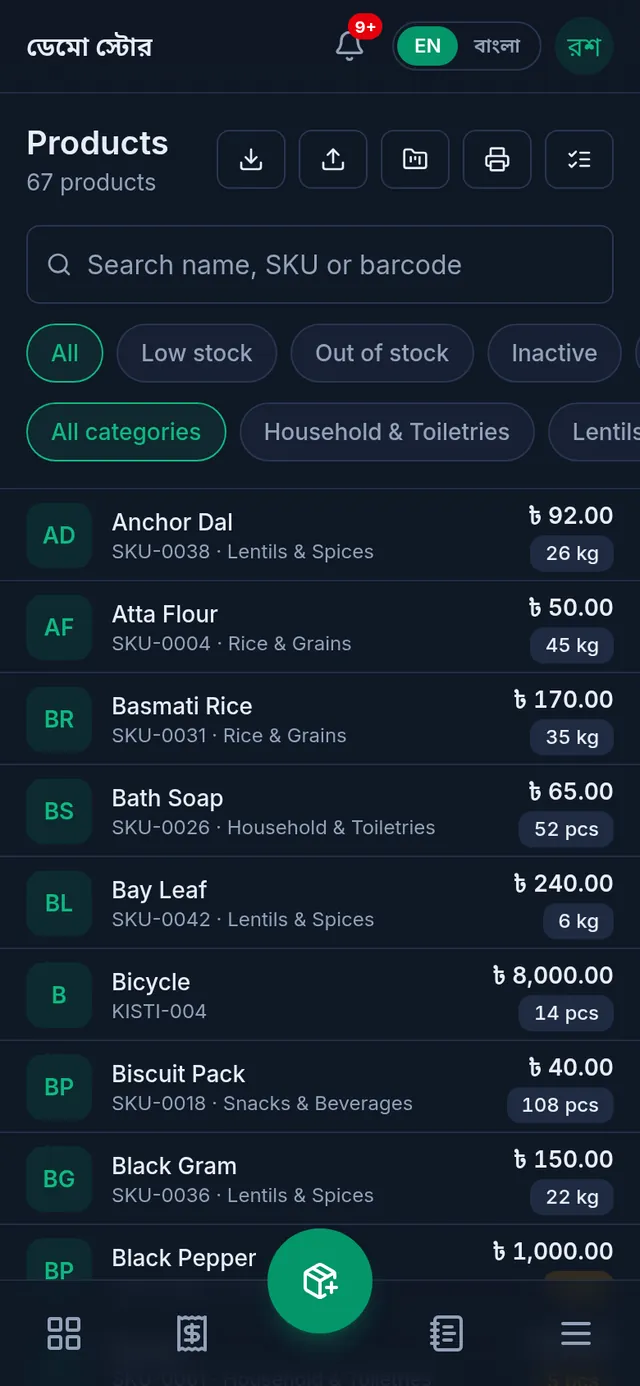
Step 1: Basics
- Type the Product name. If you type it in English, add the Bangla name too: the till shows it when the app is in বাংলা.
- Choose the Category. For a new one, tap the + beside it and create it there.
- Choose the Unit. A new shop has only pieces; for kilograms, litres or another unit, tap the + beside it: Add unit.
- Type the Cost price (what you pay) and the Sale price (what you charge).
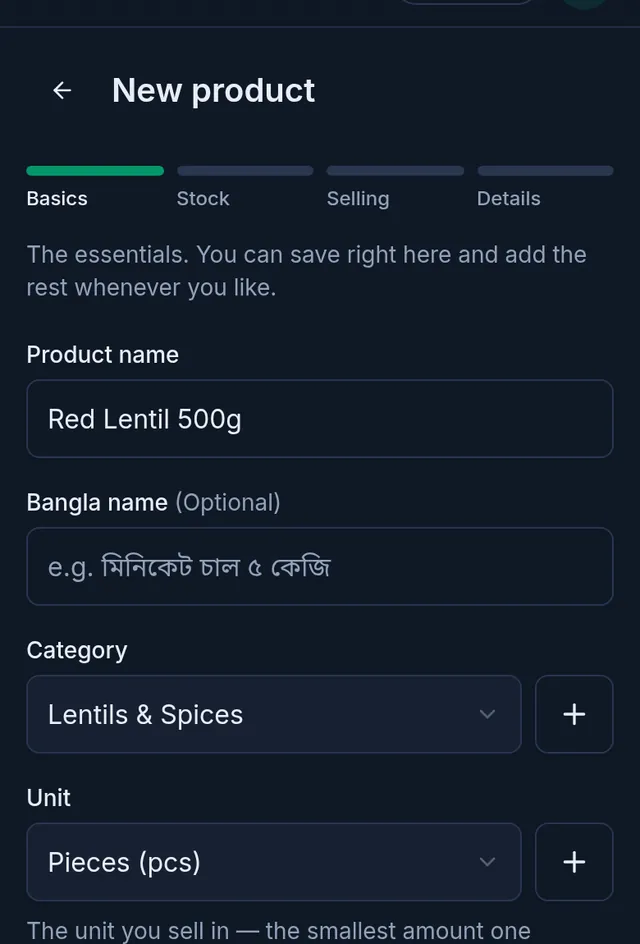
- Choose Next. To save with just this much, choose Save now.
Step 2: Stock
- Opening stock: how much you have now. It can only be entered when the product is added.
- Low stock alert: Tukri warns you when the stock is at or below this number.
- For goods with an expiry date, such as medicine or food, turn on Track batches & expiry. For goods you weigh or measure, such as rice or lentils, turn on Sell loose / by weight.
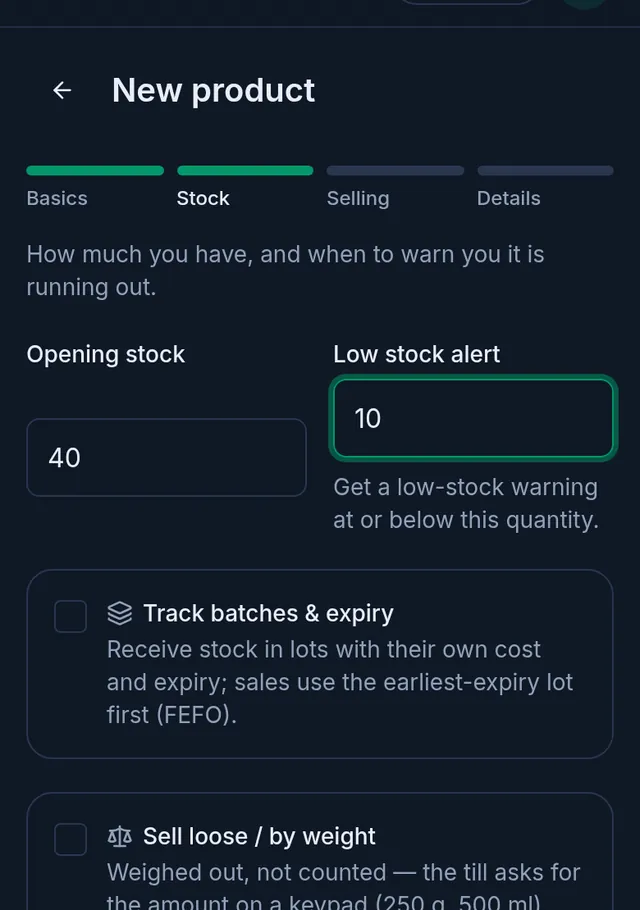
- Choose Next.
Step 3: Selling
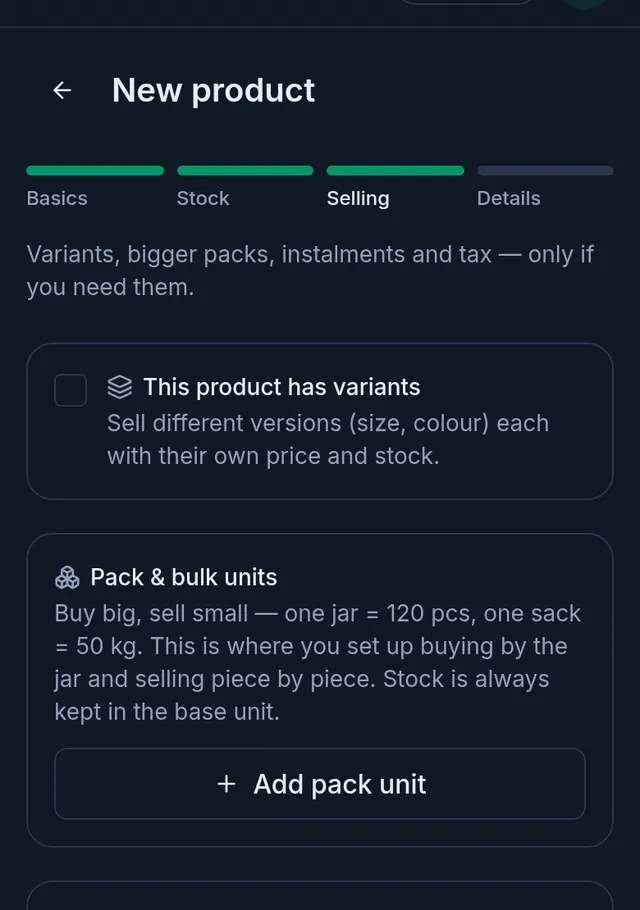
Choose these only if you need them:
- This product has variants: sizes or colours of one product, each with its own price and stock.
- Pack & bulk units: buying and selling by the box or carton as well as by the piece.
Other features your shop has turned on, such as installments or warranty, add their fields here. If you need none of them, choose Next without changing anything.
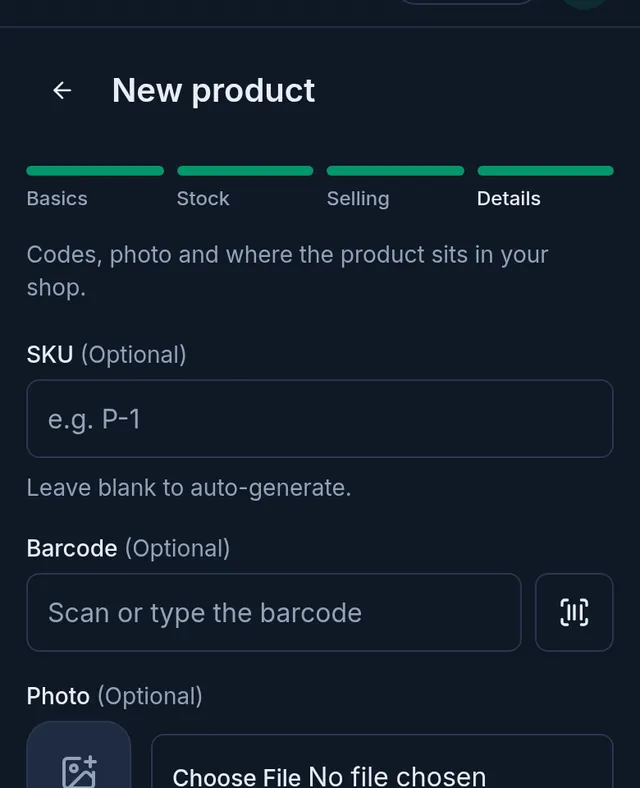
Step 4: Details
- SKU: Leave blank to auto-generate. Tukri gives a 13-digit number that also prints as a barcode.
- If the pack has the maker's barcode, type it in Barcode, or scan it with the camera button beside the field.
- Add a Photo if you like; after you choose one, you are asked to crop it square.
- Choose Save.
After saving
The product appears in the list and at the till straight away, with the opening stock you entered.
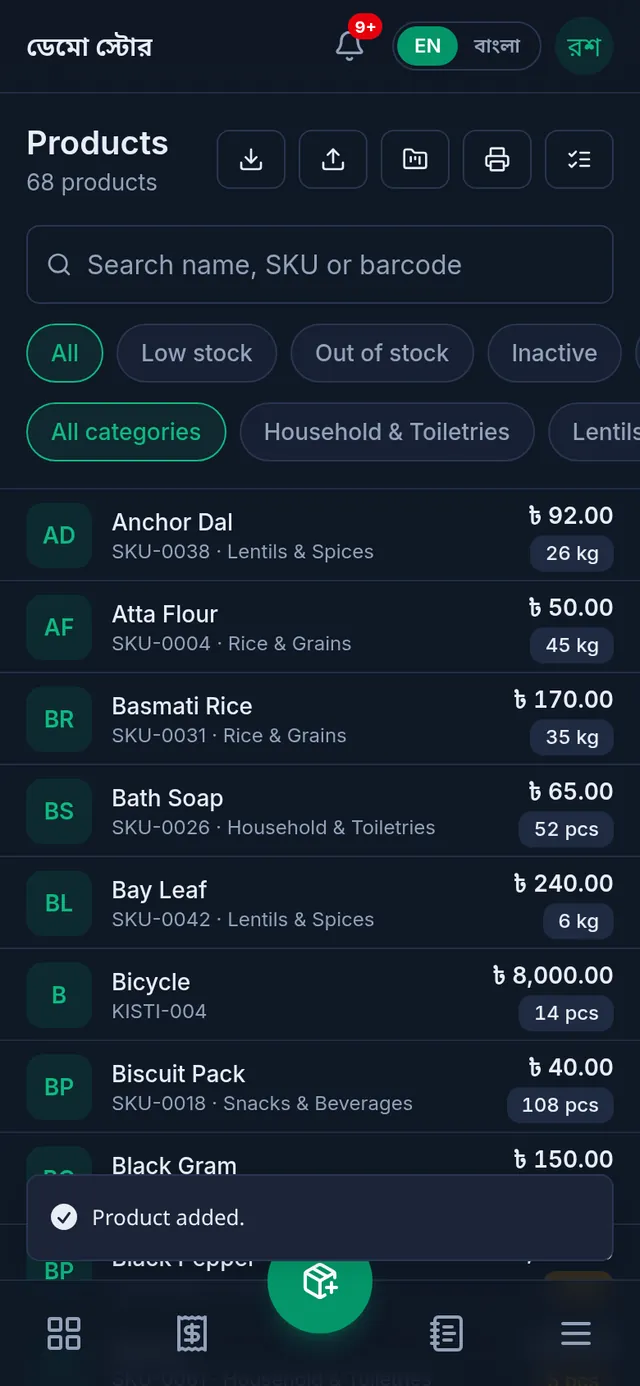
Later, raise the stock by recording a purchase when new goods arrive, and adjust it when a count is wrong. To change the price or name, see Edit a product.
If something goes wrong
A new product will not save and the plan limit is mentioned. Your plan's number of products is used up. For more products, choose a bigger plan: Your plan.
The SKU is refused. Another product in the shop, deleted ones included, already has it. Type a different SKU, or leave it blank.
The unit cannot be changed. Once the product's stock has been bought, sold or adjusted, its unit is fixed.
There is no opening stock field when editing. Opening stock is only for adding. After that, stock changes through purchases, sales and adjustments.
Watch the video

What the video says
How do you add a new product to Tukri? Let's see, in 4 steps.
On the Dashboard, under Quick actions, tap the Add product button.
Step 1, Basics. Type the Product name. If it's in English, add the Bangla name too. Then choose the Category and Unit. If it's not in the list, tap the + beside it to add it. Now enter the Cost price and the Sale price. In a hurry? Press Save now, otherwise press Next.
In the Stock step, enter how much you have now. This Opening stock can only be entered now. In Low stock alert, enter how low it can go before Tukri warns you.
In the Selling step, if you need them, add size or colour variants, or box and carton packs. If not, just press Next.
The last step is Details. Leave the SKU blank and Tukri makes one for you. If the pack has a barcode, type it in or scan it. You can add a photo too. Finally, press Save.
Done! The product is in the list, and at the till straight away. Remember, your plan may limit how many products you can add.
All your shop's products in one place, tukri.bd
Related articles
- Create, rename and delete product categories Group products into categories such as rice, lentils or oil. Rename a category at any time, and delete one once it is empty.
- Product variants: sell sizes, colours or pack sizes separately Versions of one product, such as sizes, colours or bottle sizes, each with its own price, SKU, barcode and stock. Turn them on in the Selling step.
- Enter opening stock Enter the goods you already have as opening stock when you add a product. After that, stock changes through purchases, sales and adjustments.
- Scan barcodes, find products and print barcode labels Search by name at the till, or scan with the camera or a barcode scanner. Print barcode labels for your products, or save them as a PDF.
- Make a sale at the till Add products to the cart, take payment and complete the sale, step by step on a computer or a phone.
Still need help?
Write to us, call or send a WhatsApp message, and someone from Tukri will help you.
