

When the goods on your shelves and Tukri's numbers disagree, correct them with Adjust stock: for damaged or lost goods, transit losses, or a count that came out higher or lower. Every adjustment needs a reason, and it cannot be edited or deleted afterwards.
Before you begin
- You need permission to adjust stock. The Owner, Admin and Staff roles all have it.
- Each adjustment is for one product.
Adjust the stock
On a computer
- Open Stock in the menu on the left.
- Click Adjust stock at the top right.

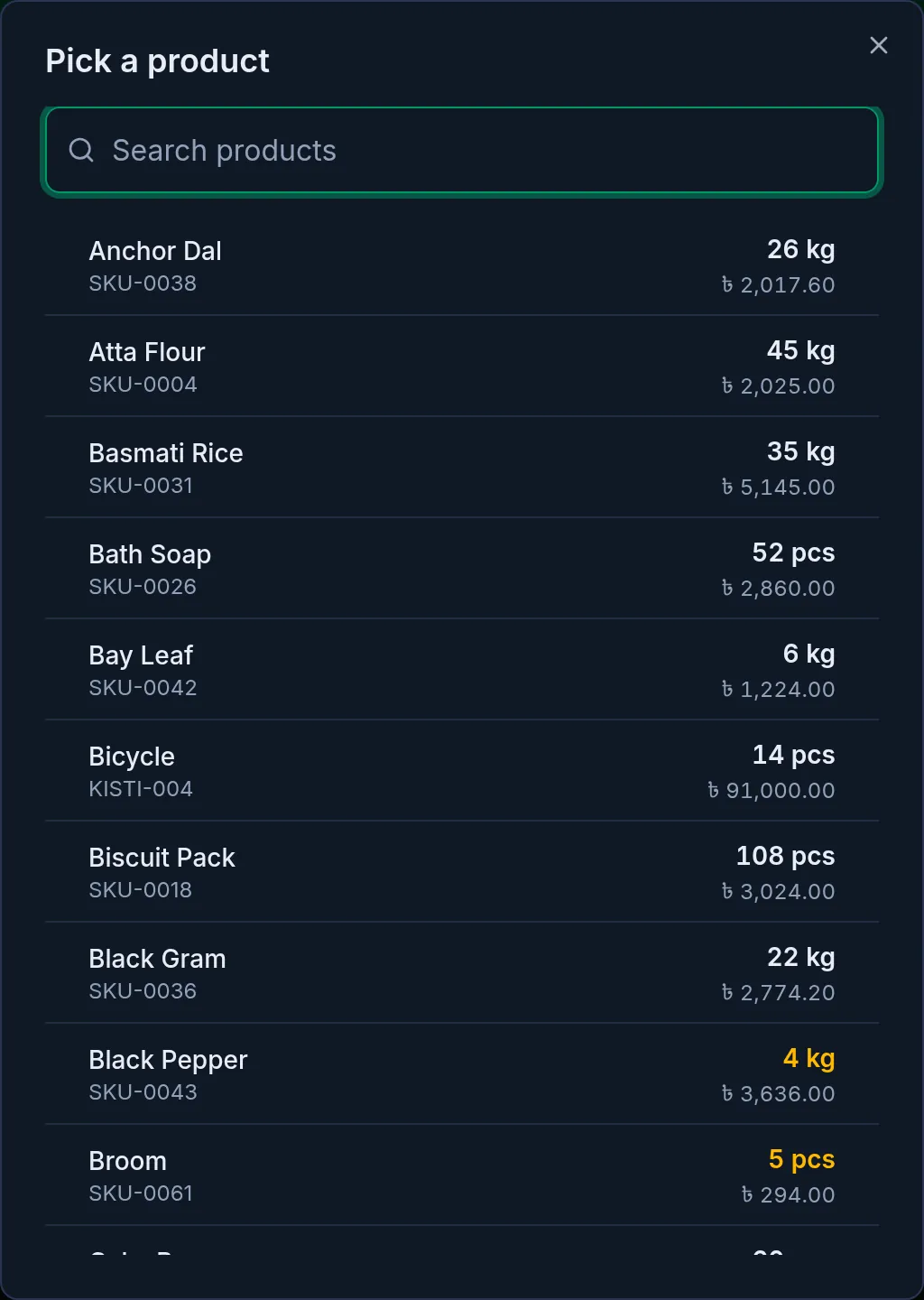
- In Pick a product, type the product's name and choose it.
- Choose Stock in (+) or Stock out (−). Stock out is chosen to begin with.
- Type how much to add or remove. Below it you see what you have now and what you will have after.
- Choose a Reason, add a Note if you like, and click Save adjustment.
On a phone or tablet
- Open Stock from Menu at the bottom.
- Tap the round button in the middle at the bottom: it is Adjust stock.
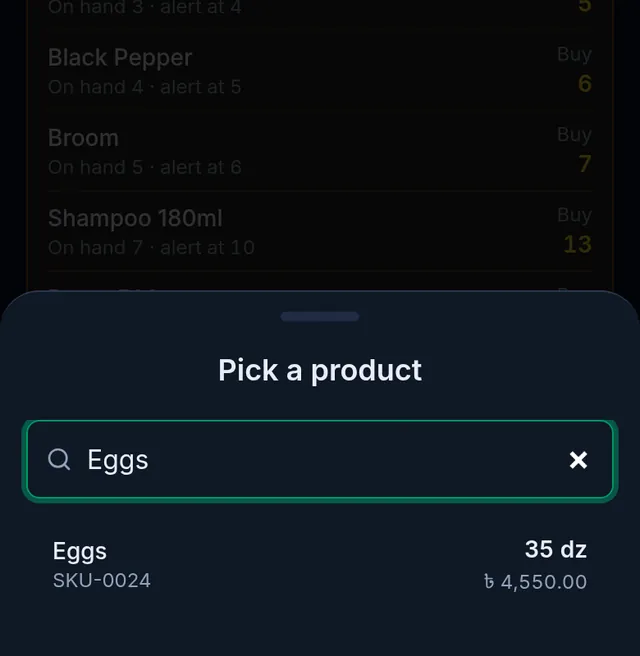
- In Pick a product, type the product's name and choose it.
- Choose Stock in (+) or Stock out (−). Stock out is chosen to begin with.
- Type how much to add or remove on the keypad. Above it you see what you have now and what you will have after.
- Choose a Reason, add a Note if you like, and tap Save adjustment.
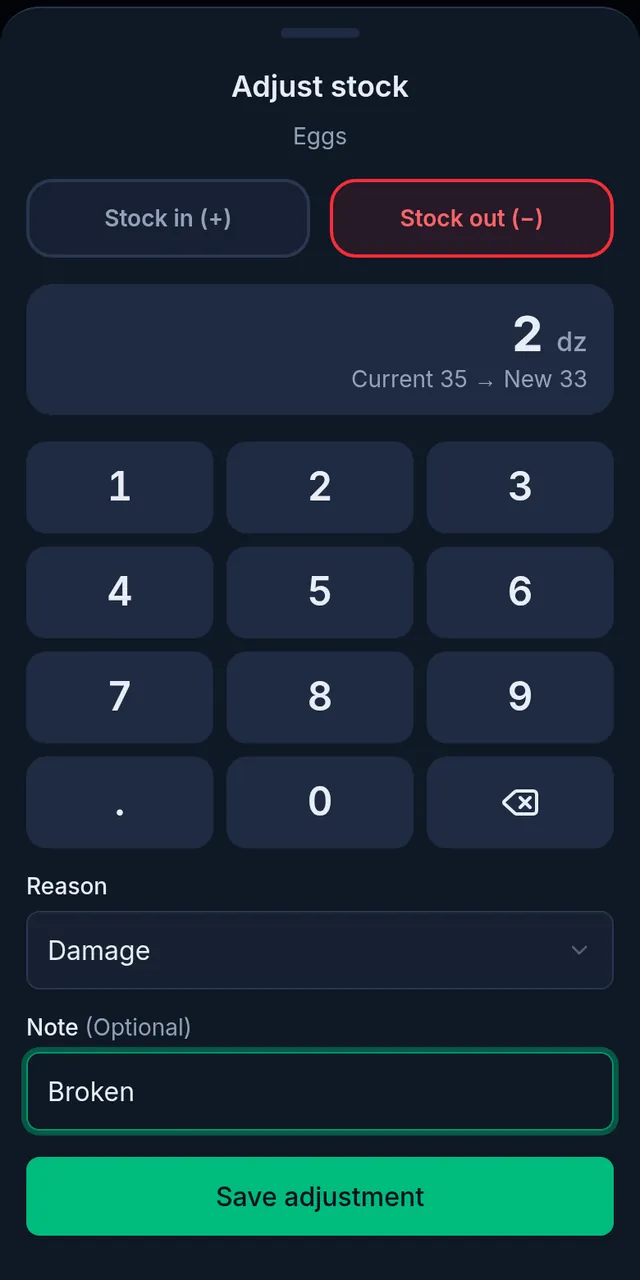
There are five reasons: Damage, Transit loss, Count correction, Lost and Other. If a count finds more than Tukri shows, add stock with Count correction.
After adjusting
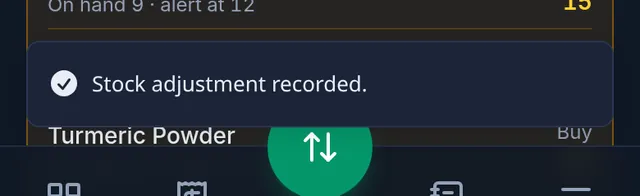
A confirmation appears and the product's stock changes to the new number. Who adjusted it, when and why stays in the shop's activity log.
If something goes wrong
I entered the wrong number. An adjustment cannot be edited or deleted. Make an opposite one: if you removed 2 by mistake, add 2 with the reason Count correction.
It will not let the stock go below zero. You cannot remove more than you have, unless Allow selling below stock is on in your shop settings.
It asks for a lot. For a product with batches and expiry, adding stock asks which lot it goes into (or a new one), and removing asks which lot it comes out of. More: Batches and expiry dates.
Watch the video

What the video says
Goods got damaged, or the count doesn't match? Adjust the stock in Tukri.
Open Stock from the menu at the bottom. Then tap the round button in the middle, that's Adjust stock.
Type the product's name to search, then tap the product.
Now choose Stock in or Stock out. Stock out is chosen to begin with. On the keypad, type how much to remove or add. At the top you see how much you have now, and how much you'll have after.
Then choose a reason, such as Damage. Add a short note if you like. Finally, tap Save adjustment.
Done! The stock changes to the new number. If a count finds more, use Stock in with the reason Count correction.
Remember, an adjustment can't be changed later. If you made a mistake, make an opposite one. And when you buy new goods, don't adjust: record a purchase.
Keep your stock exactly right, tukri.bd
Related articles
- Record a purchase and receive stock When goods arrive from a supplier, record the purchase: stock goes up, the cost price is updated, and what you did not pay is added to what you owe them.
- Enter opening stock Enter the goods you already have as opening stock when you add a product. After that, stock changes through purchases, sales and adjustments.
- Low stock alerts and seeing what is running low Set a low stock level per product or for the whole shop, see what to reorder on the Stock page, and get an alert on the owner's and admins' phones.
- Batches and expiry dates Keep a product's stock in lots with a batch number and expiry date. Sales take the earliest-expiring lot first, and expired lots can be blocked and written off.
Still need help?
Write to us, call or send a WhatsApp message, and someone from Tukri will help you.
