

On this page
Opening stock is the goods already in your shop before you started using Tukri. You enter it once, on the Stock step, when you add the product. It only sets the starting count: no money leaves any account and nothing is owed to a supplier.
Before you begin
- You need permission to add products. The Owner, Admin and Staff roles all have it.
- Count or weigh the goods first. The field is not available later.
Enter the opening stock
The steps are the same on a computer and a phone.
- Open the new product form and fill in the name, unit and prices on the Basics step. How: Add a new product.
- Choose Next. The Stock step opens.
- In Opening stock, type how much you have now, in the product's unit: how many pieces, or how many kilograms. Decimals are allowed, such as 12.5.
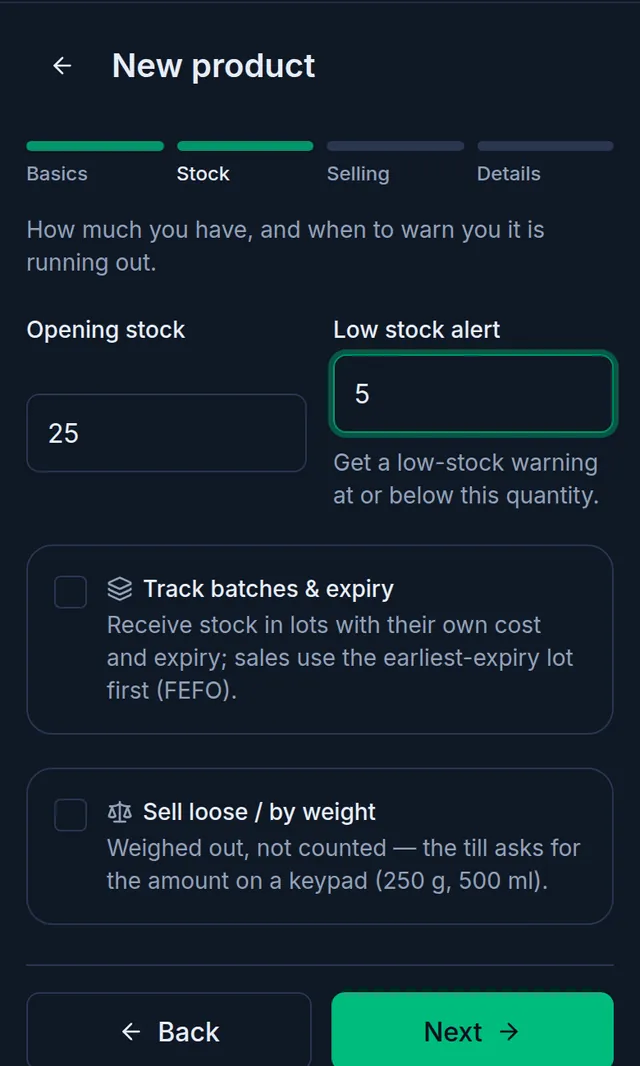
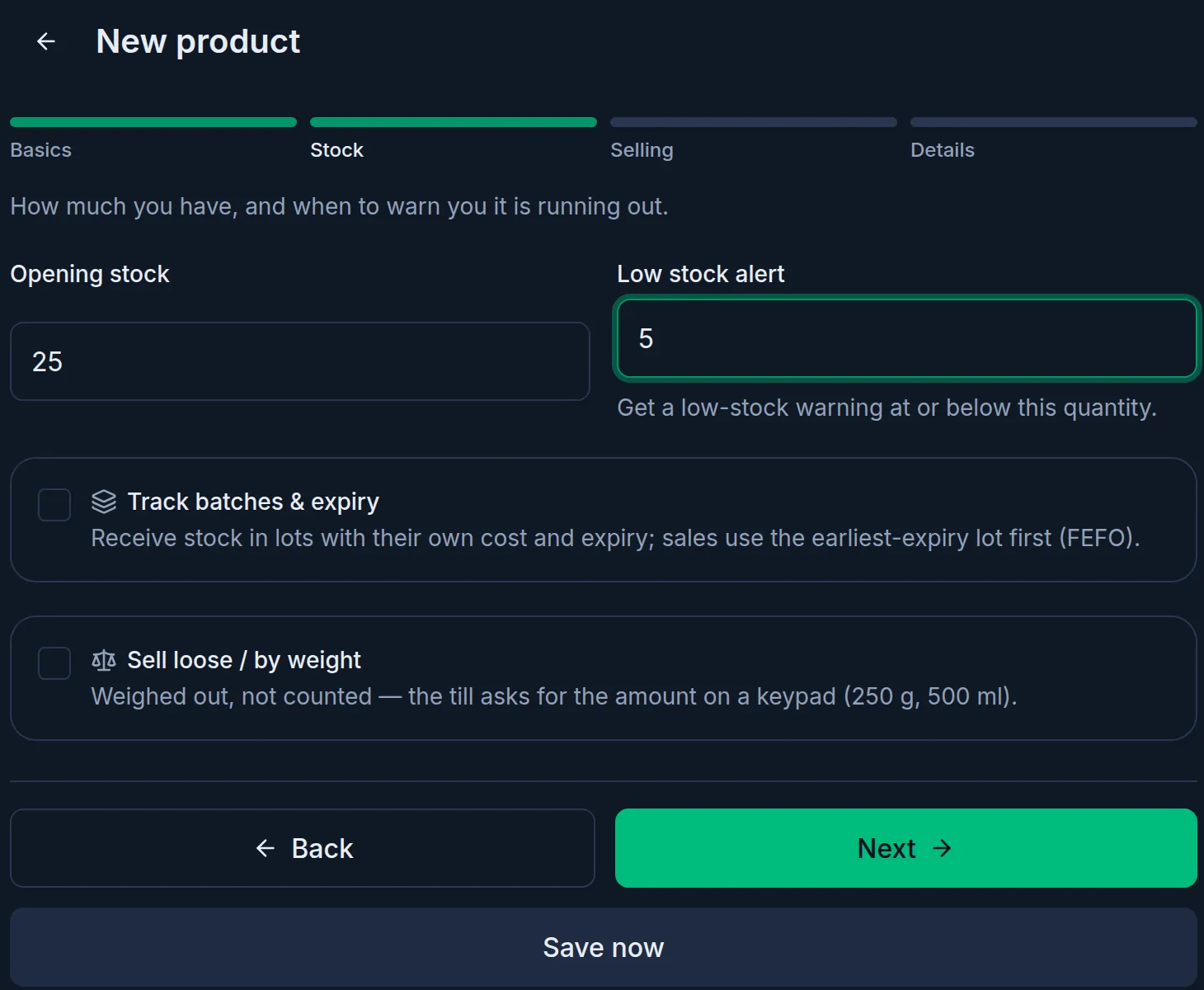
- If you like, fill in Low stock alert beside it: Tukri warns you when the stock is at or below this number.
- Choose Save now, or go on with Next and choose Save at the end.
After saving
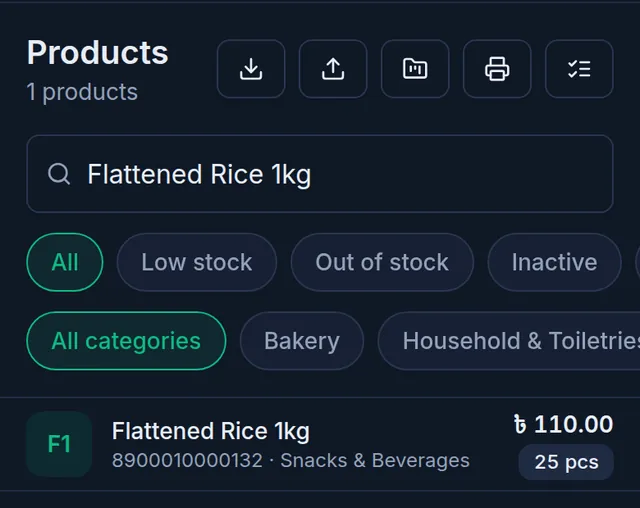
The product appears in the product list and at the till with this stock. In your total stock value it is counted at the product's Cost price.
Opening stock, purchases and adjustments
- Opening stock: goods you already have. Entered once, when the product is added. No money or supplier is involved.
- A purchase: goods you buy. Stock goes up, the product's cost price becomes this purchase's price, what you paid leaves its account and the rest is owed to the supplier. See Record a purchase.
- A stock adjustment: for damage, loss or a wrong count. Each one needs a reason. See Adjust stock.
Opening stock for special products
- Products with variants: do not enter opening stock on the Stock step. Enter it on each variant's row instead. A variant added later takes opening stock on its new row only. See Product variants.
- Products with batches and expiry: when Track batches & expiry is ticked, the opening stock also asks for the Batch / lot no and Expiry date. See Batches and expiry dates.
- Many products from a CSV file: the file's opening stock is used for new products only; it never changes the stock of a product you already have. See Import products with a CSV file.
If something goes wrong
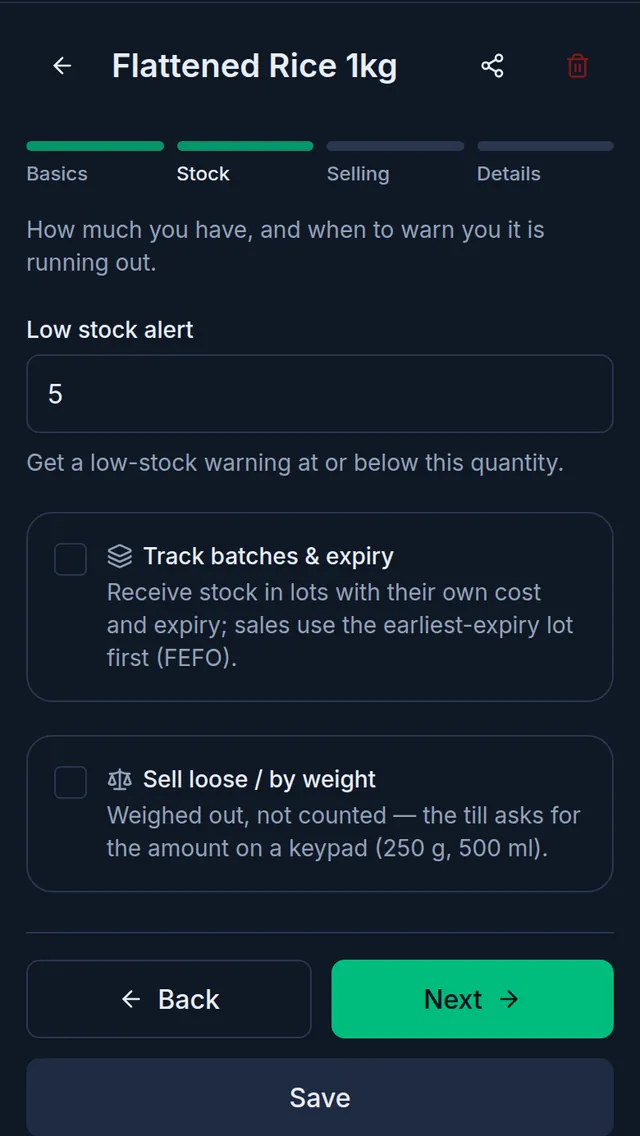
There is no opening stock field when editing. That is expected: opening stock is only for adding a product. The Stock step of the edit form has just the Low stock alert.
I forgot the opening stock, or entered the wrong number. Adjust the stock: if you entered too little, choose Stock in (+); too much, Stock out (−); with the reason Count correction. You can write "opening stock" in the note.
New goods have arrived. Where do I add them? Not as opening stock: record a purchase, so the cost and the supplier are kept too.
Watch the video
What the video says
Already have goods in your shop? And how will you know when stock runs low? Let's look at opening stock and low stock.
In a new product's Stock step, enter how much you have now in Opening stock. In the product's unit: how many pieces, or how many kilos. No money is spent, and nothing is owed to a supplier.
In Low stock alert beside it, enter the level at which Tukri warns you. Then press Save now.
Opening stock can be entered only once; the field isn't there when you edit. When new goods arrive, record a purchase, and if a count is wrong, adjust the stock.
For products without their own level, open Shop in Settings, and on the Selling & stock tab, fill in Default low-stock alert level and press Save.
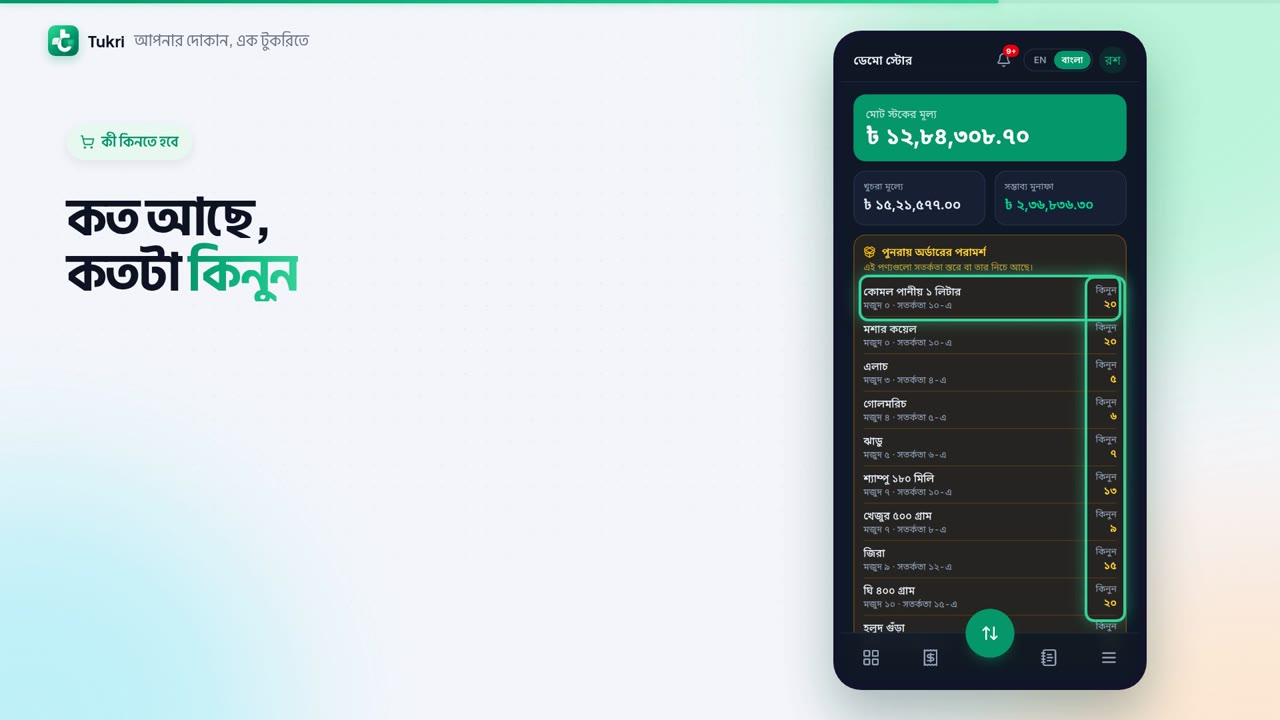
What to buy? Open Stock from the Menu. Reorder suggestions show how much you have, and how much to buy. The Dashboard's Low stock card shows it too.
The Owner and Admins can also get a notification on their phone. The written guide has the steps to turn it on.
Know before your stock runs out, tukri.bd
Related articles
- Adjust stock: damage, loss or a count correction Add or remove stock with a reason when goods are damaged, lost or miscounted, and fix a wrong adjustment with an opposite one.
- Record a purchase and receive stock When goods arrive from a supplier, record the purchase: stock goes up, the cost price is updated, and what you did not pay is added to what you owe them.
Still need help?
Write to us, call or send a WhatsApp message, and someone from Tukri will help you.
