

On this page
When you sell one thing in several versions, such as 250 ml, 500 ml and 1 litre bottles, or small and large sizes, keep them as Variant rows of one product instead of separate products. Each variant has its own price, SKU, barcode and stock. At the till, tapping the product asks which variant to add.
Before you begin
- You need permission to add and edit products. The Owner, Admin and Staff roles all have it.
- A product with variants cannot also use Pack & bulk units, Sell loose / by weight or Track batches & expiry. If you need those, add each version as its own product.
- Each variant is one name you type (for example "Small / Red"). Every size and colour pair is its own row; Tukri does not build the size × colour combinations for you.
Add a product with variants
The steps are the same on a computer and a phone. To open the product form, see Add a new product.
- On the Basics step, give the product its name, category and unit. The prices you type here are where the first variant starts.
- Choose Next to pass the Stock step. Do not enter opening stock there: a variant product's stock goes on each variant row.
- On the Selling step, tick This product has variants. The first variant row opens.
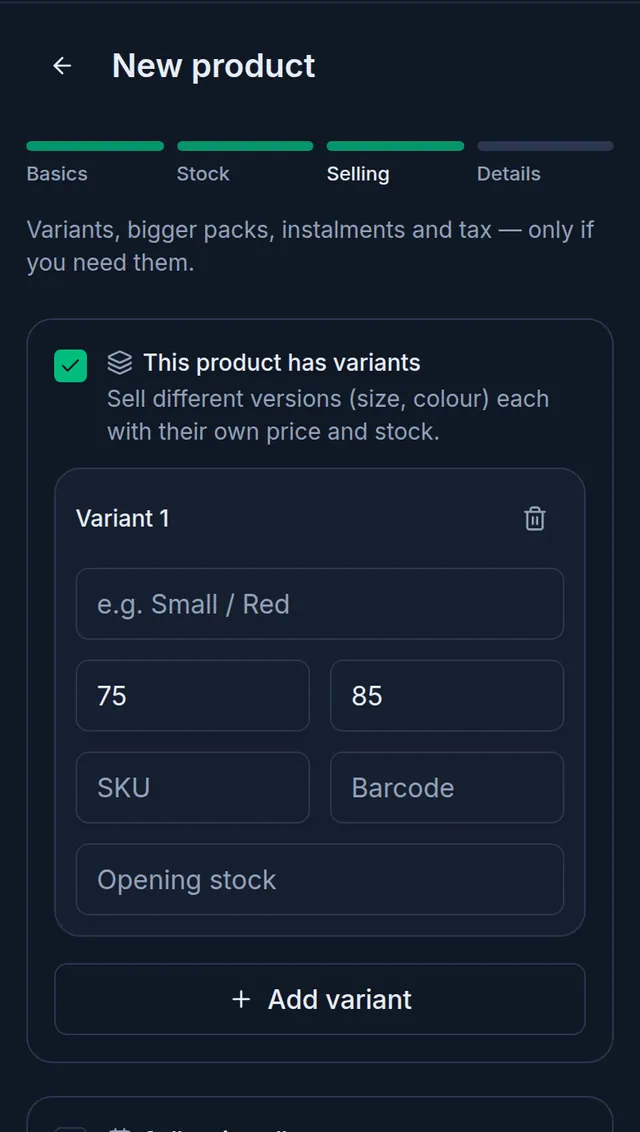
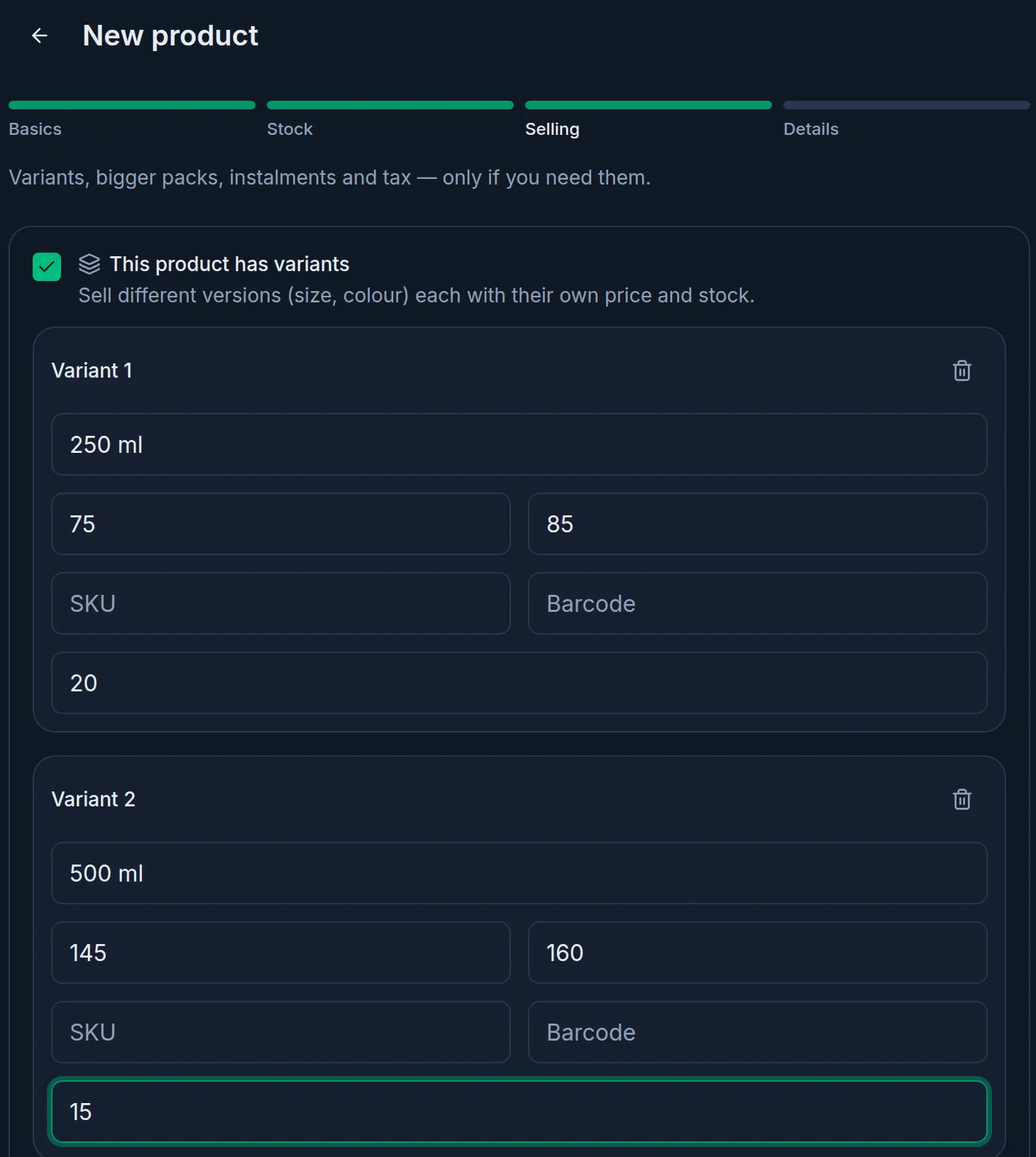
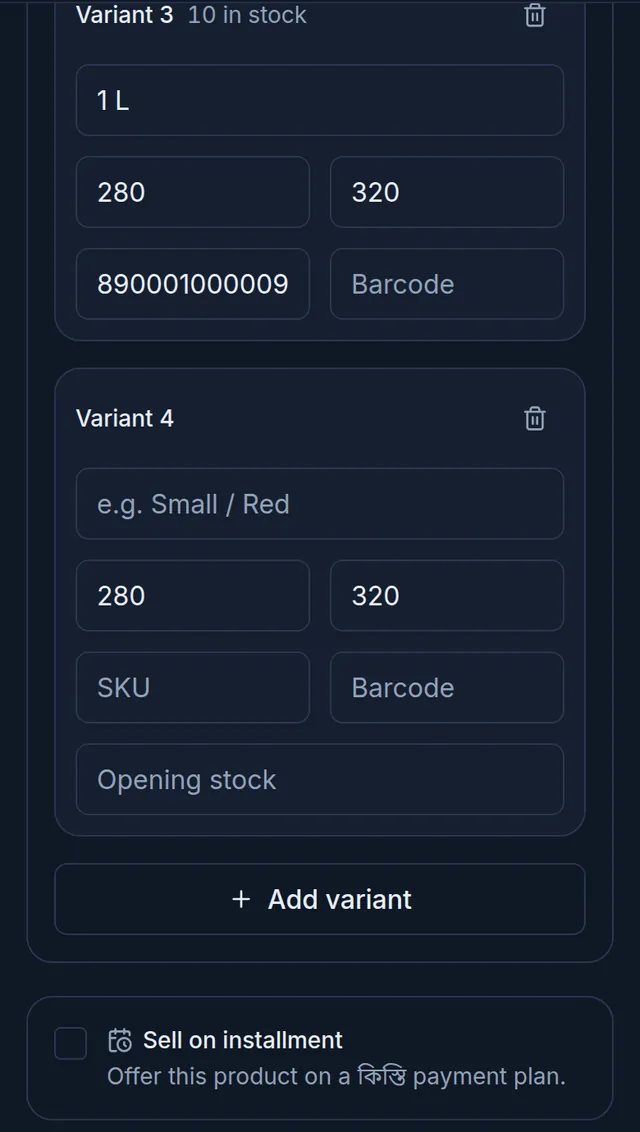
- Fill the row from the top: the variant's name (for example 250 ml), the Cost price and Sale price, then the SKU and Barcode, and last the Opening stock: how many of this variant you have now. Leave the SKU empty and Tukri gives each variant its own 13-digit number.
- For another variant, choose Add variant. The new row starts with the previous row's prices; change them if needed. To drop a row, tap the bin icon at its top.
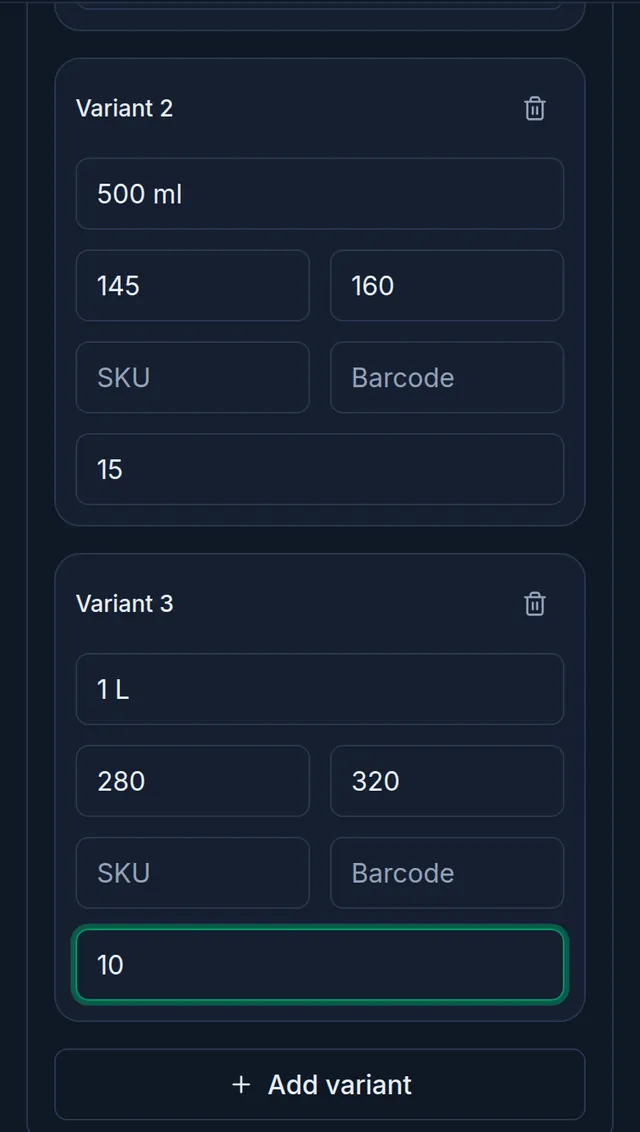
- Choose Next to reach Details, then Save. The message "Product added." appears.
Selling a variant
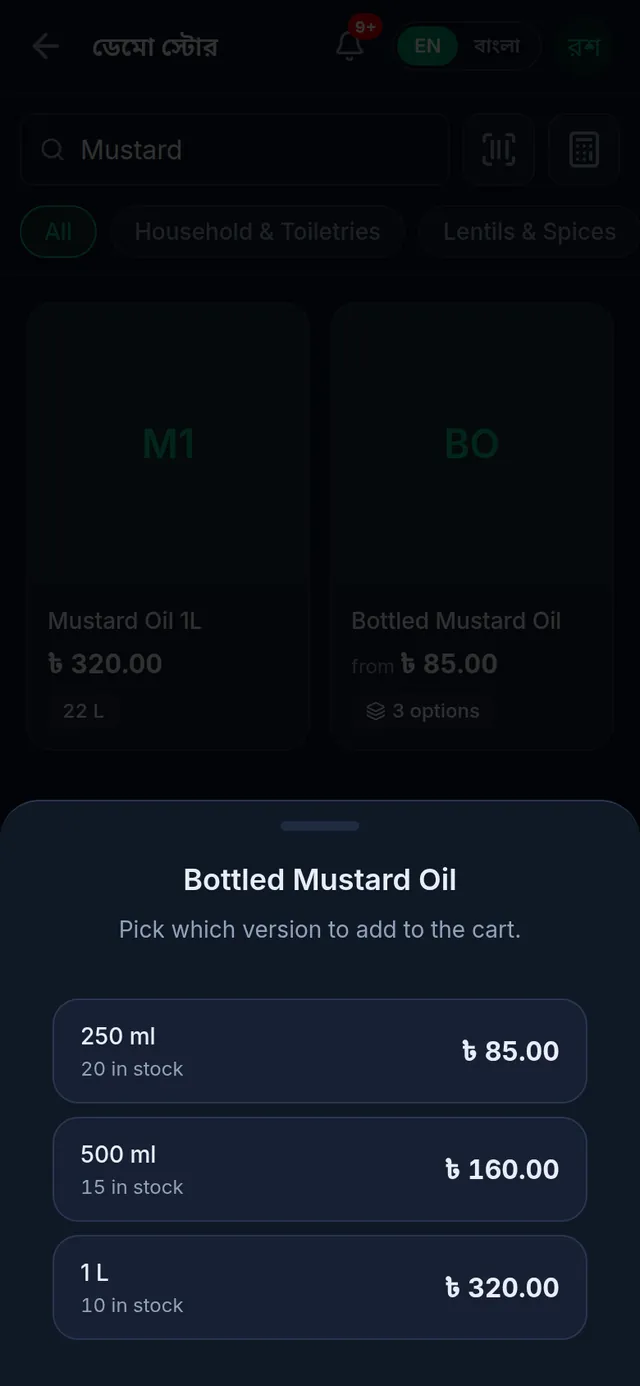
At the till, a variant product's card shows its lowest price with "from", and how many variants it has.
- Tap the product's card. A list opens saying "Pick which version to add to the cart.", with each variant's price and stock.
- Tap the one you are selling. It goes into the cart.
A variant with no stock left is greyed out and cannot be chosen, unless Allow selling below stock is on in your shop settings. Scanning a variant's own SKU or barcode puts exactly that variant in the cart, without the list.
Stock and prices
- The product's stock is the total of all its variants. The product list shows that total.
- When new goods arrive, record a purchase: searching for the product lists each variant on its own line. When a count is wrong, adjust the stock and choose the Variant there.
- To change a variant's price, edit the product, go to the Selling step, change that row's price and choose Save.
- A variant product has no Low stock alert field. Its total stock across all variants is checked against the shop's default low stock level. See Low stock alerts.
Add or remove a variant later
- Open the product from Products and go to the Selling step. Each existing row shows how much stock it has.
- Choose Add variant, and give the new row its name, prices and Opening stock. Opening stock can only be entered on a new row, never on an existing one.
- Choose Save.
To stop selling a variant, tap the bin icon on its row and choose Save. It no longer appears at the till and its stock leaves the product's total. Past sales stay exactly as they were.
If something goes wrong
There are no pack unit or loose selling options. They are hidden while variants are on. If you need packs or selling by weight, add that version as a separate product.
Saving with variants turned on gives a message about a pack. Purchases, quotations or parcels were already recorded in one of the product's packs, and they must keep it, so this product cannot switch to variants. Nothing was changed.
Saving says the product has stock and turning on variants would lose it. Variants can be turned on only for a product with zero stock. Either bring its stock to zero with Adjust stock and add the goods to the variants, or add a new product with variants and make the old one inactive once its goods are sold (Edit, hide or delete a product).
Printing labels complains about a variant's name. Labels print in English letters only. Write variant names in English, such as 1 L or Small. See Barcodes and labels.
Watch the video
What the video says
Want to sort rice, lentils and oil into groups? And sell one item in many sizes? Let's look at categories and variants.
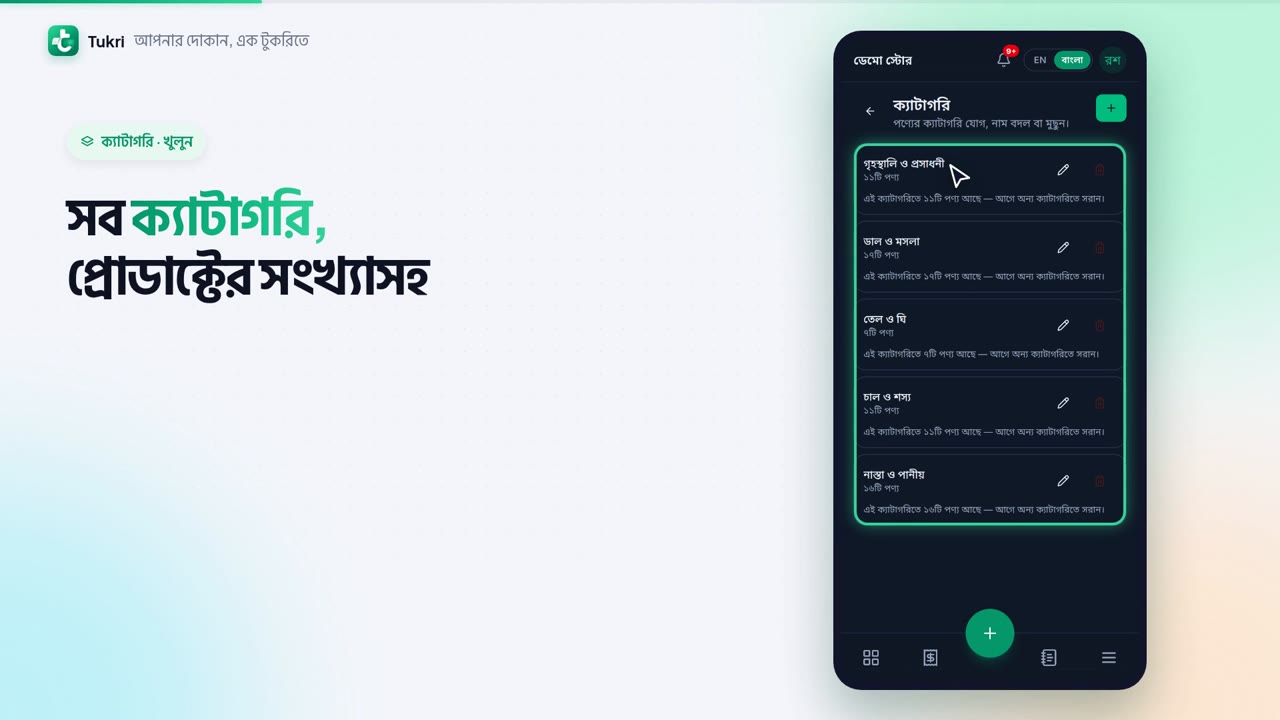
Open Products from the Menu. Tap the folder icon at the top. Here are all your categories, with how many products each has.
For a new category, press +. Type the Name, and the Bangla name if you like. Then press Save. Done, it's in the list.
To rename one, tap the pencil. To delete one, press the red bin, but only an empty category can be deleted.
Now, one product in many sizes. Go to a new product's Selling step. Tick This product has variants.
On each row, enter the size's name, the Cost price and the Sale price. Below that, the Opening stock: how many you have now. For another size, press Add variant. Then Next, and Save.
At the till, the card shows the lowest price. Tap it, and you're asked which size to add. Tap a size to add it to the cart.
One thing: a product that has stock can't have variants turned on; Tukri won't let you save it. First adjust its stock to zero, or add a new product with variants.
Keep your shop organised, tukri.bd
Related articles
- Make a sale at the till Add products to the cart, take payment and complete the sale, step by step on a computer or a phone.
- Scan barcodes, find products and print barcode labels Search by name at the till, or scan with the camera or a barcode scanner. Print barcode labels for your products, or save them as a PDF.
Still need help?
Write to us, call or send a WhatsApp message, and someone from Tukri will help you.
