

On this page
To change a product's price, name, category or anything else, open it and edit it. To stop selling a product, make it inactive: it stays in your list but no longer appears at the till. A product that has never been sold can also be deleted, and a deleted product can be restored later.
Before you begin
- Editing, making inactive, deleting one product and restoring need permission to add and edit products. The Owner, Admin and Staff roles all have it.
- Deleting many products at once needs a separate permission, Bulk product tools. It starts with the Owner and Admin roles; the owner can give it to other roles under Settings › Roles.
Edit a product
On a computer
- Open Products in the menu on the left and click the product's name. To find it, type its name, SKU or barcode in the search box at the top.
- Change what you need. Click Basics, Stock, Selling or Details at the top to jump straight to a step.
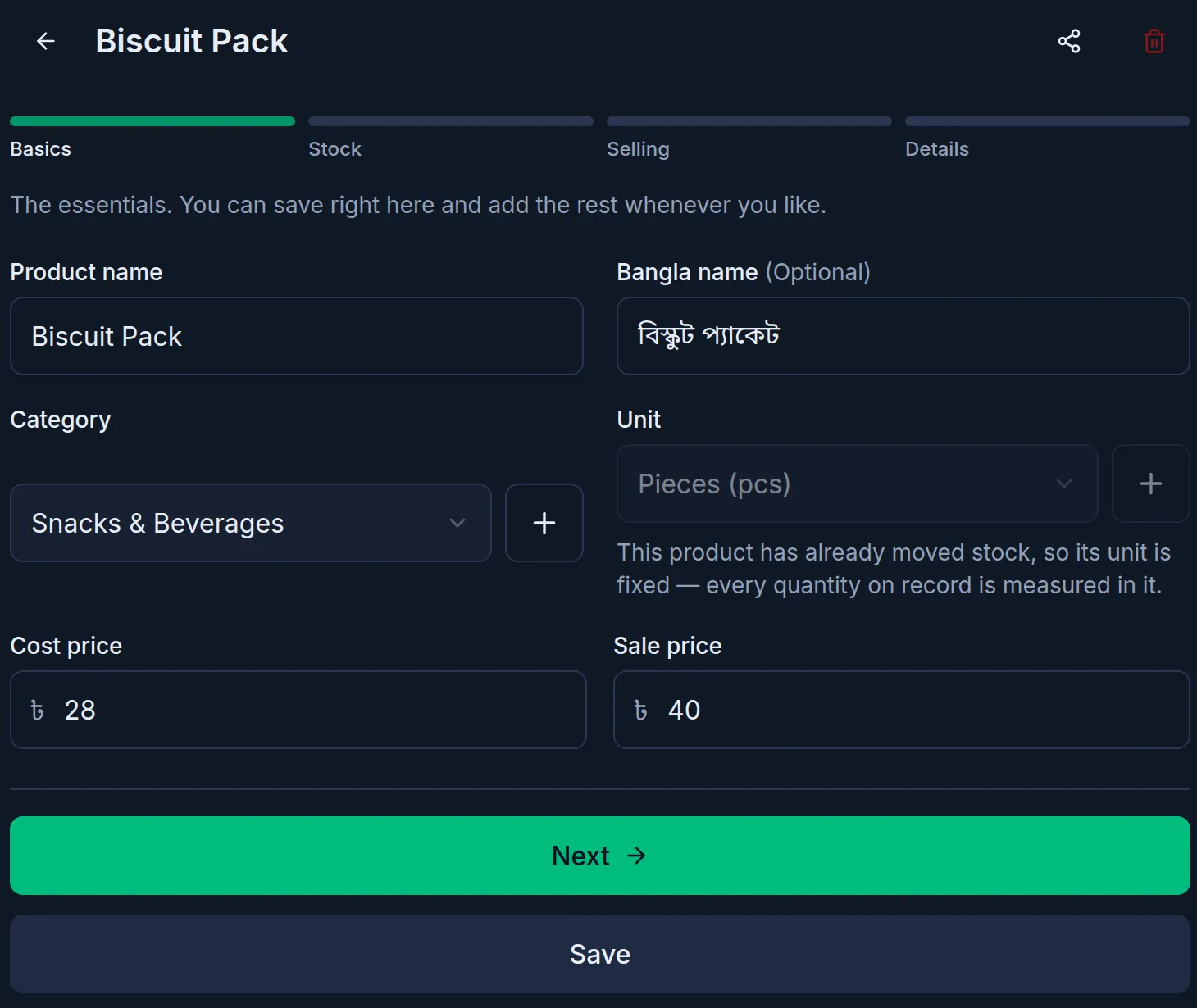
- Click Save. You can save from any step.
On a phone or tablet
- Open Products from Menu at the bottom and tap the product.
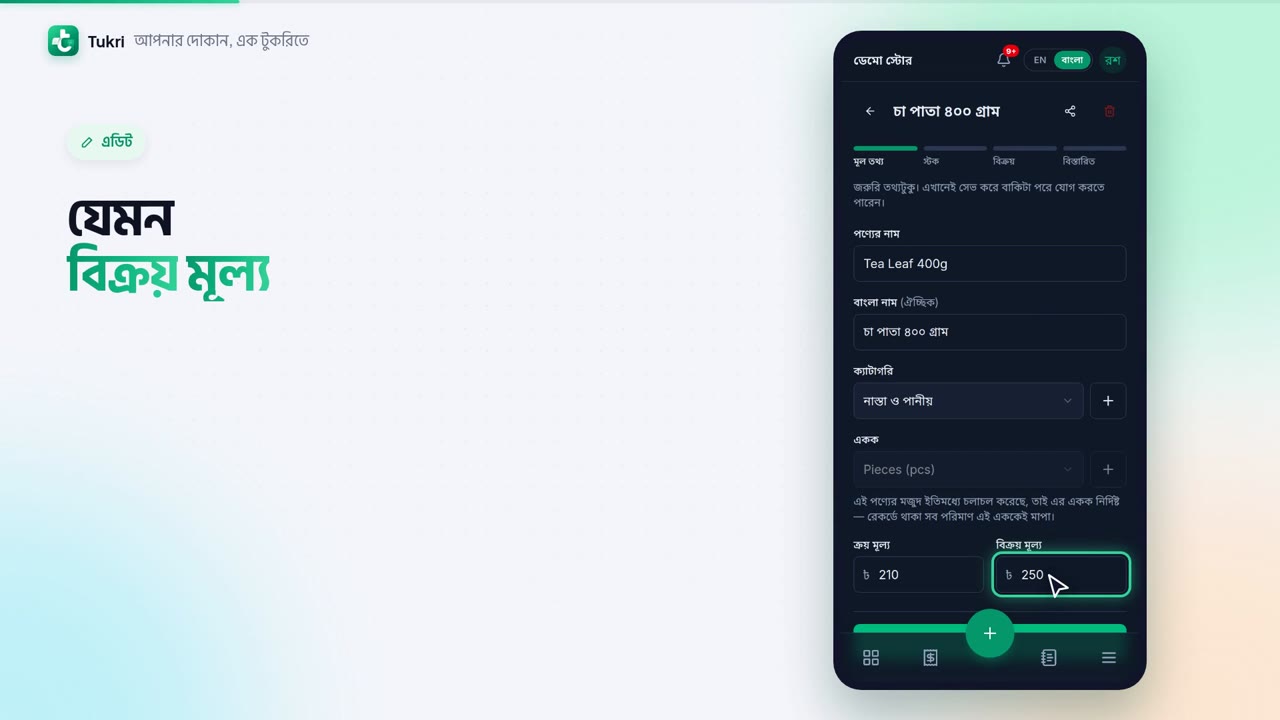
- Change what you need, for example the Sale price. Tap a step name at the top to jump straight to it.
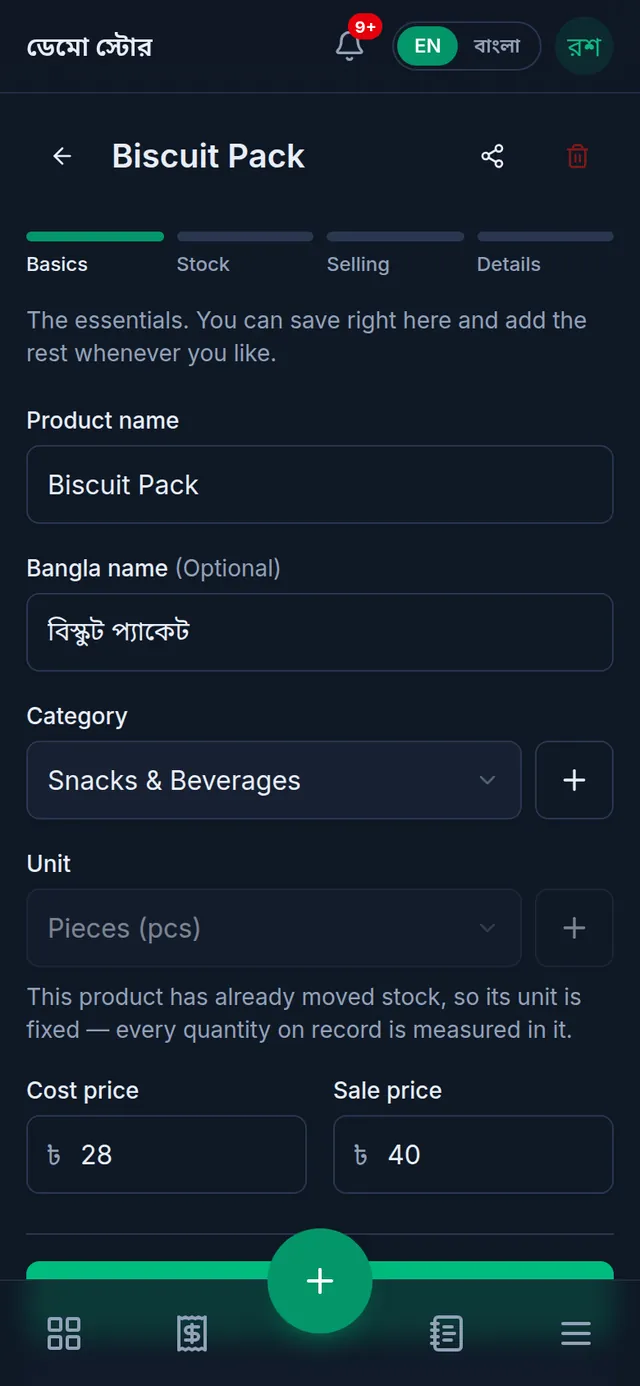
- Tap Save. You can save from any step.
When it is saved, "Product updated." appears and you are back on the product list.
A new price applies only to sales from now on. Earlier sales and invoices keep the price they were sold at. To give one customer a different price just once, do not change the product: see Sell at a special rate.
What editing cannot change:
- Stock. The edit form has no stock field. When new goods arrive, record a purchase; when a count is wrong, adjust the stock.
- The unit, once the product's stock has been bought, sold or adjusted.
- The SKU: emptying the field and saving keeps the current SKU.
Stop selling a product: make it inactive
For a product you no longer want, especially one that has been sold before, make it inactive instead of deleting it.
- Open the product and go to the Details step at the top.
- Untick Active at the bottom.
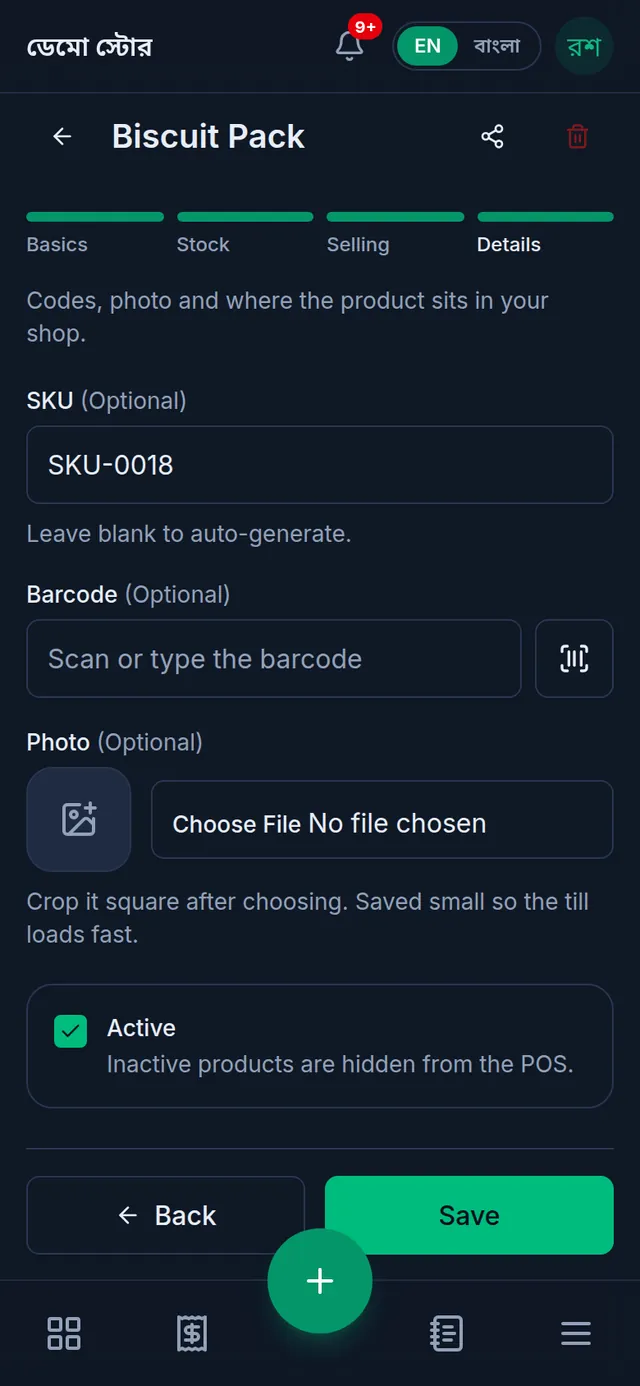
- Tap Save.
Inactive products are hidden from the POS. It is not offered when recording a purchase either. The product stays in the Products list; tap Inactive to find it. To sell it again, tick Active and save.
Delete a product
- Open the product.
- Tap the red bin icon at the top right. Nothing is deleted yet.
- You are asked "Delete this product?", with the product's name. Tap Delete product to delete it, or Cancel to keep it.
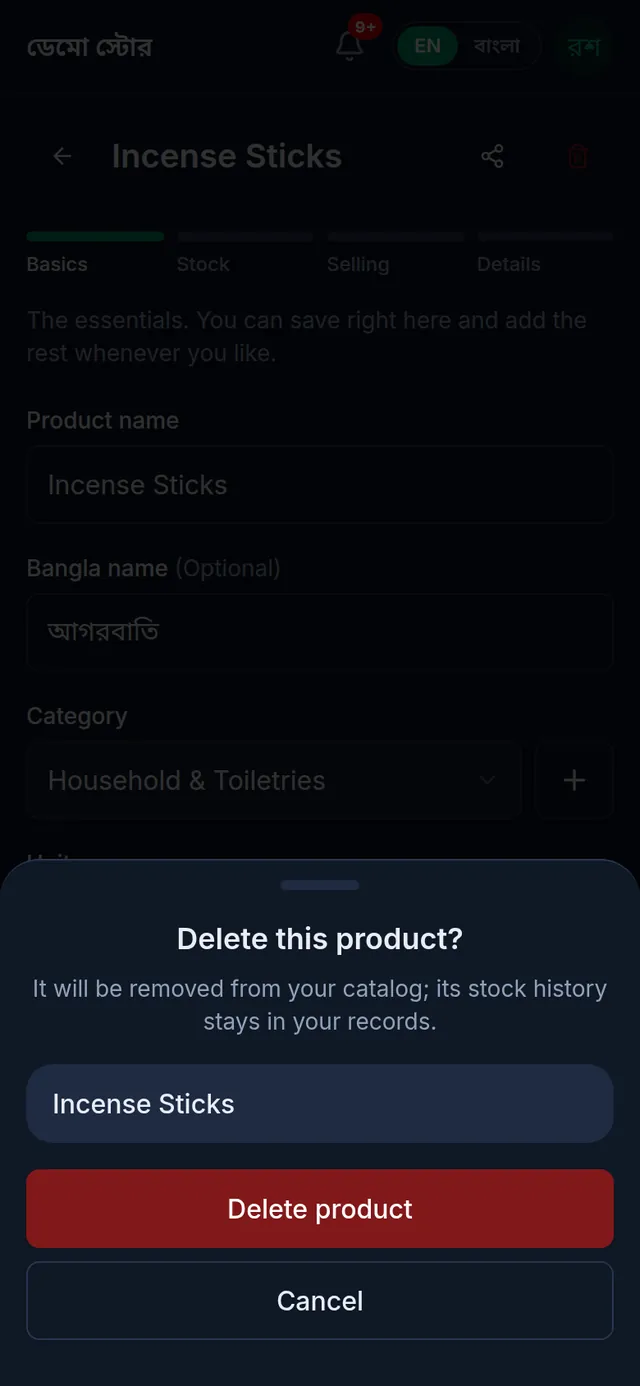
When it is deleted, "Product deleted." appears. The product leaves the list and the till and moves to the Deleted list. Its stock history stays in your records, and stock on hand does not stop a delete. Deleting a product with variants deletes its variants too.
Products that cannot be deleted
If a product cannot be deleted, the reason appears in red in the same window and only Close is left.
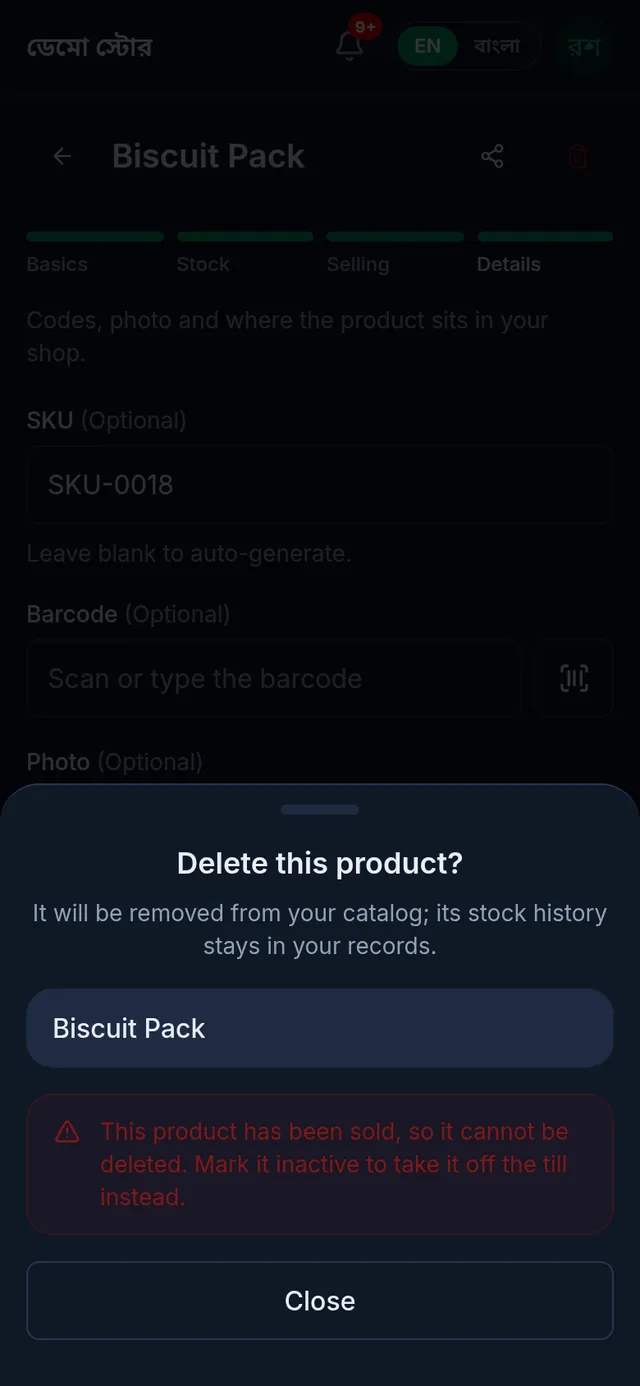
- "This product has been sold, so it cannot be deleted. Mark it inactive to take it off the till instead." A product sold even once (including one later returned or cancelled, and one sold on installment) can never be deleted, so old invoices stay complete. Make it inactive instead, as shown above.
- "This product is on an open purchase order. Receive or cancel the order first, then delete the product."
- "This product is on an open quotation. Invoice or cancel the quotation first, then delete the product."
- "This product is part of a bundle. Remove it from the bundle first, then delete the product."
Restore a deleted product
- In the Products list, tap Deleted at the top.
- Tap Restore beside the product.
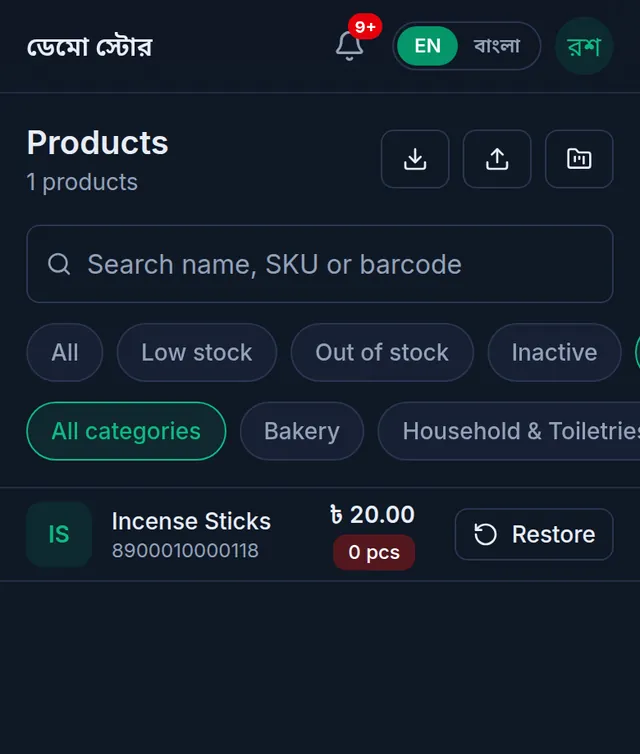
- Choose its Category. Deleting released its old category, so you choose one again.
- Tap Restore product. "Product restored." appears.
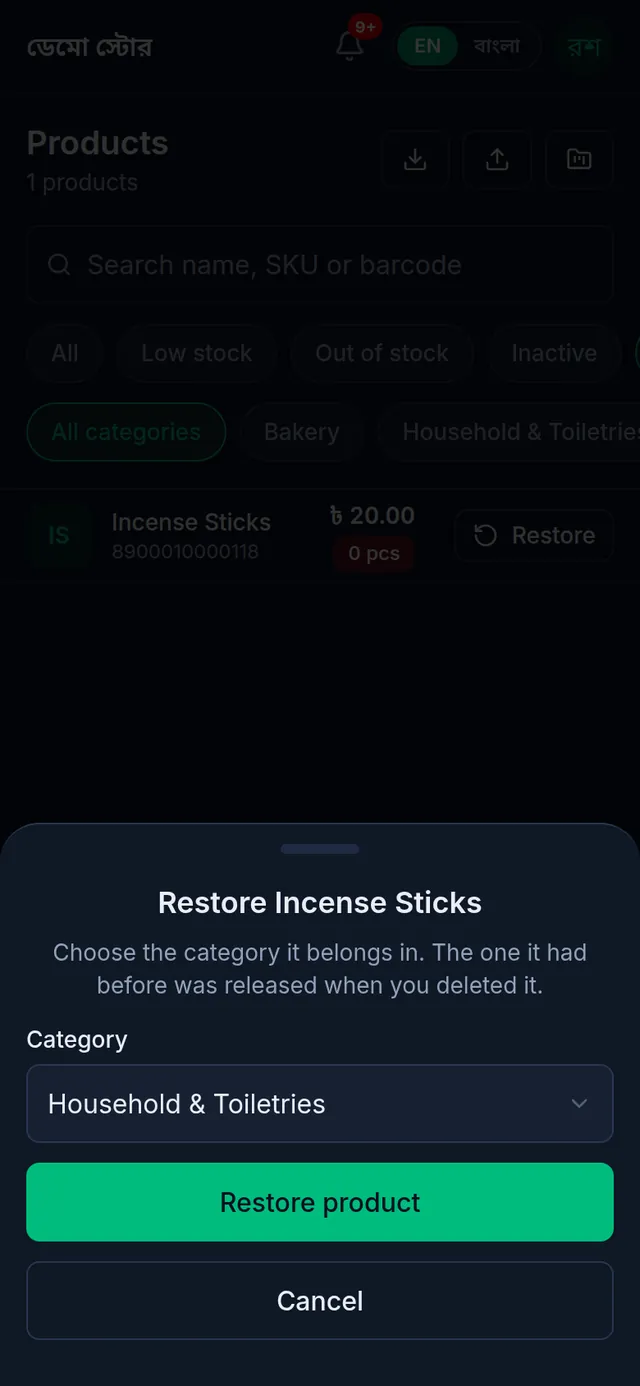
The variants deleted with the product come back too. A restored product counts towards your plan's number of products again.
Delete many products at once
Useful for clearing out products imported by mistake.
- In the Products list, tap Select at the top. On a phone it is the ticked-list icon.
- Tick the products to delete. The select-all button at the top selects every product matching the current search and filters, not just the ones on screen.
- Tap Delete selected. You are shown how many are selected and asked to confirm; tap Delete selected again.
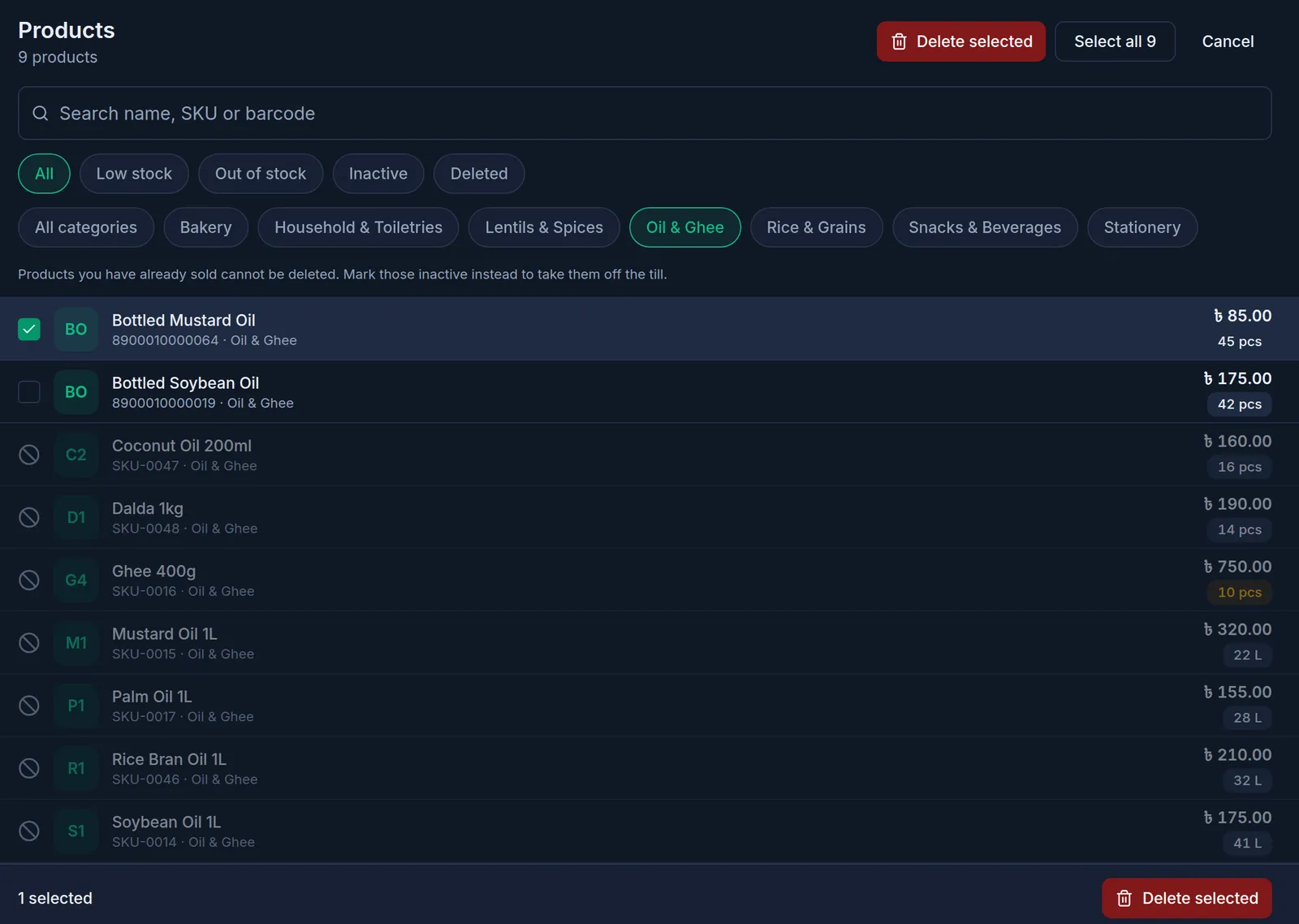
Sold products show a no-entry sign instead of a tick box and cannot be selected. Products on an open purchase order, quotation or bundle can be ticked but are kept. The message at the end says how many were deleted and how many were kept. A very large selection is not deleted in one go: if the message says some still match, select them again and delete.
If something goes wrong
There is no button to delete for good. Deleted products stay in the Deleted list; there is no permanent delete.
A new product will not take the SKU of a deleted one. A deleted product keeps its SKU. Restore that product, or use a different SKU.
Restoring is refused and the plan limit is mentioned. Your plan's number of products is full. Choose a bigger plan, or delete another product to make room. See Your plan.
The unit cannot be changed. This product has already moved stock, so its unit is fixed — every quantity on record is measured in it. To sell in another unit, add a new product.
Watch the video
What the video says
Changing a product's price? Or not selling it any more? Let's see it all, from editing to deleting.
Open Products from the Menu and tap the product. Change what you need, such as the Sale price. Tap a step name at the top to jump straight to another step. Then tap Save.
The new price applies from the next sale; earlier invoices stay as they were. And editing can't change the stock: for that, use a purchase or a stock adjustment.
Not selling it any more? In the Details step, untick Active. It leaves the selling screen, and you find it in the list under Inactive.
To delete, tap the red bin at the top, then Delete product. The product moves to the Deleted list.
But a product sold even once can never be deleted, so old invoices stay complete. Make such a product inactive instead.
Deleted one by mistake? Go to the Deleted list. Tap Restore, choose a category, and tap Restore product.
Keep your products in order, tukri.bd
Related articles
- Sell at a special rate Change one product's price in the cart for this sale only. The product's saved price stays as it is, and the receipt shows the special rate.
- Create, rename and delete product categories Group products into categories such as rice, lentils or oil. Rename a category at any time, and delete one once it is empty.
- Adjust stock: damage, loss or a count correction Add or remove stock with a reason when goods are damaged, lost or miscounted, and fix a wrong adjustment with an opposite one.
Still need help?
Write to us, call or send a WhatsApp message, and someone from Tukri will help you.
