

When you agree a different price with a customer for one product, give that cart line a Special rate. The price changes for this sale only: the product's saved price stays as it is, and the receipt shows the rate you gave.
Before you begin
- Anyone who can sell can give a special rate; there is no separate permission for it. The Owner, Admin and Staff roles all can.
- If you have not sold on Tukri before, start with Make a sale at the till.
Give a special rate
- On the Sell screen, put the product in the cart and set the quantity.
- Open the cart. On a computer it is always on the right, under Current sale. On a phone, tap the green Checkout bar at the bottom to open the Cart.
- On the product's line, to the right of the quantity, there are three icons: a coin, a tag and a bin. Tap the first one, the coin (Special rate).
- In the box that opens, type the price of one unit: one piece, one kg or one dozen, for example. For a line sold by the pack or carton, type the price of one pack. You can type 0 to give it free.
- The line now shows the new rate in green with the regular price struck through beside it, and the line total changes to match. The regular price is also written under the box.
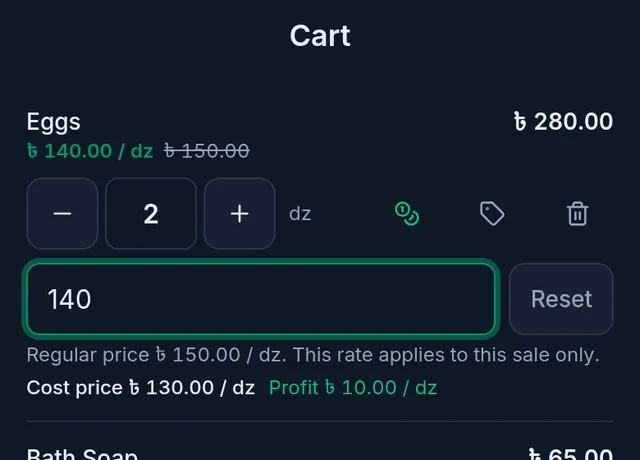
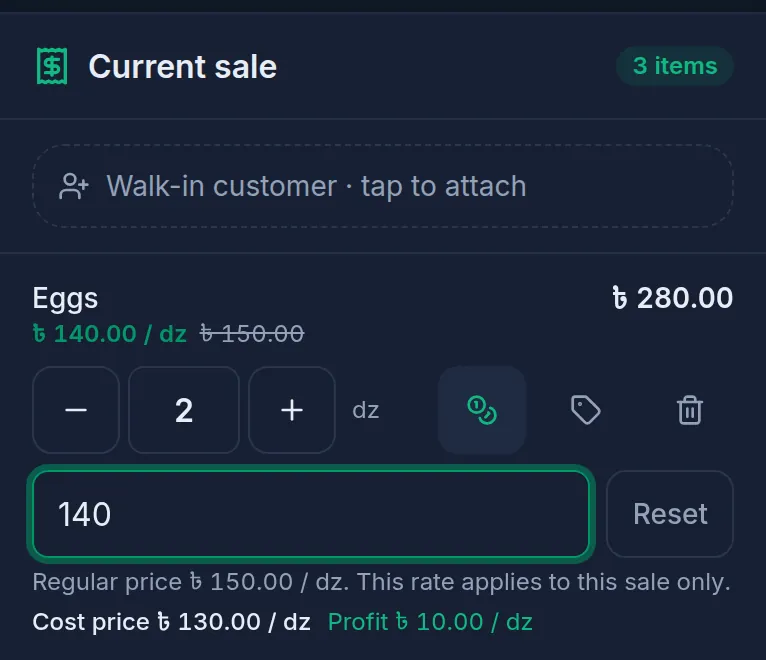
- If you made a mistake or want the regular price back, tap Reset beside the box.
- Finish the sale as usual: tap Take payment, take the payment and complete the sale.
What happens next
- The product's own price does not change. The next sale uses the regular price again. To change the price for good, edit the product: Edit a product.
- The invoice records the line at the special rate. If this item is returned later, the refund is at this rate, not at the shelf price of that day.
- You can still give a line discount on the same line, and a discount on the whole bill comes off after that.
If something goes wrong
I cannot see the cost price. Your role does not have See profit & cost price, so the cost and profit are not shown. You can still give the rate. Without internet the cost is not shown to anyone. When the product has no cost price recorded, the box says "No cost price recorded for this product."
I typed the regular price and nothing changed. The same price as the regular one is not a special rate; the line simply stays at the regular price.
The special rate disappeared. Reloading the page or leaving the till empties the cart. To keep a cart while you serve someone else, tap Hold; a parked cart keeps its special rates.
Watch the video
What the video says
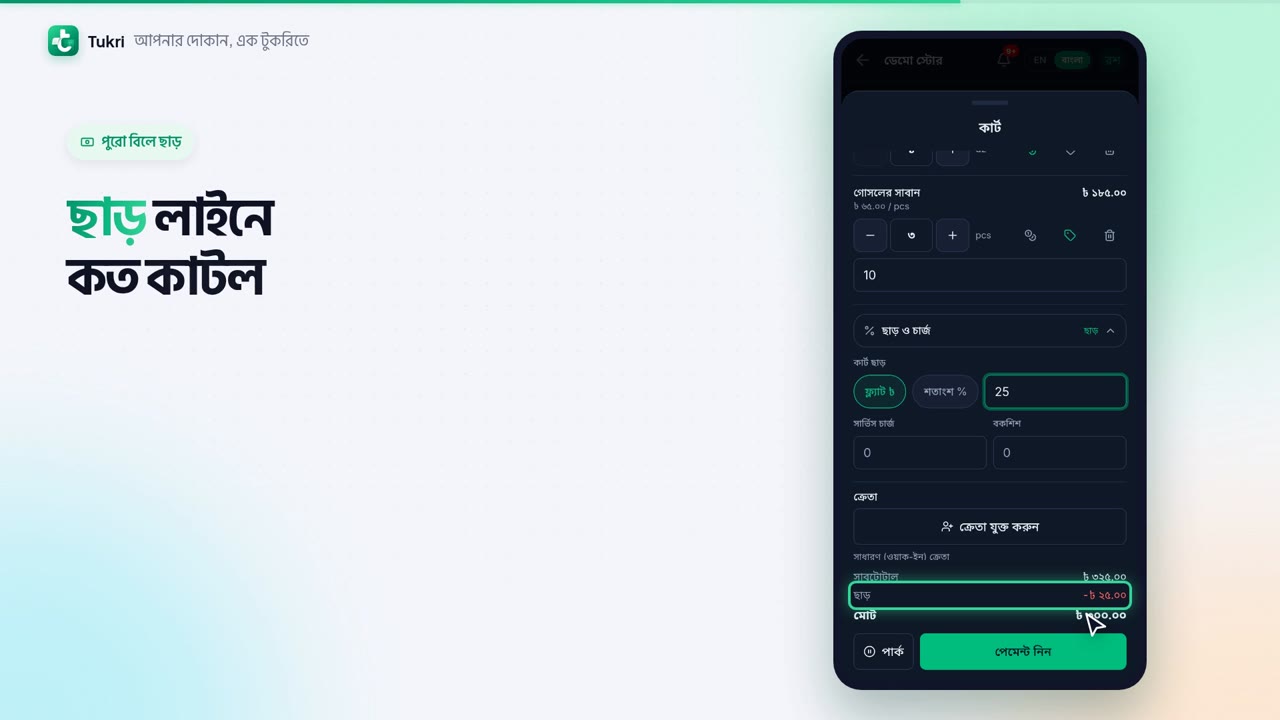
Agreed a lower price with a customer? Or a little off the whole bill? Let's see how to give discounts in Tukri.
Put the products in the cart and tap Checkout on the green bar. Each line has three icons on the right: a coin, a tag and a bin.
To change the price itself, tap the coin icon. Type the new price for one unit, say, 140 for a dozen eggs. The new special rate shows in green, with the old price struck through. The product's real price doesn't change.
To take taka off one line, tap the tag icon. Type the discount for the whole line, such as 10 taka in all on three soaps.
To discount the whole bill, open Discount & charges below. Choose a flat taka amount or a percent, then type the number. The Discount line shows what came off, and the total goes down too.
Now tap Take payment and complete the sale. Discounts and special rates are saved with the sale. Whoever can sell can give a discount.
Bargaining without the hassle, tukri.bd
Related articles
- Discount one item Take a taka amount off one line of the cart. The discount is for the whole line, not each piece, and can never be more than the line.
- Discount the whole bill Take a flat taka amount or a percent off the whole bill, and see the order in which Tukri works out the total payable.
- Edit, deactivate, delete or restore a product Edit a product to change its price or name. Make it inactive to stop selling it. Delete a product that was never sold, and restore it if needed.
Still need help?
Write to us, call or send a WhatsApp message, and someone from Tukri will help you.
