

You sell on Tukri's Sell screen (the till, or POS). Tap products to put them in the cart, take payment and complete the sale. The moment the sale is complete the products leave your stock, and the receipt is ready to print or share.
Before you begin
- Your shop needs at least one product with a price and stock. If it has none yet, first add a product.
- You need permission to sell. The Owner, Admin and Staff roles all have it.
- Your plan's monthly number of invoices must not be used up.
Step by step
On a computer
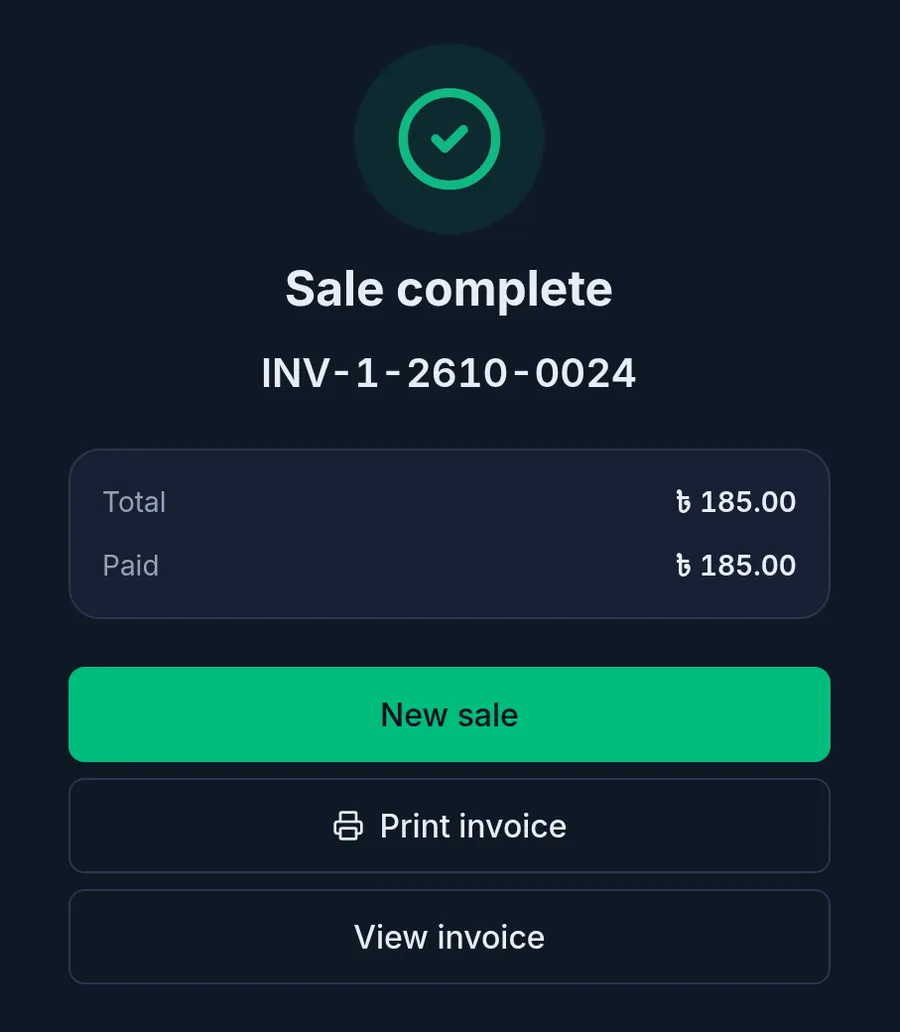
- Choose Sell in the menu on the left. Sell under Quick actions on the Dashboard opens it too.
- Click a product card. Each click adds one, and the product appears on the right under Current sale. To find a product by name or scan its barcode, use the Search or scan barcode box at the top.
- Change a quantity with + and −, or click the number and type it. To take a product out, click its bin icon.
- Click Take payment at the bottom.
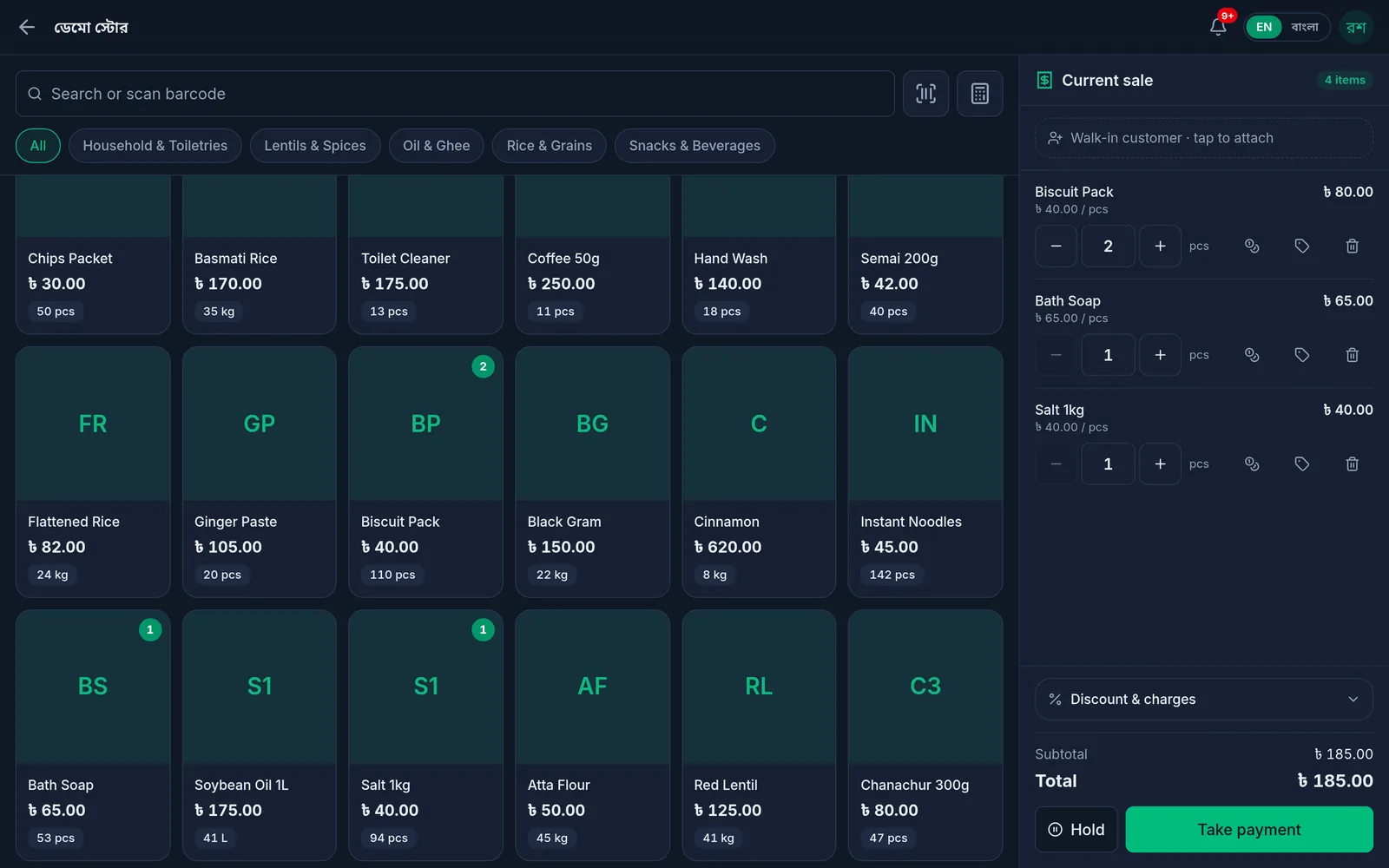
- In Payment, choose the account the money goes into (for example Cash), then type what the customer gave you on the keypad. If they paid the whole bill, Exact amount fills it in. If they gave more, the Change to hand back is shown.
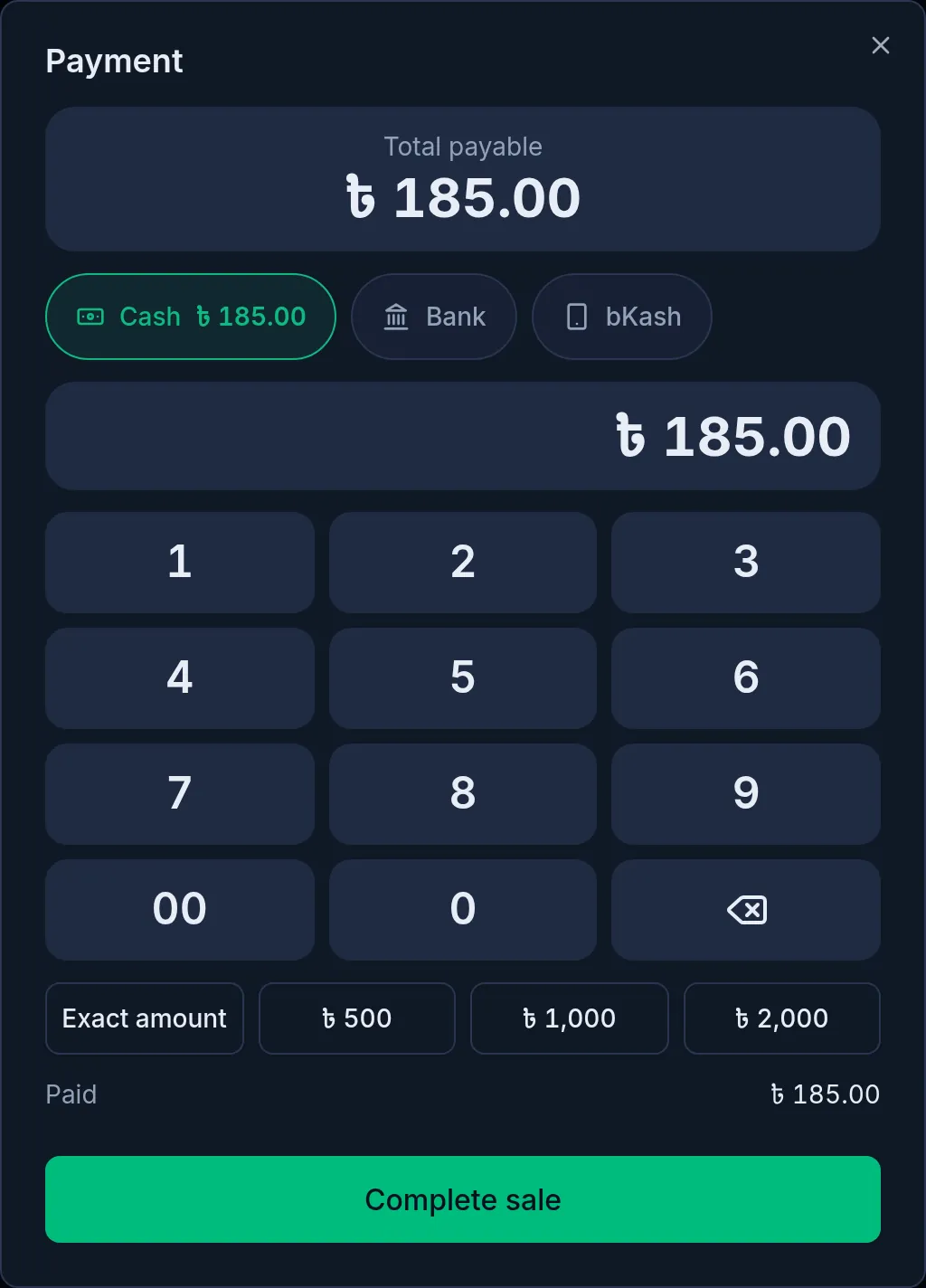
- Click Complete sale. The Sale complete screen shows the invoice number. Print the receipt with Print invoice, or start the next customer's sale with New sale.
On a phone or tablet
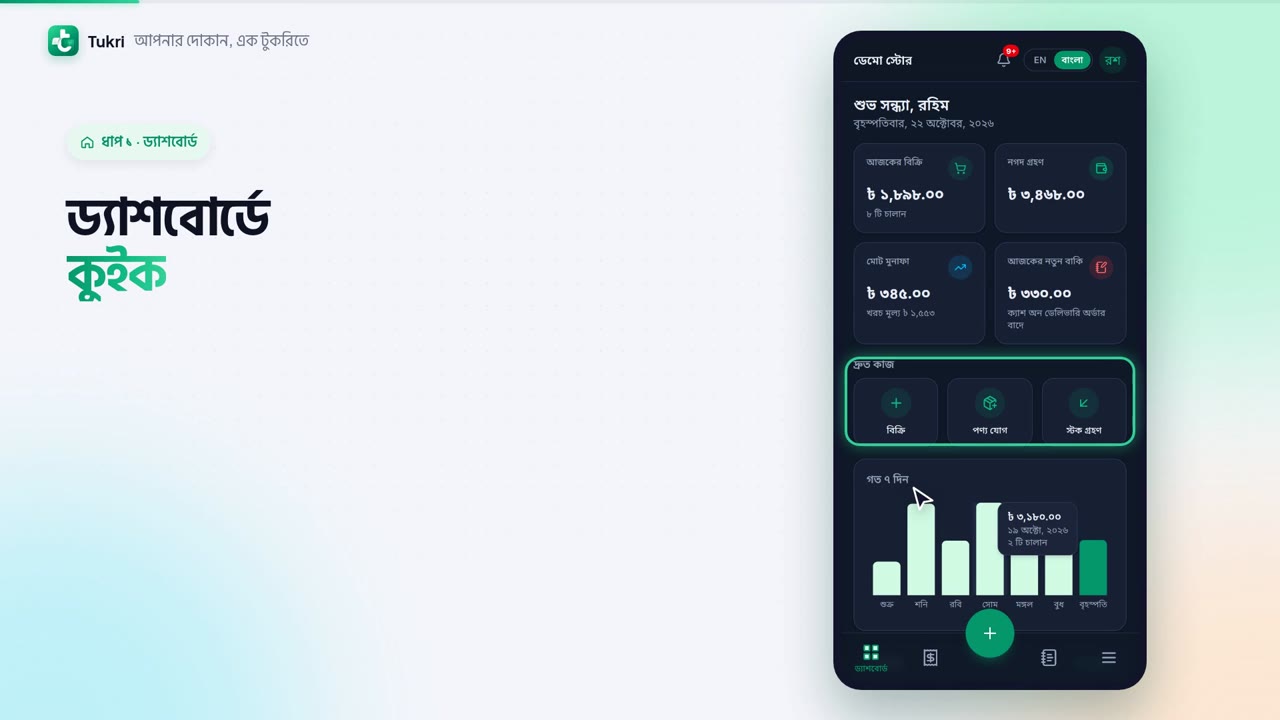
- On the Dashboard, tap Sell under Quick actions.
- Tap product cards. Each card shows how many you have taken, and the green bar at the bottom shows the total and the number of items.
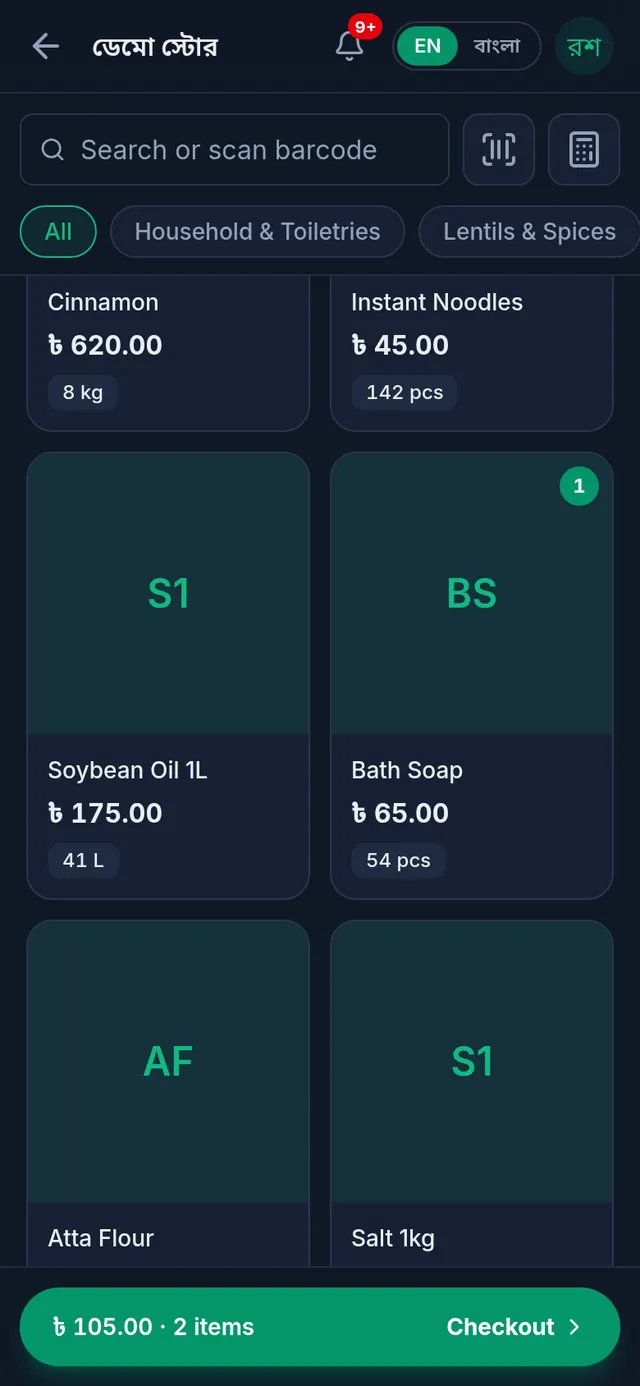
- Tap Checkout on the green bar. The Cart opens: change quantities with + and −, remove a product with its bin icon, then tap Take payment.
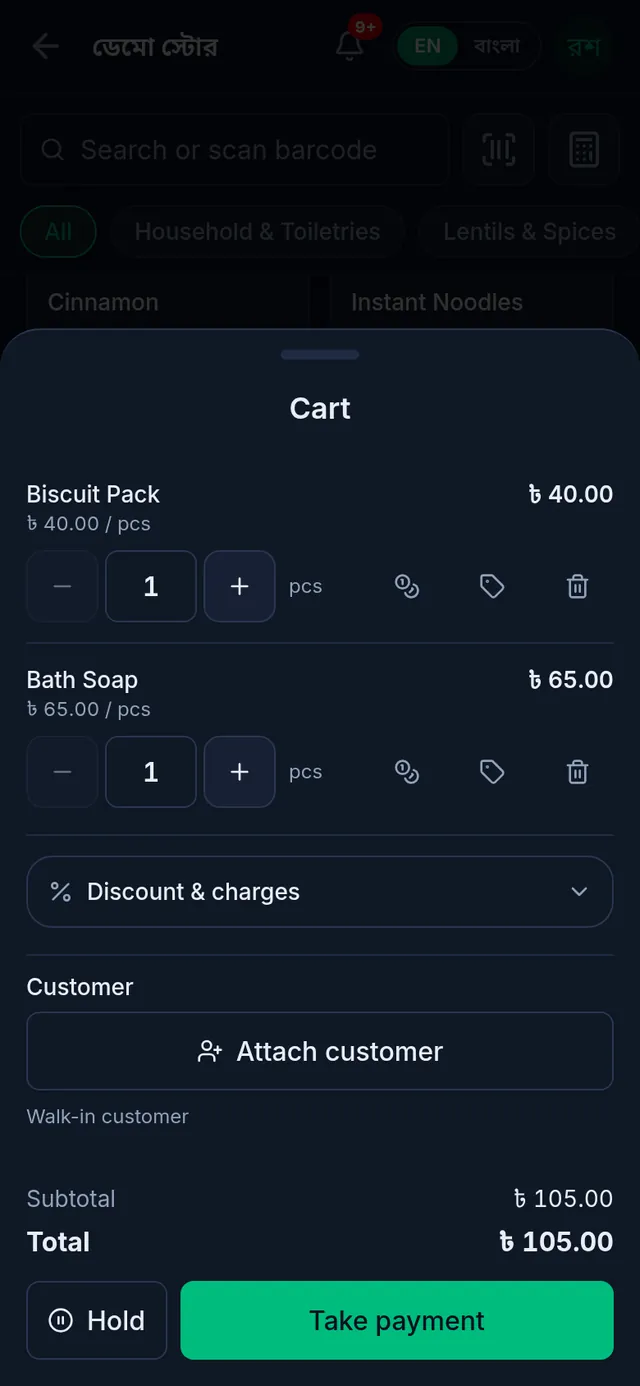
- Choose the account the money goes into, then type what you were paid or tap Exact amount.
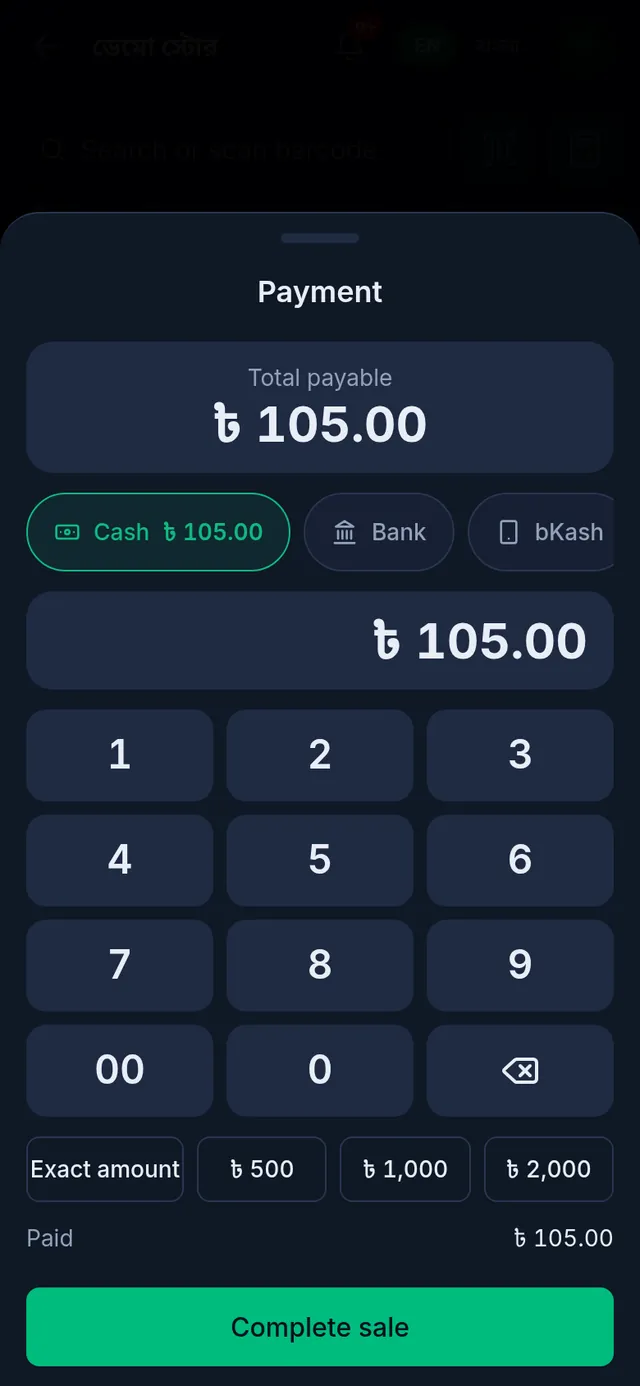
- Tap Complete sale. Sale complete appears with the invoice number.
What happens after the sale
- The products sold leave your stock at once.
- The money is added to the account you chose: cash, bank or mobile banking.
- The sale appears under Sales and in today's figures on the Dashboard. To print or share the receipt again later, see Print, download and share an invoice.
If something goes wrong
I cannot sell more than is in stock. Tukri stops a sale that would take more than the stock you have. If new goods arrived, first record the purchase; if the count is wrong, adjust the stock. When Allow selling below stock is on in your shop settings, you can sell even when the stock has run out.
The cart emptied. Reloading the page or leaving the till clears the cart. To keep one customer's bill while you serve someone else, tap Hold; you can open the parked cart again later.
There is no internet. If the till was opened online at least once before, you can keep selling without internet. The sale then shows Saved offline and syncs by itself when you are back online. More: Keep selling when the internet drops.
Watch the video
What the video says
A customer is here. How do you bill them? Let's make a sale in Tukri.
On the Dashboard, under Quick actions, tap the Sell button.
Now tap a product. Each tap adds one. The green bar at the bottom shows the total and the number of items. You can also search by name.
Tap Checkout on the green bar. In the cart, use plus and minus to set the quantity. Then tap Take payment.
Choose where the money goes, such as Cash. Type what the customer gave you. If they paid the whole bill, just tap Exact amount. If they gave more, Tukri shows the change.
Now tap Complete sale. The sale is saved with an invoice number. The products leave your stock by themselves, and the money goes into your account.
Print the invoice if you like, or tap New sale for the next customer.
Keep your accounts the easy way, tukri.bd
Related articles
- Take cash, bank or mobile banking payments When you take payment, choose the account the money went into: cash, bank, bKash or Nagad. Split one bill across accounts and see the change to give.
- Sell on due and take part payment Attach a customer while selling and leave the whole bill, or what is left of it, as due in their খাতা. Taking part now and the rest later works the same way.
- Print, download and share an invoice Print the receipt straight after a sale, reprint or download an A4 or thermal PDF of any past sale, or send the customer a link to the invoice.
- Discount one item Take a taka amount off one line of the cart. The discount is for the whole line, not each piece, and can never be more than the line.
- Keep selling when the internet drops The till keeps working without internet. Sales wait on your device and sync to Tukri by themselves once you are back online; other screens need internet.
Still need help?
Write to us, call or send a WhatsApp message, and someone from Tukri will help you.
