

On this page
Every sale has an invoice, which Tukri makes as a PDF. Print the receipt with Print invoice as soon as the sale is complete. Any past sale's invoice can be printed or downloaded again from Sales, and the owner or an Admin can send the customer a link to it.
Before you begin
- Anyone who can see sales can print and download: the Owner, Admin and Staff roles all can.
- Sharing a link needs Public share links, which the Owner and Admin roles have at first.
- Invoices are made on Tukri's server, so printing and downloading need an internet connection.
Print the receipt after a sale
- Complete the sale. The Sale complete screen opens.
- Tap Print invoice.
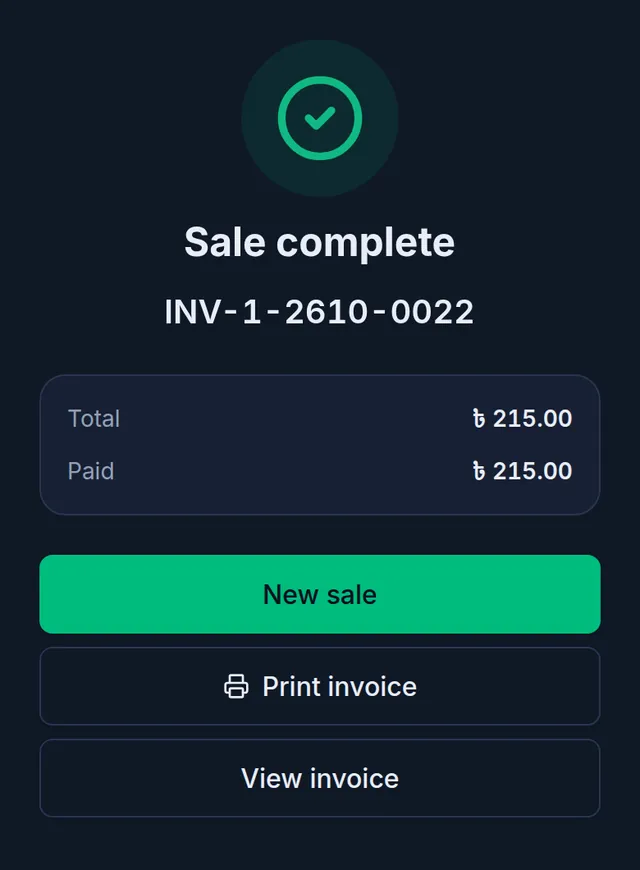
- The browser's or phone's print window opens. Choose the printer and print. For a thermal printer, also pick the matching paper width in the print window.
The receipt prints on your shop's chosen paper size, in the shop's default language, not the language of the person printing. When Auto-print receipt is on in the Invoice & receipt tab of your shop settings, the print window opens by itself once after each online sale; tap the button to print again. For the paper size and these settings, see Logo, invoice and receipt settings.
Reprint or download a past sale's invoice
- Open Sales: in the menu on the left on a computer, or in the bottom bar on a phone.
- Find the sale: type part of the invoice number in Search by invoice no., or narrow the list by date or customer. Tap the sale.
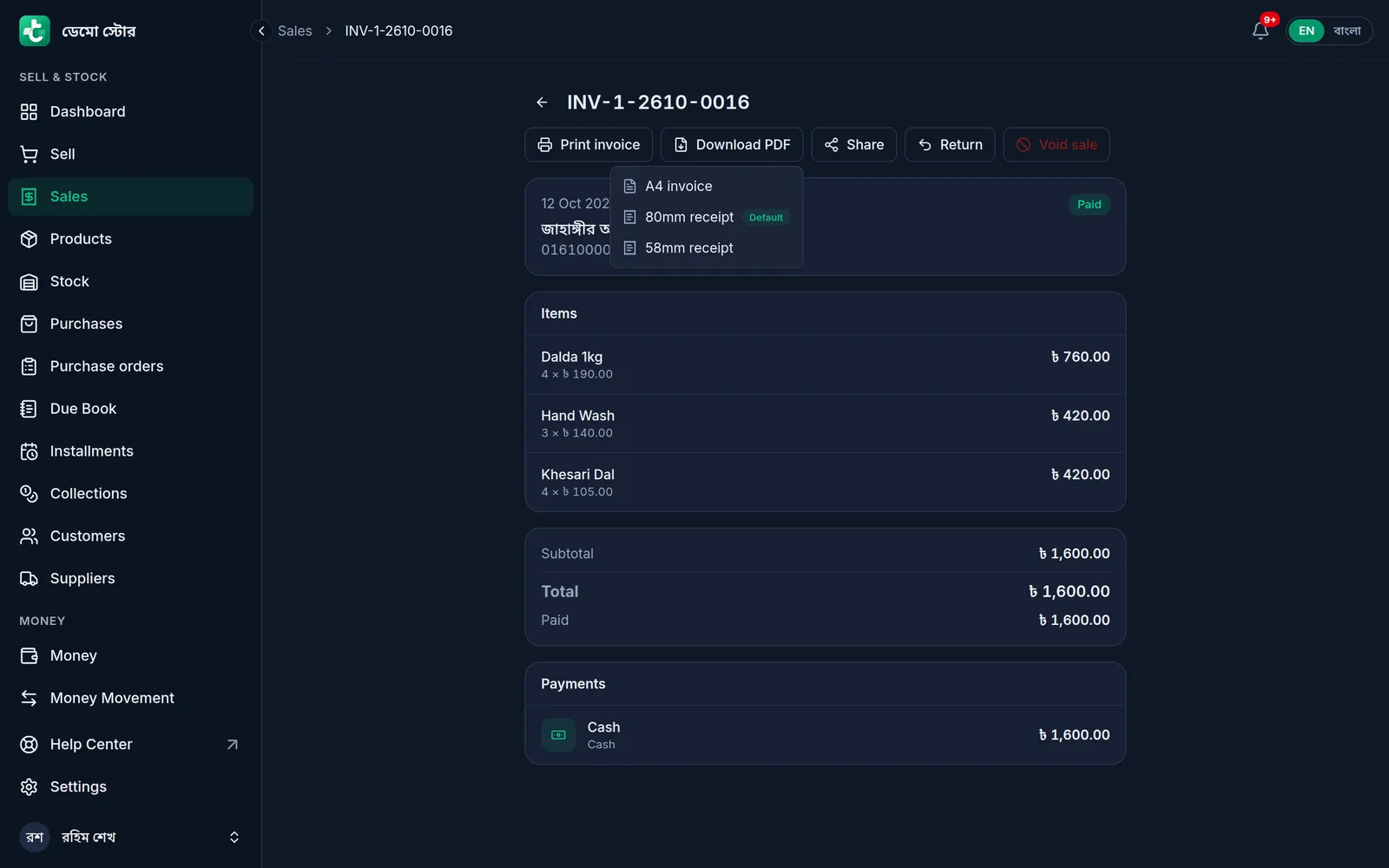
- To print, tap Print invoice. On a phone it is the printer icon, first in the row at the top.
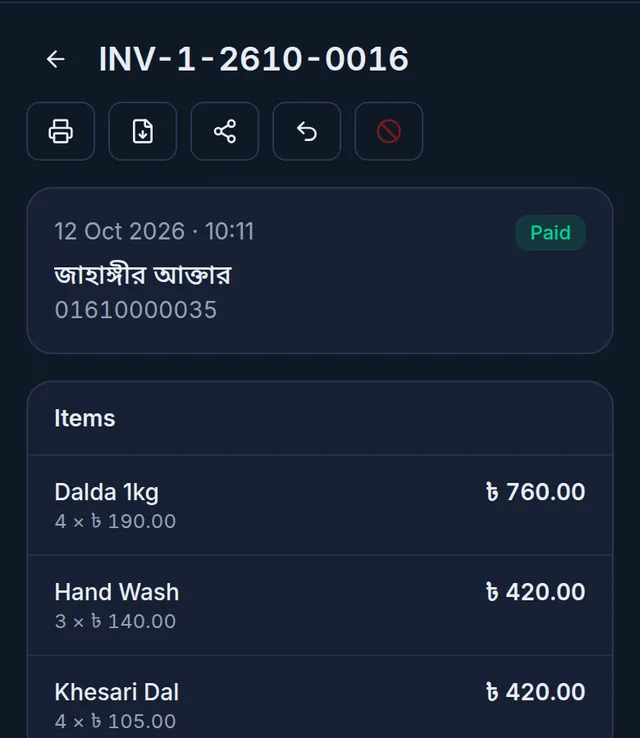
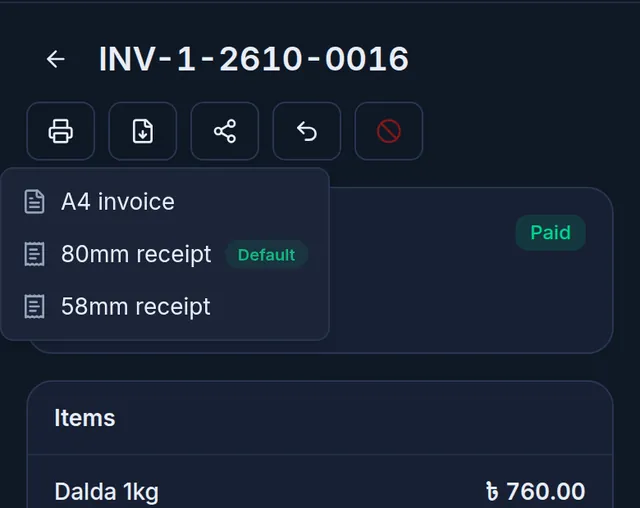
- For another paper size, tap Download PDF (on a phone, the download icon next to the printer) and choose A4 invoice, 80mm receipt or 58mm receipt. Your shop's size is marked Default. The PDF opens in a new tab, where you can save or print it.
Send the customer a link
- On the sale's page, tap Share (on a phone, the share icon). Share invoice opens.
- The first time, tap Create share link.
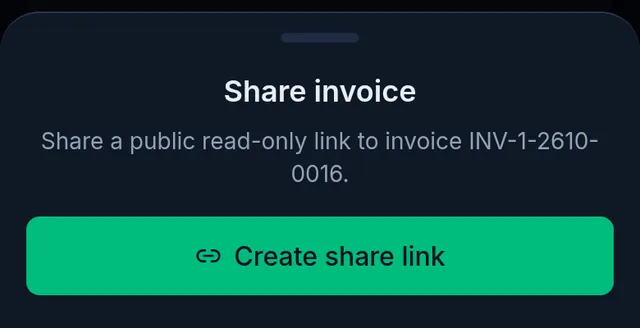
- Copy the link with the copy button, or, when the customer has a phone number, tap Send on WhatsApp or Send by SMS. WhatsApp or SMS opens on your phone with a message ready: your shop's name, the invoice number and the link.
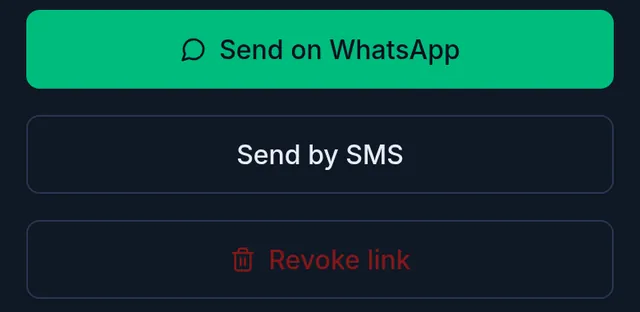
With the link, the customer can only view the invoice and download its PDF; they cannot change anything. A link stays open for 30 days. To close it sooner, tap Revoke link: the link stops working, and sharing again makes a link with a new address.
If something goes wrong
"Your browser could not open the print dialog, so the invoice opened in a new tab. Print it from there." Some browsers (on an iPhone, for example) cannot open the print window from the page. Print from the new tab.
"Your browser blocked the print window. Allow pop-ups for Tukri, or use Download PDF instead." Allow pop-ups for Tukri in your browser, or use Download PDF.
"Could not print the invoice. Please try again." Check the internet connection and try again.
It prints on the wrong paper size. Change Receipt size in your shop settings, and check the paper chosen in the print window.
A sale made offline has no receipt. A sale rung up without internet gets its invoice when it syncs, and it is not printed by itself. Once it has synced, open it from Sales and print. See Keep selling when the internet drops.
The invoice still shows the whole sale after a return. Printed and shared invoices show the original items and total, not the returns. The sale's page shows them: Return items or void a sale.
There is no Share button. Your role does not have the share-link permission; Staff does not have it at first. Ask the owner.
Watch the video
What the video says
Did the customer pay cash, or bKash? And how do you give them a receipt? Let's see both.
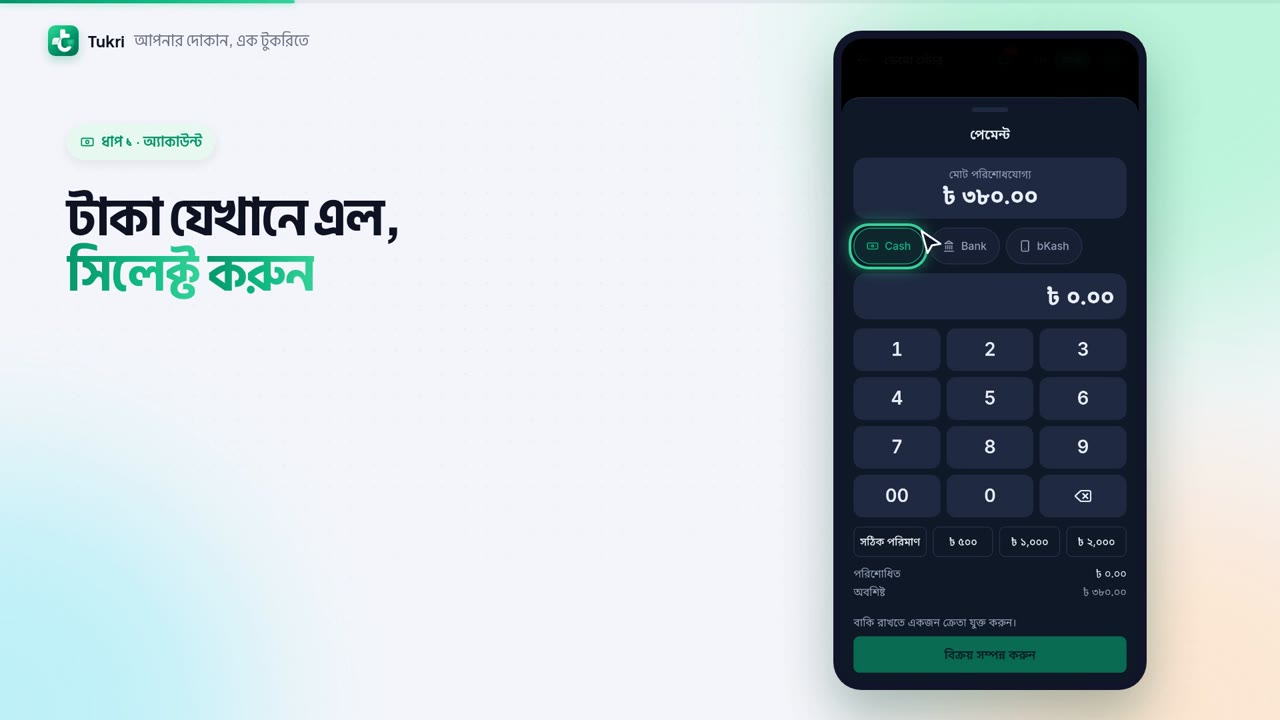
In the cart, tap Take payment. At the top is the total payable, and below it, a button for each of your accounts. Choose the one the money went into, such as Cash, a bank or bKash.
For cash, there are note buttons too. If the customer hands you a 500 taka note, tap the 500 button. Tukri shows how much change to give.
Splitting one bill across two accounts? First type what you got in cash. Then choose bKash and tap Exact amount. The rest goes on bKash. Now tap Complete sale.
Need a receipt? Right here, tap Print invoice, and the phone's print window opens.
Need a receipt for an old sale? Open Sales from the bottom bar and tap the sale. The first icon at the top prints, the one beside it downloads a PDF.
To send the customer a link, tap Share, then Create share link. Tap Send on WhatsApp or Send by SMS, and the message goes from your phone. Sharing links is a job for the Owner and Admins.
From bill to receipt, all in one place, tukri.bd
Related articles
- Logo, invoice and receipt settings Choose the receipt paper size, add a tagline, terms, thank-you line and footer, show your logo, set print copies and turn on auto-print.
- Return items or void a sale Take some items back with a cash refund or store credit, or cancel a wrong sale altogether. Either way the stock and money are put right by themselves.
Still need help?
Write to us, call or send a WhatsApp message, and someone from Tukri will help you.
