

On this page
The Invoice & receipt tab in Settings › Shop decides which paper your invoices and receipts print on and what is printed on them: your logo, a tagline, your terms, a thank-you line and a footer. It also sets how many copies print and whether the receipt prints by itself after each sale.
Before you begin
- Only a member who can manage the shop settings can change this: by default the Owner and Admin roles.
- To print your logo, first upload it on the Shop profile tab: see Update your shop's name, phone, address and logo.
Set up your receipt
- Open the shop settings:
On a computer
Click Settings in the menu on the left, then Shop at the top of the settings list.
On a phone or tablet
Tap Menu in the bar at the bottom, then Settings. In the row of buttons at the top, tap Shop; slide the row sideways if you do not see it.
- Tap the Invoice & receipt tab.
- Under Receipt size, choose the paper your printer uses: A4, Thermal (80mm) or Thermal (58mm).
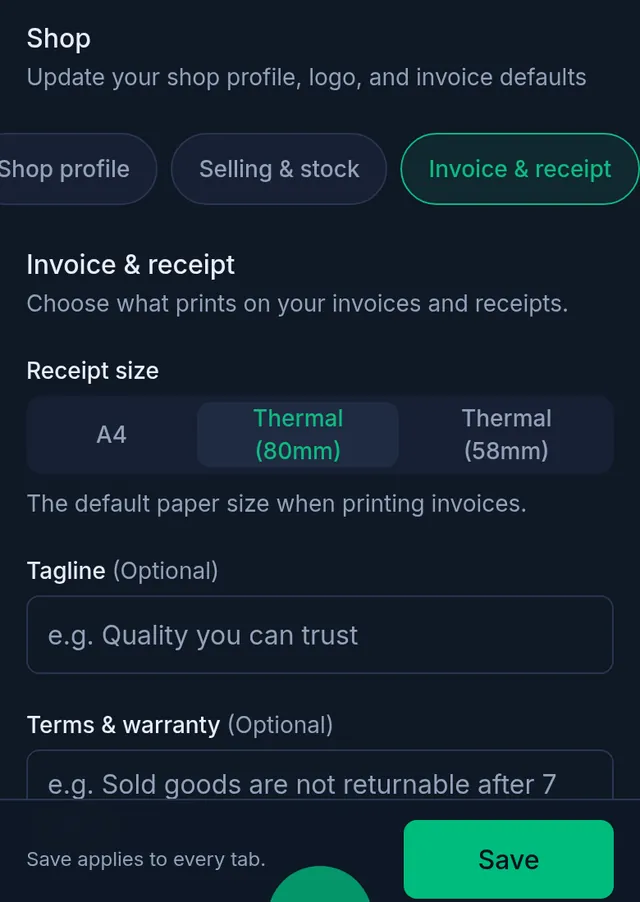
- If you like, write the texts. Each is optional:
- Tagline: a short line printed under your shop name.
- Terms & warranty: for example your return or warranty rules.
- Thank-you message: a thank-you line near the bottom.
- Invoice footer: the last line on the receipt.
- Turn on the switch for each item you want printed: Show logo, Show tagline, Show terms & warranty, Show thank-you message and Show footer. A switch that is off hides its text without deleting it.
- Under Print copies, type a number from 1 to 5: "How many copies of each receipt to stack in the PDF (1–5)." For example 2, one for the customer and one for the shop.
- Turn on Auto-print receipt if you want the receipt to print by itself after every sale (more below).
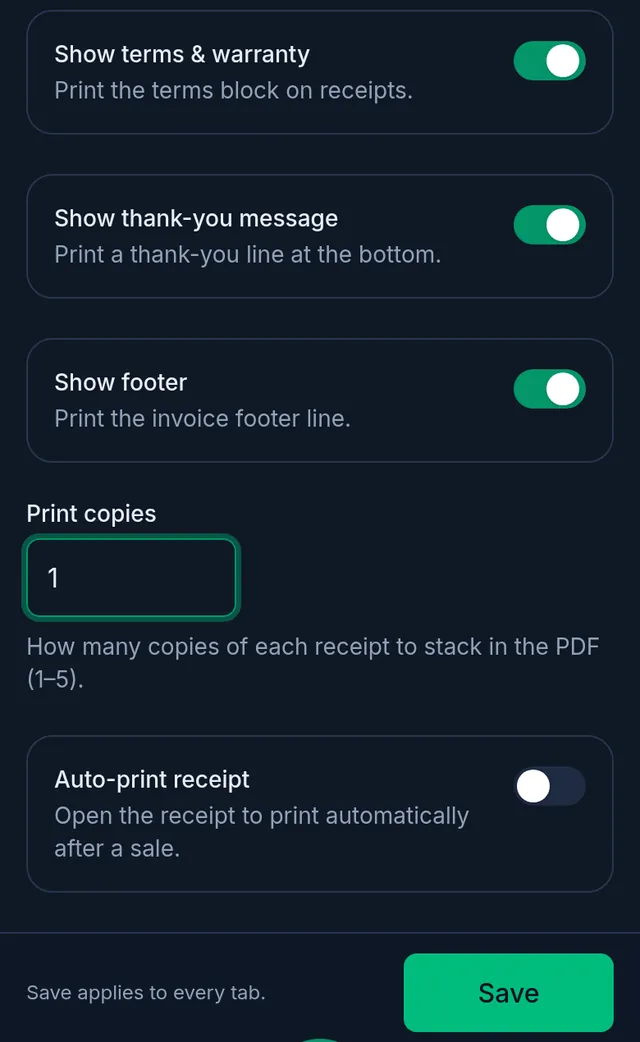
- Tap Save at the bottom of the screen. One Save stores every tab of the shop settings.
What happens next
- Every invoice printed after you save uses the new settings, reprints of older sales included.
- Print invoice prints on the Receipt size you chose. A sale's download menu still lets you download it on another paper size once, and marks yours as Default. See Print, download and share an invoice.
- The top of the receipt always shows your shop's name, address and phone, from the Shop profile tab.
- If Show thank-you message is on but the box is empty, Tukri prints its own short thank-you line.
Auto-print receipt
With Auto-print receipt on, the Sale complete screen opens the print window for the receipt by itself, on your Receipt size paper, once for each sale. Going back to that screen or reloading it does not print the same receipt again.
A sale made without internet is not printed by itself, because it has no invoice until it syncs. Once it has synced, open it under Sales and print it there. Print invoice prints any receipt again at any time.
If something goes wrong
The receipt still prints on the old paper. Choosing a size is not enough: tap Save afterwards.
My logo does not show on the receipt. Check that a logo is uploaded on the Shop profile tab and that Show logo is on.
The terms or the footer do not print. The box must have text in it and its switch must be on.
The receipt prints in the wrong language. Receipts print in the shop's default language, set on the Shop profile tab. See Update your shop's name, phone, address and logo.
Each receipt comes out twice. Print copies is set to more than 1. Set it to 1 and save.
Watch the video
What the video says
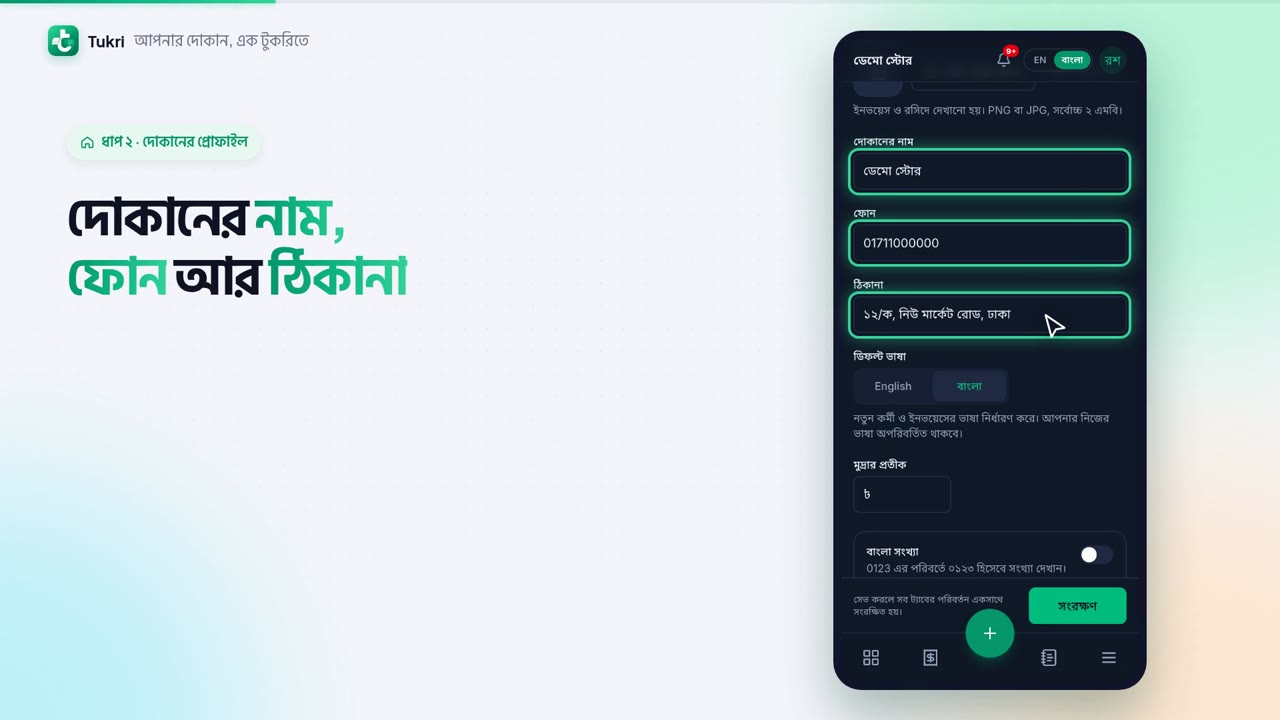
Are your shop's name and address right on the receipt? Let's set up your shop settings.
Open Settings from the Menu, and go to the Shop tab at the top. Shop profile opens first.
Here are the Shop name, Phone and Address. They're printed at the top of every receipt, so all three are needed. To add a logo, press Choose file.
Set the Default language to Bangla, and receipts and due reminders go out in Bangla. You can also turn on Bengali digits.
Now the Invoice & receipt tab. Choose the Receipt size to match your printer's paper. If you like, write a tagline, terms and a thank-you message. Use the switches to choose what gets printed.
Set Print copies to 2, one for the customer, one for the shop. With Auto-print receipt on, after every sale made online, the receipt's print window opens by itself.
Finally, press Save at the bottom, and every tab is saved at once. The Owner and Admins can do this.
Receipts that look like your shop, tukri.bd
Related articles
- Print, download and share an invoice Print the receipt straight after a sale, reprint or download an A4 or thermal PDF of any past sale, or send the customer a link to the invoice.
- Make a sale at the till Add products to the cart, take payment and complete the sale, step by step on a computer or a phone.
Still need help?
Write to us, call or send a WhatsApp message, and someone from Tukri will help you.
