

On this page
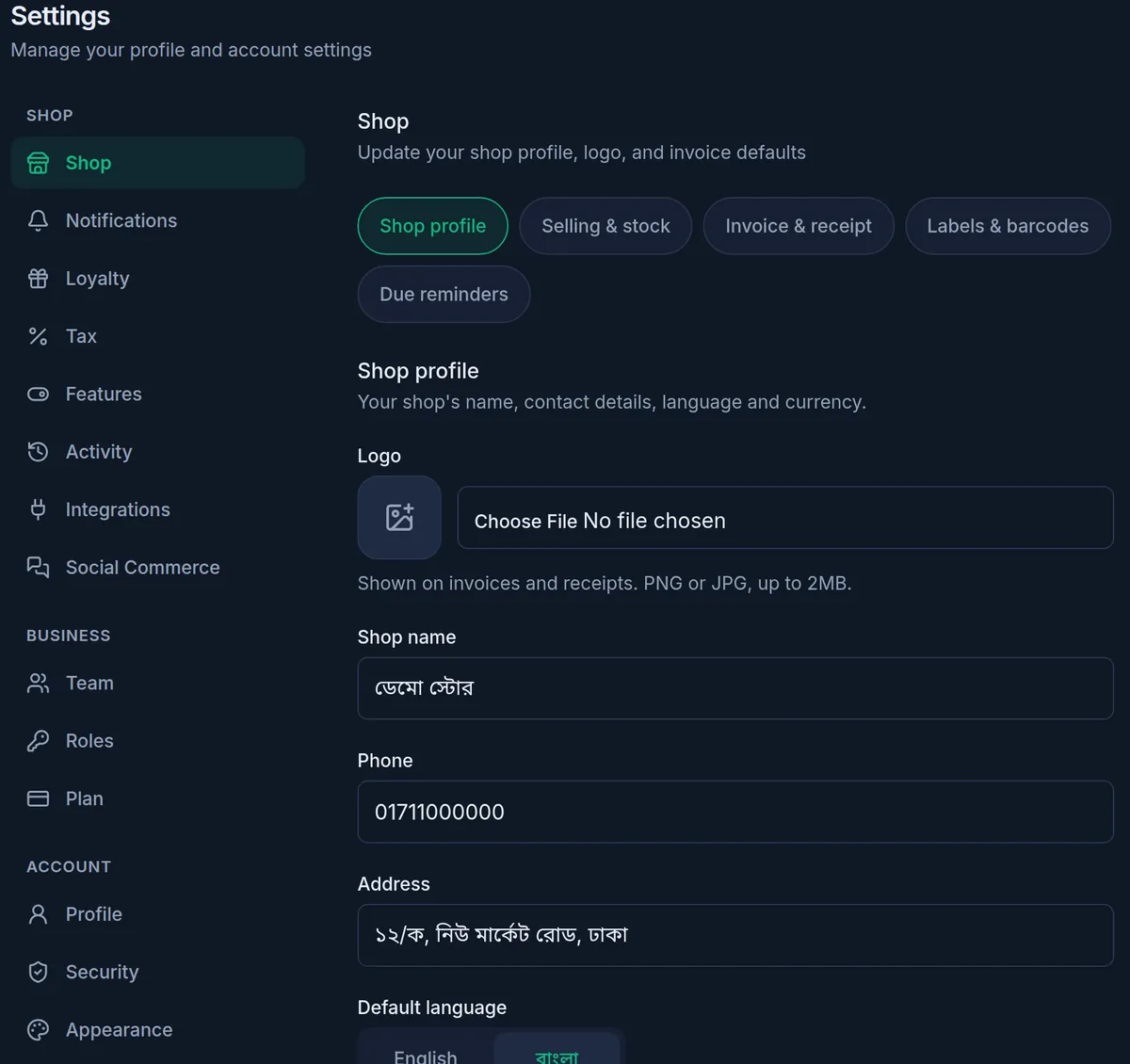
Your shop's name, phone number, address and logo are kept in Settings › Shop, on the Shop profile tab. The name, address and phone are printed at the top of every invoice and receipt, so keep them up to date. The same tab sets the shop's default language and how numbers are printed.
Before you begin
- Only a member who can manage the shop settings can open this page. By default that is the Owner and the Admin roles; Staff cannot.
Change your shop's details
- Open the shop settings:
On a computer
Click Settings in the menu on the left, then Shop at the top of the settings list.
On a phone or tablet
Tap Menu in the bar at the bottom, then Settings. In the row of buttons at the top, tap Shop; slide the row sideways if you do not see it.
- The page opens on the Shop profile tab.
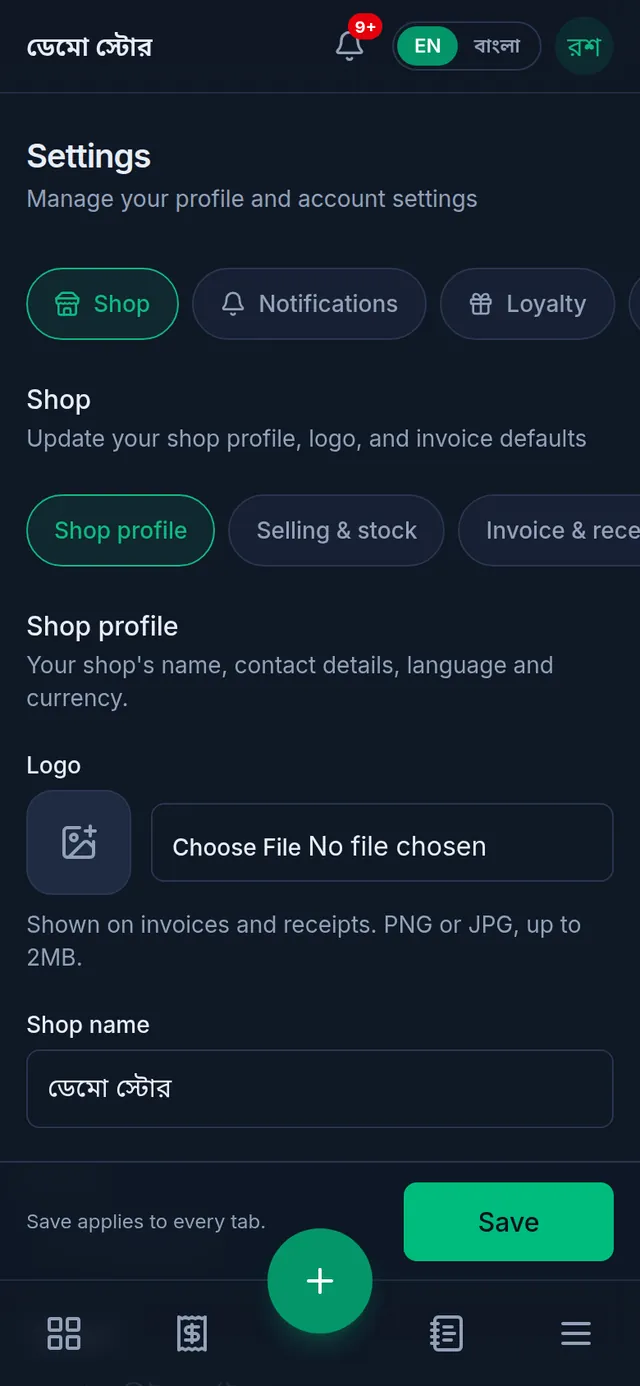
- Change the Shop name, Phone or Address. All three are needed: the page cannot be saved with one of them empty.
- To add or change the logo, tap the box beside Logo and choose a picture. The page says: "Shown on invoices and receipts. PNG or JPG, up to 2MB." A new logo replaces the old one.
- Under Default language, choose English or বাংলা.
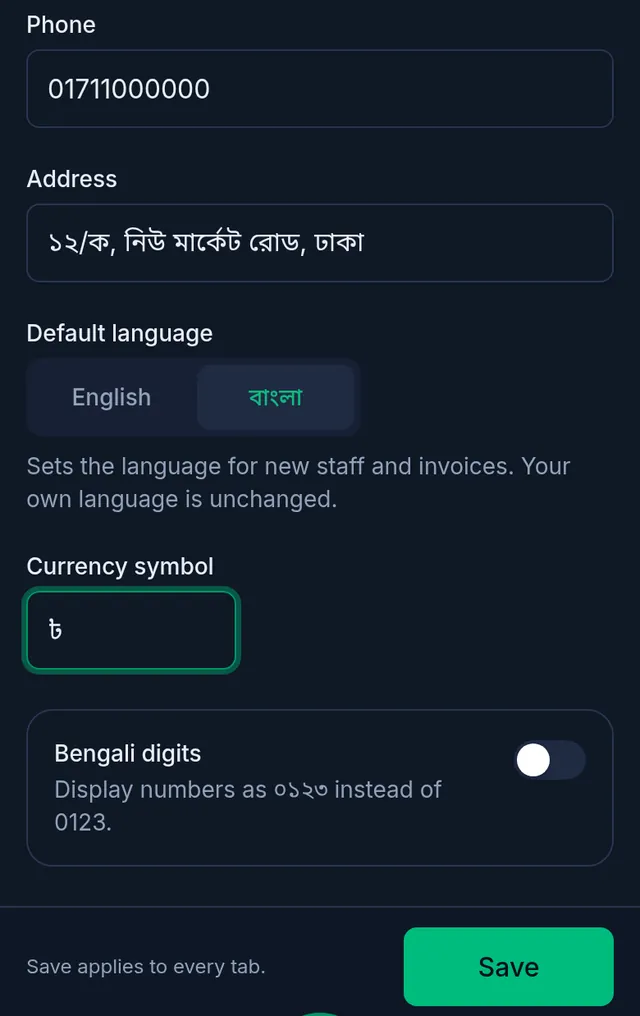
- If you like, change the Currency symbol or turn on Bengali digits (what they do is below).
- Tap Save at the bottom of the screen. Tukri shows "Shop settings saved."
What each setting changes
- Name, phone and address are printed at the top of every invoice and receipt. The logo is printed too while Show logo is on: see Logo, invoice and receipt settings.
- Default language is the language new team members start in, and the language of printed invoices and receipts and of the due reminders sent to customers. It does not change your own app language: see Use Tukri in Bangla.
- Currency symbol is the sign printed beside amounts on invoices and other printed papers. Changing it does not convert any amount.
- Bengali digits prints numbers as ০১২৩ instead of 0123 on invoices and receipts, and in messages Tukri sends for your shop. The app's own screens follow each person's language.
The other tabs
The shop settings have five tabs, and they are one form: the Save button at the bottom stores every tab at once ("Save applies to every tab."). Moving between tabs before you save loses nothing.
- Selling & stock: the till's rules, such as selling below the stock you have, the default low-stock alert level, cash rounding and a default due limit for customers.
- Invoice & receipt: the paper size and what prints on receipts. See Logo, invoice and receipt settings.
- Labels & barcodes: the paper and barcode type for product labels. See Barcodes, labels and finding products.
- Due reminders: automatic due reminders by SMS. See Remind a customer about their due.
What cannot be changed
- Shop type: chosen once when the shop was set up; there is no setting for it. If it was chosen wrongly, contact Tukri support.
- Currency: every shop keeps its accounts in Bangladeshi Taka. Only the printed symbol can change.
- Time zone: dates, "today" and report periods follow Bangladesh time.
If something goes wrong
Save did not work and a tab shows a red number. Something on that tab was not accepted. The page opens the first tab with a problem; correct the marked box and tap Save again.
I cannot see Shop in Settings. Your role cannot manage the shop settings. Ask the shop's owner.
I chose বাংলা as the default language but my own screen is still in English. The default language is for new members and printed papers. Your own language is set separately: see Use Tukri in Bangla.
Saving is refused with "Your subscription has expired. Upgrade your plan to keep selling — you can still view your data." The shop's subscription has ended and the shop is read-only. See Your plan: trial, renewing and paying.
Watch the video
What the video says
Are your shop's name and address right on the receipt? Let's set up your shop settings.
Open Settings from the Menu, and go to the Shop tab at the top. Shop profile opens first.
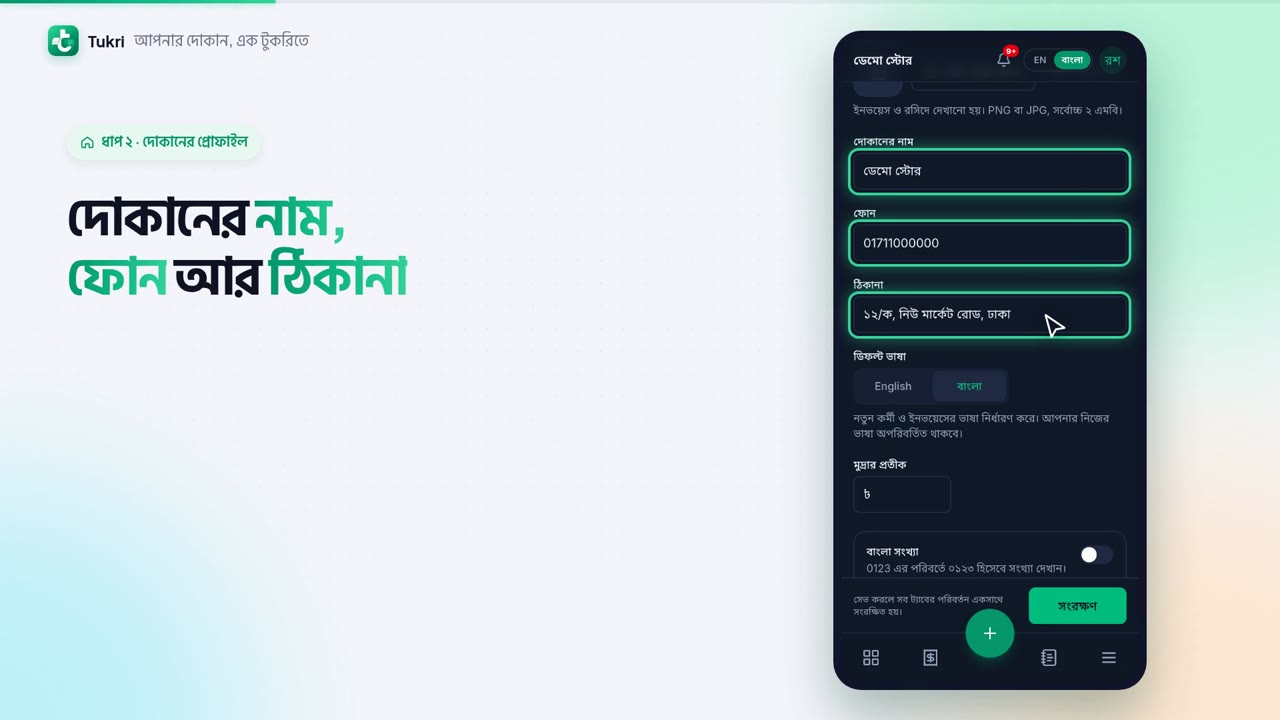
Here are the Shop name, Phone and Address. They're printed at the top of every receipt, so all three are needed. To add a logo, press Choose file.
Set the Default language to Bangla, and receipts and due reminders go out in Bangla. You can also turn on Bengali digits.
Now the Invoice & receipt tab. Choose the Receipt size to match your printer's paper. If you like, write a tagline, terms and a thank-you message. Use the switches to choose what gets printed.
Set Print copies to 2, one for the customer, one for the shop. With Auto-print receipt on, after every sale made online, the receipt's print window opens by itself.
Finally, press Save at the bottom, and every tab is saved at once. The Owner and Admins can do this.
Receipts that look like your shop, tukri.bd
Related articles
- Logo, invoice and receipt settings Choose the receipt paper size, add a tagline, terms, thank-you line and footer, show your logo, set print copies and turn on auto-print.
- Use Tukri in Bangla and install it on your phone Switch Tukri between English and বাংলা in one tap, and add it to the home screen of an Android phone, an iPhone or a computer. No app store needed.
Still need help?
Write to us, call or send a WhatsApp message, and someone from Tukri will help you.
