

On this page
At the till, find a product by typing its name, or scan its barcode: with your device's camera, or with a USB or Bluetooth barcode scanner. When the scanned code matches a product's SKU or barcode, the product goes straight into the cart. For products without a barcode on the pack, Tukri prints barcode labels for you.
Before you begin
- Anyone who can sell can search and scan at the till: the Owner, Admin and Staff roles.
- Printing labels needs the Bulk product tools permission. It starts with the Owner and Admin roles; the owner can give it to other roles under Settings › Roles.
- To give a product its SKU and barcode, see Add a new product.
Search at the till
On a computer
- Open Sell in the menu on the left.
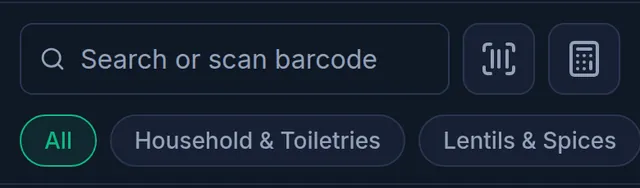
- Type the product's name, SKU or barcode in the Search or scan barcode box at the top. Matching products appear below; click a card to add it to the cart.

On a phone or tablet
- On the Dashboard, tap Sell under Quick actions.
- Type the product's name, SKU or barcode in the Search or scan barcode box at the top. Matching products appear below; tap a card to add it to the cart.
Scan a barcode
A scanned code is matched to a product's SKU first (capital or small letters do not matter), then to its barcode. When it matches, the product goes straight into the cart.
With the camera:
- Tap the barcode button beside the search box (Scan barcode). It is shown whenever the browser can open a camera.
- Allow the camera if the browser asks, then point it at the barcode.
- The first code read closes the camera and adds the product to the cart.
With a USB or Bluetooth barcode scanner:
- Connect the scanner in its normal keyboard mode, so it types the code.
- Open the till. You do not need to tap any box.
- Scan. The product goes straight into the cart.
To type a code by hand, type it in the search box and press Enter. Enter always looks up a whole code; typing a name and pressing Enter finds nothing, so tap the card instead.
Scanning a product with variants, packs or selling by weight opens the same chooser as tapping its card. Scanning a variant's own SKU or barcode adds exactly that variant. Scanning works without internet too, from the product list the till kept on the device the last time it was online.
The Products and Stock pages have the same kind of search box, and a scanner used there finds the product for you.
Print barcode labels
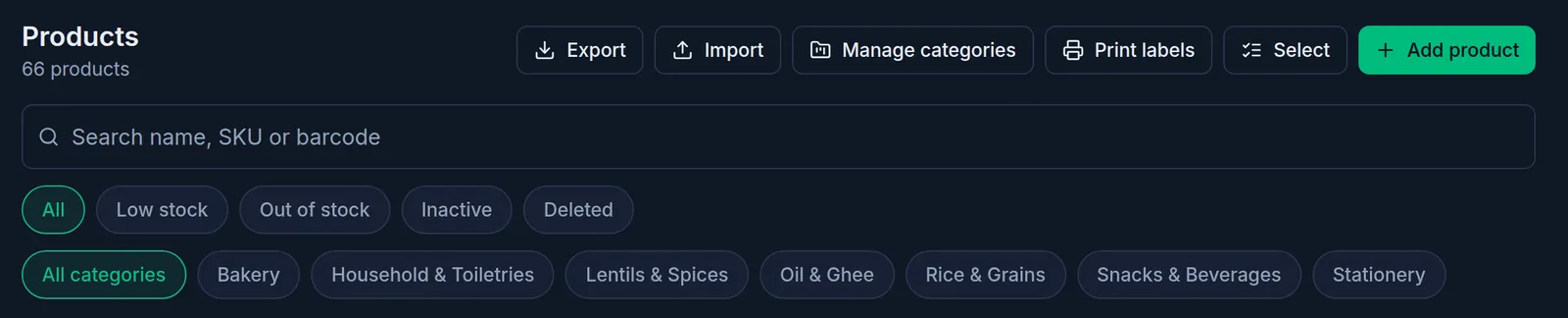
- Open Products and tap Print labels at the top. On a phone it is the printer icon.
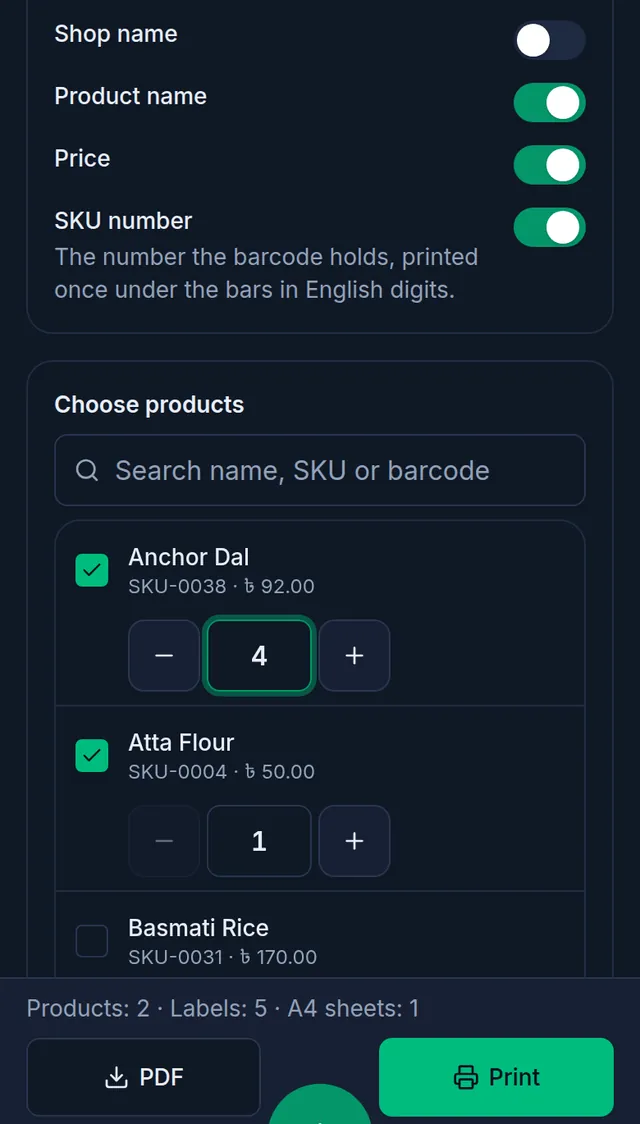
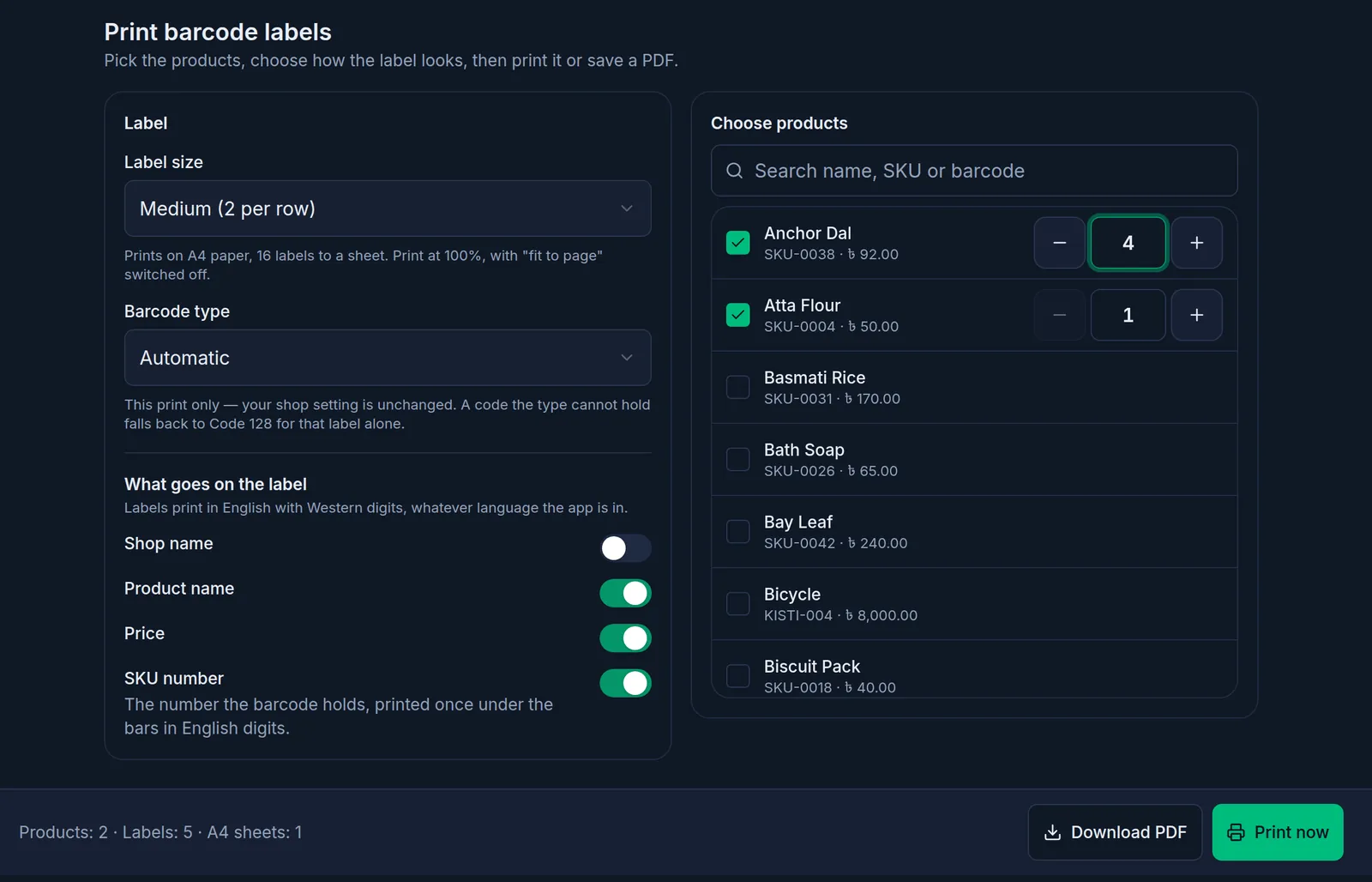
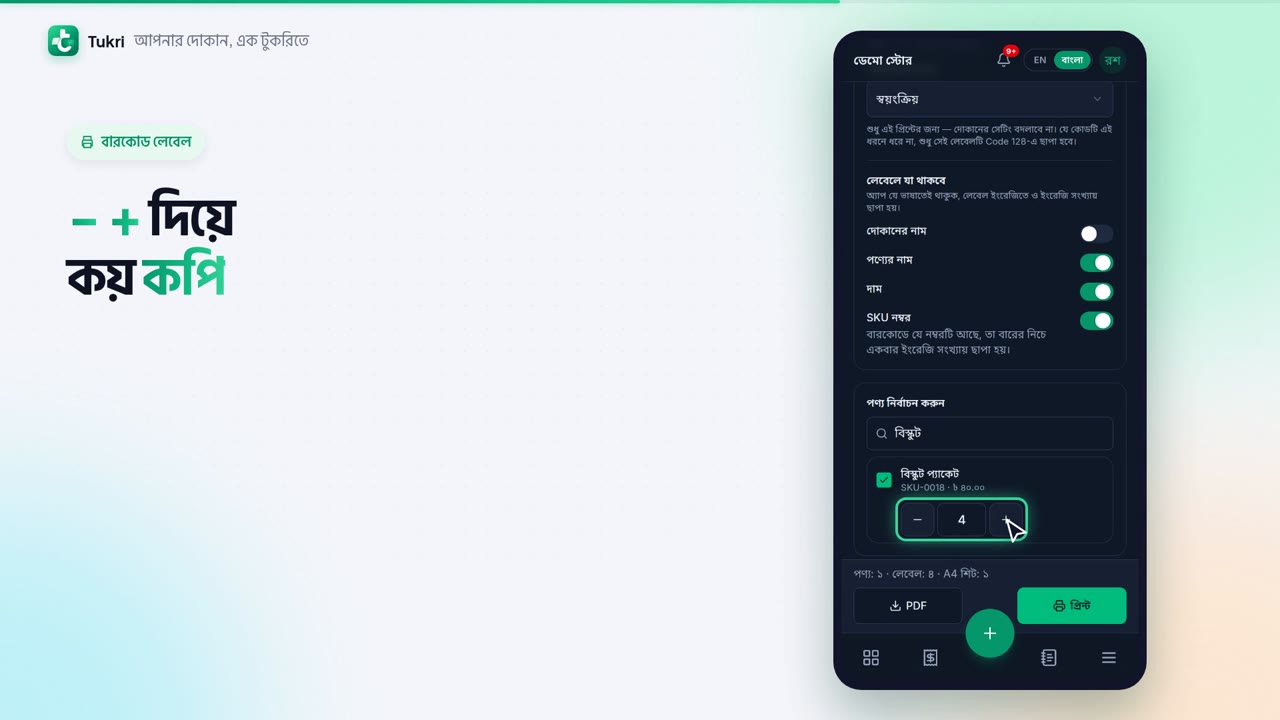
- Under Choose products, search for products and tick them. Under each ticked product, set the number of copies with − and +.
- Choose the Label size: Medium (2 per row), Small (3 per row), Extra small (4 per row) or Tiny (5 per row) for A4 paper, or Custom (one per page) for a label roll printer.
- Under What goes on the label, choose what each label shows: Shop name, Product name, Price and SKU number.
- The line beside the buttons counts the products, labels and pages. Then choose Print now to print, or Download PDF to keep a PDF. On a phone the two buttons read Print and PDF.
Each label carries one barcode holding the product's SKU, so scanning it at the till finds exactly that product. A product with variants prints a label for each active variant, with that variant's own code and price.
On a label roll printer, set the paper size in the print window to the label's size and switch off "fit to page", or the barcode comes out the wrong size. The shop's usual label paper can be set under Settings › Shop › Labels & barcodes.
If something goes wrong
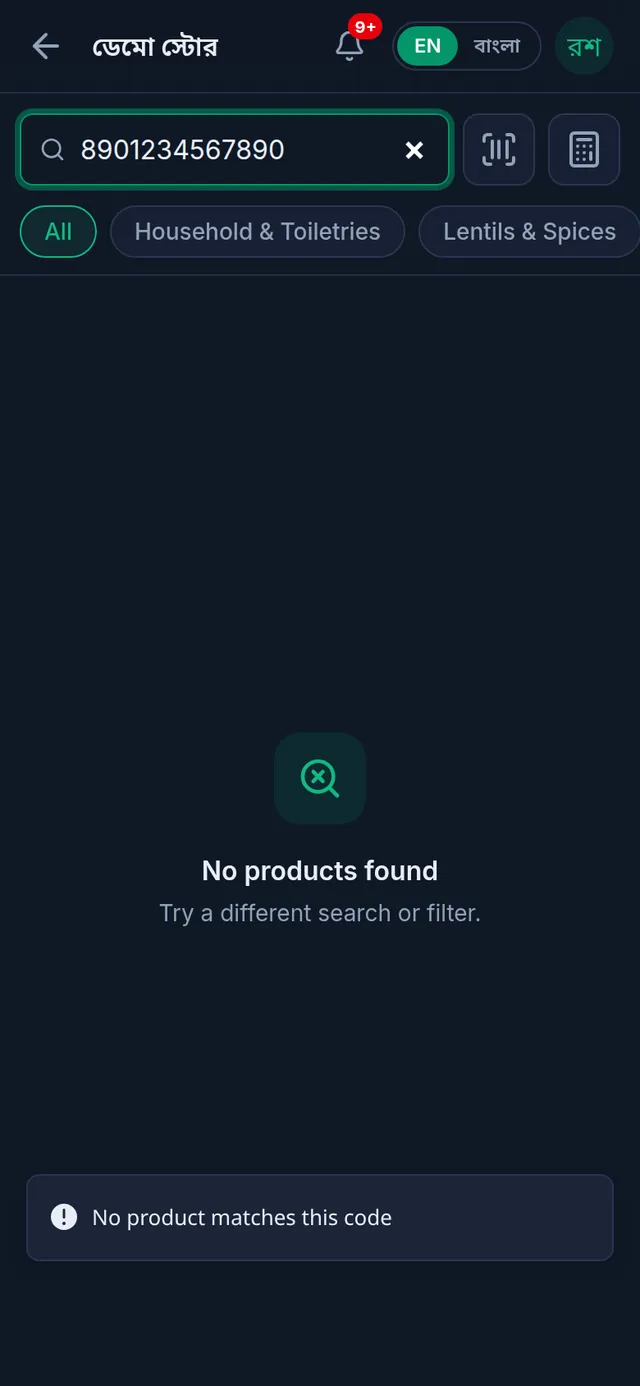
It says "No product matches this code". No active product or variant has that SKU or barcode. The code stays in the search box so you can see what was read. Check the product's SKU and barcode; inactive products are not at the till.
It says more than one product uses the code. Two products or variants share the code, so neither was added. Change the code on one of them, then scan again.
A carton or pack barcode is not found. Pack barcodes are not looked up at the till. Scan a single item, or tap the product and choose the pack.
The scanned number lands in the wrong box. The cursor was in another box, such as a quantity or discount. Tap an empty part of the screen and scan again. While the payment keypad is open, scans are ignored: close the keypad, then scan.
There is no camera button, or it says "Camera unavailable. Check camera permission and try again." This browser cannot open a camera, or permission was not given. Allow camera access for Tukri in the browser or phone settings, or use a USB scanner or type the code.
There is no Print labels button. Your role cannot print labels, the list is empty, or Deleted is chosen.
Labels did not print and a red message appears. When a label cannot come out right, Tukri prints nothing and says why in red, for example the size is too small or a name is not in English. Fix what it says and try again.
Watch the video
What the video says
How do you find one product among thousands? And what if the pack has no barcode? Let's look at search, scanning and labels.
At the till, in the search box at the top, type the product's name, SKU or barcode. Matching products appear below; tap a card to add it to the cart.
Type the whole code and press Enter, and the product goes straight into the cart.
To scan with the camera, press the barcode button beside it. Allow the camera and point it at the barcode; once read, the product goes in the cart. If you have a USB or Bluetooth scanner, just open the till and scan.
No barcode? Print your own labels. On the Products page, press the printer icon at the top. Find the products and tick them, and set the number of copies with + and −.
Now choose the Label size, and choose what goes on the label. Then print, or keep a PDF. Labels print in English.
Each label's barcode holds the SKU, so scanning it brings up exactly that product. At first, label printing is for the Owner and Admins.
Find and sell faster, tukri.bd
Related articles
- Make a sale at the till Add products to the cart, take payment and complete the sale, step by step on a computer or a phone.
- Product variants: sell sizes, colours or pack sizes separately Versions of one product, such as sizes, colours or bottle sizes, each with its own price, SKU, barcode and stock. Turn them on in the Selling step.
Still need help?
Write to us, call or send a WhatsApp message, and someone from Tukri will help you.
