

On this page
After you open an account, Tukri sets up your shop in two steps: first the shop's name, type and phone number, then its address and the app's language. When you finish, the shop is open, and every new shop gets a free 14-day Premium trial with no card needed.
Before you begin
- You have opened an account: Create a Tukri account.
- Decide your shop type: it cannot be changed after setup.
Step 1: name, type and phone
- Type the Shop name. It is printed on your receipts and invoices.
- Under Shop type, choose your kind of shop: Grocery, Pharmacy, Clothing, Electronics, Hardware, Tiles & Sanitary, Restaurant or Other.
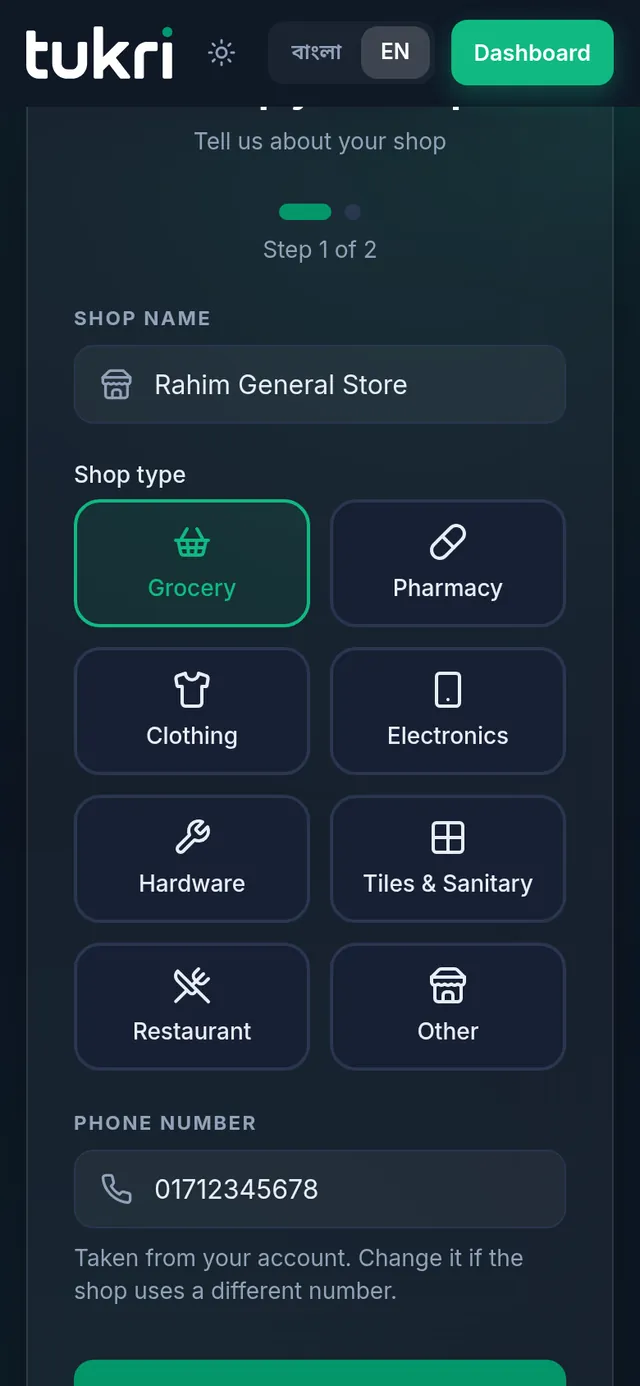
- The Phone number is already filled in from your account. Change it if the shop uses a different number.
- Choose Next.
Step 2: address, language and starter products
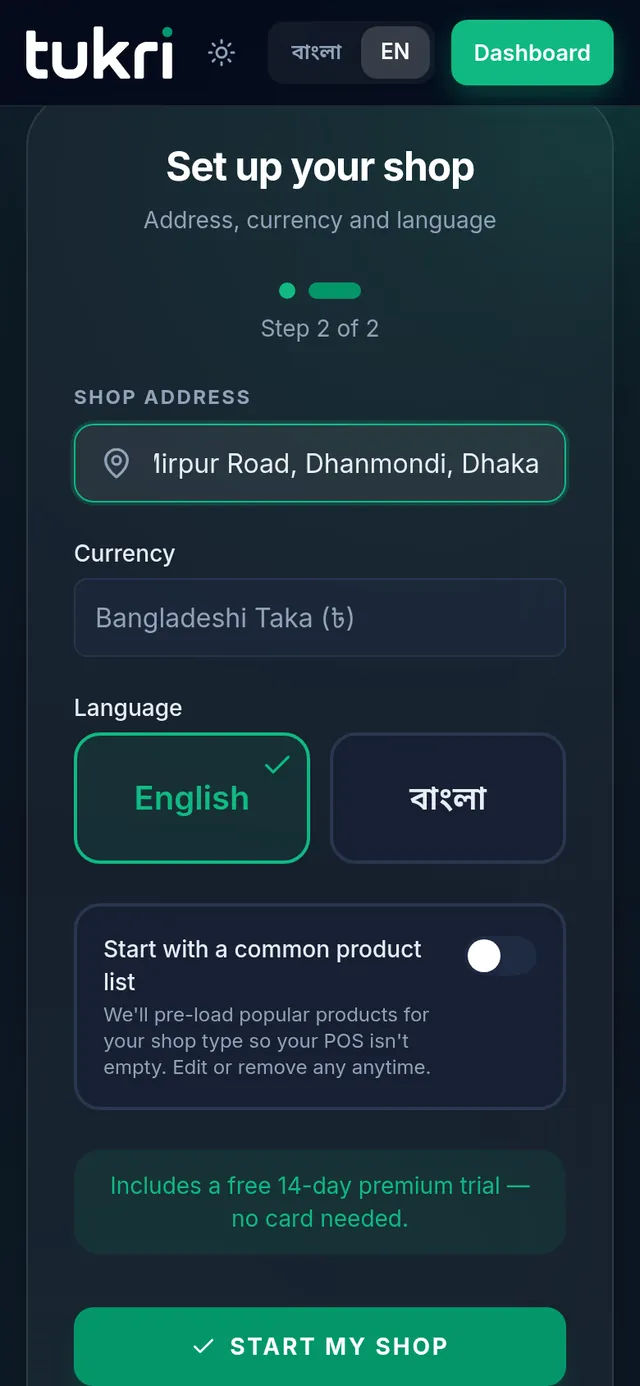
- Type the Shop address.
- The Currency is Bangladeshi Taka; there is nothing to change.
- Choose the Language: English or বাংলা. It becomes your app's language and the language of the shop's receipts.
- If you like, turn on Start with a common product list. Popular products for your shop type are added for you, with a price and stock of zero that you set before selling. You can change or delete any of them.
- Choose Start my shop.
What happens next
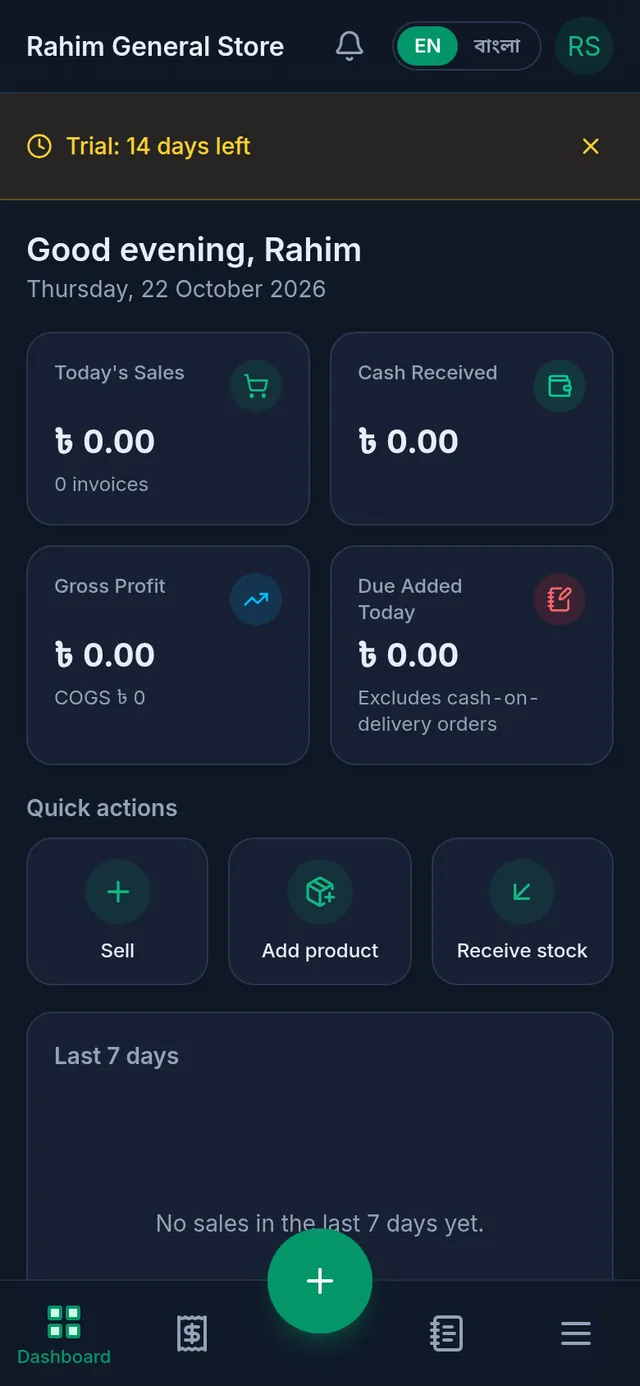
The shop opens on the Dashboard. The yellow line at the top shows how many days of the trial are left. Start from Quick actions: Add product to add products, Sell to sell, and Receive stock when new goods arrive.
Next: Add a new product, then Make a sale at the till.
If something goes wrong
I chose the wrong shop type. It cannot be changed after setup. Contact Tukri for help.
I turned on the common product list but see no products. The products are added in the background and take a little while. Open the product list again in a few minutes.
Watch the video
What the video says
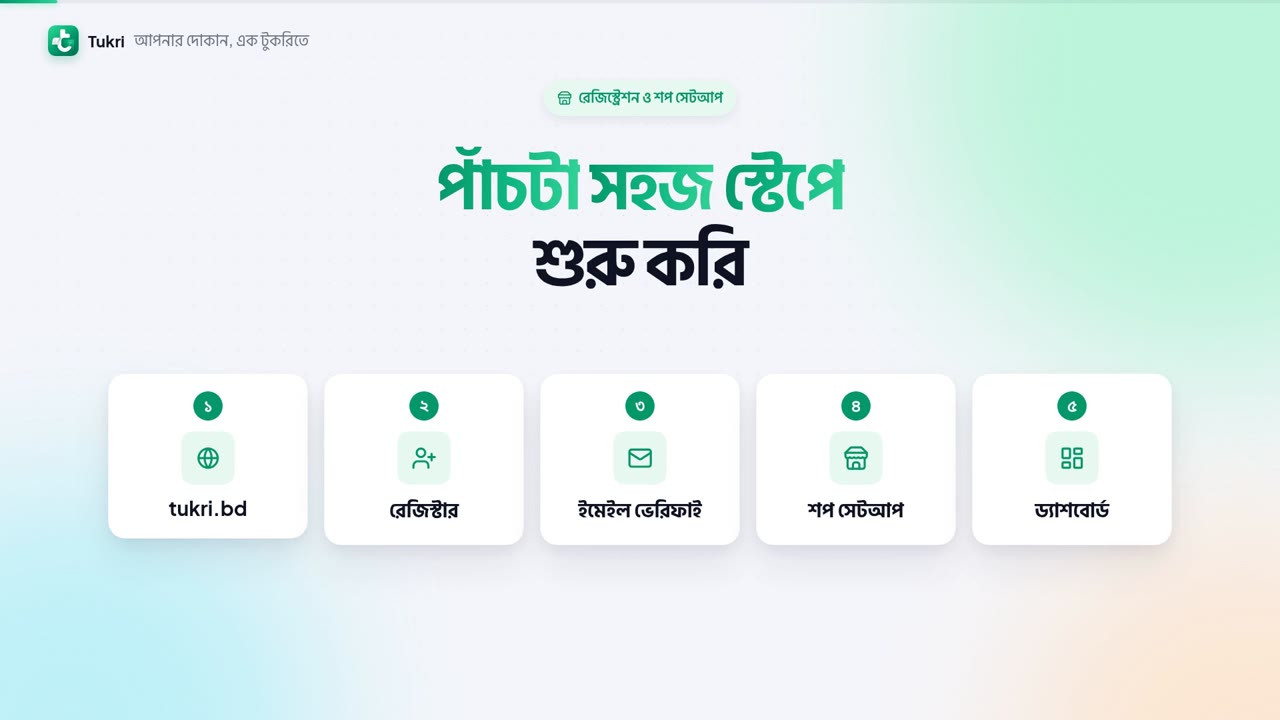
New to Tukri? Let's get started in 5 easy steps.
First, open tukri.bd. Click the Start free button. To see it in Bangla, click the Bangla switch at the top.
Now let's fill in the form. Enter your name and email, along with your phone number. Then choose a strong password. Use capital and small letters, a number and a symbol. When every tick is green, you're set. Type the password once more, then click Create account.
Now it's time to verify your email. A 6-digit code is sent to your email. Enter the code and press Verify my email. You can also skip it with I'll do this later.
Now set up your shop. First, type the Shop name, then choose the Shop type. Note: the type can't be changed later, so choose the right one. The Phone number is already filled in. Then press Next.
Here, enter the Shop address, and choose the app's Language. If you like, turn on Start with a common product list. You also get a free 14-day Premium trial, no card needed. Finally, press Start my shop.
That's it, your shop is ready! This is your Dashboard. Start from Quick actions. Add your products with Add product. Press Sell to start a sale. When new goods arrive, Receive stock.
Start your business's digital journey with Tukri! tukri.bd
Related articles
- Your Dashboard: today's sales, cash and alerts The Dashboard shows today's sales, cash received, profit and new due, quick buttons to sell or buy stock, the last 7 days and the products running low.
- Add a new product Add a product in a four-step form: name, category, unit and prices, then opening stock, how it sells, and its SKU, barcode and photo.
- Make a sale at the till Add products to the cart, take payment and complete the sale, step by step on a computer or a phone.
- Your plan: trial, renewing and paying See your plan, trial days and usage in Settings, Plan; learn what happens when it ends, and renew, upgrade or switch plan with bKash or the Free plan.
Still need help?
Write to us, call or send a WhatsApp message, and someone from Tukri will help you.
