

On this page
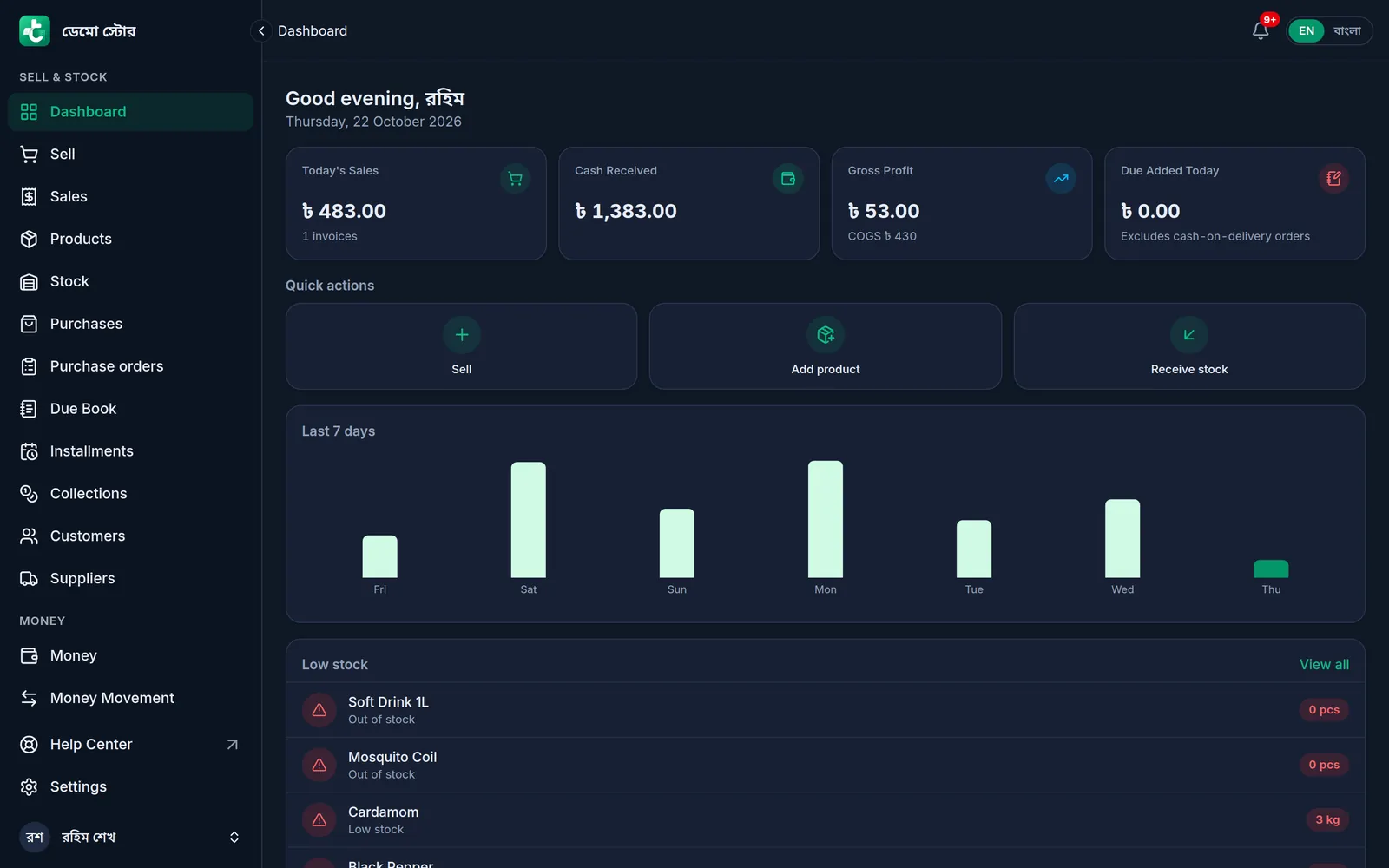
The Dashboard is the first screen you see after signing in. It shows today's figures for your shop, buttons for the three most common jobs, a chart of the last 7 days and the products that are running low. Each card shows only what your role is allowed to see.
Open the Dashboard
On a computer
- Click Dashboard at the top of the menu on the left.
On a phone or tablet
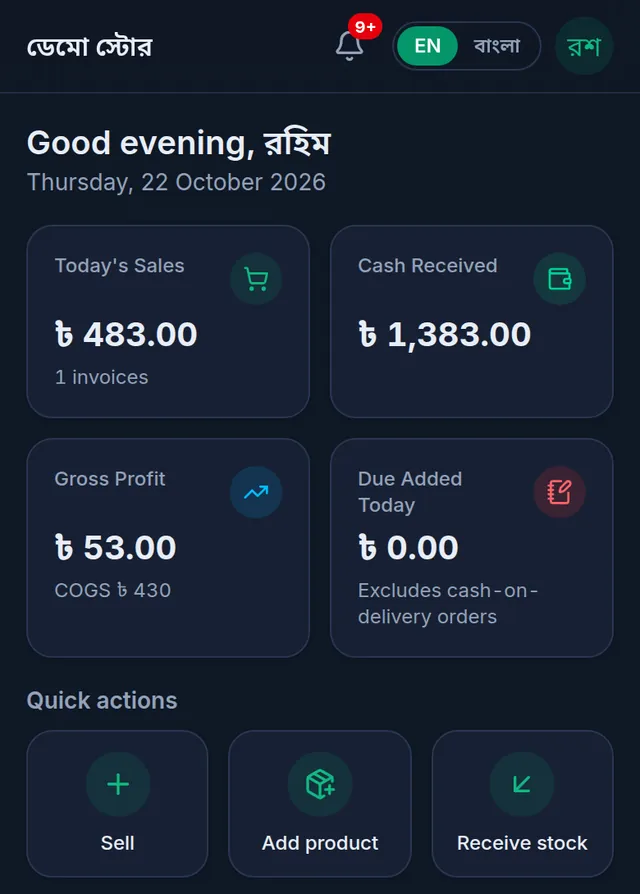
- Tap Dashboard, the first button in the bar at the bottom. To refresh the figures, pull the page down.
Today's figures
"Today" starts at midnight, Bangladesh time.
- Today's Sales: today's completed sales, less anything returned from them, with the number of invoices under it. Cancelled sales are not counted.
- Cash Received: the money customers paid today into any account (cash, bank or mobile banking): sale payments, due collections and courier cash-on-delivery payouts.
- Gross Profit: today's sales minus what the goods cost you, using the cost price at the time of each sale. The small line under it is the cost of the goods sold.
- Due Added Today: the new due from today's sales. Cash-on-delivery orders are not counted.
Quick actions
Under Quick actions:
- Sell opens the till. See Make a sale at the till.
- Add product opens a new product form.
- Receive stock opens a new purchase, for goods that have arrived from a supplier.
The last 7 days and low stock
- Last 7 days draws one bar for each day. Tap a bar (or point at it on a computer) to see that day's total and number of invoices.
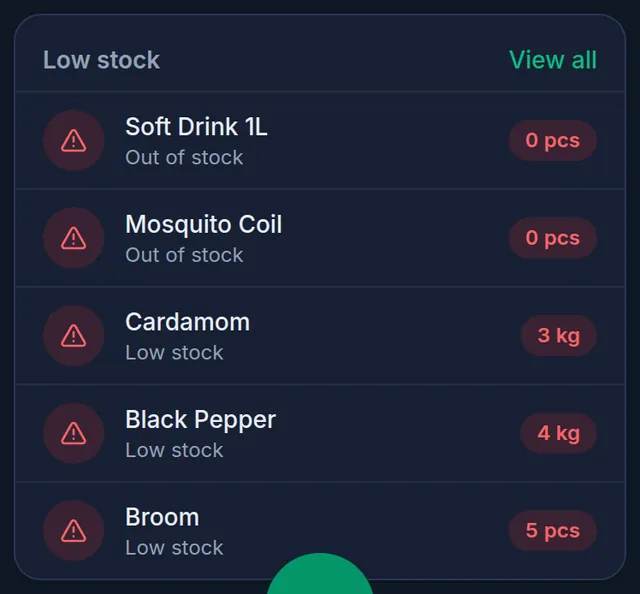
- Low stock lists up to five products at or below their low-stock alert level, with how much is left. Out of stock means none is left. View all opens the full list.
- If your shop records batches with expiry dates, another card lists the lots that have expired or expire soon.
- During the free trial, a yellow strip at the top of the app shows how many days are left. See Your plan: trial, renewing and paying.
Who sees which card
Each card is shown only to members whose role allows it:
- Today's Sales, Cash Received and the chart: See sales history.
- Due Added Today: See the তালি খাতা.
- Gross Profit: See profit & cost price. The Owner and Admin roles have it; the Staff role does not, so staff do not see profit.
- Low stock and the expiry card: See stock.
The quick actions show to everyone, but the page each one opens still checks the member's role. The owner can change what a role may see in Settings › Roles: see Roles and permissions.
If a number looks wrong
Cash Received does not match the cash in my drawer. It also counts bank and mobile banking payments, and refunds and expenses are not taken off it. To see one account's money, see Cash, bank and bKash accounts.
Today's Sales is less than I sold. Returns are taken off and cancelled sales are not counted. কিস্তি (installment) agreements are not counted here either.
Gross Profit looks too high. A product sold without a cost price adds no cost. Fill in the Cost price on your products; it counts for sales made after that, not for sales already made.
Low stock says All stocked up but a product is low. That product has no low-stock alert level, and the shop has no default level either. See Low stock alerts and stock status.
I cannot see Gross Profit, the last 7 days chart or the low stock list. Your role does not allow that card. Ask the shop's owner.
I want the figures for another day. The Dashboard shows today only. For any other day or period, use Reports: see Daily sales report.
Watch the video
What the video says
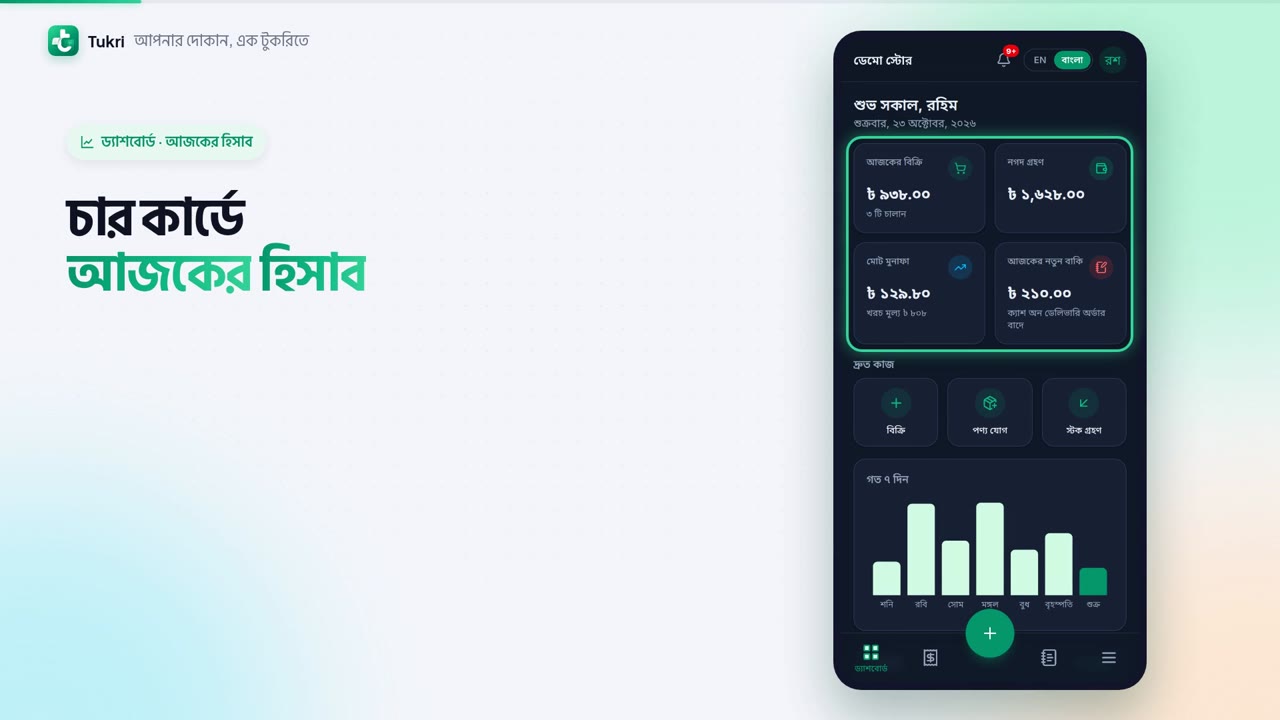
How much did the shop sell today? Which goods are running low? See it all on the Dashboard.
The four cards at the top show today's figures. Today's Sales, and how many invoices. Cash Received: the money that came in today. Gross Profit, and Due Added Today.
Below them, Quick actions: Sell, Add product and Receive stock.
The Last 7 days chart shows each day's sales. Tap a bar to see that day's figures. Low stock lists the products running low, and Out of stock means none is left. Press View all to see the full list.
You see only the cards your role allows. For example, Staff don't see the profit card.
Some features start switched off. When you need one, open Settings from the Menu, and go to the Features tab at the top. Warranty check, Buying list, Halkhata cards: turn on the switch for the one you need. Then press Save at the bottom.
That's it, the feature is now in the menu. Turning it off only hides it; nothing is deleted. The Owner and Admins can change this.
Your shop's figures at a glance, tukri.bd
Related articles
- Make a sale at the till Add products to the cart, take payment and complete the sale, step by step on a computer or a phone.
- Low stock alerts and seeing what is running low Set a low stock level per product or for the whole shop, see what to reorder on the Stock page, and get an alert on the owner's and admins' phones.
- Daily sales report The Sales by Day report charts how much you sold on each day of any period, with the period's total revenue and number of sales. Download it as a PDF or CSV.
- Your plan: trial, renewing and paying See your plan, trial days and usage in Settings, Plan; learn what happens when it ends, and renew, upgrade or switch plan with bKash or the Free plan.
Still need help?
Write to us, call or send a WhatsApp message, and someone from Tukri will help you.
