

On this page
When a product is running low, Tukri tells you in three places: the Reorder suggestions card on the Stock page, the Low stock card on the Dashboard, and a notification on the owner's and admins' phones or computers. What counts as "low" is set by a level: the product's own Low stock alert, or the shop's default level when the product has none. A product with neither never raises an alert.
Before you begin
- Setting a product's own level needs permission to edit products: the Owner, Admin and Staff roles all have it.
- Changing the shop's default level and the notification switch needs permission to manage settings, which the Owner and Admin roles have to begin with.
Set the level for one product
- Open the product from Products.
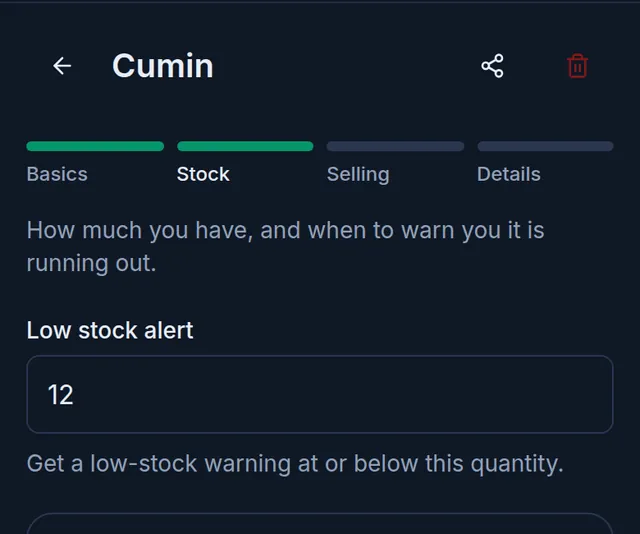
- Go to the Stock step at the top.
- Type the number in Low stock alert. Get a low-stock warning at or below this quantity.
- Choose Save.
The same field is there when you add a new product. A product with variants has no such field; the total stock of all its variants is checked against the shop's default level.
Set a default level for all products
For products without a level of their own, set one for the whole shop.
- Open Settings (on a phone, from Menu at the bottom), then Shop.
- Go to the Selling & stock tab.
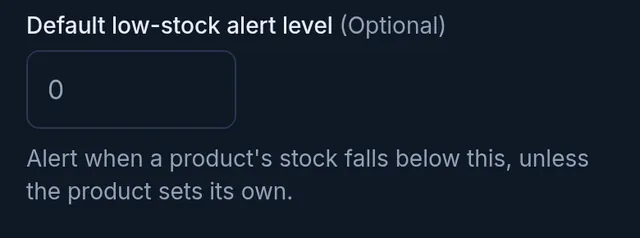
- Type a number in Default low-stock alert level.
- Choose Save at the bottom.
See what is running low
On a computer
- Open Stock in the menu on the left.
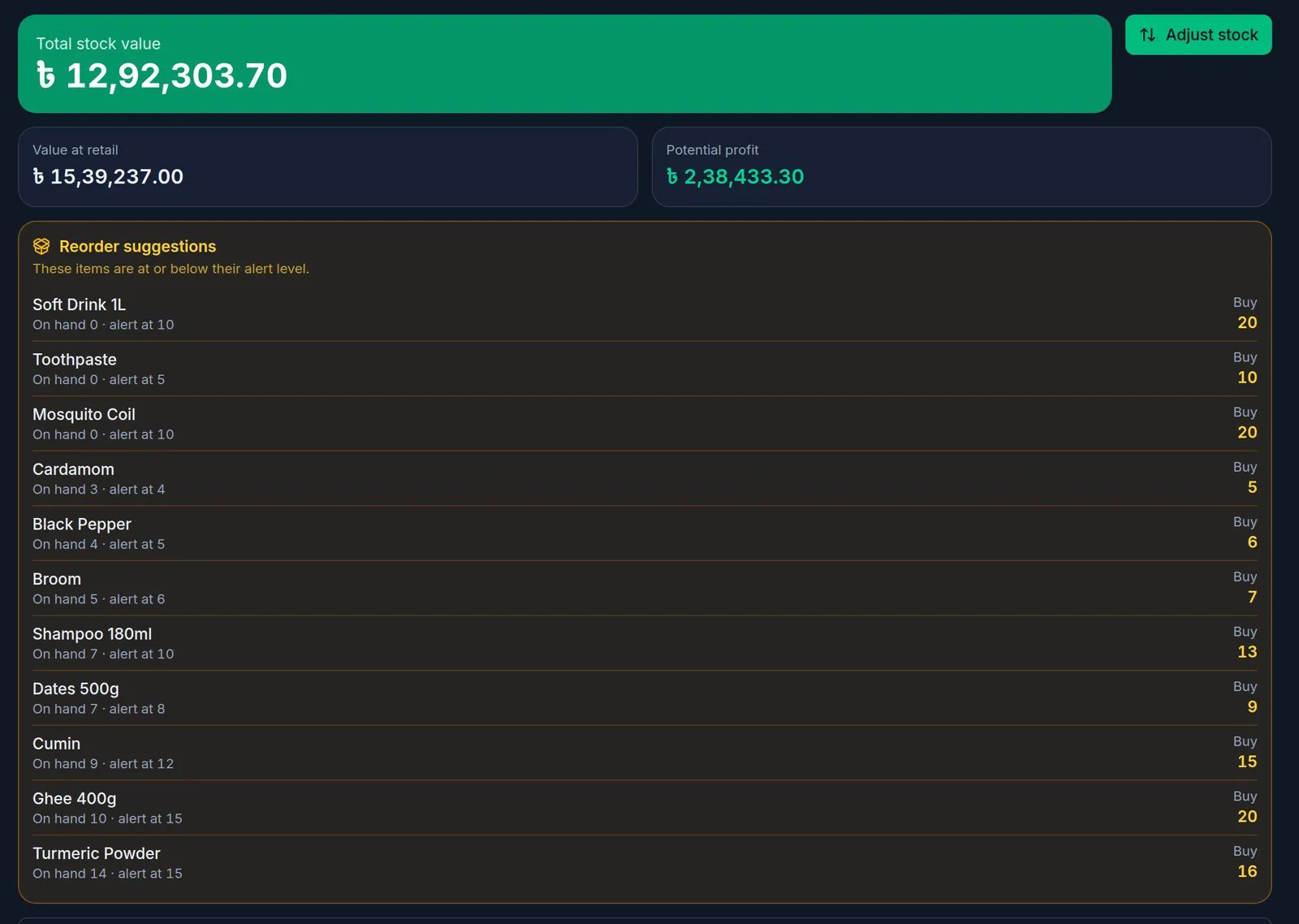
- The Reorder suggestions card at the top lists every product at or below its level: how much is on hand, its alert level, and on the right, under Buy, how much to buy.
On a phone or tablet
- Open Stock from Menu at the bottom.
- The Reorder suggestions card at the top lists every product at or below its level: how much is on hand, its alert level, and on the right, under Buy, how much to buy.
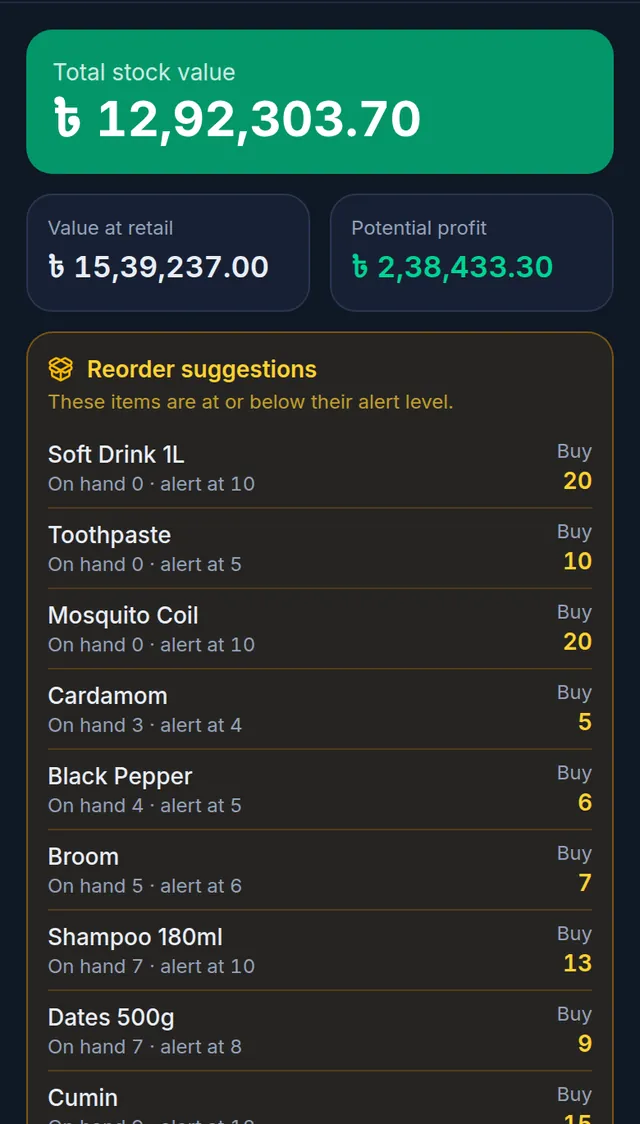
The amount to buy brings the stock back to twice the alert level, and is never less than the level itself. When nothing is at or below its level, the card is not shown. If your shop has the buying list turned on, the card also has an Add all to buying list button.
Two more places show it:
- The Low stock and Out of stock buttons on the Products list. Low stock is shown in amber and stock that has run out in red.
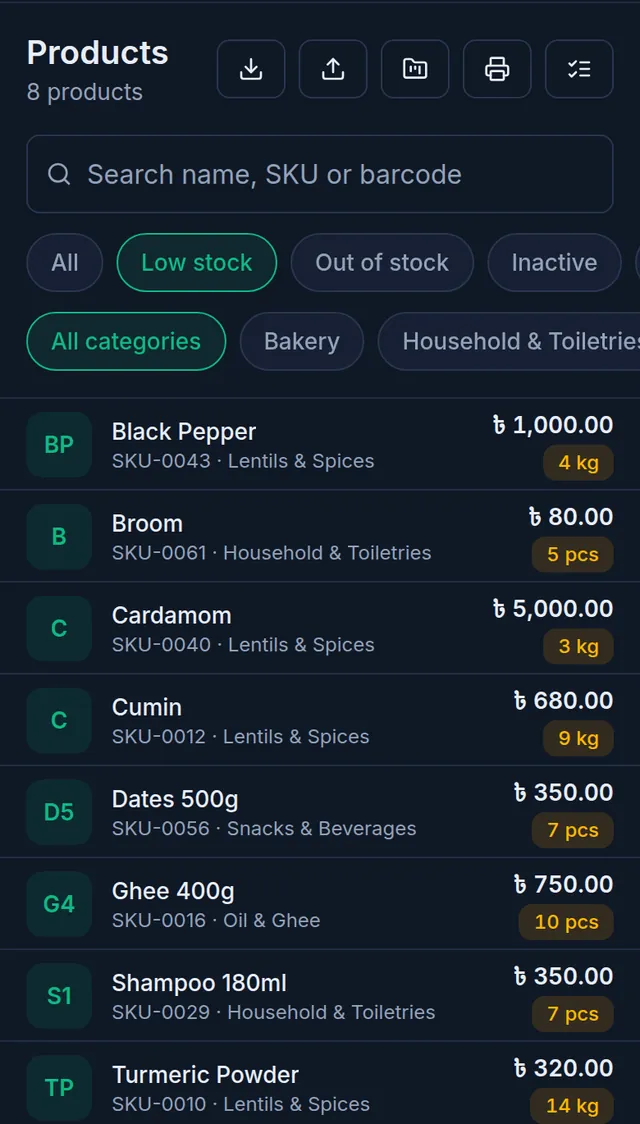
- The Low stock card on the Dashboard: the five active products with the least stock. View all opens the product list with Low stock chosen.
Get an alert on your phone
When a sale or anything else takes a product's stock below its level, a notification goes to the owner's and admins' phones or computers. For that:
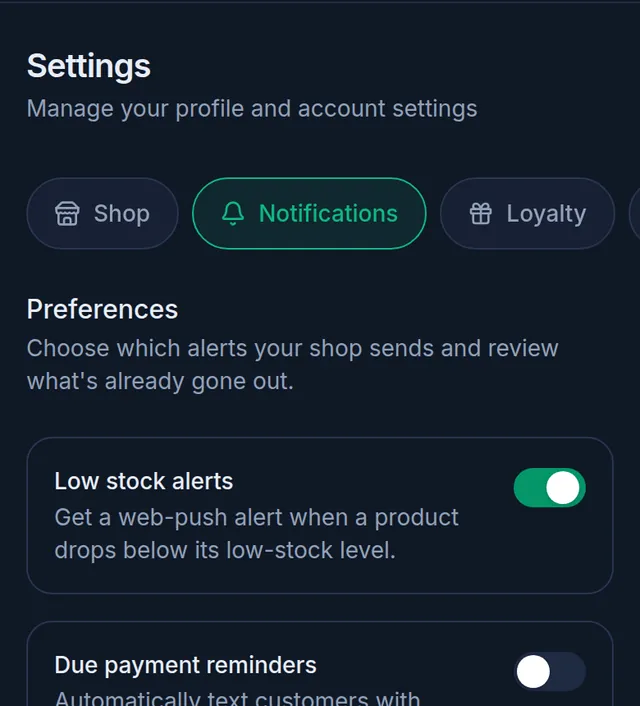
- In Settings › Notifications, keep Low stock alerts on. A new shop starts with it on.
- On each phone or computer that should get alerts, open Settings › Security. You may be asked for your password.
- Under Notifications, tap Enable and allow notifications when the browser asks. It then says "Notifications are on for this device."
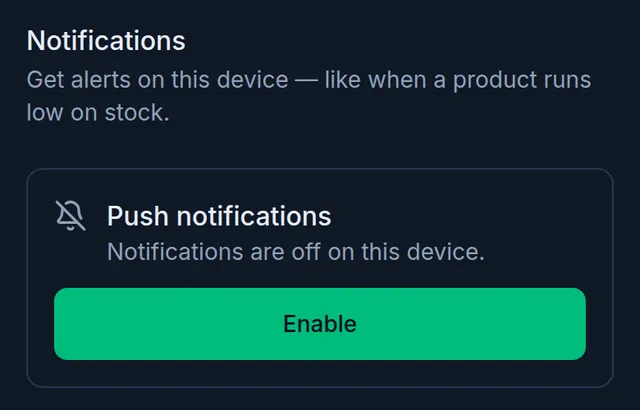
The alert goes only to the shop owner and members on the Admin role who turned it on for their device. Members on Staff or a custom role do not get it. It is sent once, at the moment the stock drops below the level; it comes again only after the stock is brought back up to the level and drops again. Tapping it opens the Stock page, and it is also kept under the bell at the top.
If something goes wrong
A product is not shown as low. It has no level of its own and the shop has no default. Also, the Low stock button on the product list uses only the product's own level, and only shows products with stock above zero. Products low by the shop's default, or completely out, are in the Reorder suggestions card.
No alert arrives on my phone. Check that Low stock alerts is on, that the phone says "Notifications are on for this device.", that you are the owner or an Admin, and that the stock really dropped below the level. A product already below its level does not alert again.
It says "Notifications are blocked in your browser settings." Allow notifications for Tukri in your browser's site settings, then try again.
The Security page has no Notifications part. This browser cannot receive push notifications. On an iPhone, add Tukri to the home screen and open it from there: Use Tukri in Bangla and install it on your phone.
Watch the video
What the video says
Already have goods in your shop? And how will you know when stock runs low? Let's look at opening stock and low stock.
In a new product's Stock step, enter how much you have now in Opening stock. In the product's unit: how many pieces, or how many kilos. No money is spent, and nothing is owed to a supplier.
In Low stock alert beside it, enter the level at which Tukri warns you. Then press Save now.
Opening stock can be entered only once; the field isn't there when you edit. When new goods arrive, record a purchase, and if a count is wrong, adjust the stock.
For products without their own level, open Shop in Settings, and on the Selling & stock tab, fill in Default low-stock alert level and press Save.
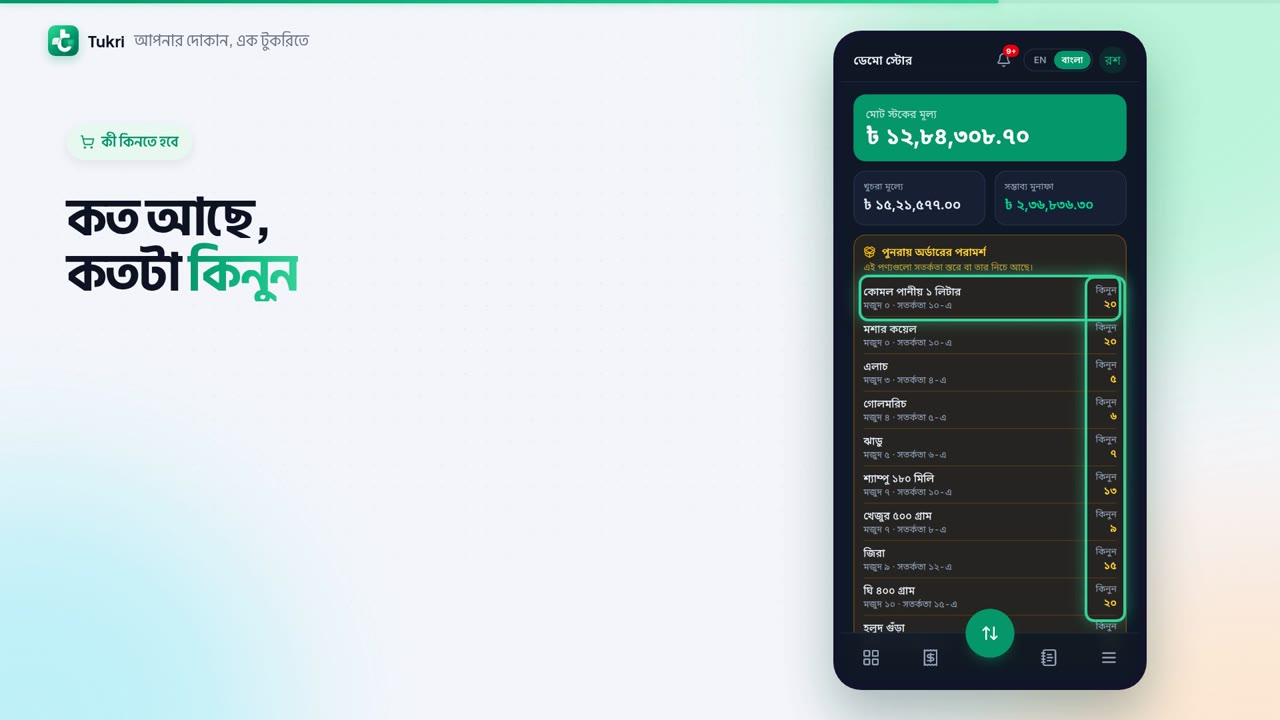
What to buy? Open Stock from the Menu. Reorder suggestions show how much you have, and how much to buy. The Dashboard's Low stock card shows it too.
The Owner and Admins can also get a notification on their phone. The written guide has the steps to turn it on.
Know before your stock runs out, tukri.bd
Related articles
- Your Dashboard: today's sales, cash and alerts The Dashboard shows today's sales, cash received, profit and new due, quick buttons to sell or buy stock, the last 7 days and the products running low.
- Create a purchase order Write down what you are ordering from a supplier, how much and at what cost, before the goods arrive. Nothing changes in stock or money until you receive it.
- Record a purchase and receive stock When goods arrive from a supplier, record the purchase: stock goes up, the cost price is updated, and what you did not pay is added to what you owe them.
Still need help?
Write to us, call or send a WhatsApp message, and someone from Tukri will help you.
