

On this page
A purchase order is your plan before the goods arrive: which supplier, which products, how many and at what cost. It is saved as a draft, and nothing changes in your stock, your money or what you owe the supplier until you receive the goods.
Before you begin
- The supplier must already be in Tukri. This form cannot add one; see Add and manage suppliers.
- The products must already be in Tukri and active (not archived).
- Purchase orders are for the Owner and Admin roles. Staff do not see Purchase orders in the menu, but they can still record a purchase directly when goods arrive.
Create a purchase order
- Open the new purchase order form.
On a computer
Open Purchase orders in the menu on the left and click New purchase order at the top right.
On a phone or tablet
Open Purchase orders from Menu, then tap the round button at the bottom (the clipboard icon).
- Choose the Supplier.
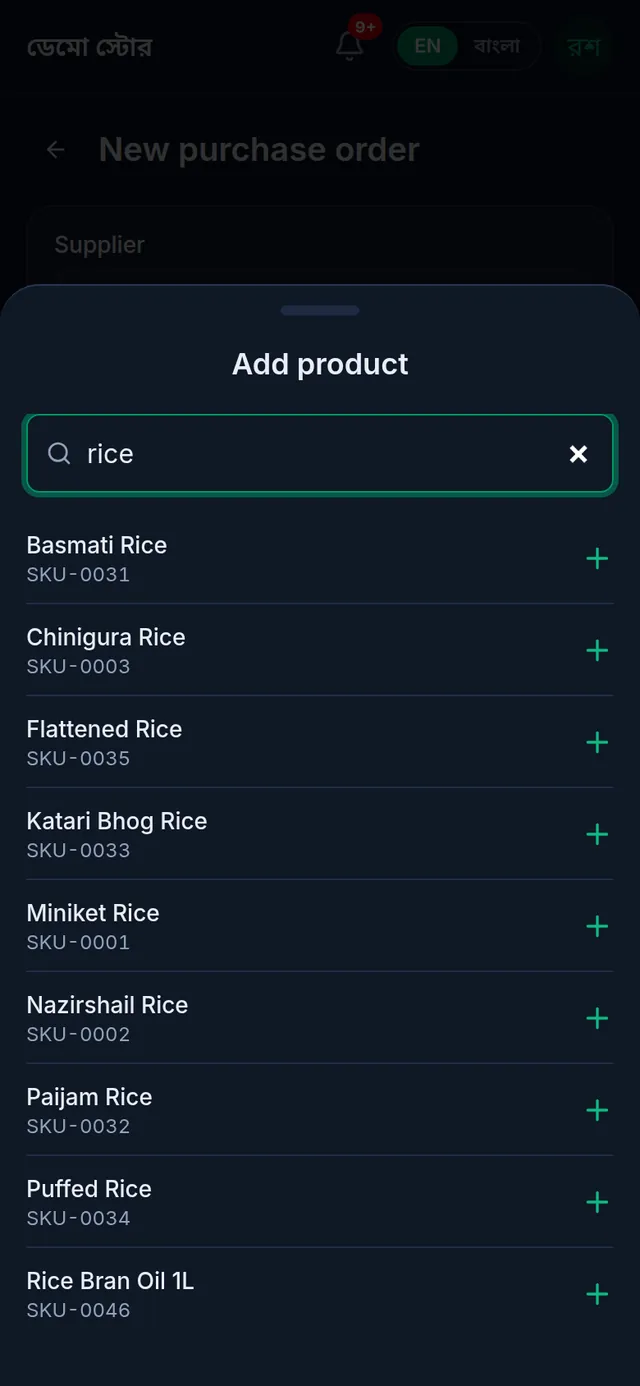
- Tap Add item, search by name, SKU or barcode, and tap the product. Repeat for each product. A product with variants lists each variant on its own.
- On each line, enter the Quantity and the Unit cost (৳). The unit cost starts as the product's current cost price; change it to the price the supplier quoted. The line total is worked out for you.
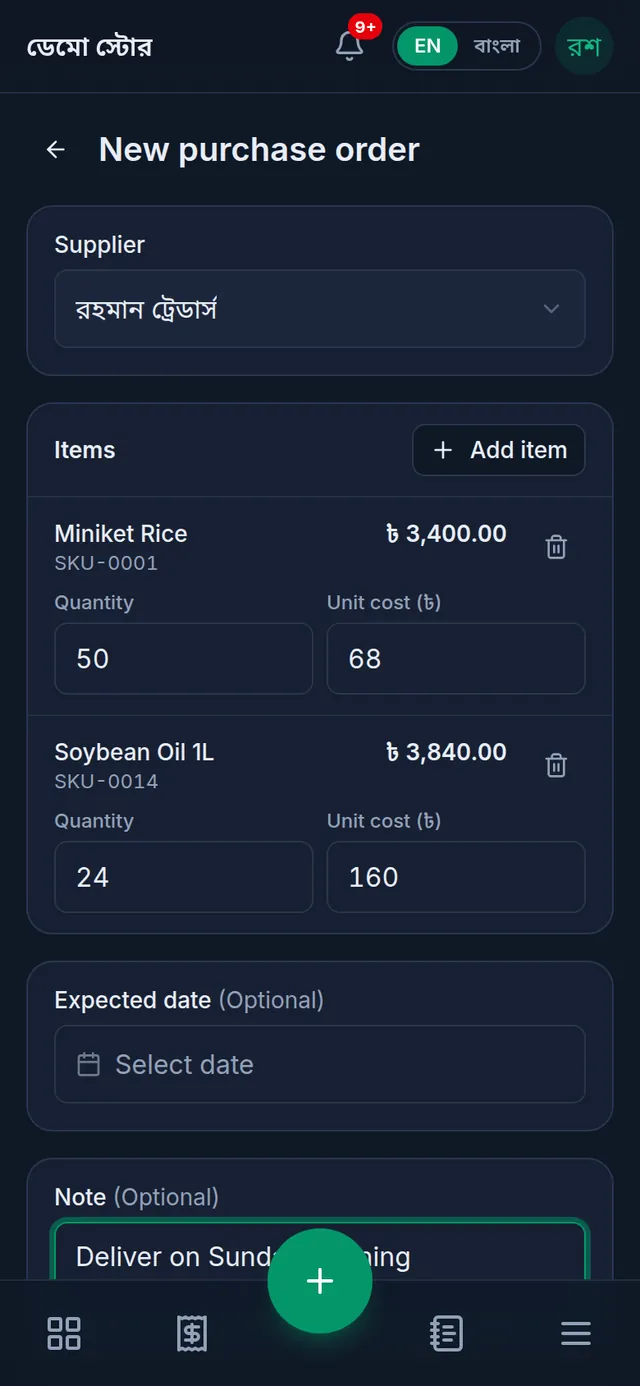
- Add an Expected date (when the goods should arrive) and a Note if you like.
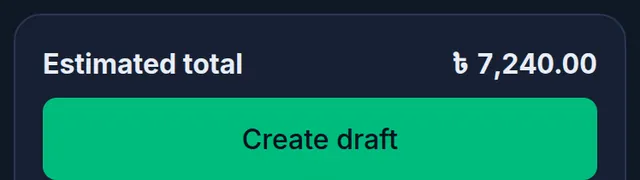
- Check the Estimated total at the bottom and tap Create draft.
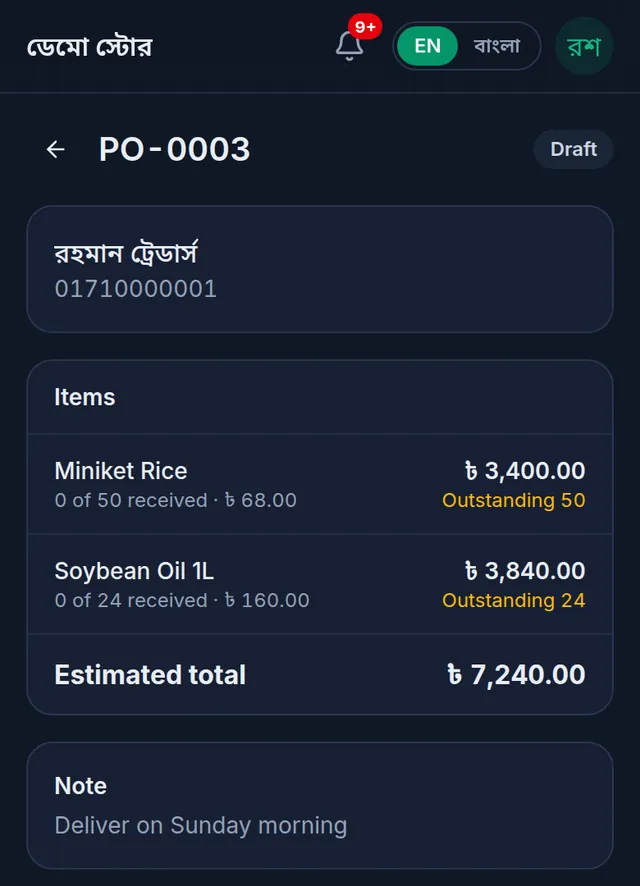
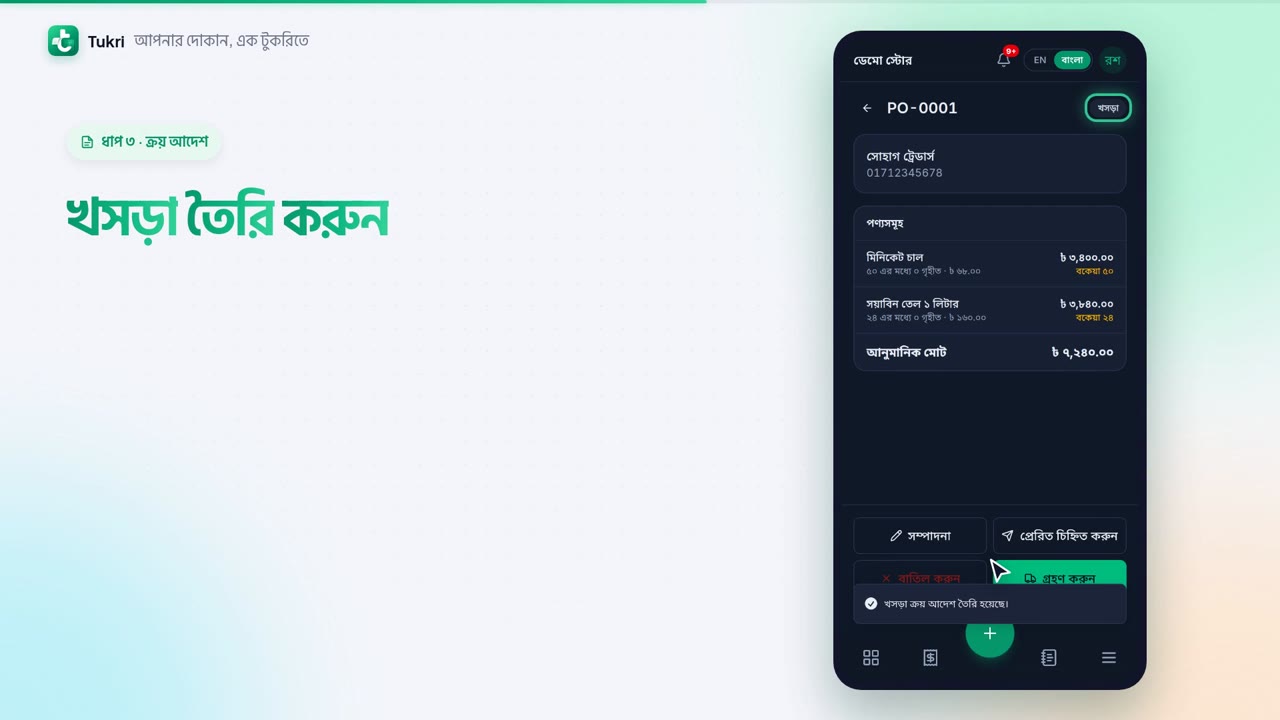
- Tukri shows "Draft purchase order created." and opens the order with its own number (PO-0001, for example) as Draft.
What happens next
- Tell the supplier about the order yourself: by phone, WhatsApp or on paper. Tukri does not send anything to the supplier.
- After you have told them, you can open the order and tap Mark sent. This only records that it was sent.
- When the goods arrive, receive them from the order; that is when stock goes up and the unpaid part goes on what you owe the supplier. The steps are in Purchase order statuses: sent, received, cancelled.
Change a draft
Only an order that is still Draft can be changed. Open it, tap Edit at the bottom, correct the supplier, products, quantities, costs, date or note, and tap Save changes.
If something goes wrong
Create draft is greyed out. Choose a supplier, add at least one product, and give every line a quantity and a unit cost above zero.
The supplier is not in the list. Only saved suppliers are listed. Add them in Suppliers first, then open the form again.
I cannot find a product. Archived products are not listed, and this list holds the first 500 active products by name. For such a product, record the purchase directly when the goods arrive; its search covers every product.
"Only a draft purchase order can be edited." The order is no longer a draft. To change it, cancel it and create a new one.
I want to print or delete an order. Purchase orders cannot be deleted, and there is no print or PDF of one. Cancel an order you no longer need.
Watch the video
What the video says
How much do you owe each supplier, and how much of an order has arrived? Let's keep it all organised in Tukri.
Open Suppliers from the Menu, and tap the round button at the bottom. Enter the name and phone number. If you owed them before, enter it in Opening payable, then tap Save.
Tap the supplier to see their ledger. The red box shows what you owe. When you pay them, tap Pay supplier, enter the amount and choose the account, then tap Record payment. What you owe goes down right away.
To write an order before the goods come, open Purchase orders from the Menu and tap the round button. Choose the supplier and tap Add item. On each line, give the quantity and the unit cost, then tap Create draft.
Send the order to the supplier yourself, by phone or on WhatsApp. Tukri sends nothing to the supplier. Once you have told them, tap Mark sent.
When the goods come, open the order and tap Receive. Enter only as much as has arrived. Paying some now? Enter it in the account's box. Then tap Receive goods.
That's it! The stock went up, and the unpaid amount went on the ledger as what you owe. If some goods come later, receive again. If you no longer need it, the order can be cancelled.
Purchase orders are for the Owner and Admin only.
All your buying in one place, tukri.bd
Related articles
- Purchase order statuses: sent, received, cancelled Mark a purchase order sent, receive all or part of the goods when they arrive, or cancel it, and what each status allows.
- Record a purchase and receive stock When goods arrive from a supplier, record the purchase: stock goes up, the cost price is updated, and what you did not pay is added to what you owe them.
Still need help?
Write to us, call or send a WhatsApp message, and someone from Tukri will help you.
