

On this page
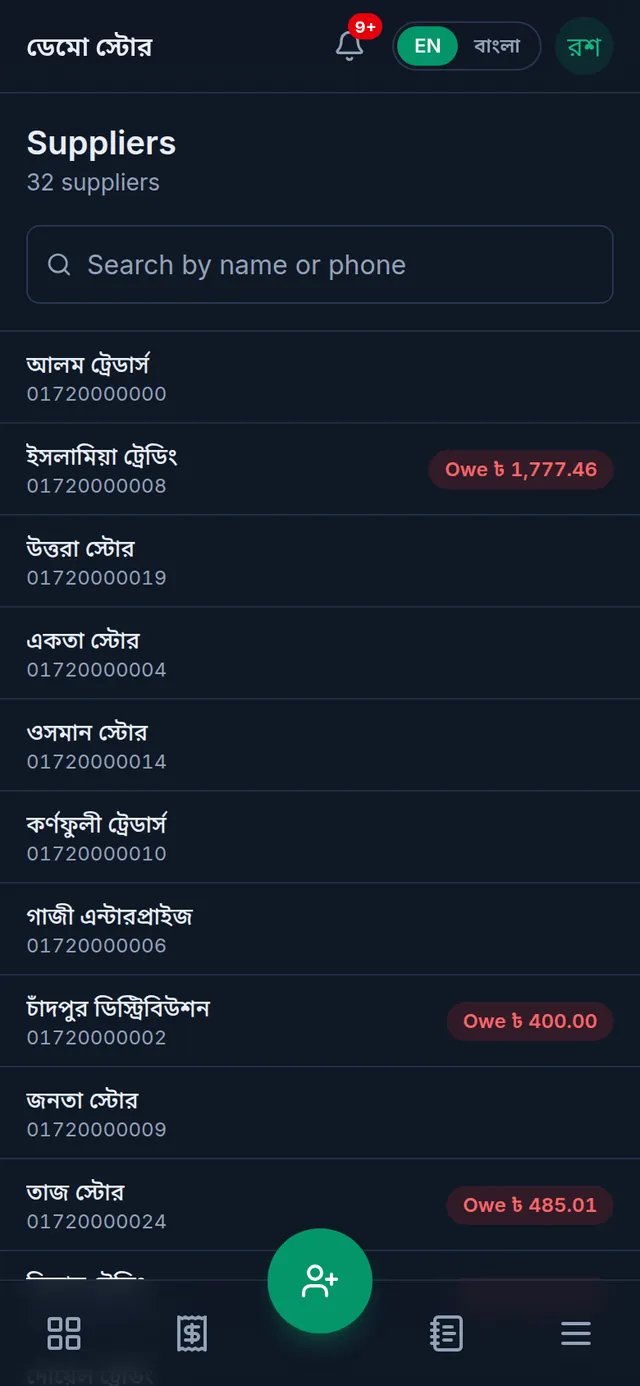
Suppliers are the people and companies you buy goods from. Each supplier in Tukri has a ledger: buying on credit raises what you owe them, and paying them lowers it. In the supplier list, anyone you owe money to has a red badge showing how much.
Before you begin
- Seeing suppliers, adding or editing them, and paying them are three separate permissions. The Owner, Admin and Staff roles have all three. The owner can take them away from a role in Settings › Roles.
- To record a payment you need at least one active money account, such as cash.
Add a supplier
- Open the supplier list and start a new supplier.
On a computer
Open Suppliers in the menu on the left and click Add supplier at the top right.
On a phone or tablet
Open Suppliers from Menu, then tap the round button at the bottom (a person with a +).
- Enter the Name and Phone; both are required. The Address is up to you.
- If you already owed this supplier money before you started using Tukri, enter it in Opening payable (৳). Otherwise leave it empty.
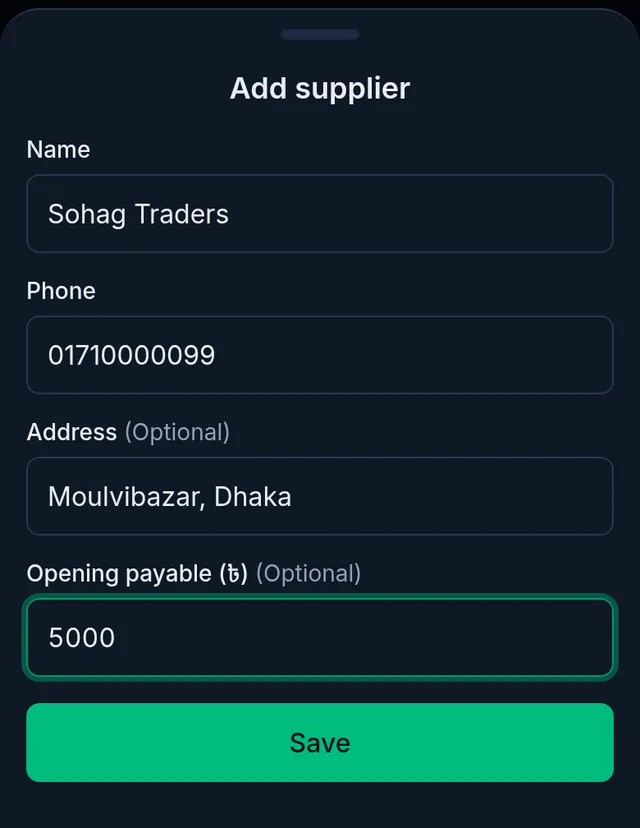
- Tap Save. Tukri shows "Supplier added." and the supplier appears in the list.
You can also add a supplier from the purchase form while recording goods: see Record a purchase and receive stock.
See what you owe
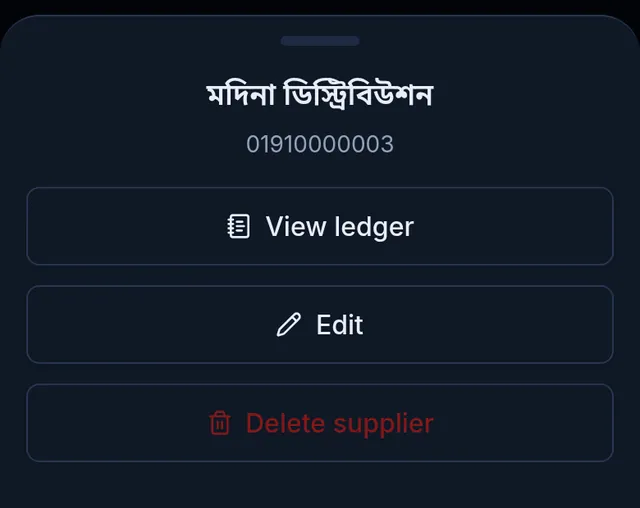
- In Suppliers, tap the supplier, then tap View ledger. You can type a name or phone number in the search box at the top to find them.
- The red box at the top shows You owe: what you still have to pay this supplier. If you have paid more than you owe, a green Advance balance shows instead.
- Below it is every entry with its date and the balance after it: Purchase on credit, Payable added, Payment made and Adjustment.
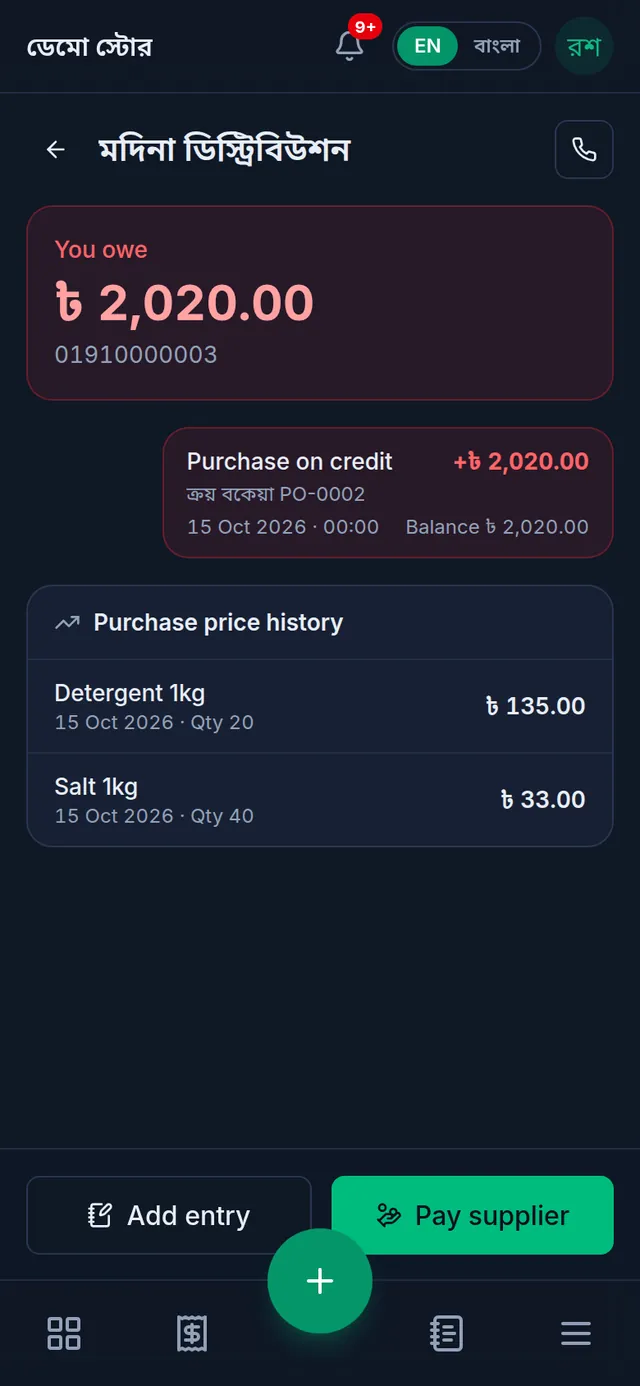
Under the ledger, Purchase price history lists what you recently paid this supplier for each product. The phone button at the top right calls the supplier.
Pay a supplier
- Open the supplier's ledger and tap Pay supplier at the bottom.
- Type the amount on the keypad (whole taka), then choose under Account which account the money came from.
- Add a Note if useful, such as their invoice number. Leave the Date empty for today, or pick yesterday.
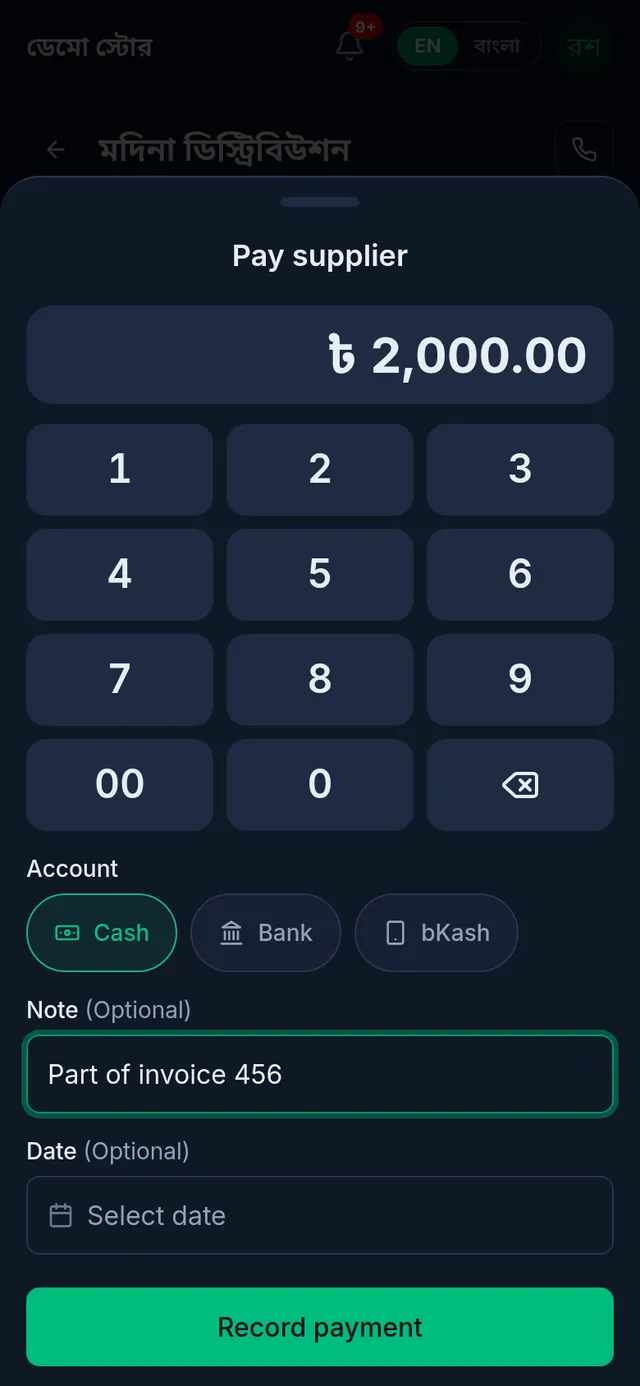
- Tap Record payment. Tukri shows "Payment recorded — the ledger and money records have been updated."
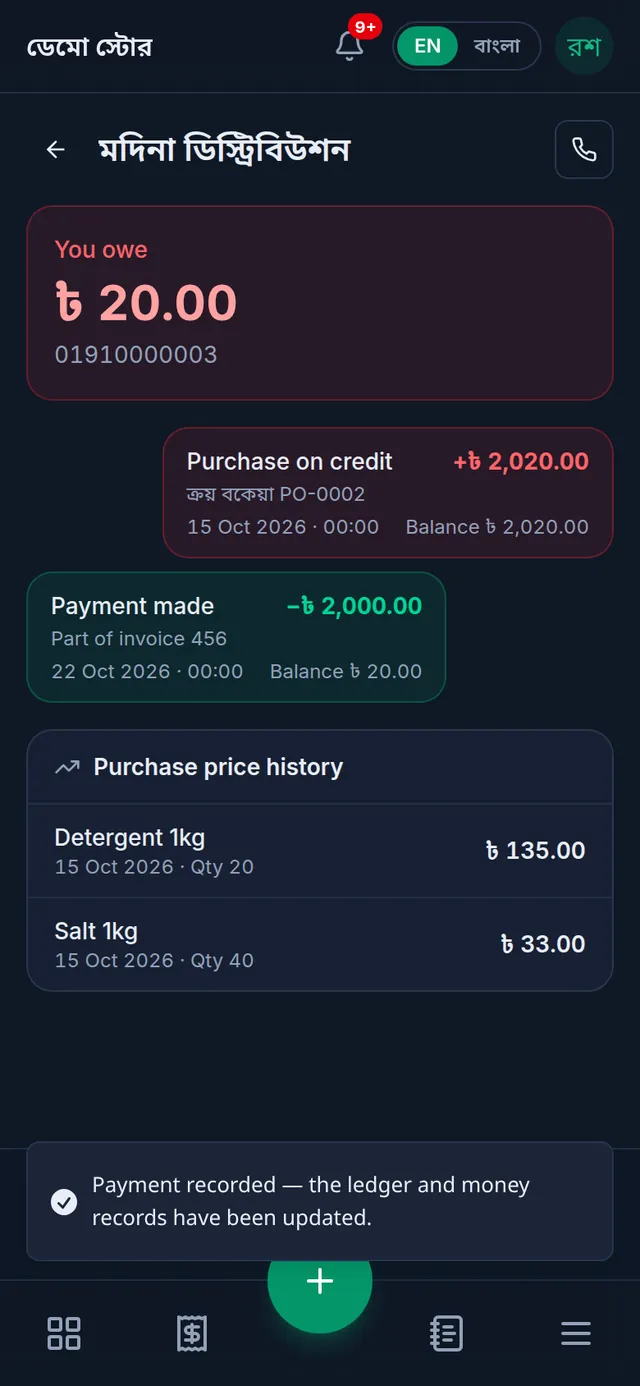
The money leaves the account you chose and what you owe goes down by the same amount. Paying more than you owe is allowed: the extra shows as an advance, and your next purchase on credit from them is set against it.
Add an old debt or correct the balance
If you remember an old debt after adding the supplier, or the ledger does not match the supplier's own account:
- On the supplier's ledger, tap Add entry.
- Choose one of the three at the top: Opening payable (a debt from before), Add due (a correction that raises what you owe) or Reduce (a correction that lowers it).
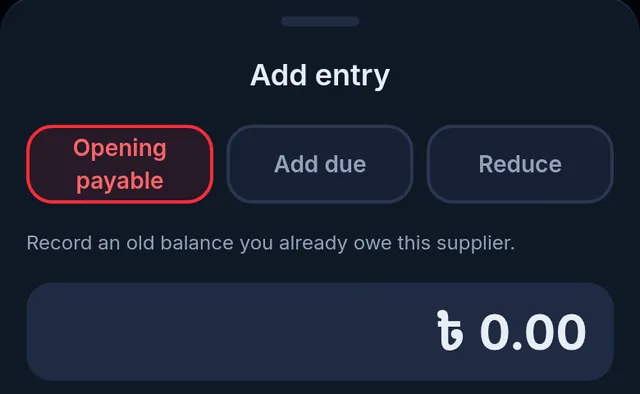
- Type the amount, add a note if useful, and tap Save entry.
These entries move no money in any account; they only correct the ledger. When you actually pay the supplier, use Pay supplier, not this.
Edit or delete a supplier
- To change a name, phone number or address, tap the supplier in the list and choose Edit. The opening payable is only offered when adding; to add an old debt later, use Add entry above.
- To delete, tap the supplier and choose Delete supplier. Nothing is deleted yet: Tukri asks "Delete this supplier?", and only tapping Delete supplier there deletes them.
If something goes wrong
Record payment is greyed out. Enter an amount and choose an account. If no account is listed, add or switch on a money account first.
"Pick today or yesterday: an earlier date cannot be recorded here." You picked a day before yesterday. Pick today or yesterday, or leave the date empty and write the real date in the note.
The supplier cannot be deleted. If you see "This supplier has purchase or payment history, so they cannot be deleted. Their purchases and payments stay in your records.", you have traded with them. They stay in your list with all their records.
I want to edit or delete a ledger entry. Ledger entries cannot be changed or deleted. Correct a mistake with Add entry, using Add due or Reduce.
The buttons are there but saving is refused. Adding, editing or deleting suppliers and paying them are separate permissions. Ask the owner to give your role the one you are missing.
Watch the video
What the video says
How much do you owe each supplier, and how much of an order has arrived? Let's keep it all organised in Tukri.
Open Suppliers from the Menu, and tap the round button at the bottom. Enter the name and phone number. If you owed them before, enter it in Opening payable, then tap Save.
Tap the supplier to see their ledger. The red box shows what you owe. When you pay them, tap Pay supplier, enter the amount and choose the account, then tap Record payment. What you owe goes down right away.
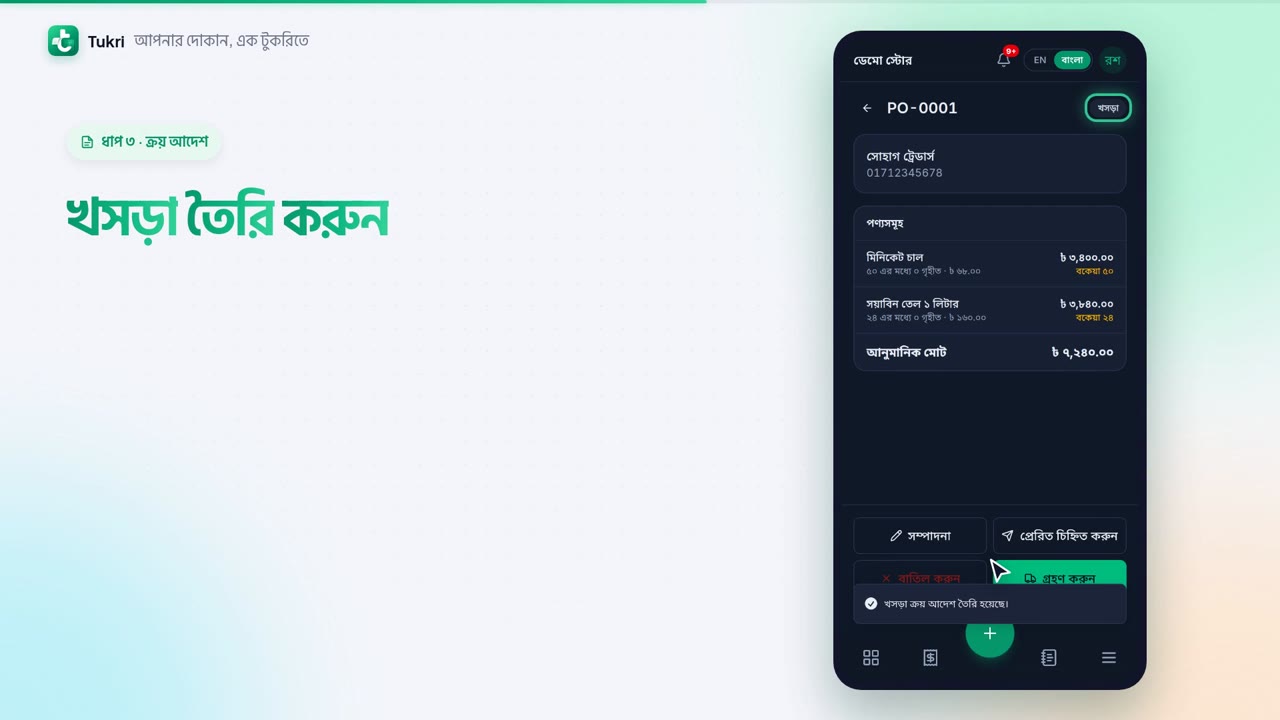
To write an order before the goods come, open Purchase orders from the Menu and tap the round button. Choose the supplier and tap Add item. On each line, give the quantity and the unit cost, then tap Create draft.
Send the order to the supplier yourself, by phone or on WhatsApp. Tukri sends nothing to the supplier. Once you have told them, tap Mark sent.
When the goods come, open the order and tap Receive. Enter only as much as has arrived. Paying some now? Enter it in the account's box. Then tap Receive goods.
That's it! The stock went up, and the unpaid amount went on the ledger as what you owe. If some goods come later, receive again. If you no longer need it, the order can be cancelled.
Purchase orders are for the Owner and Admin only.
All your buying in one place, tukri.bd
Related articles
- Record a purchase and receive stock When goods arrive from a supplier, record the purchase: stock goes up, the cost price is updated, and what you did not pay is added to what you owe them.
- Create a purchase order Write down what you are ordering from a supplier, how much and at what cost, before the goods arrive. Nothing changes in stock or money until you receive it.
- Cash, bank and bKash accounts: add accounts and keep track of money In My Money, add your bKash, Rocket or bank account, put in the money already in it, and move money from one account to another.
Still need help?
Write to us, call or send a WhatsApp message, and someone from Tukri will help you.
