

On this page
When goods arrive from a supplier, record a purchase in Tukri. Saving it adds each product's stock, sets the product's cost price to what you paid, takes your payment out of the account you chose, and puts the rest on what you owe that supplier.
Before you begin
- The supplier must be in Tukri. You can add one from the purchase form (below), or see Add and manage suppliers.
- The products must already be in Tukri and active (not archived). For a new product, start with Add a new product.
- The Owner, Admin and Staff roles can all record purchases.
Record a purchase
- Open the new purchase form. Receive stock on the Dashboard opens the same form.
On a computer
Open Purchases in the menu on the left and click New purchase at the top right.
On a phone or tablet
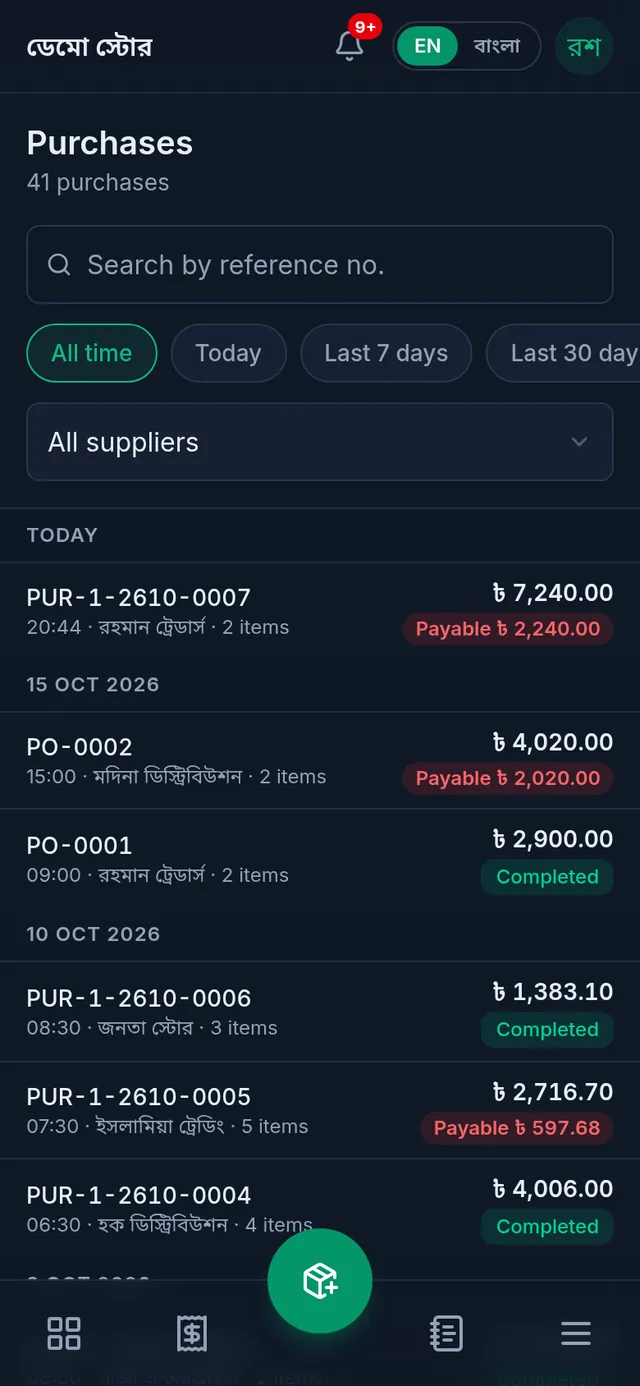
Open Purchases from Menu, then tap the round button at the bottom (the box icon).
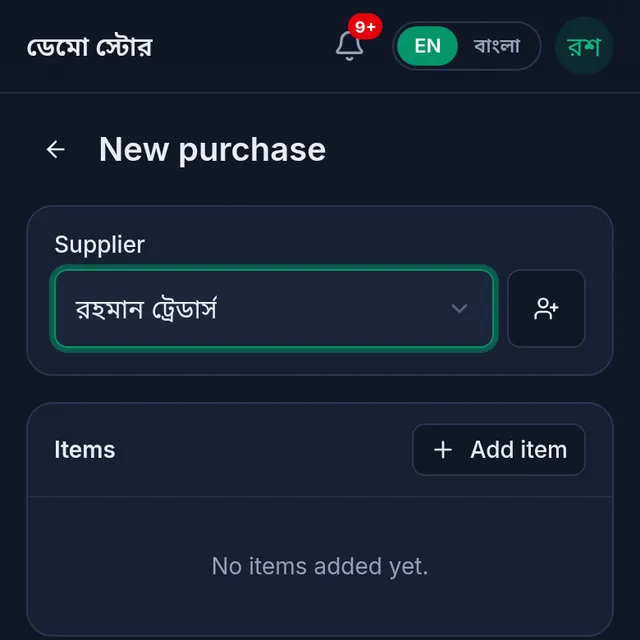
- Choose the Supplier. If they are not in the list, tap the button beside it (Add supplier) and add them there.
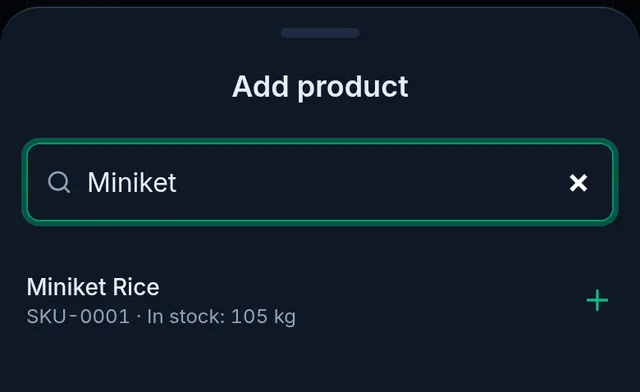
- Tap Add item, search by name, SKU or barcode, and tap the product. Repeat for each product.
- On each line, enter the Quantity and the Unit cost (৳). The line total is worked out for you.
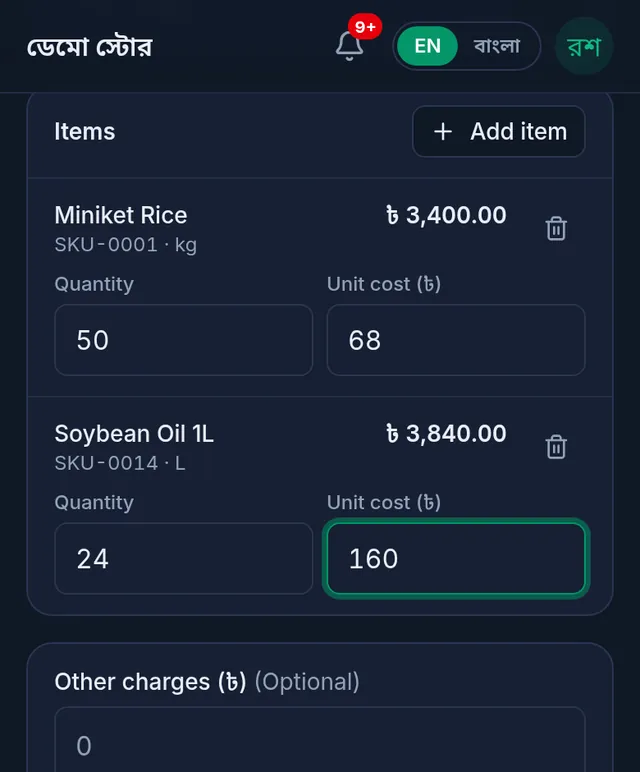
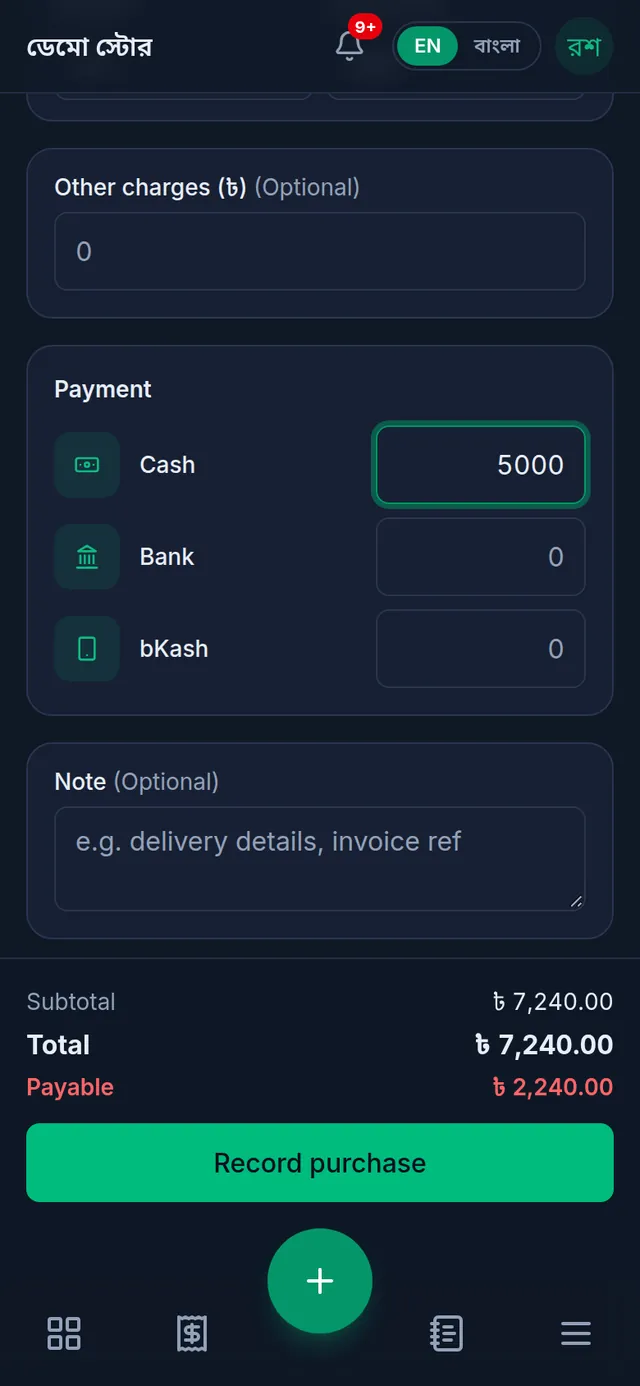
- Add transport, labour or similar costs under Other charges (৳).
- Under Payment, type how much you paid from each account. Leave it empty to buy entirely on credit. You can put the supplier's invoice number in the Note.
- Check Total and Payable at the bottom of the screen, then tap Record purchase.
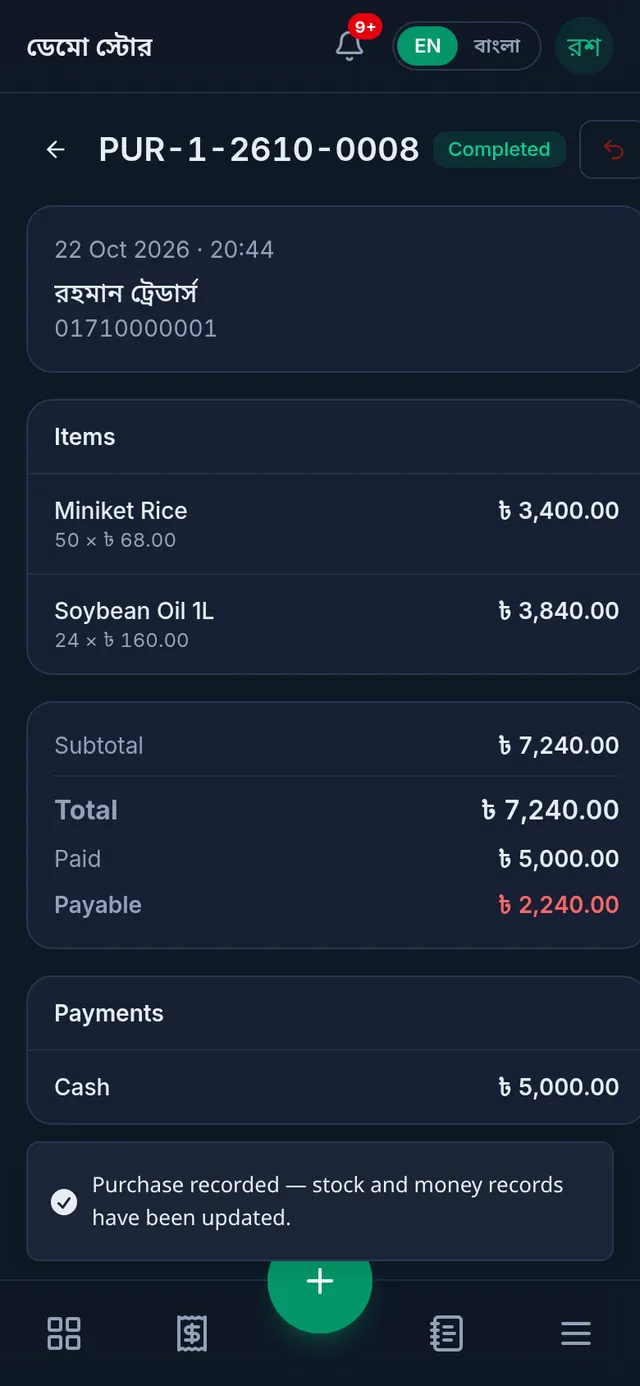
- Tukri shows "Purchase recorded — stock and money records have been updated." and opens the purchase with its own reference number.
Buying by the pack or carton
If a product has a pack unit for buying (a carton, for example), you can pick it as the line's Purchase unit. Then enter the quantity and cost per pack; the line shows how much that adds to stock.
Batches and expiry
For a product that tracks batches and expiry, each line also asks for the Batch / lot no and the Expiry date. When one delivery has two different dates, tap + Another batch of this.
What changes when you save
- Each product's stock goes up by the quantity.
- The product's Cost price becomes this purchase's unit cost. It is the latest cost, not an average.
- What you paid leaves its account. The unpaid part goes on the supplier's account as Purchase on credit.
- Other charges (৳) add to the total and the payable, but are not spread into the products' cost.
A mistake: return the whole purchase
A saved purchase cannot be edited or deleted. To fix one, return it and record it again correctly:
- Open the purchase from Purchases.
- Tap Return purchase at the top. On a phone it is the red arrow button beside the status.
- Add a reason if you like and tap Return this purchase.
The stock comes off, every payment goes back into its account, and the supplier payable is cancelled. Returning needs Edit or return a purchase (the owner and Admin have it at first), and only a whole purchase can be returned, not some of its lines.
If something goes wrong
Record purchase is greyed out. Choose a supplier, add at least one product, give every line a quantity and a cost above zero, and keep the payments within the total (lower them if it says Overpaid). For free goods with no cost, use Adjust stock instead.
I cannot find a product. Archived products are not listed. Make the product active again, or add it.
A return is refused. Some of the goods have been sold since, so returning them would take stock below zero. That is refused unless your shop allows stock to go below zero (Allow selling below stock in Settings › Shop).
I want a different purchase date. The date is the moment you save; there is no date field. Write the invoice date in the Note.
Watch the video
What the video says
New goods arrived from a supplier? See the easy way to add them to stock.
On the Dashboard, under Quick actions, tap Receive stock. The new purchase form opens.
First, choose the Supplier. If they are not in the list, use the button beside it to add them right here.
Now tap Add item. Search by name, SKU or barcode, and tap the product.
On each line, enter the Quantity and the Unit cost. The line total is worked out for you.
Under Payment, enter how much you paid from which account. Bought it all on credit? Leave it empty. At the bottom you see the Total and the Payable.
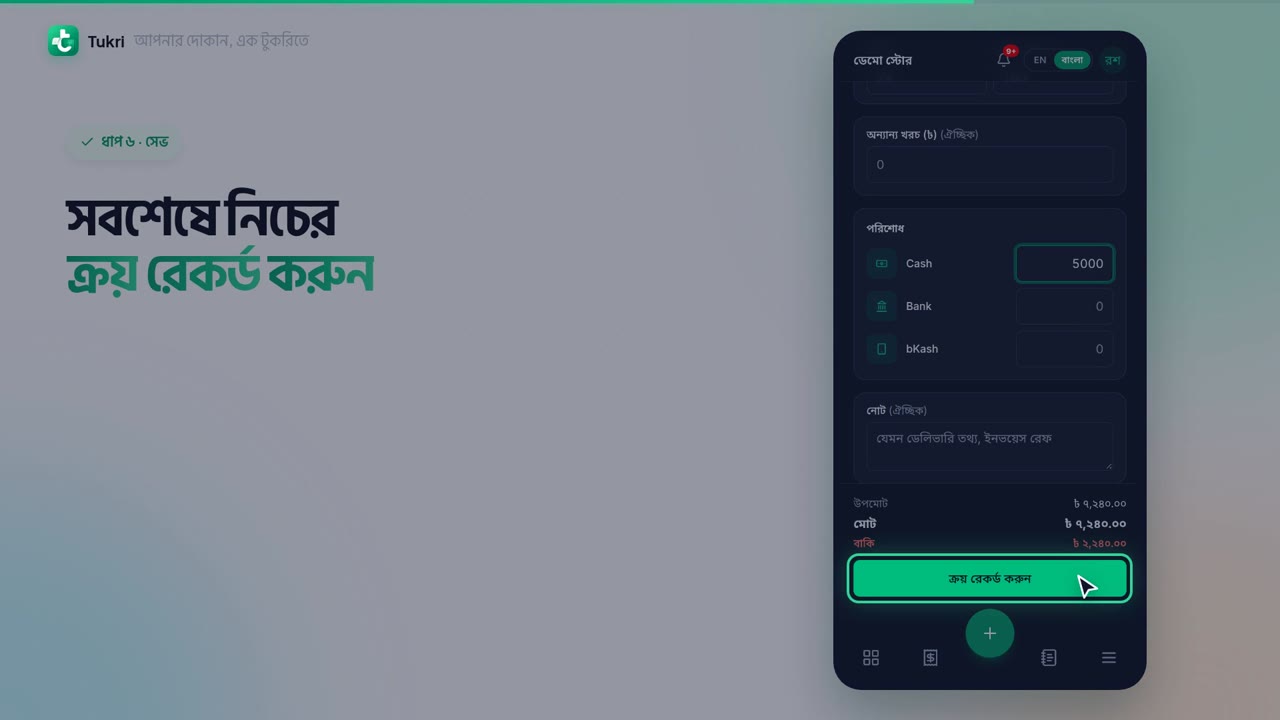
Finally, tap the Record purchase button at the bottom.
That's it! The stock went up, the product's cost price was updated, and the rest went on the supplier's account.
From buying to selling, all your accounts in one place, tukri.bd
Related articles
- Enter opening stock Enter the goods you already have as opening stock when you add a product. After that, stock changes through purchases, sales and adjustments.
- Adjust stock: damage, loss or a count correction Add or remove stock with a reason when goods are damaged, lost or miscounted, and fix a wrong adjustment with an opposite one.
- Purchase order statuses: sent, received, cancelled Mark a purchase order sent, receive all or part of the goods when they arrive, or cancel it, and what each status allows.
Still need help?
Write to us, call or send a WhatsApp message, and someone from Tukri will help you.
