

On this page
A purchase order starts as a draft. You can then mark it sent, receive the goods in one go or in several deliveries, and cancel it when you no longer need it. Only receiving changes anything: that is when stock goes up and your money and what you owe the supplier are updated.
Before you begin
- You need a purchase order: see Create a purchase order.
- These actions belong to the Owner and Admin roles.
Open an order
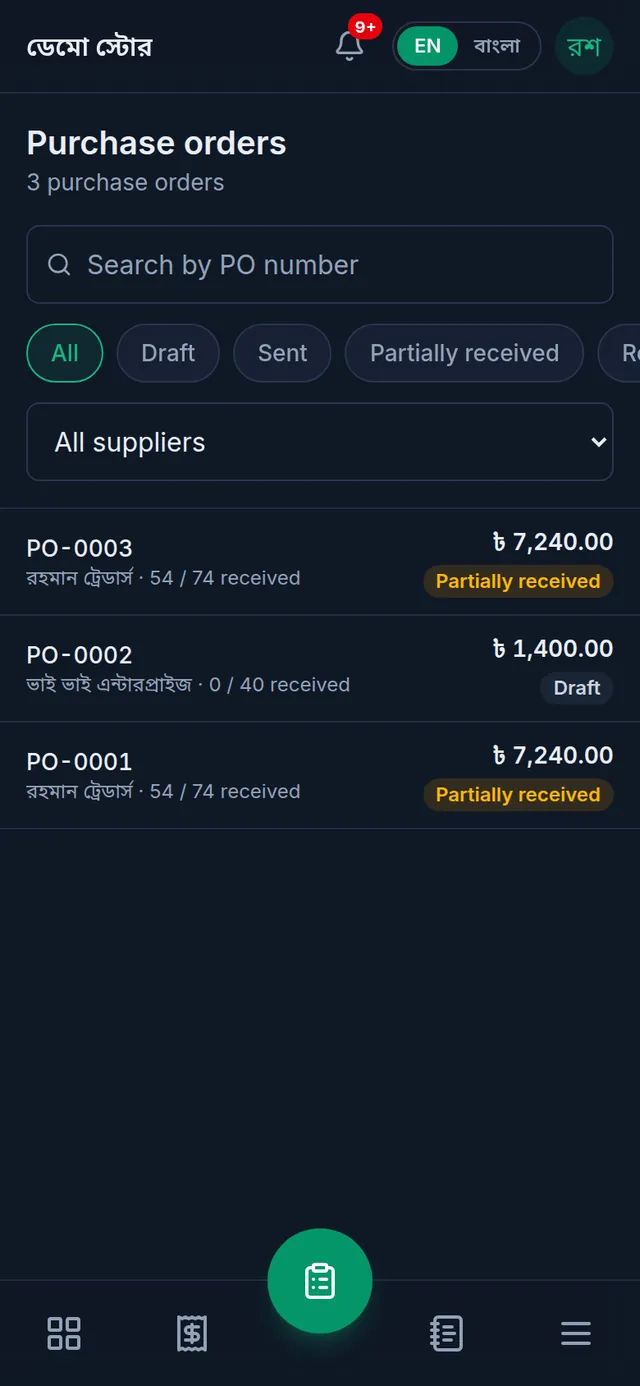
Open Purchase orders. Each order shows its status and how much has arrived; the buttons at the top filter by status, and the list below them by supplier. Tap an order to open it.
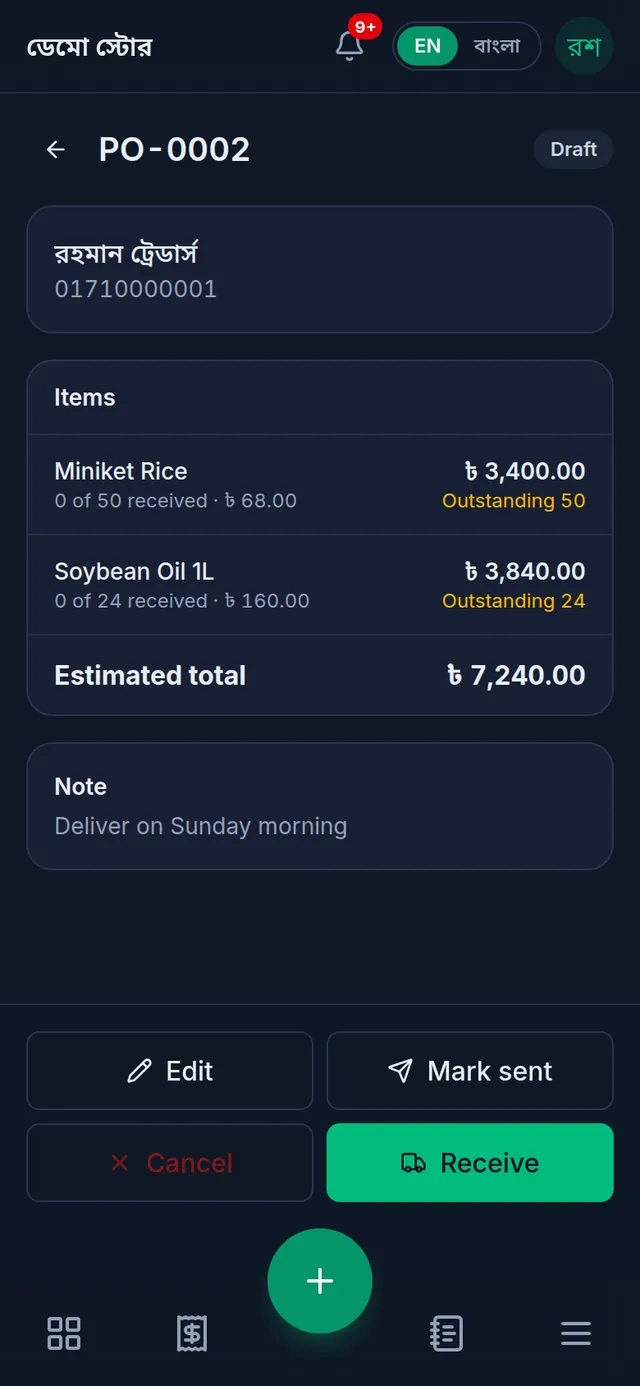
The order's buttons are at the bottom: on a phone in two columns just above the bar at the bottom, on a computer in one row under the order.
- A Draft order has Edit, Mark sent, Cancel and Receive.
- A Sent or Partially received order has Cancel and Receive.
- A Received or Cancelled order has none.
Mark it sent
- Send the order to the supplier yourself: by phone, WhatsApp or on paper. Tukri does not send anything to the supplier.
- Open the draft and tap Mark sent. Tukri shows "Purchase order marked as sent." and the status becomes Sent.
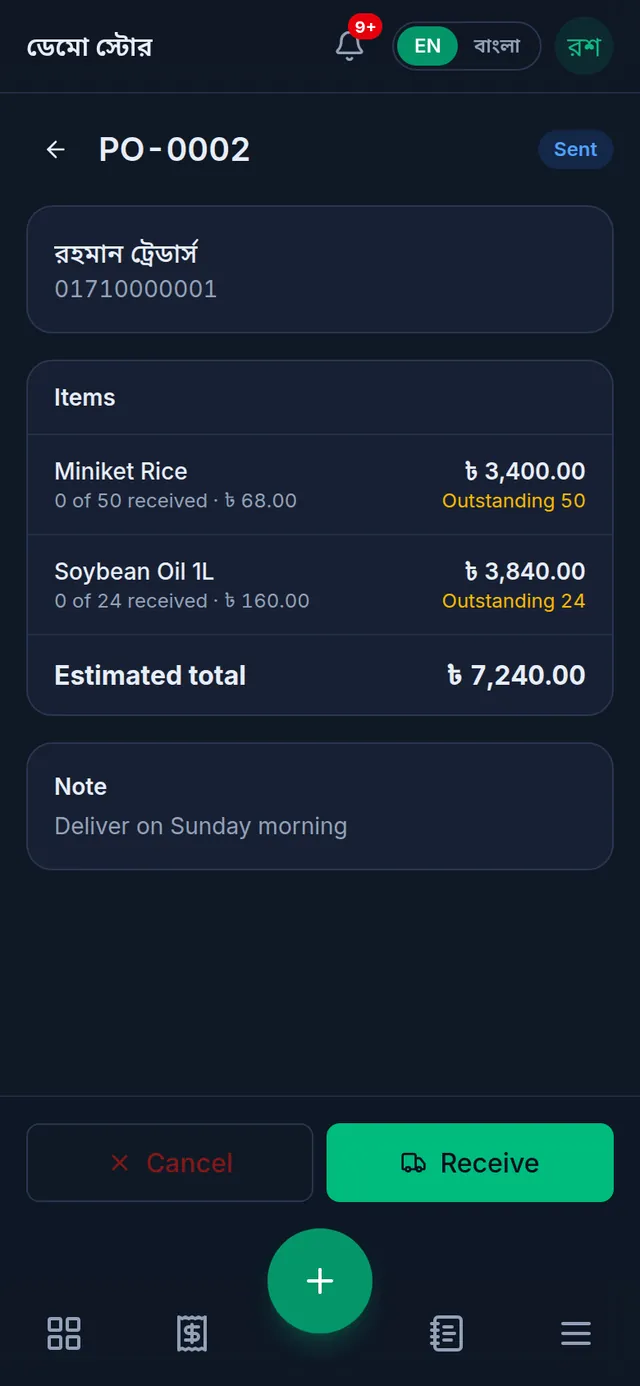
This step is optional and only for your own records. Once sent, the order can no longer be edited.
Receive the goods
- Open the order and tap Receive at the bottom.
- Each line starts with the full quantity still outstanding. Change it to what actually arrived. Enter 0 for a product that did not come this time.
- If the product has a pack unit for buying (a carton, for example), you can pick it beside the quantity. The number then counts in packs, so type the number of packs.
- For a product that tracks batches and expiry, enter the Batch / lot no and the Expiry date.
- If you are paying something now, type under Pay on receipt (optional) how much you paid from each account. Leave it empty to take it all on credit.
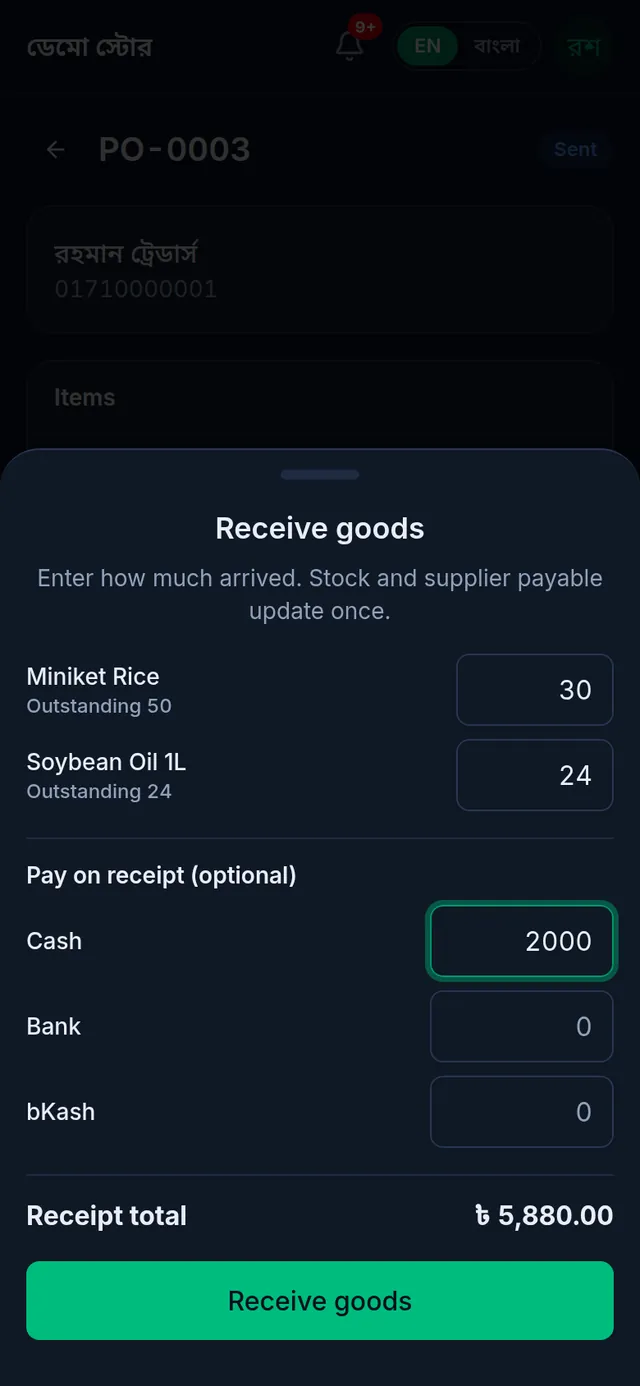
- Check the Receipt total and tap Receive goods. Tukri shows "Goods received — stock and supplier records have been updated."
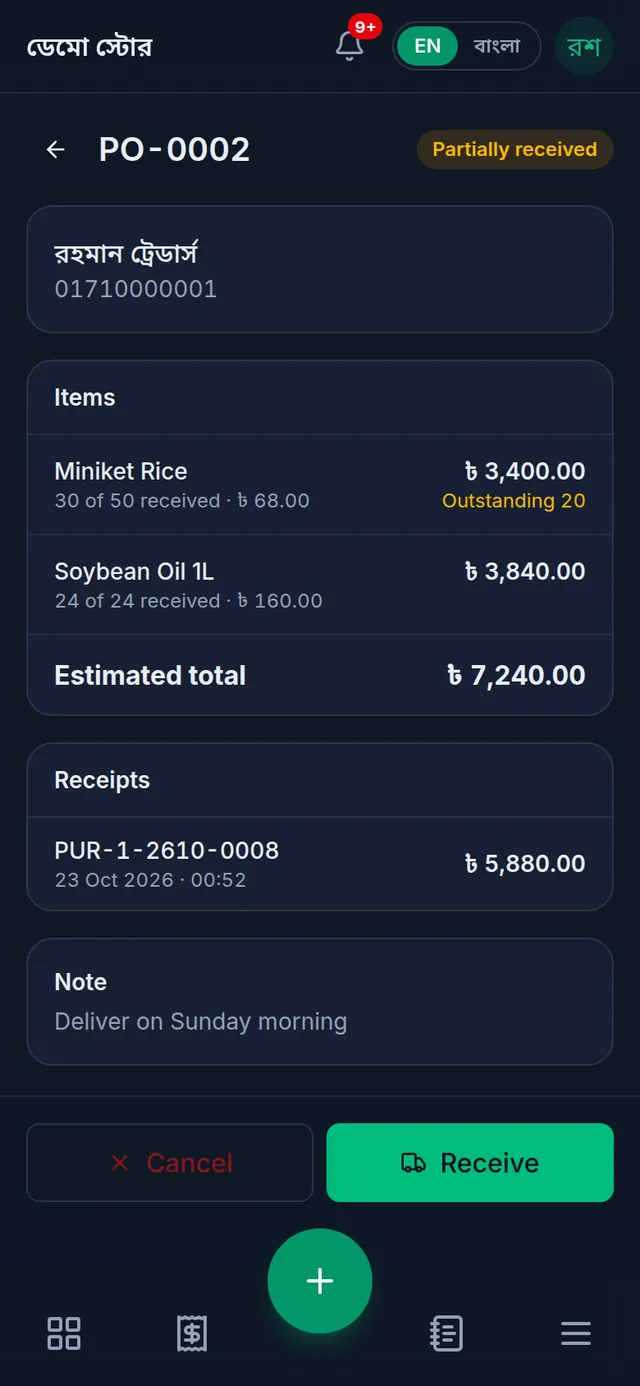
Each delivery you receive is saved as a purchase and listed under Receipts on the order; tap one to open that purchase. While some lines are still outstanding the order is Partially received; when the rest arrives, tap Receive again. Once everything has arrived it is Received.
What changes when you receive
- Each product's stock goes up by the quantity received.
- The goods are costed at the order's unit cost (for a pack, the unit cost times the pack size), and the product's Cost price is updated to it.
- What you paid leaves its account. The rest goes on the supplier's ledger as Purchase on credit.
- The receipt is dated the moment you save it.
Cancel an order
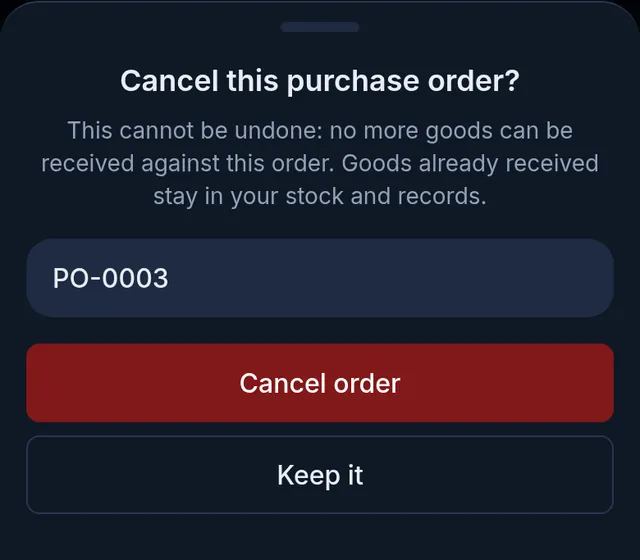
- Open the order and tap Cancel at the bottom. Nothing is cancelled yet.
- Tukri asks "Cancel this purchase order?" and shows the order number. Tap Cancel order to cancel it, or Keep it to leave it as it is.
- Tukri shows "Purchase order cancelled."
What each status allows
- Draft: can be edited, marked sent, received or cancelled.
- Sent: can no longer be edited; can be received or cancelled.
- Partially received: some goods still to come; can be received again or cancelled.
- Received: everything has arrived; nothing more to do.
- Cancelled: closed. Goods received before stay.
If something goes wrong
"You cannot receive more than the outstanding quantity." Enter at most the outstanding quantity on each line. With a pack unit, the packs times the pack size must not be more than that.
"Enter a quantity to receive for at least one line." Every line was 0 or empty. Enter a quantity for at least one product.
"The payments exceed the total payable." You entered more than this delivery's total. Lower the payment; to pay off older debt, pay from the supplier's ledger.
Receive goods seems to do nothing. If your shop has Block selling expired stock switched on, every product that tracks batches needs an Expiry date. Fill it in and tap again.
I want to change a cost. Receiving has no cost field. Change costs with Edit while the order is still a draft. Once it is sent, cancel it and record the purchase directly when the goods arrive.
I returned received goods, but the order does not show them as outstanding again. Returning a received purchase later does not change how much the order shows as received.
Watch the video
What the video says
How much do you owe each supplier, and how much of an order has arrived? Let's keep it all organised in Tukri.
Open Suppliers from the Menu, and tap the round button at the bottom. Enter the name and phone number. If you owed them before, enter it in Opening payable, then tap Save.
Tap the supplier to see their ledger. The red box shows what you owe. When you pay them, tap Pay supplier, enter the amount and choose the account, then tap Record payment. What you owe goes down right away.
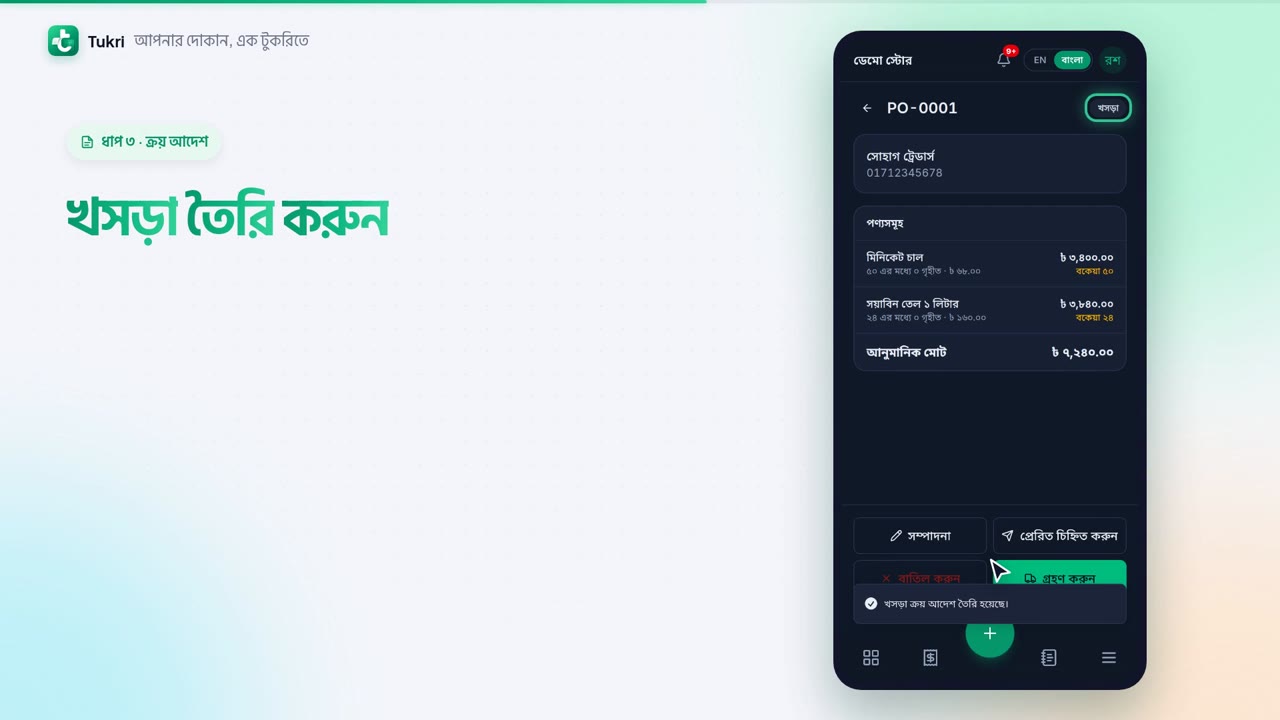
To write an order before the goods come, open Purchase orders from the Menu and tap the round button. Choose the supplier and tap Add item. On each line, give the quantity and the unit cost, then tap Create draft.
Send the order to the supplier yourself, by phone or on WhatsApp. Tukri sends nothing to the supplier. Once you have told them, tap Mark sent.
When the goods come, open the order and tap Receive. Enter only as much as has arrived. Paying some now? Enter it in the account's box. Then tap Receive goods.
That's it! The stock went up, and the unpaid amount went on the ledger as what you owe. If some goods come later, receive again. If you no longer need it, the order can be cancelled.
Purchase orders are for the Owner and Admin only.
All your buying in one place, tukri.bd
Related articles
- Record a purchase and receive stock When goods arrive from a supplier, record the purchase: stock goes up, the cost price is updated, and what you did not pay is added to what you owe them.
- Add and manage suppliers Add the people you buy from, see what you owe each one, record payments to them and put an old balance on their ledger.
Still need help?
Write to us, call or send a WhatsApp message, and someone from Tukri will help you.
