

On this page
Every member of your shop has one role, and the role decides what they can do in Tukri. A role is a set of permissions: on/off switches such as Sell at the till or See profit & cost price. Every shop starts with three roles, Owner, Admin and Staff. You can see and change them in Settings › Roles, and give a member a different role in Settings › Team.
Before you begin
- By default only the shop's Owner can open Roles and Team. An Admin cannot, unless the owner gives the Admin role Manage roles or Manage the team.
The three built-in roles
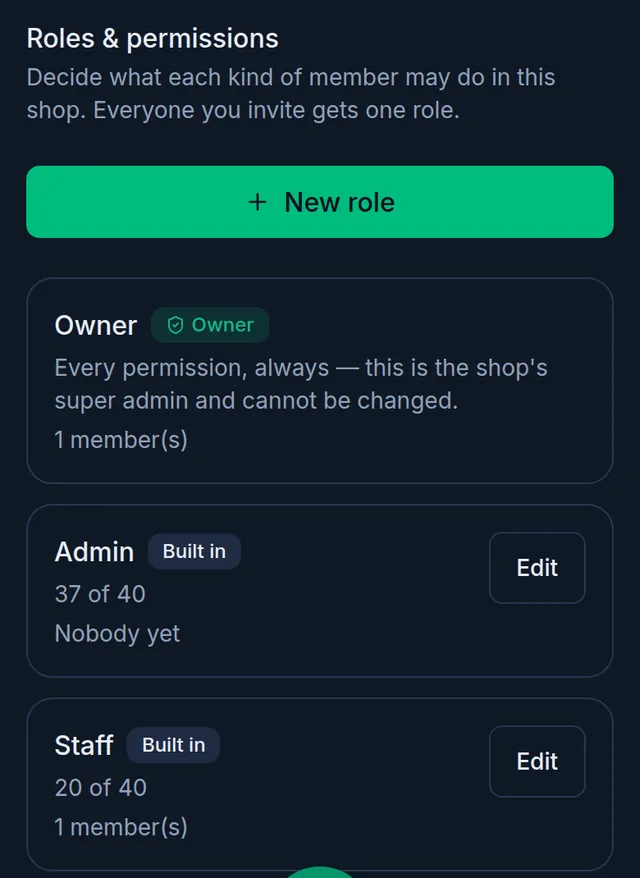
- Owner: "Every permission, always — this is the shop's super admin and cannot be changed." It cannot be edited, renamed or deleted, and is never offered in an invitation. The shop always keeps at least one active owner.
- Admin: everything except Manage the team, Manage roles and Manage the subscription. An Admin runs the shop, but cannot manage people, roles or the subscription unless the owner adds those.
- Staff: the day-to-day work of the shop, listed below.
Admin and Staff are marked Built in: you can rename them and change their switches, but not delete them. There is no button that puts their switches back as they were, so note them before you change anything. The role names are shown as they are stored, so they stay in English until you rename them.
What Staff can do at first
Until someone changes the Staff role, it has:
- Selling: Sell at the till and See sales history.
- Products & stock: See products, Add & edit products, See stock and Correct stock.
- Buying: See purchases, Record a purchase, See suppliers, Add & edit suppliers, Pay a supplier and Buying list.
- Customers & তালি খাতা: See customers, Add & edit customers, See the তালি খাতা, Take a due payment, Record credit given, See কিস্তি agreements and Take a কিস্তি payment.
- Reports & assistant: Use the AI assistant.
- In a shop that uses the Delivery Hub, the everyday parcel work too: See deliveries, Create a delivery, Book with a courier and Refresh parcel status.
So at first Staff cannot cancel a sale or accept a return, and cannot see money accounts, expenses, reports or profit. They cannot open the shop settings, the team, the roles or the plan.
See what a role can do
- Open Settings › Roles:
On a computer
Click Settings in the menu on the left, then Roles in the settings list.
On a phone or tablet
Tap Menu in the bar at the bottom, then Settings. In the row of buttons at the top, tap Roles; slide the row sideways if you do not see it.
- Each card shows the role's name, how many of the permissions it has, and how many members hold it.
- Tap Edit on Admin or Staff. The switches are grouped in sections, such as Selling; each section shows how many of its switches are on. Tap a section to open it.
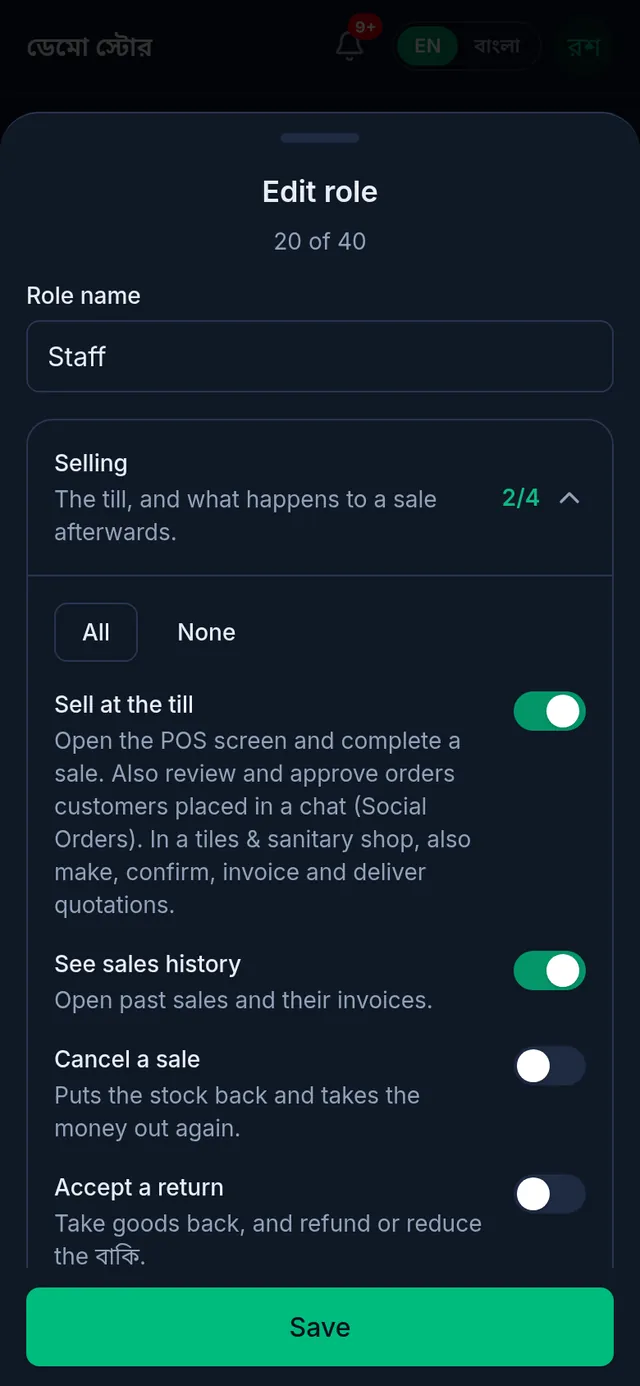
- To change the role, turn switches on or off and tap Save. To create your own role instead, see Create a custom role.
Change a member's role
- Open Settings › Team.
- In the member's row, open the role box and choose the new role.
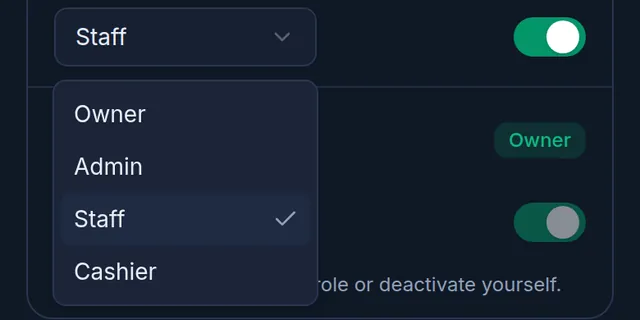
- It saves at once, and Tukri shows "Team member updated." The member gets the new role the next time a page loads; they do not need to sign out.
- You cannot change your own role: "You can't change your own role or deactivate yourself." Another member who can manage the team has to do it.
- A role that has a permission you do not have yourself is greyed out: "Needs a permission you do not have"
- To add a co-owner, choose Owner in that member's row. Only someone who holds every permission, in practice an owner, can do this. To hand the shop over completely, make the new person an owner first.
Profit and cost price
See profit & cost price decides who sees buying prices, margins and profit. Without it a member does not see Gross Profit on the Dashboard or the Profit & Loss report, and sees other reports and the stock screen without costs. Admin has it at first; Staff does not.
It does not hide everything: anyone with Add & edit products still sees the cost price on the product form, and recording a purchase means typing buying prices. To let someone run reports without seeing costs, give them Open reports and leave See profit & cost price off.
What each member sees
- The menu shows only the screens a member's role allows. A screen their role does not allow is refused, even if they type its address.
- On a phone, the bar at the bottom follows the same rule: Sales needs See sales history, Due Book needs See the তালি খাতা, and the round + button that opens the till needs Sell at the till.
- Settings in the main menu needs Shop settings. Every member can still open their own Profile, Security and Appearance by tapping their name or picture and choosing Settings.
- Inside Settings, Team needs Manage the team, Roles needs Manage roles and Plan needs Manage the subscription.
If something goes wrong
I cannot see Roles or Team in Settings. Your role does not allow it. Ask the shop's owner.
I changed a member's role but they still see the old screens. The change reaches them the next time a page loads. Ask them to reload or open another page.
Tukri says "The shop must keep at least one active owner." You tried to switch off, or move to another role, the only active owner. Make another member an owner first.
I want to put back the original Staff switches. There is no reset button. Use the list under "What Staff can do at first" above.
Watch the video
What the video says
What can your staff do, and how do you decide that? The answer is roles.
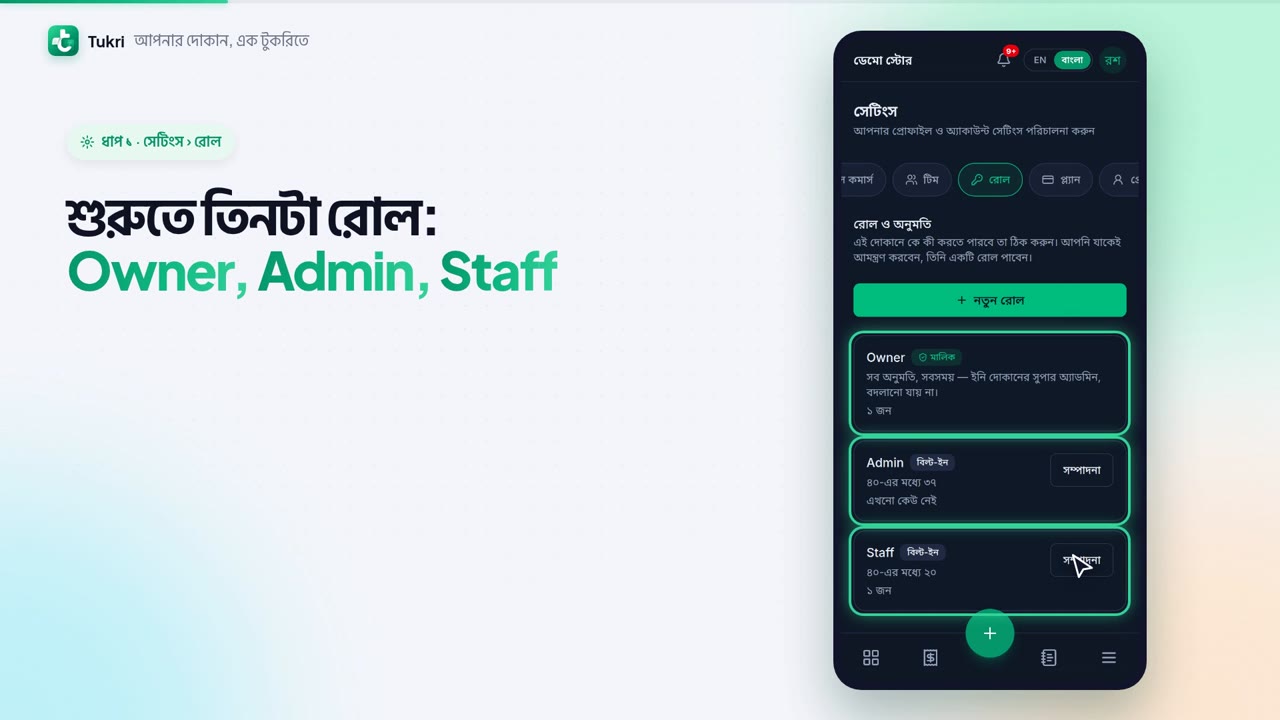
Open Settings from the Menu, and go to the Roles tab at the top. There are 3 roles at first: Owner, Admin and Staff. The Owner can do everything; this cannot be changed. An Admin runs the shop, but does not manage the team, the roles or the plan.
Tap Edit on the Staff role. The permissions are grouped, such as Selling. At first, Staff can sell, but cannot cancel a sale or accept a return. They do not see profit or reports either.
Want a role of your own? Tap the New role button. Give it a name, such as Cashier. Open the Selling section and turn on the switches you need. Then tap Save. The new role is now in the list.
Now, in the Team tab, open the member's role box, choose Cashier, and it saves at once. From the next page, their menu and buttons follow the new role.
At first, only the Owner manages roles and the team. And a permission you do not have cannot be given to anyone.
As much permission as each job needs, tukri.bd
Related articles
- Create a custom role Make your own role, such as a cashier who only sells, with exactly the permissions you choose, then give it to a team member.
- Invite a team member Give your staff or an admin their own sign-in: invite them by email or phone number from Settings, Team, and share the join link yourself if you like.
- Account security: password, two-factor sign-in and passkeys Change your password, turn on two-factor sign-in or add a passkey in Settings, Security, and switch off a team member who has left.
Still need help?
Write to us, call or send a WhatsApp message, and someone from Tukri will help you.
