

On this page
Each person in your shop signs in with their own account, and keeps it safe in Settings › Security. There you can change your password, turn on two-factor sign-in, which asks for a code from your phone, and add a passkey to sign in with your fingerprint or face. When someone leaves your shop, the owner switches their account off on the Team page.
Before you begin
- The Security page is your own, whatever your role: every member can open it.
- Switching off another member needs Manage the team. By default only the shop's Owner has it.
Open the Security page
- Open your own settings:
On a computer
Click your name at the bottom of the menu on the left, then Settings.
On a phone or tablet
Tap your picture or initials at the top right, then Settings.
- Choose Security. On a phone it is in the row of buttons at the top; slide the row sideways if you do not see it.
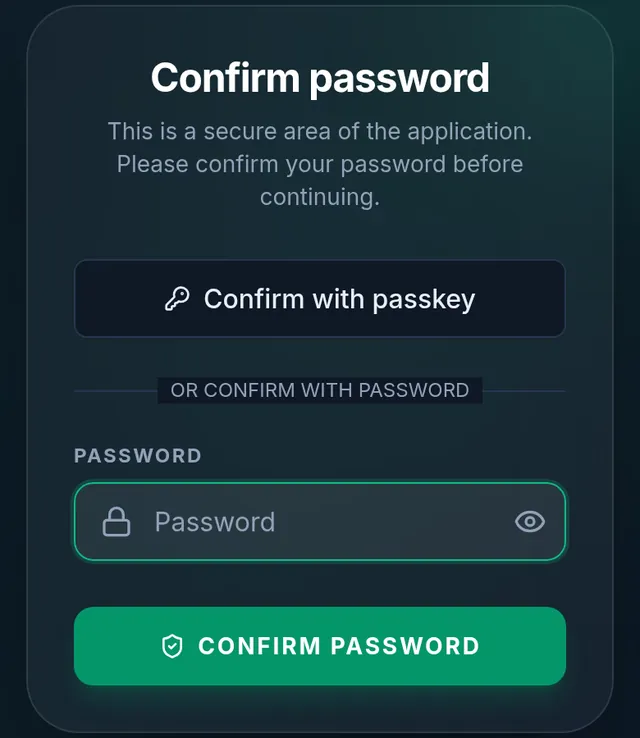
- Tukri asks you to confirm it is you (Confirm password), unless you did so a short while ago. Type your password and tap Confirm password, or tap Confirm with passkey if you have a passkey on this device.
Change your password
- Under Update password, type your Current password.
- Type the New password, and the same again in Confirm password.
- Tap Save.
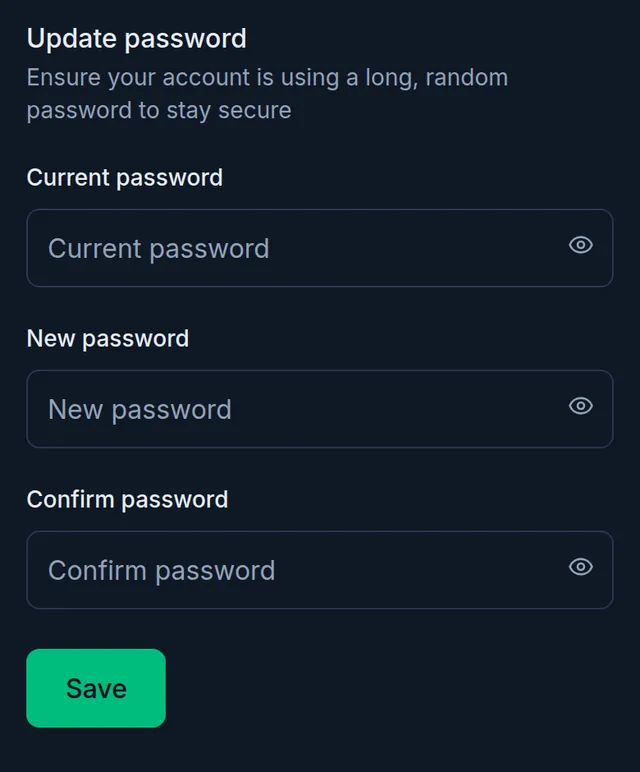
If the current password is wrong, or the new one is too weak, the form says so under the box and nothing changes. If you have forgotten your password, sign out and use Forgot your password? on the sign-in page instead.
Turn on two-factor sign-in
With two-factor authentication on, signing in also asks for a 6-digit code from an authenticator app on your phone, so a stolen password alone is not enough.
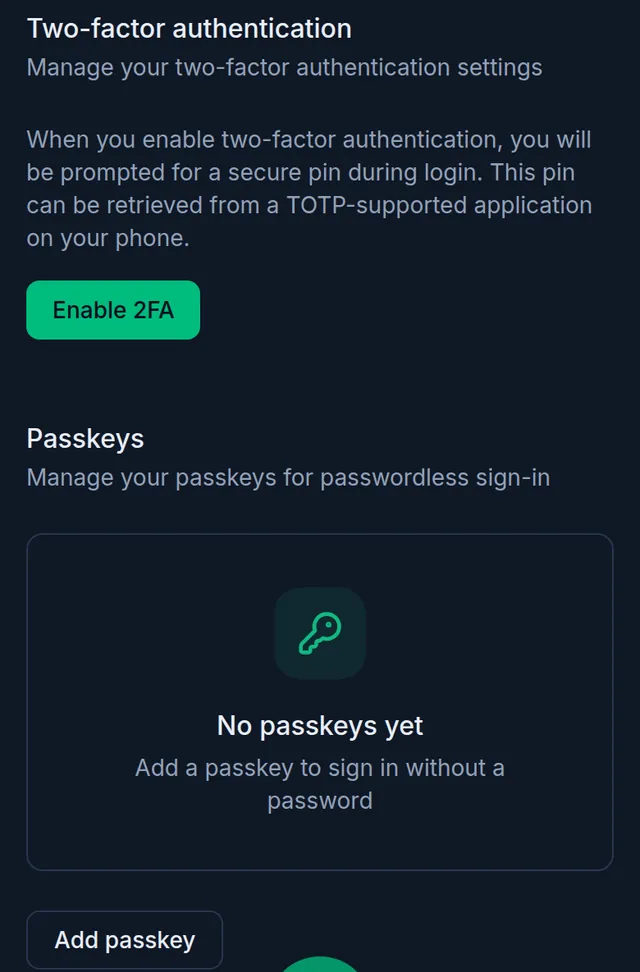
- Under Two-factor authentication, tap Enable 2FA.
- Scan the QR code with your authenticator app, or type the setup key into the app, then tap Continue.
- Type the 6-digit code the app shows and tap Confirm.
- Tap View recovery codes and keep the recovery codes somewhere safe, away from your phone. Each code works once.
When you sign in and your phone is not at hand, tap "login using a recovery code" and type one of those codes.
- New recovery codes: tap Regenerate codes, then confirm in the sheet that asks Make new recovery codes? Your old codes stop working at once, so save the new ones straight away.
- Turning it off: tap Disable 2FA, then confirm in the sheet. Signing in then needs only your password, and your recovery codes stop working.
If you have lost both your phone's app and your recovery codes, contact Tukri support.
Add a passkey
A passkey lets you sign in with your device's fingerprint, face or screen lock instead of typing your password.
- Under Passkeys, tap Add passkey.
- Give it a Passkey name, such as your phone's name, and tap Register passkey.
- Follow your device's prompt.
Next time, tap Sign in with a passkey on the sign-in page. To stop using a passkey, tap the bin icon beside it and confirm with Remove passkey.
Switch off a member who has left
A member who has left should not keep a way into your shop. Switch their account off instead of sharing passwords or deleting anything:
- Open Settings › Team.
- Turn off the switch in that member's row. The row is marked Inactive.
- The next time they tap anything, they are signed out on every device, and the sign-in screen tells them "Your account has been deactivated. Contact your shop owner."
Turn the switch on again to let them back in. Their past sales and records stay in the shop under their name. You cannot switch yourself off: "You can't change your own role or deactivate yourself." A member who is switched off still counts towards your plan's number of users.
If something goes wrong
It says "Too many tries. Wait a minute, then try again." You typed the password wrongly several times. Wait a minute and try again.
It says "Passkeys are not supported in this browser." Use another browser, or sign in with your password.
I do not see the Team page. Your role cannot manage the team. Ask the shop's owner to switch the member off.
I want to check that my email address is verified. The Verification section on the same page shows it. See Verify your email address.
Watch the video
What the video says
How safe is your Tukri account? Let's make your password and sign-in stronger.
Tap the round button with your name at the top right, then Settings from there. In the row at the top, go to Security. Tukri first asks for your password; type it and tap Confirm password.
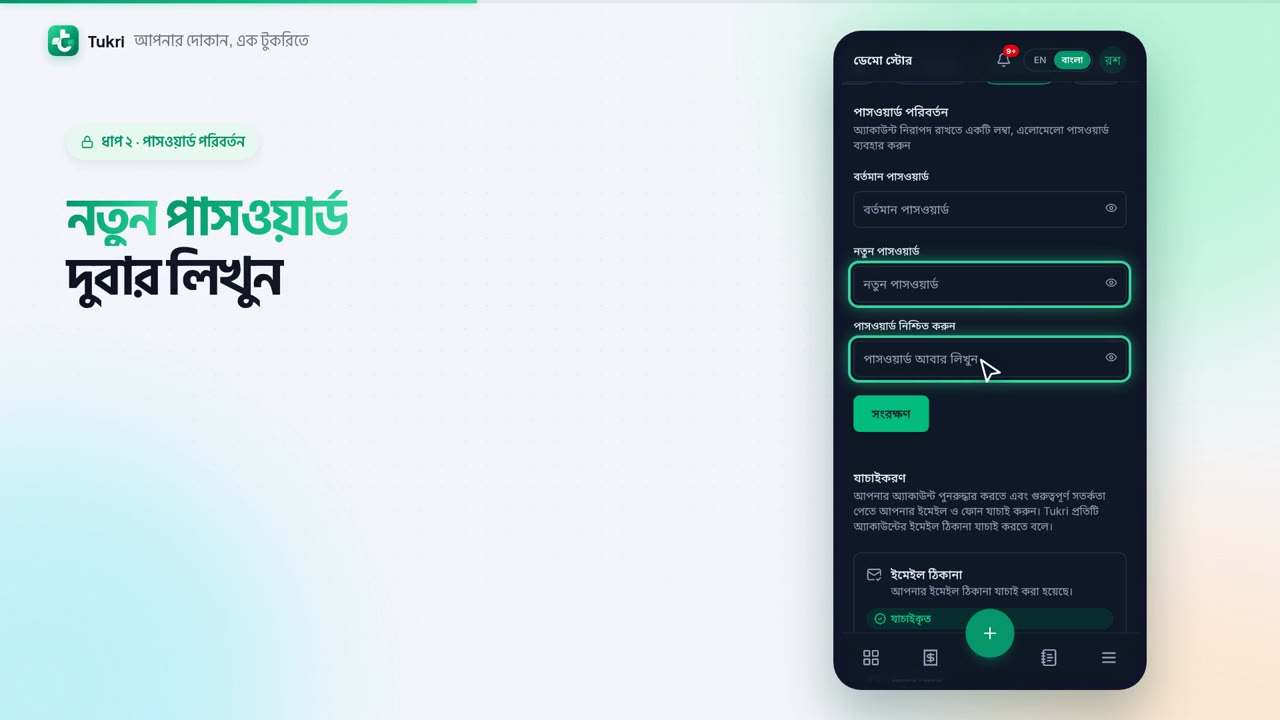
To change your password, enter the Current password. Then type the new password twice, and tap the Save button.
For more safety, turn on two-factor authentication. Scan the QR code with the authenticator app on your phone, then confirm with the app's 6-digit code. Write the recovery codes down and keep them somewhere else. After that, signing in also needs the code from your phone.
To sign in with your fingerprint or face, tap Add passkey.
When a staff member leaves the shop, the owner turns off their switch in the Team tab. On their next tap, they are signed out on every device, but their past sales and records stay.
Keep your shop safe, tukri.bd
Related articles
- Roles and permissions: what Owner, Admin and Staff can do Every team member has one role that decides what they can do in Tukri. See what Owner, Admin and Staff can do, and change a member's role.
- Verify your email address After opening your account, verify your email with the 6-digit code or the button Tukri emails you. You can also do it later from Settings.
- Invite a team member Give your staff or an admin their own sign-in: invite them by email or phone number from Settings, Team, and share the join link yourself if you like.
Still need help?
Write to us, call or send a WhatsApp message, and someone from Tukri will help you.
