

On this page
Besides the built-in Owner, Admin and Staff roles, you can make your own: for example a cashier who can only sell and see sales. You pick exactly which permissions the role has, then give it to the members who need it. Their menus and screens follow the role straight away.
Before you begin
- You need Manage roles to create roles, and Manage the team to give a role to a member. By default only the shop's Owner has them.
- What the built-in roles can do is explained in Roles and permissions.
Create a role
- Open Settings › Roles:
On a computer
Click Settings in the menu on the left, then Roles in the settings list.
On a phone or tablet
Tap Menu in the bar at the bottom, then Settings. In the row of buttons at the top, tap Roles; slide the row sideways if you do not see it.
- Tap New role.
- Type a Role name, such as "Cashier". It can be up to 40 characters and must be different from your shop's other role names.
- If you like, choose a role under Start from to copy its switches as a starting point. Left at Nothing ticked, the role starts empty.
- Tap a section, such as Selling, to open it. Turn its switches on or off, or use All or None for the whole section. The line under each switch says what it allows.
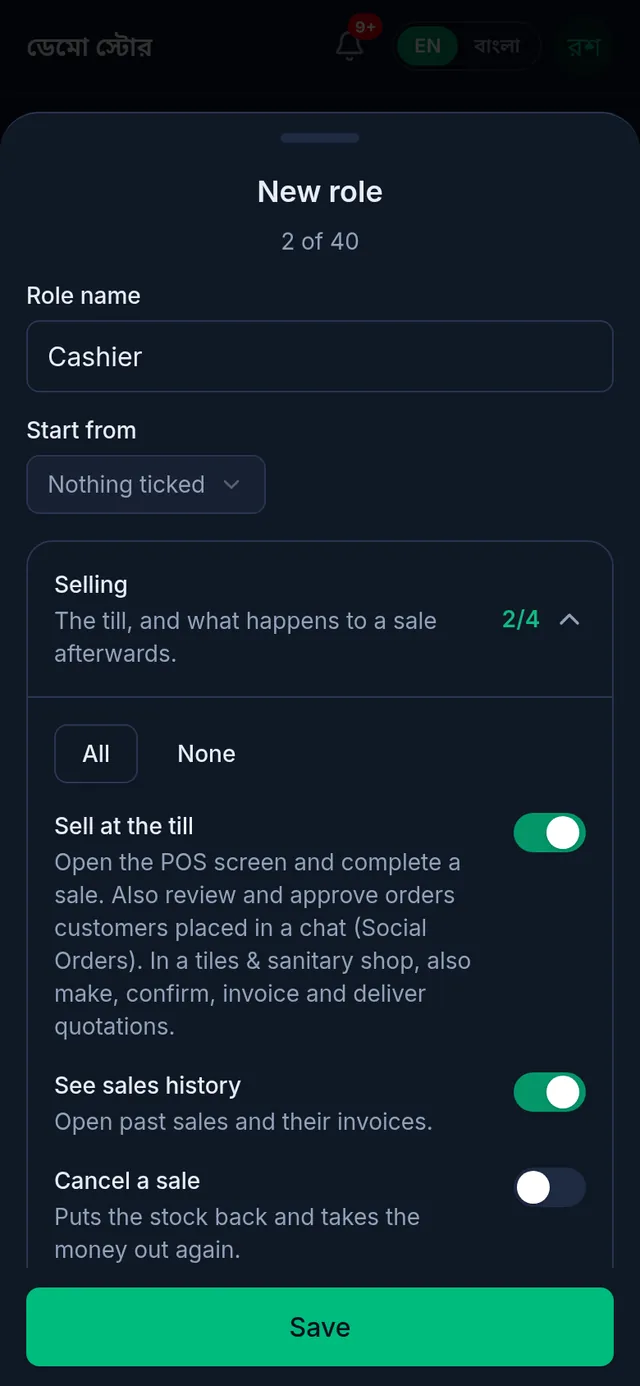
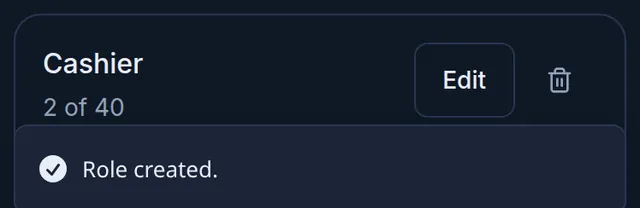
- Tap Save. Tukri shows "Role created." and the role appears in the list, below the built-in roles.
Give the role to a member
- Open Settings › Team.
- In the member's row, open the role box and choose your new role. It saves at once.
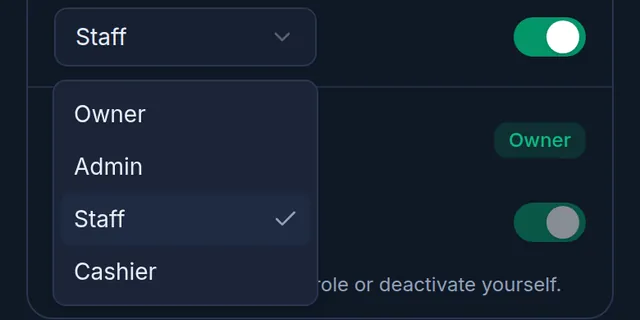
- The member gets the role the next time a page loads. You can also choose the role when you invite someone: see Invite a team member.
Rules when choosing permissions
- You cannot give a role a permission you do not have yourself. Such a switch is locked: "You do not have this permission yourself, so you cannot give it away."
- A role with nothing turned on is allowed. The sheet warns you: "Nothing ticked — this member will be able to sign in and nothing more."
Change or delete a role
- To change a role, tap Edit on its card, change the name or the switches, and tap Save. Tukri shows "Role updated." Everyone with that role gets the change the next time a page loads.
- To delete a role you made, tap its bin icon. A sheet asks Delete this role?; tap Delete role to delete it for good, or Cancel to keep it.
- A role that members still have cannot be deleted: "Move its members to another role first." Give those members another role on the Team page first.
- Owner, Admin and Staff cannot be deleted. Creating, changing and deleting roles is recorded in Settings › Activity.
Good to know
- A member sees the buttons for whatever their role's switches allow: Void sale, Return, Return purchase, the share links, the customer list's Import and Export, and so on.
- In two places a role you made counts as a staff role:
- Low-stock and expiring-stock push notifications go only to members on the Owner and Admin roles.
- When you invite someone into a role you made, their invitation screen calls it Staff, but they get the role you chose.
If something goes wrong
Save is refused with "You can only give a role permissions that you have yourself." Turn off the switches you do not have yourself, or ask the owner to make the role.
I cannot see Roles in Settings. Your role does not have Manage roles. Ask the shop's owner.
The role is greyed out in a member's role box. It has a permission you do not have yourself, so you cannot give it to anyone.
Watch the video
What the video says
What can your staff do, and how do you decide that? The answer is roles.
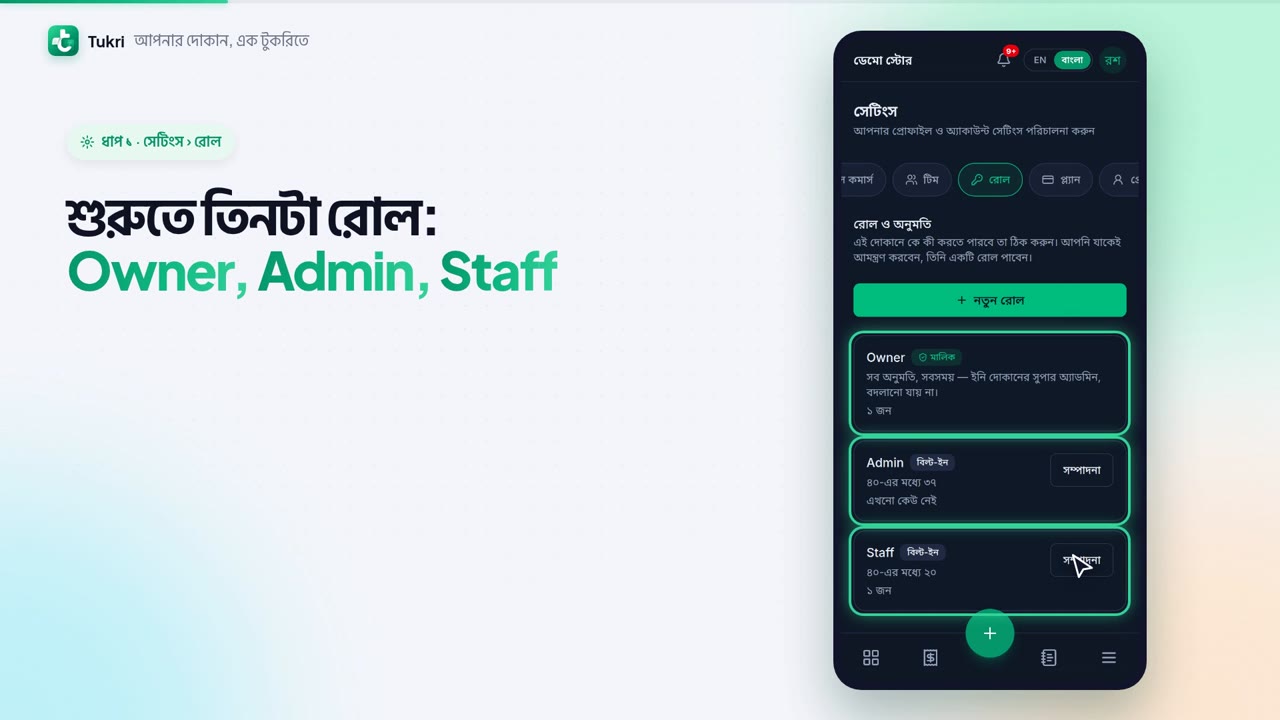
Open Settings from the Menu, and go to the Roles tab at the top. There are 3 roles at first: Owner, Admin and Staff. The Owner can do everything; this cannot be changed. An Admin runs the shop, but does not manage the team, the roles or the plan.
Tap Edit on the Staff role. The permissions are grouped, such as Selling. At first, Staff can sell, but cannot cancel a sale or accept a return. They do not see profit or reports either.
Want a role of your own? Tap the New role button. Give it a name, such as Cashier. Open the Selling section and turn on the switches you need. Then tap Save. The new role is now in the list.
Now, in the Team tab, open the member's role box, choose Cashier, and it saves at once. From the next page, their menu and buttons follow the new role.
At first, only the Owner manages roles and the team. And a permission you do not have cannot be given to anyone.
As much permission as each job needs, tukri.bd
Related articles
Still need help?
Write to us, call or send a WhatsApp message, and someone from Tukri will help you.
