

On this page
When a customer brings items back, record a Return from the sale's page: the items go back into stock, and the money goes back in cash or as store credit in the customer's খাতা. When a whole sale was wrong (the wrong customer, the wrong prices), Void sale it and ring it up again correctly at the till.
Before you begin
- Return needs Accept a return and Void sale needs Cancel a sale. The Owner and Admin roles have both at first; Staff has neither. The owner can give them to any role.
- A completed sale cannot be edited. A return (some items came back) or a void (the whole sale was wrong) is how you put it right.
- A sale is either returned or voided, never both. Once a sale has a return, it can no longer be voided.
Take items back
- Open Sales, find the sale and open it.
- Tap Return. On a phone it is the curved arrow icon in the top row.
- In Return items, each item shows how many can still come back. Type how many are coming back, or tap All to take back all that is left of it.
- If the items are damaged, opened or expired, turn on Do not put these back in stock. They are then recorded as a loss instead of going back on the shelf.
- If money was paid on the sale, choose under Refund the overpaid amount as: Cash (then pick the account the money comes out of) or Store credit.
- Add a Reason if you like. Check the Estimated credit and tap Record return. You see "Return recorded — stock and money have been adjusted."
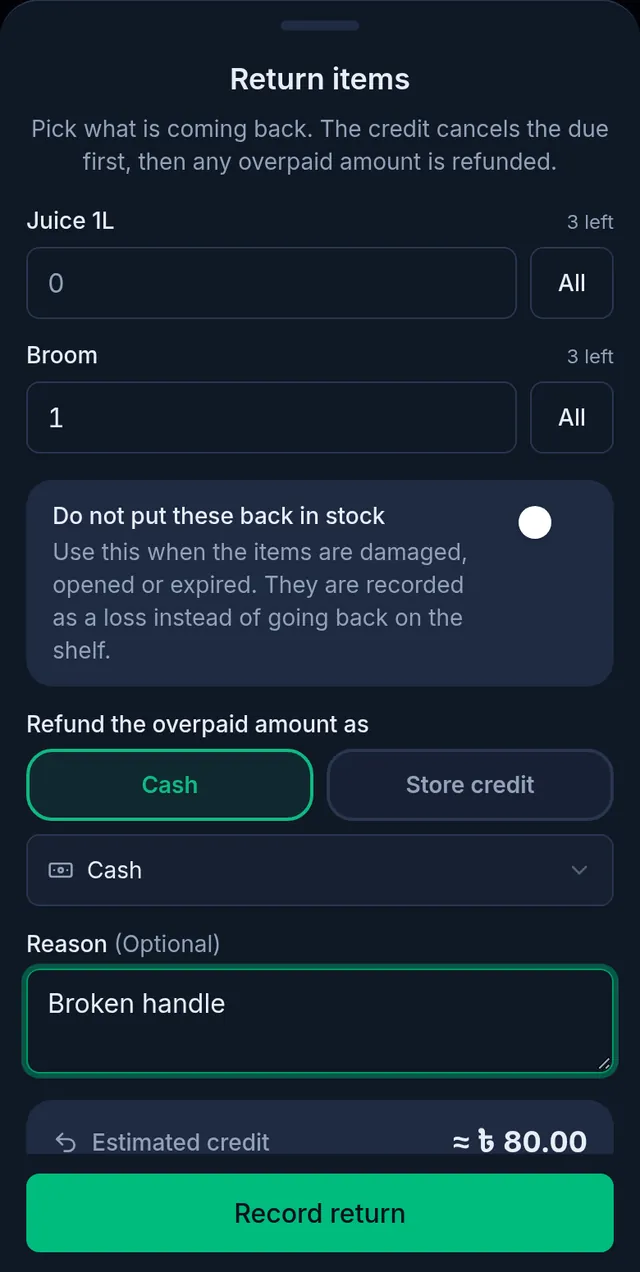
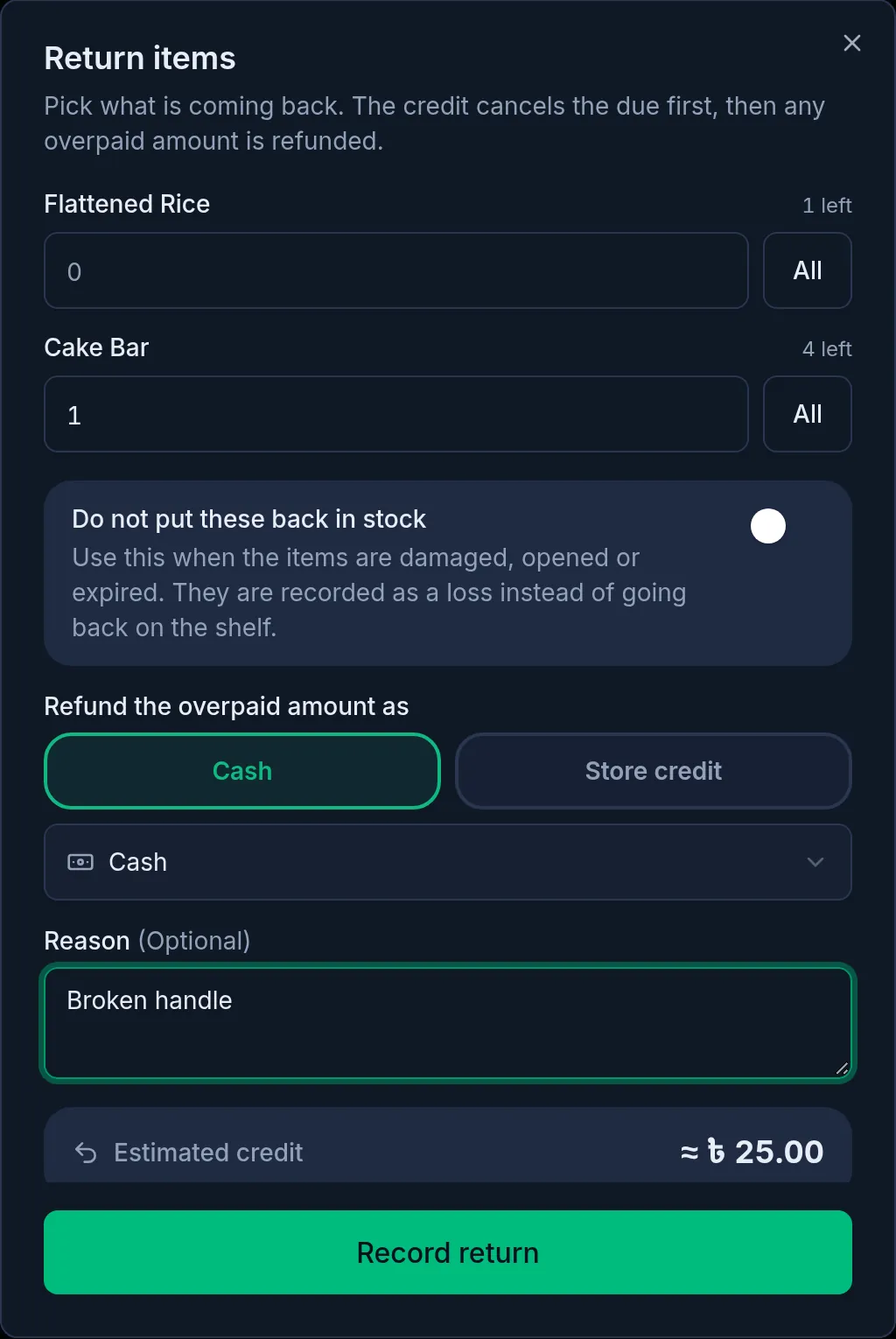
If more items come back later, record another return; you can keep doing so until every item is back. For an exchange, return the old item first, then sell the new one.
How the money is settled
- The value of the returned items first cancels whatever is still due on this sale. Only what is left after that is paid back.
- Cash: the money comes out of the account you chose.
- Store credit: the money stays in the customer's তালি খাতা as an advance, set against what they owe on a later sale on due. It is greyed out when the sale has no customer.
- An item's value leaves out its own line discount and its share of the bill discount, so the actual credit can differ a little from the Estimated credit. The exact figure is on the sale's page afterwards.
- If the sale used or earned loyalty points, the points for the returned items are reversed too.
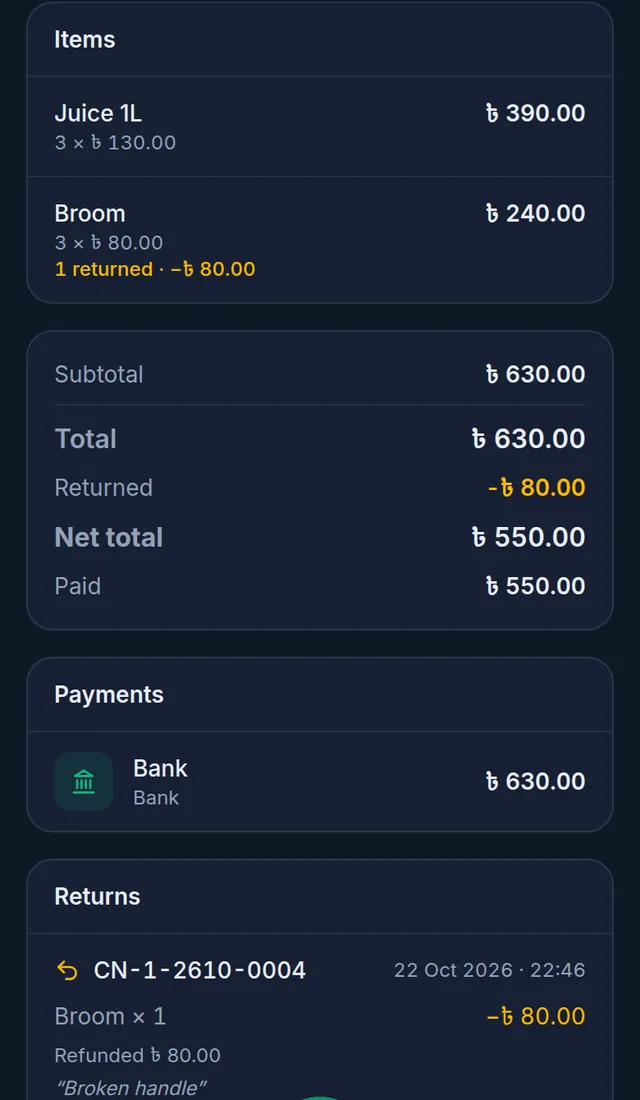
After a return, the sale's page shows how many of each item came back, Returned and Net total in the totals, and every return (credit note) and how it was settled under Returns.
Void a whole sale
- Open the sale from Sales.
- Tap Void sale. On a phone it is the red icon in the top row.
- Void this sale? says what will be reversed. Add a Reason if you like.
- Tap Void this sale. You see "Sale voided — stock, money, and due records have been reversed."
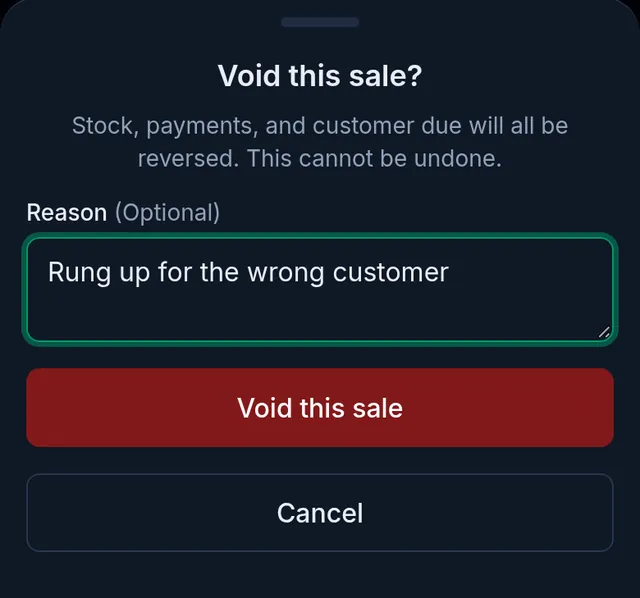
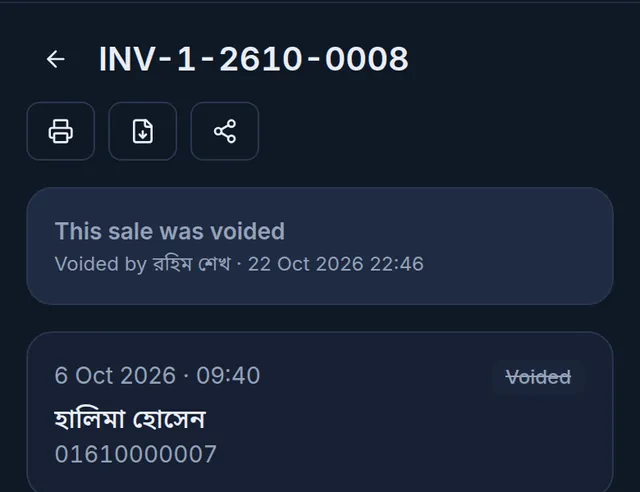
A void puts all the sold stock back, takes every payment back out of the account it went into, and cancels the sale's due in the customer's খাতা with a Sale voided entry. A voided sale still counts towards your plan's monthly number of invoices.
If something goes wrong
There is no Return or Void button. Your role does not have the permission, or the sale is already voided, every item has already come back, or a courier parcel for the sale is still in progress. Void is also not offered once a sale has a return: return the remaining items instead. A parcel the courier brings back is returned through the Delivery Hub.
It will not void because the sale has a return. A sale with any return cannot be voided. Return the remaining items instead.
"This sale has a delivery in progress. Cancel or finish it in the Delivery Hub first." A courier parcel for this sale is still in progress. Cancel or finish it in the Delivery Hub first.
Store credit cannot be chosen. The sale has no customer (a walk-in sale). Choose Cash.
The customer had already paid the due in the খাতা. Money paid in the খাতা is not handed back by a return or void by itself; the cancelled due becomes an advance in their খাতা. If you give that money back, the owner records it with Pay back advance in the customer's খাতা. See Collect a customer's due.
The printed invoice does not show the return. Invoices show the original sale; returns are shown on the sale's page.
Watch the video
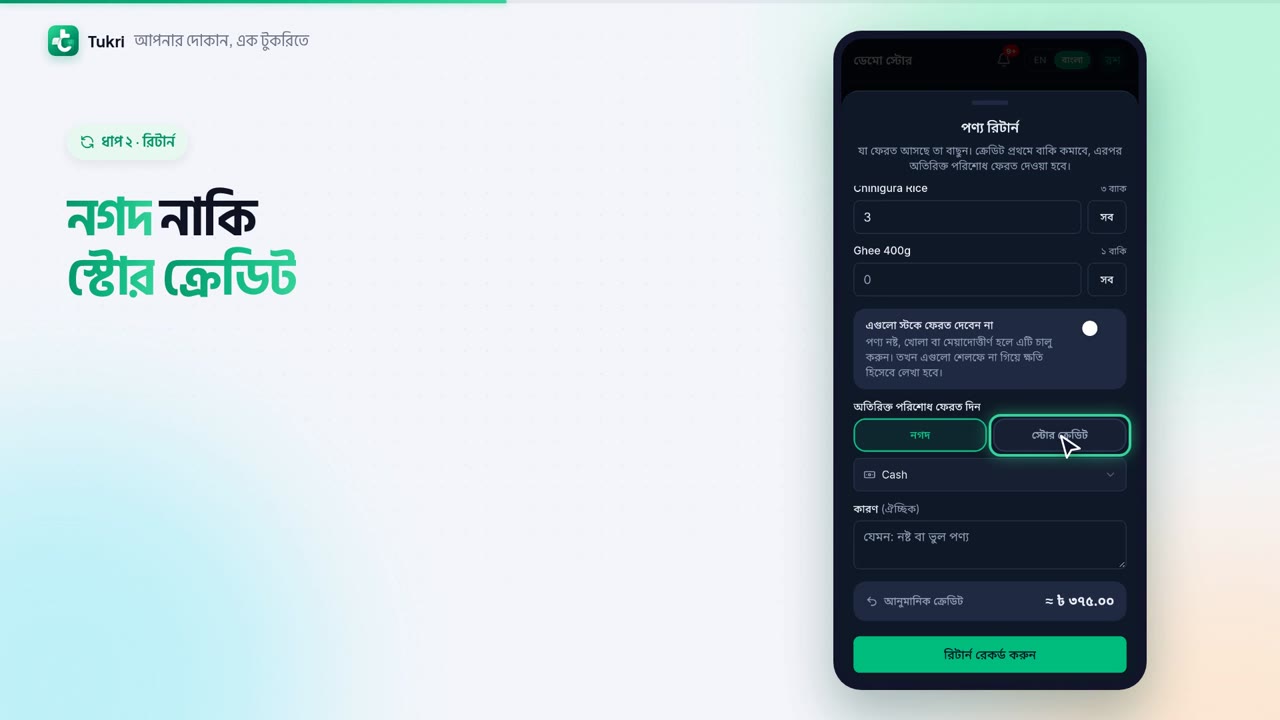
What the video says
A customer is bringing goods back? Or the sale itself went wrong? Let's fix both.
Open Sales from the bottom bar and tap the sale. The curved arrow icon at the top is Return.
Type how many are coming back; if all of it comes back, tap All. If the goods are damaged, turn on the switch below, and they won't go back into stock. Choose to refund as Cash or Store credit, then tap Record return.
The goods are back in stock, and the money adds up. The sale's page shows Returned and the Net total.
If the whole sale was wrong, tap the red icon, Void sale. Type a reason if you like, and tap Void this sale. The goods go back into stock, and the money comes out of the account. Then ring up the sale again, correctly.
Remember, a void can't be undone. And a sale with a return can't be voided. At first, returns and voids are for the Owner and Admins.
Fix mistakes the easy way, tukri.bd
Related articles
- Print, download and share an invoice Print the receipt straight after a sale, reprint or download an A4 or thermal PDF of any past sale, or send the customer a link to the invoice.
- Collect a customer's due When a customer pays their due, record it in their খাতা: how much, and whether it came in cash, to the bank or by mobile banking. The due drops at once.
- The Due Book (তালি খাতা): see who owes you and how much See in one place how much your customers owe you. Each customer's খাতা lists every sale on due, payment and other entry, with dates and balances.
Still need help?
Write to us, call or send a WhatsApp message, and someone from Tukri will help you.
