

On this page
When you take payment, choose which of your accounts the money went into: cash, a bank, or mobile banking such as bKash or Nagad. One bill can be split across several accounts, and when the customer hands over more than the bill, Tukri shows the change to give back.
Before you begin
- A new shop has only a Cash account. To take bKash, Nagad or bank payments, add them as accounts first (below).
- The Owner and Admin can add accounts. Anyone who can sell can take payment into any account that is turned on.
Add a bKash, Nagad or bank account
- Open Money: in the menu on the left on a computer, or from Menu on a phone.
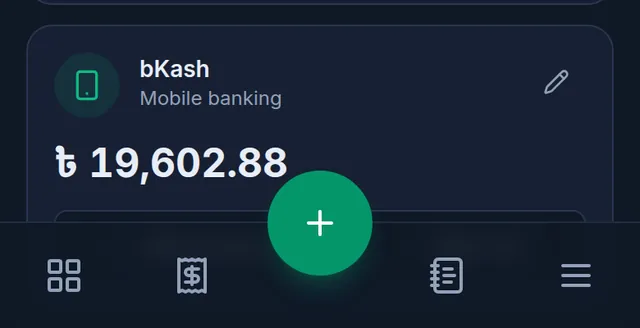
- Tap the round + button at the bottom (Add account). This button is part of the phone layout; on a computer, add the account from your phone, or make the browser window narrower.
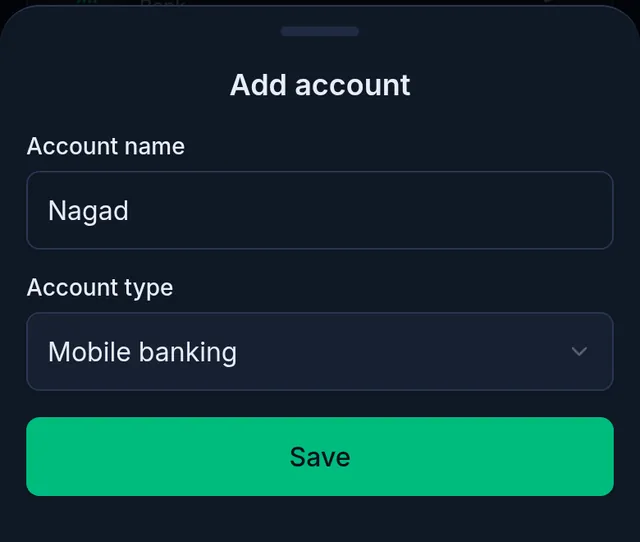
- Type the Account name (Nagad, or your bank's name, for example) and choose the Account type: Mobile banking for bKash or Nagad, Bank for a bank.
- Tap Save. A new account starts at zero; if it already holds money, add it with Add money on its card.
If the till is already open, open it again to see the new account. More about accounts: Cash, bank and bKash accounts.
Take payment
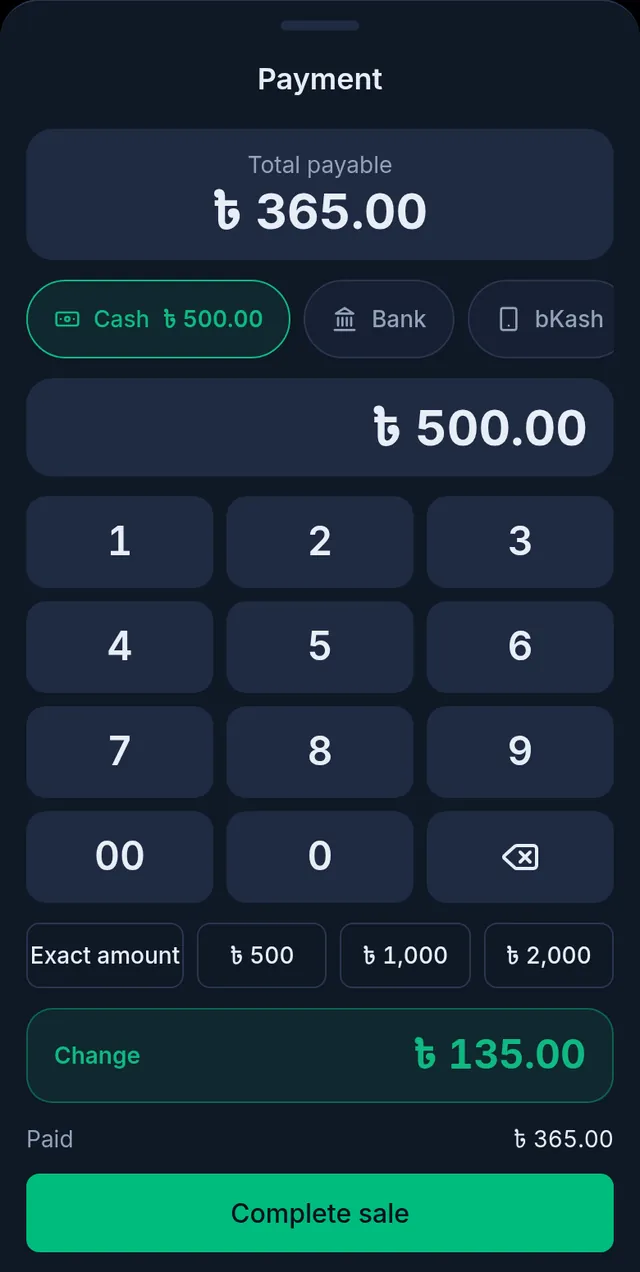
- In the cart, tap Take payment. The Payment window shows the Total payable at the top, a button for each of your active accounts below it, and a keypad. The first button (usually Cash) is already chosen.
- Tap the button of the account the money went into, then type what you were paid on the keypad. Amounts are in whole taka, without paisa. If the customer paid the whole bill, just tap Exact amount.
- On cash, buttons for 500, 1,000 and 2,000 taka notes also appear under the keypad. Tap the note the customer handed over; Change shows how much to give back.
- Tap Complete sale.
Split one bill across accounts
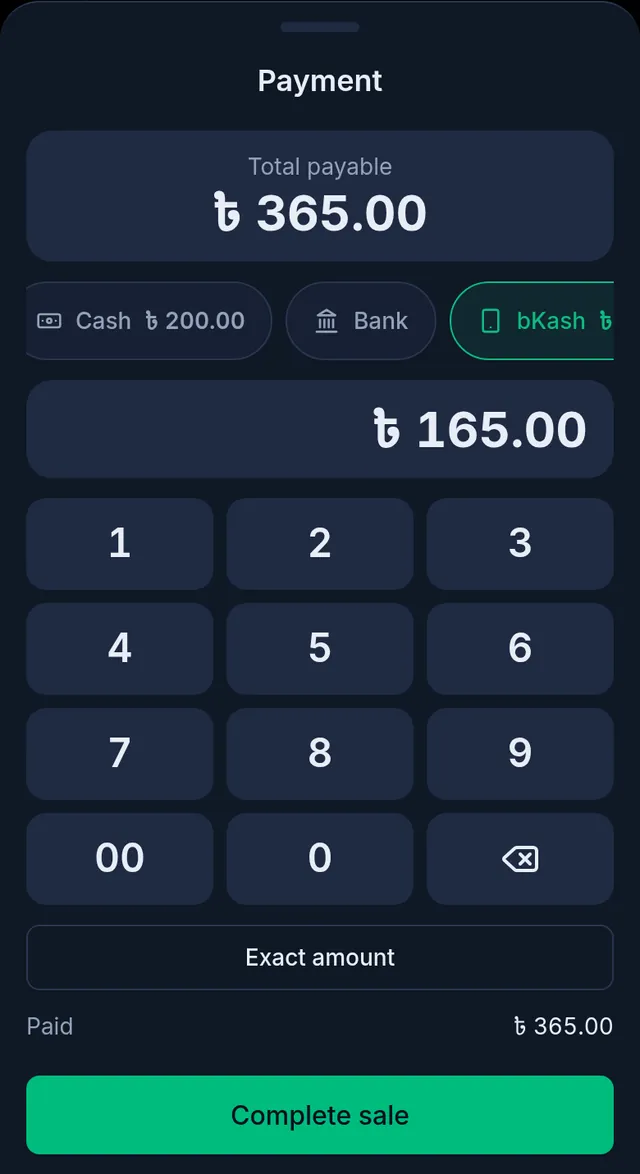
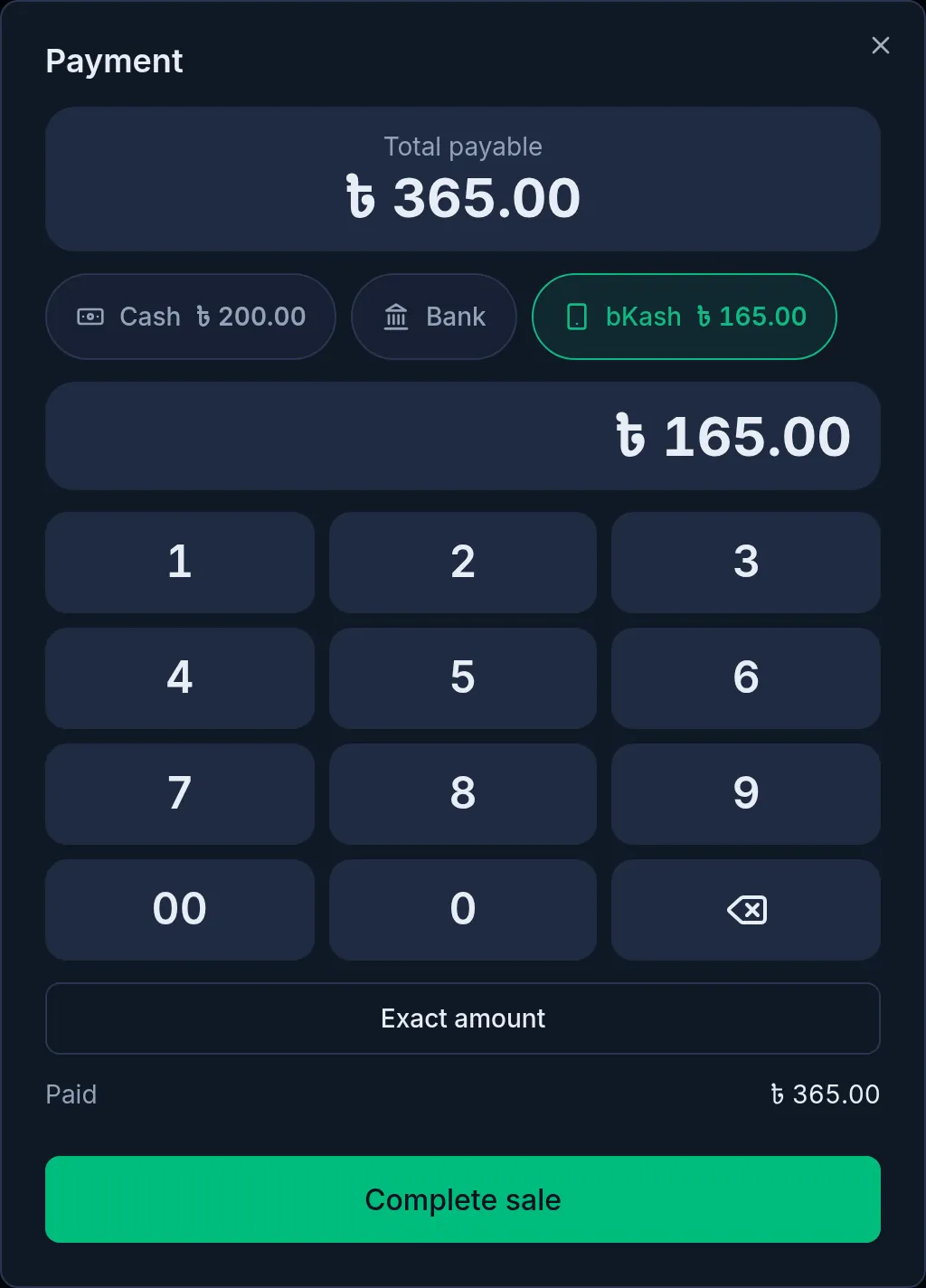
Say the bill is 365 taka, and the customer pays 200 in cash and the rest by bKash.
- With the Cash button chosen, type 200 on the keypad.
- Tap the bKash button, then tap Exact amount. The remaining 165 taka goes on bKash. Each button shows its own amount, and Paid adds them up.
- Tap Complete sale.
What happens next
- Each payment is added to its account. You can see every account's balance on the Money page.
- Open the sale from Sales and each payment is listed with its type and the account's name. The A4 invoice names the account too; the roll (thermal) receipt shows only the type, such as "Mobile banking".
- If the customer does not pay everything now, the rest can go in their খাতা: Sell on due.
If something goes wrong
Complete sale stays grey. Remaining is still shown, so the bill is not fully paid. Enter the rest, or attach a customer and leave the rest as due.
There is no bKash button. bKash has not been added as an account yet, or it was turned off. Add it as above, then open the till again.
It says "The selected payment account is not available." That account was turned off while the till was open. Open the till again and pick another account.
The bill has paisa and the sale will not complete. The keypad takes whole taka only, so Exact amount rounds. If a few paisa are still shown as Remaining, type one taka more (the extra shows as change). To round every bill, the owner or an Admin can turn on Cash rounding in the shop settings.
I cannot add an account. Adding accounts is for the owner and Admins. The Staff role does not see the Money page; ask the owner.
Watch the video
What the video says
Did the customer pay cash, or bKash? And how do you give them a receipt? Let's see both.
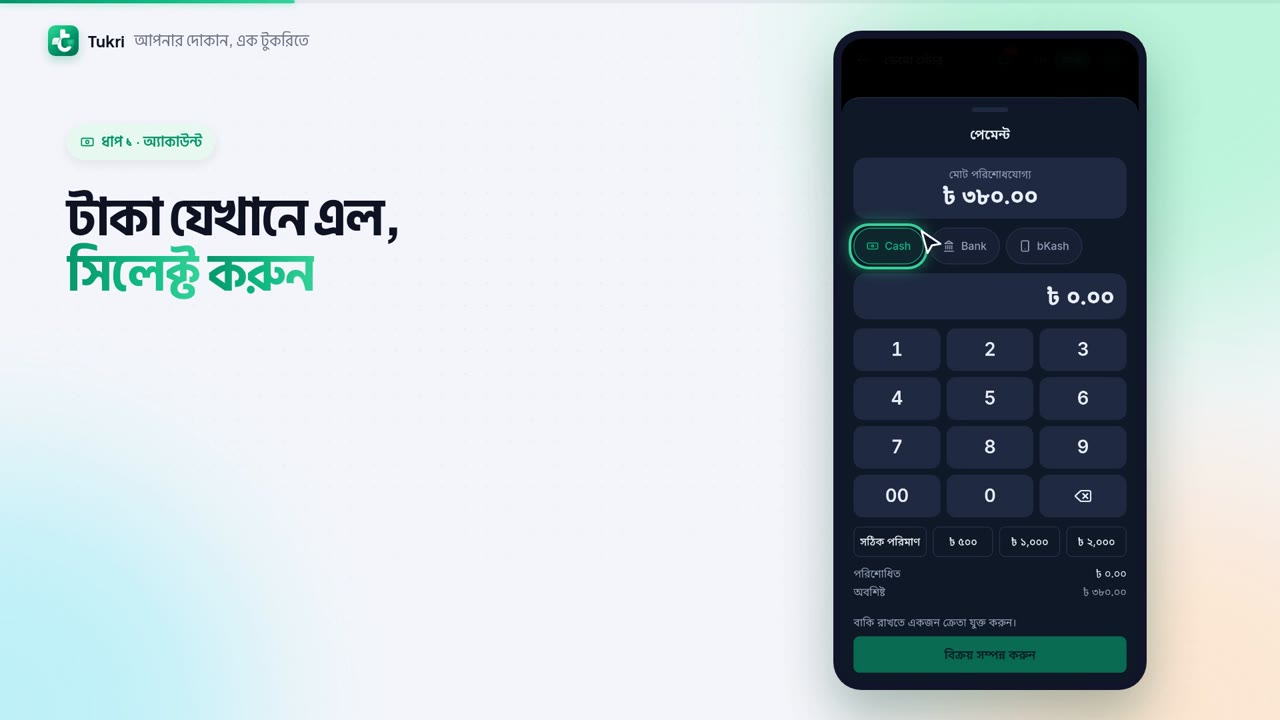
In the cart, tap Take payment. At the top is the total payable, and below it, a button for each of your accounts. Choose the one the money went into, such as Cash, a bank or bKash.
For cash, there are note buttons too. If the customer hands you a 500 taka note, tap the 500 button. Tukri shows how much change to give.
Splitting one bill across two accounts? First type what you got in cash. Then choose bKash and tap Exact amount. The rest goes on bKash. Now tap Complete sale.
Need a receipt? Right here, tap Print invoice, and the phone's print window opens.
Need a receipt for an old sale? Open Sales from the bottom bar and tap the sale. The first icon at the top prints, the one beside it downloads a PDF.
To send the customer a link, tap Share, then Create share link. Tap Send on WhatsApp or Send by SMS, and the message goes from your phone. Sharing links is a job for the Owner and Admins.
From bill to receipt, all in one place, tukri.bd
Related articles
Still need help?
Write to us, call or send a WhatsApp message, and someone from Tukri will help you.
