

On this page
Categories group your products, for example Rice & Grains, Lentils & Spices or Oil & Ghee. In the product list and at the till, tapping a category shows only its products. You add, rename and delete categories on the Categories page. There are no sub-categories: every category sits in one flat list.
Before you begin
- You need permission to add and edit products. The Owner, Admin and Staff roles all have it.
- A category is optional. A product without one sells just the same.
Open the categories page
On a computer
- Open Products in the menu on the left.
- Click Manage categories at the top.
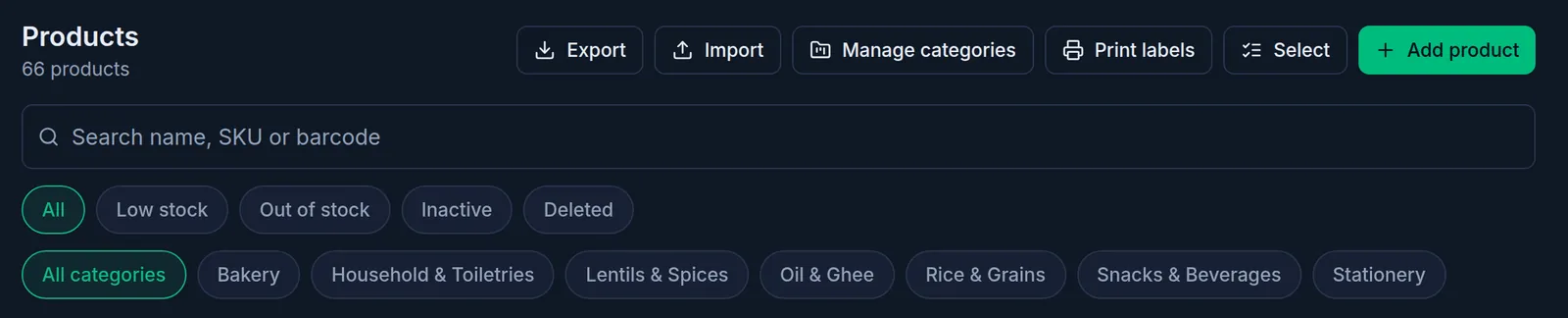
On a phone or tablet
- Open Products from Menu at the bottom.
- Tap the folder icon at the top: it is Manage categories.
The page lists every category with the number of products in it.
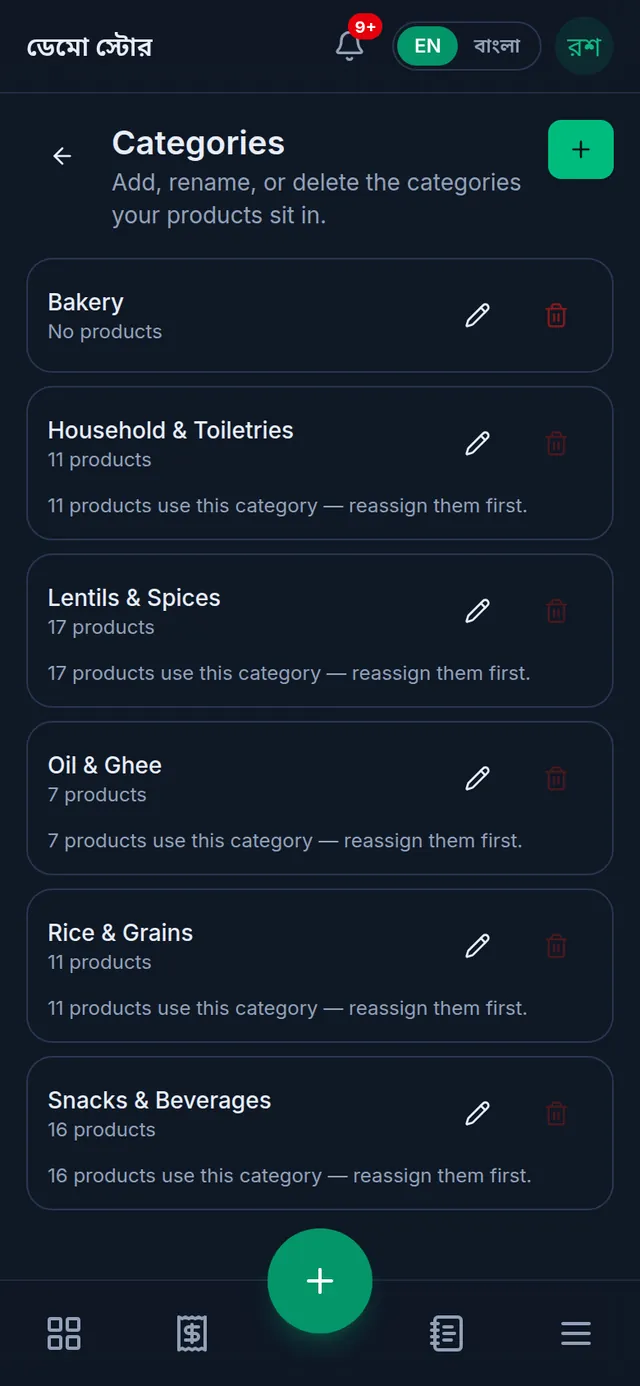
Add a category
- Tap Add category. On a phone it is the green + button at the top right.
- Type the category's Name.
- If you typed it in English, add the Bangla name in Name (বাংলা) too: it is shown when the app is in বাংলা. This field is optional.
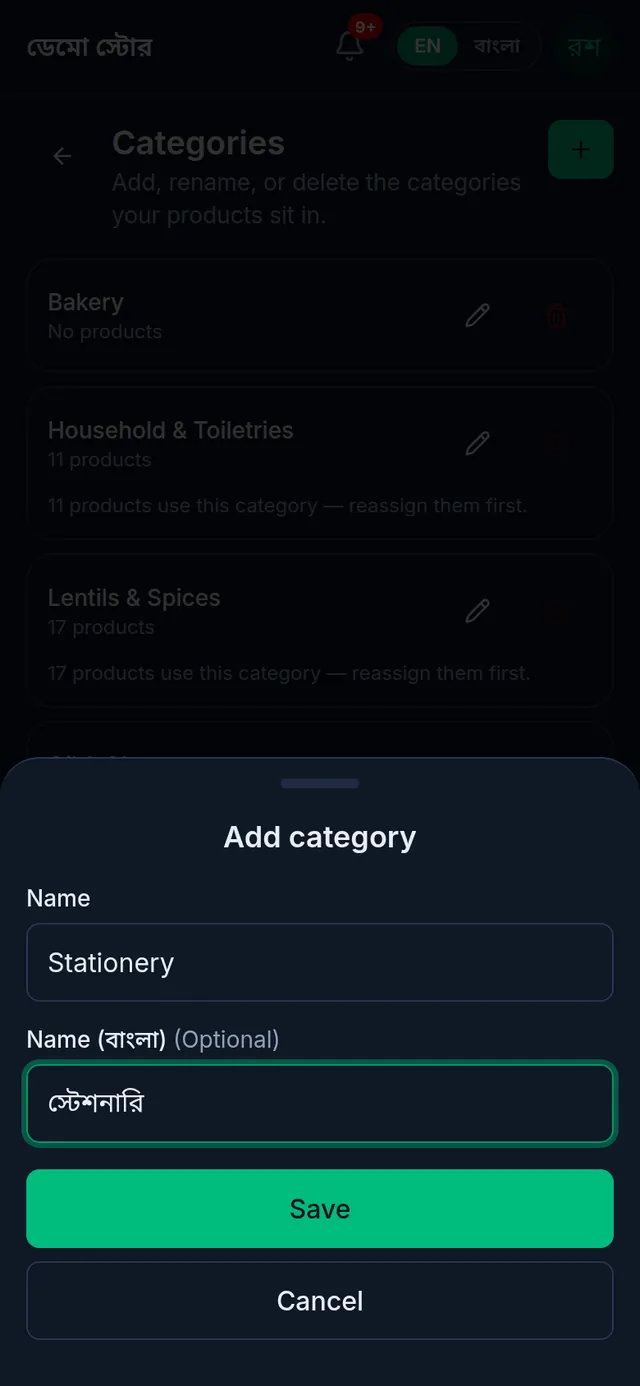
- Tap Save. The message "Category added." appears and the category joins the list.
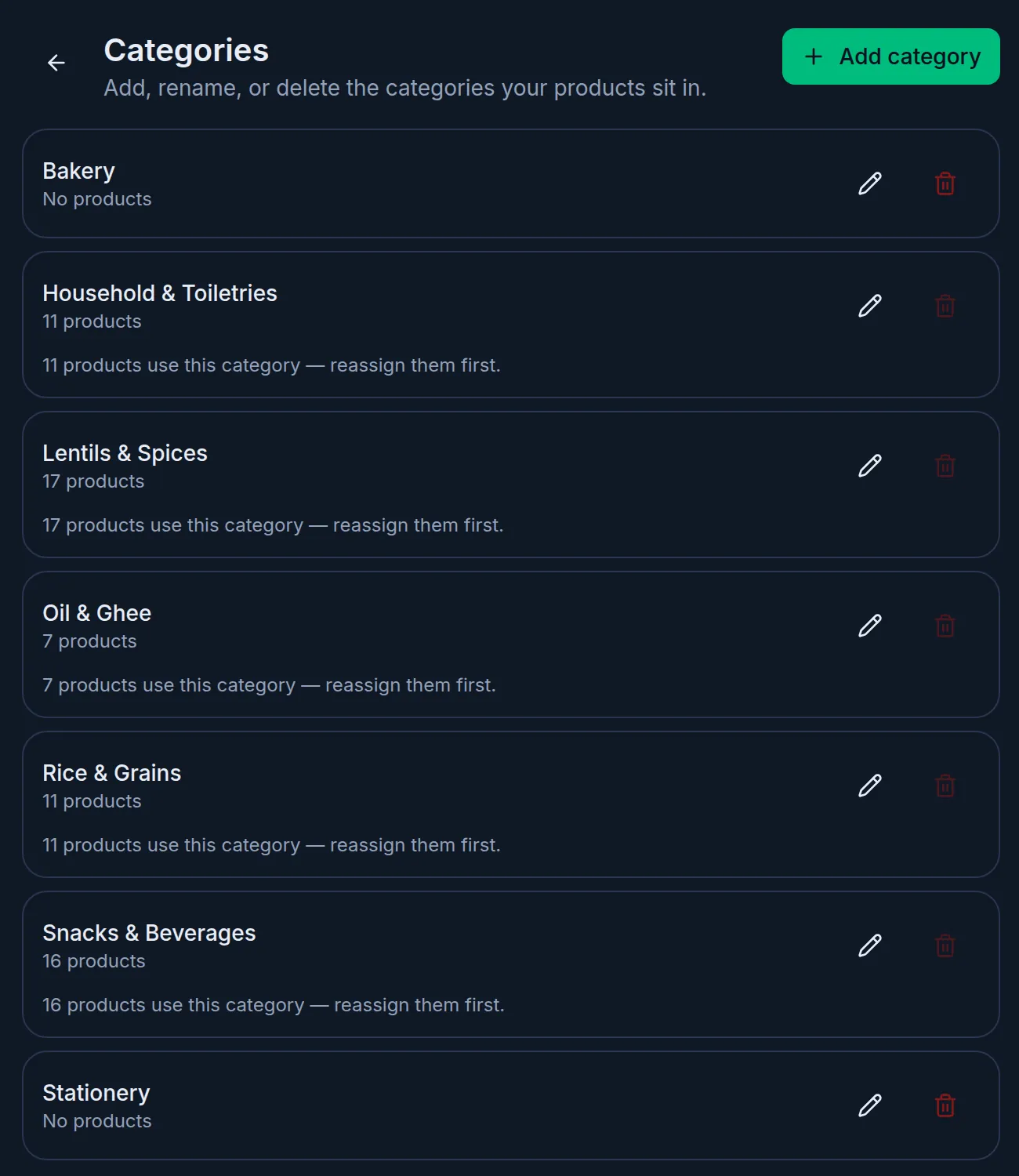
Rename a category
- Tap the pencil icon beside the category. Edit category opens.
- Change the name or the Bangla name and tap Save.
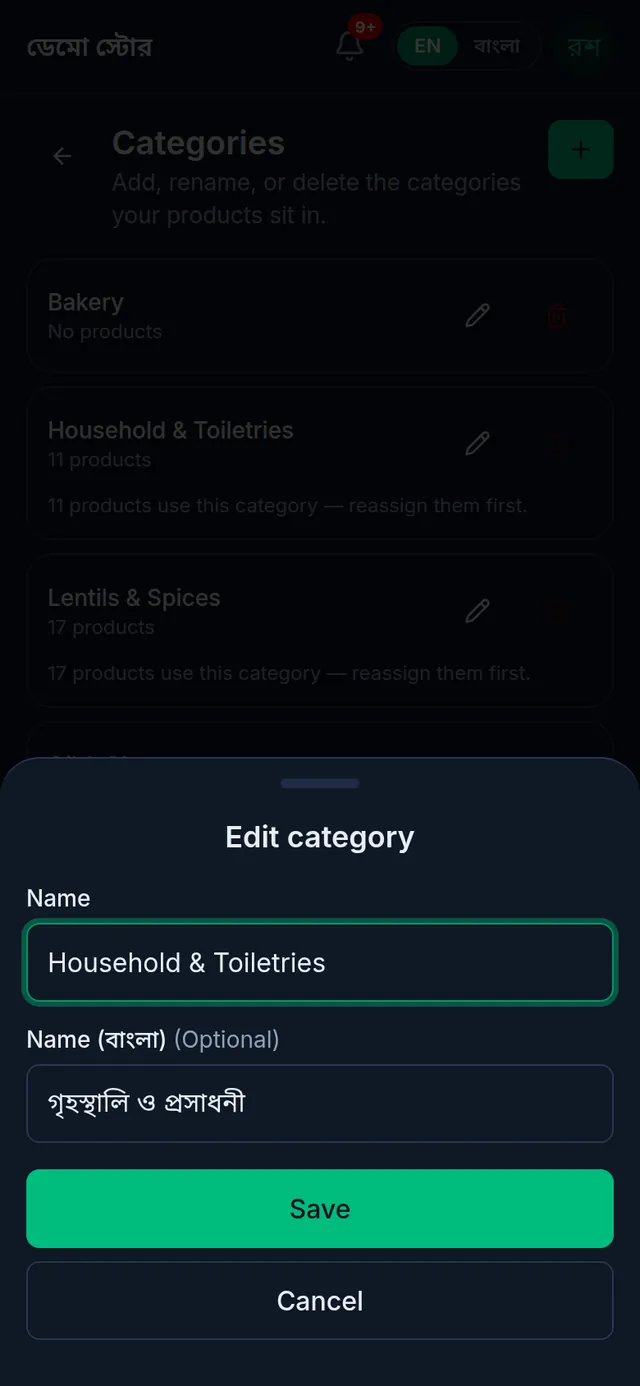
Every product in the category shows the new name at once; there is nothing to change on the products themselves.
Delete a category
Only an empty category, one that no product uses, can be deleted.
- Tap the red bin icon beside the category. Nothing is deleted yet.
- You are asked to confirm. Tap Delete to delete it, or Cancel to keep it.
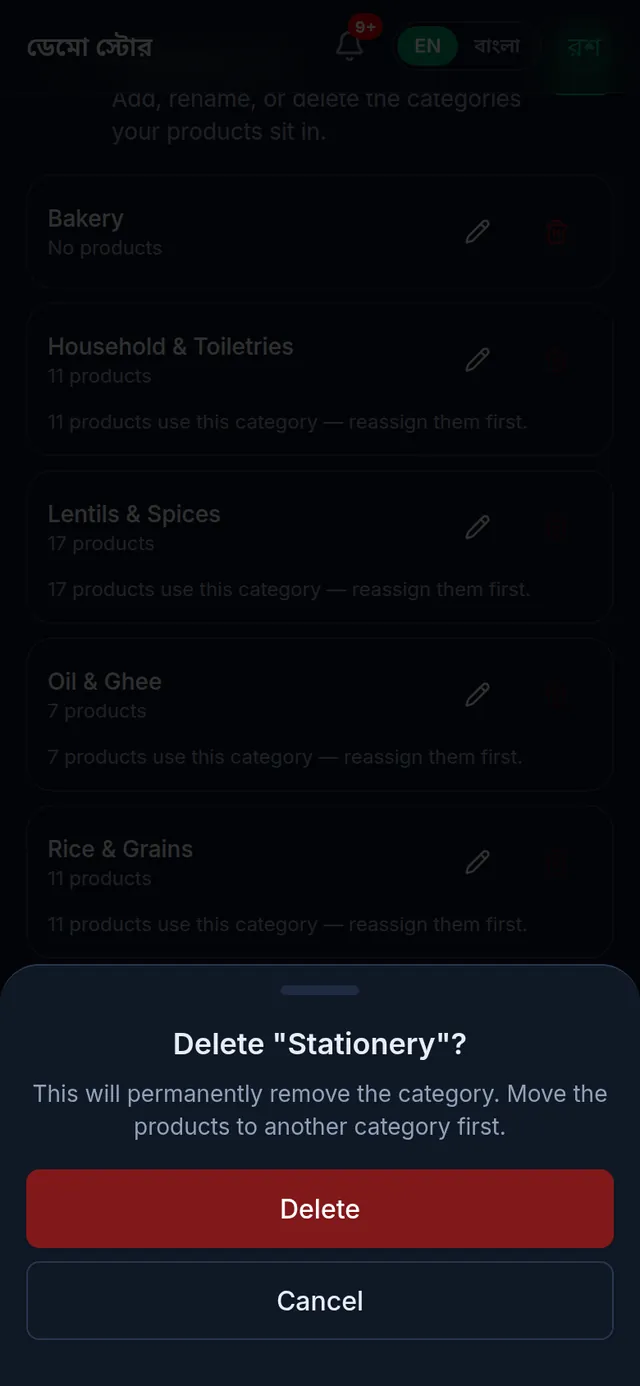
When "Category deleted." appears, it is gone. A deleted category cannot be brought back; create it again if you need it.
Good to know
- The Products list has a button for each category at the top. Tap one to see only its products, or All categories to see them all again.
- The till shows a button only for categories with at least one active product. An empty category does not appear there.
- To move a product to another category, edit the product and choose a different Category. See Edit a product.
If something goes wrong
The bin icon is grey and cannot be tapped. Products still use the category; the line under it says how many. Edit those products one by one, move them to another category, then delete it.
It says "Has archived products — reassign or restore them first." A product you deleted earlier still points at this category. In Products, tap Deleted, find the product, tap Restore and choose a different category while restoring it. The category can then be deleted.
A new category does not show at the till. It has no active product yet. Give a product that category and it appears.
There is no Manage categories button. Your role does not have permission to add and edit products. Ask the shop owner.
Watch the video
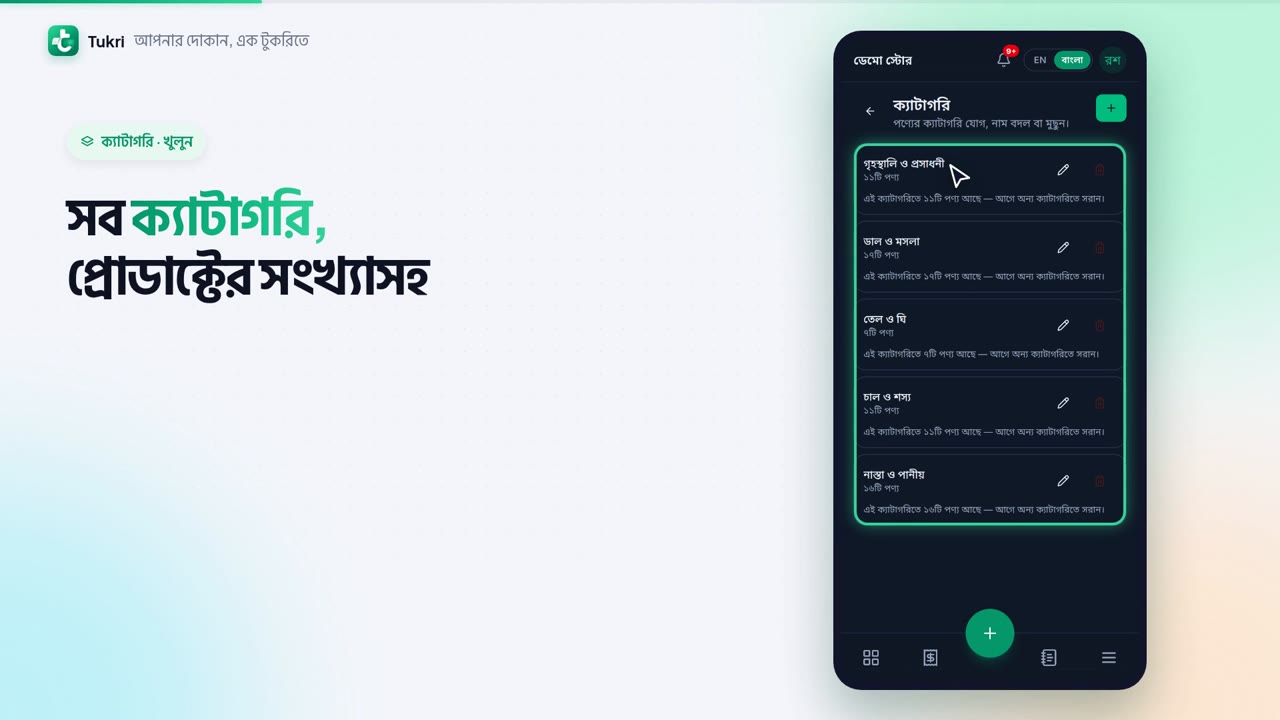
What the video says
Want to sort rice, lentils and oil into groups? And sell one item in many sizes? Let's look at categories and variants.
Open Products from the Menu. Tap the folder icon at the top. Here are all your categories, with how many products each has.
For a new category, press +. Type the Name, and the Bangla name if you like. Then press Save. Done, it's in the list.
To rename one, tap the pencil. To delete one, press the red bin, but only an empty category can be deleted.
Now, one product in many sizes. Go to a new product's Selling step. Tick This product has variants.
On each row, enter the size's name, the Cost price and the Sale price. Below that, the Opening stock: how many you have now. For another size, press Add variant. Then Next, and Save.
At the till, the card shows the lowest price. Tap it, and you're asked which size to add. Tap a size to add it to the cart.
One thing: a product that has stock can't have variants turned on; Tukri won't let you save it. First adjust its stock to zero, or add a new product with variants.
Keep your shop organised, tukri.bd
Related articles
- Add a new product Add a product in a four-step form: name, category, unit and prices, then opening stock, how it sells, and its SKU, barcode and photo.
- Edit, deactivate, delete or restore a product Edit a product to change its price or name. Make it inactive to stop selling it. Delete a product that was never sold, and restore it if needed.
Still need help?
Write to us, call or send a WhatsApp message, and someone from Tukri will help you.
