

On this page
For products such as medicine or packaged food, Tukri can keep stock in lots (batches), each with its own batch number, cost and expiry date. Sales take stock from the lot that expires first (FEFO). Tukri shows what is expiring, can stop expired stock from being sold, and lets you write expired lots off.
Before you begin
- It works in any shop type, for products without variants. A product with variants cannot track batches.
- Turning it on for a product needs "Add & edit products"; writing a lot off needs "Correct stock". The Owner, Admin and Staff roles all start with both.
- New to adding products? Start with Add a new product.
Turn on batches for a product
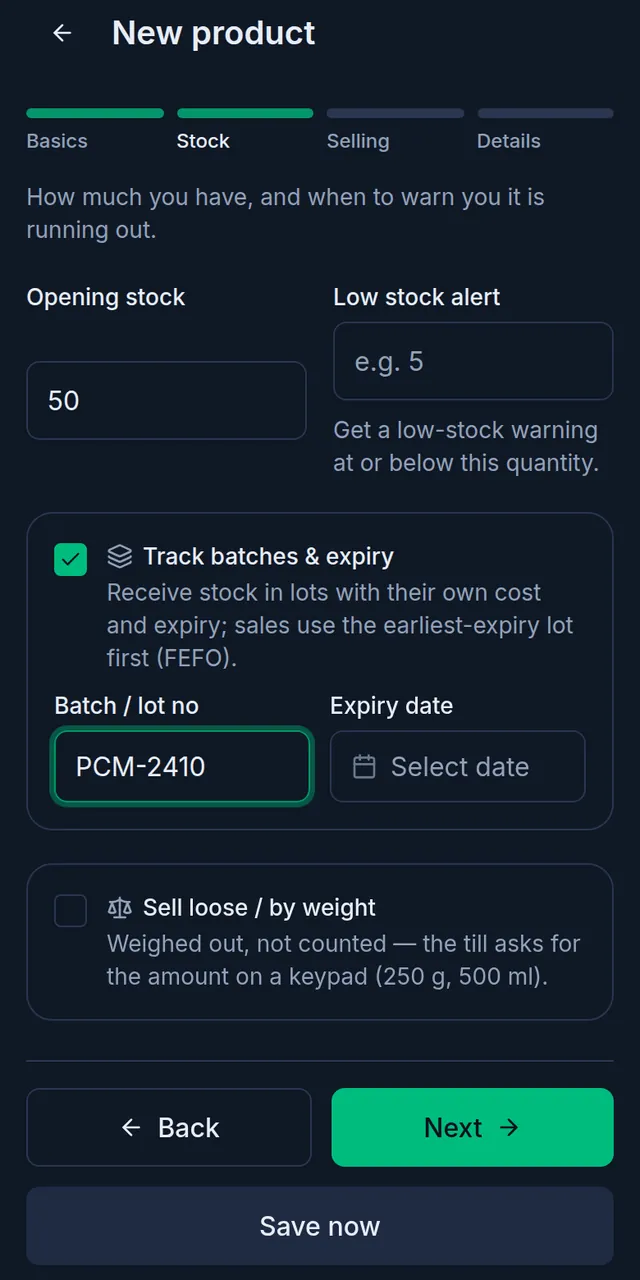
- Open the product from Products to edit it (or the form for a new product), and go to the Stock step at the top.
- Turn on Track batches & expiry.
- When a new product has Opening stock, or you switch this on for a product that already has stock, fill in that stock's Batch / lot no and Expiry date.
- Tap Save.
Record the lot when stock comes in
For a product that tracks batches, every way of adding stock asks for its lot:
- Recording a purchase: each line asks for the Batch / lot no and Expiry date. When one delivery has two dates, tap + Another batch of this.
- Receiving a purchase order asks the same.
- In a stock adjustment, choosing Stock in (+) asks Which lot?
At the till
- Sales take stock from the lot with the nearest expiry date first. Lots with no date go last.
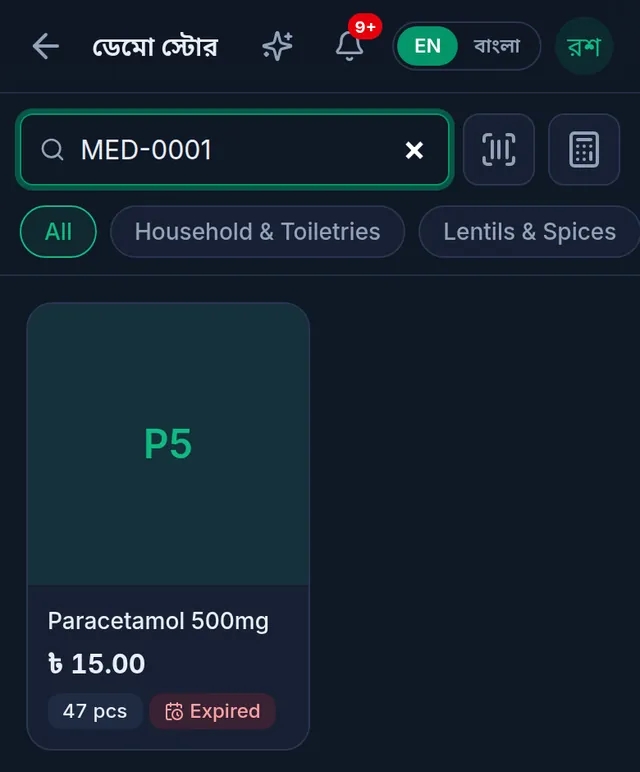
- On the till, the product card shows the state of the lot that goes out next: Expired, or how many days are left, so the cashier hands over the right box.
Block selling expired stock
- Open Settings › Shop and choose the Selling & stock tab.
- Turn on Block selling expired stock and save.
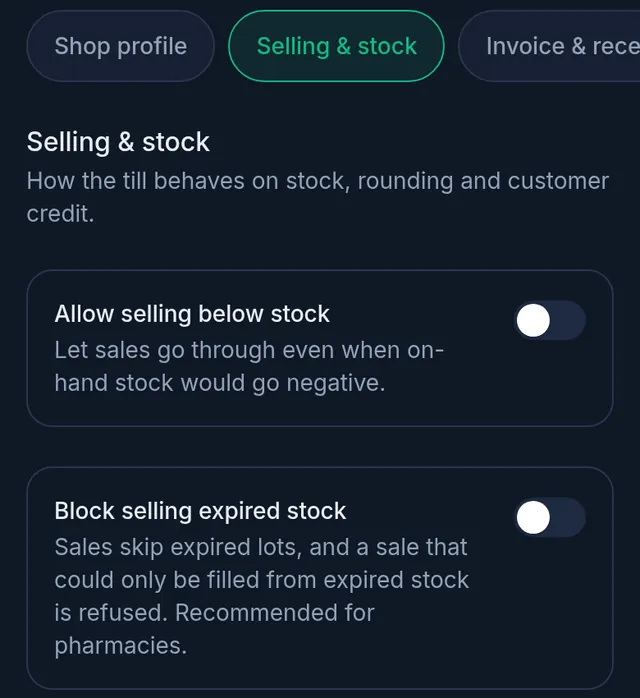
With it on, sales skip expired lots, and a sale that could only be filled from expired stock is refused. Lots with no expiry date are held back too, and from then on every new lot must have an expiry date. A lot that expires today can still be sold today. Pharmacy shops start with it on; other shops start with it off. Changing it needs permission to manage settings (the owner and Admins).
See what is expiring
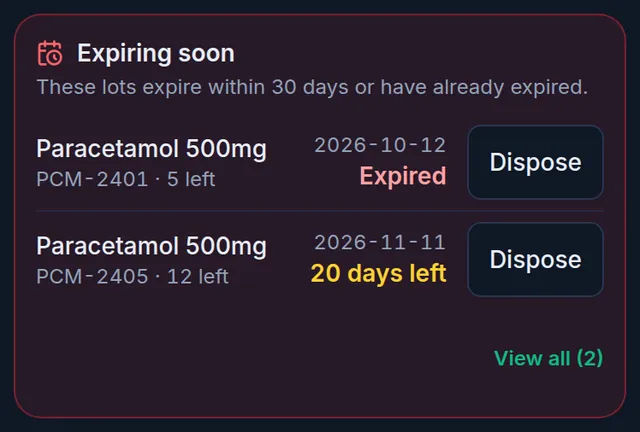
- The Stock page has an Expiring soon card with lots that have expired or expire soon.
- The Dashboard shows the most urgent lots too.
- Reports › Expiring Stock lists every such lot, plus lots with no date, with a CSV download.
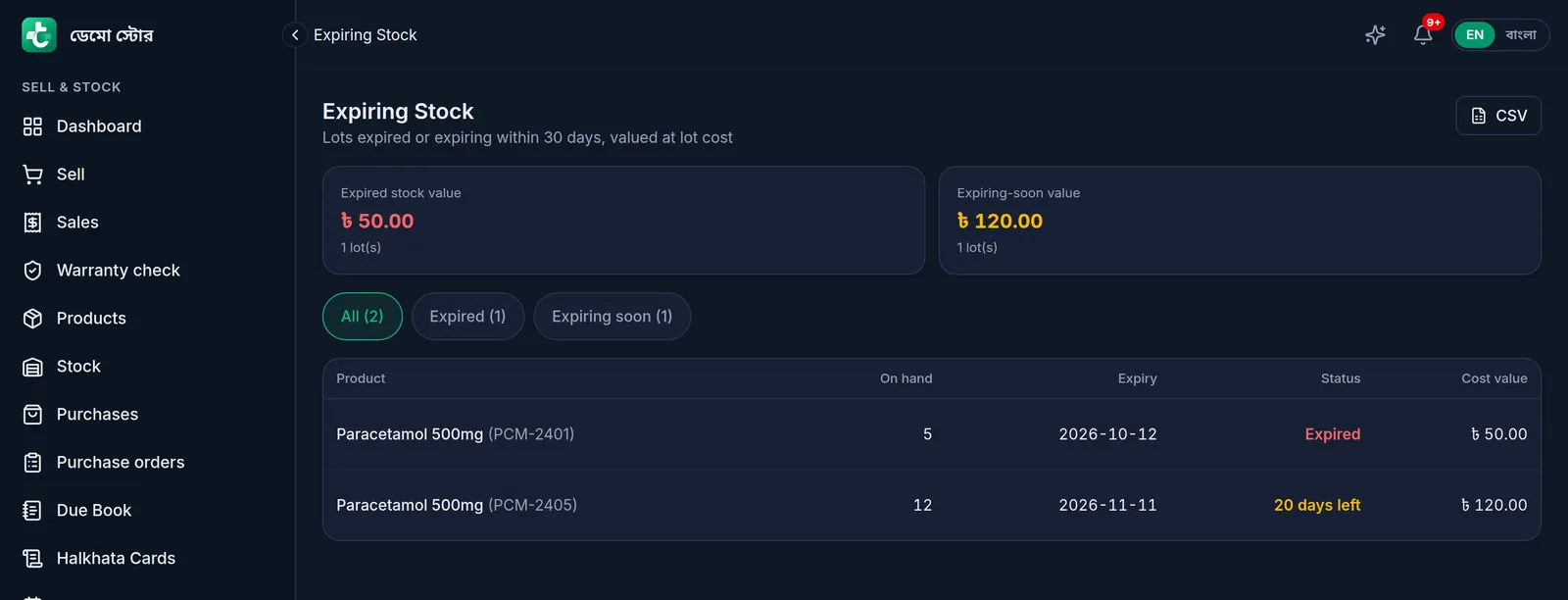
How many days count as "soon" is set in Settings › Notifications › Expiring-soon window (days). With Expiry alerts on there, the owner and admins also get a daily notification on devices where they turned notifications on.
Write off an expired lot
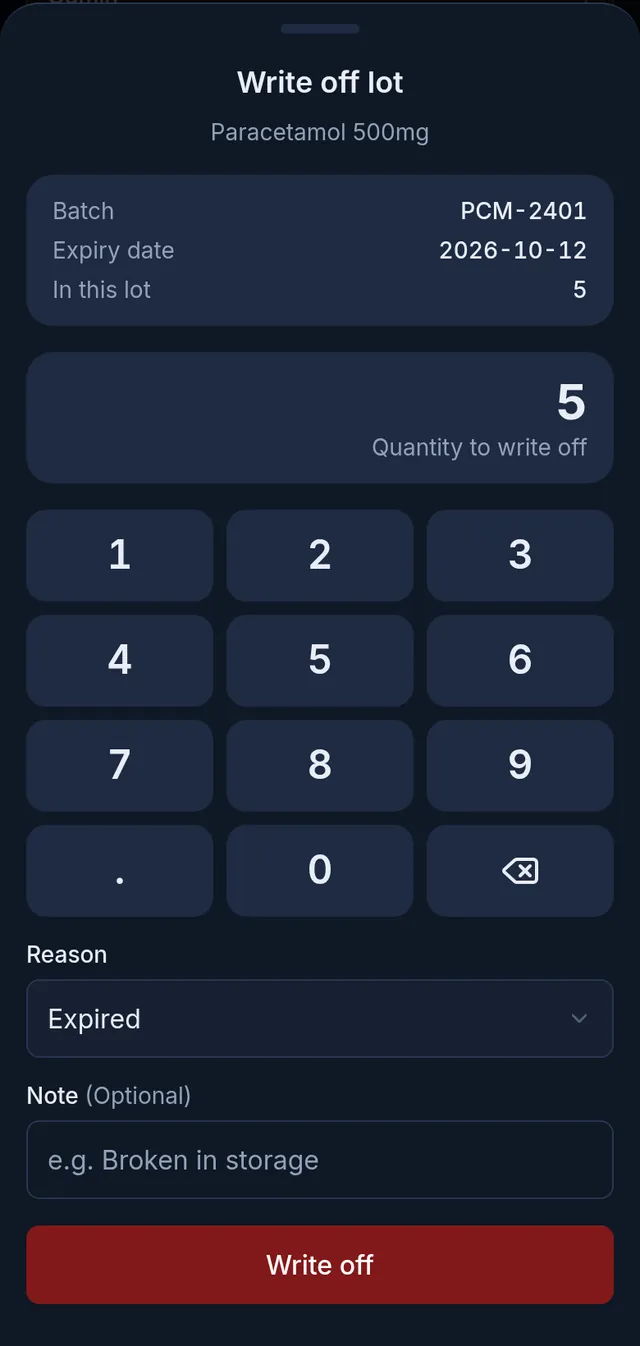
- On the Stock page, tap Dispose beside the lot in the Expiring soon card.
- Enter the quantity (Quantity to write off), choose a Reason and add a Note if useful.
- Tap Write off. Tukri shows "Lot written off."
Fix a wrong batch number or expiry date
- Open Reports › Expiring Stock. Lots with no date are under the No date filter.
- Tap the lot. Correct this lot opens.
- Correct the Batch / lot no or Expiry date and tap Save. Only the label changes, never the quantity.
Only lots in this report (expired, expiring soon, or with no date) can be corrected here. Opening the report needs permission to see reports; saving needs "Correct stock".
Find who bought a batch
When a supplier recalls a batch, open Reports › Batch search and type the batch number. Each matching lot shows how much is Still on the shelf and who it was Sold to customers to, with dates, so you can contact them.
If something goes wrong
A product will not sell and says it has expired. Block selling expired stock is on and the stock in hand has expired or has no date. Write the expired lot off, give an undated lot its real date, or record the new stock.
"An expiry date is needed here, because this shop does not sell expired stock." Your shop blocks expired sales, so every new lot needs an expiry date.
There is no Dispose button. Your role does not have "Correct stock".
There is no batch switch on the product. The product has variants; a product with variants cannot track batches.
Watch the video
What the video says
The expiry of medicine or packaged goods, and the warranty on TVs and mobiles: handle both in Tukri.
Edit the product and go to the Stock step at the top. Tick Track batches & expiry. Enter the batch number of the stock in hand and its expiry date, then Save. When you buy stock later, it asks for each lot's details too.
In a sale, stock comes first from the lot that expires soonest. The product card shows how many days are left, or Expired.
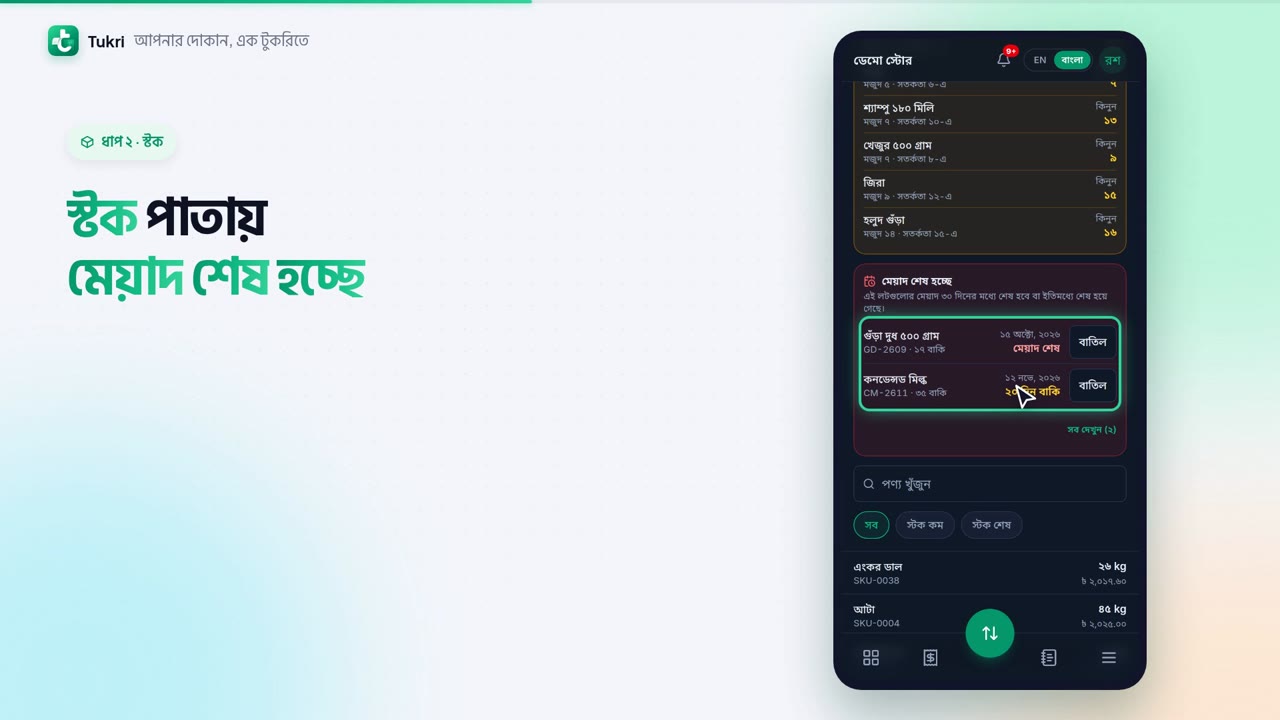
The Expiring soon card on the Stock page shows the urgent lots together. Once a lot has expired, tap Dispose, check the quantity and reason, then tap Write off. If you like, in the shop settings, you can block selling expired stock.
Now on to warranties. First turn on Warranty check in Features. Then, in the product's Selling step, tick Sold with a warranty, enter the months and who honours it, then Save.
When selling, in the cart, type or scan the unit's serial.
When the customer comes back, open Warranty check in the menu. Search by serial, invoice, name or phone. It shows whether it's Under warranty, and until when. Counter staff can look it up too.
Expiry and warranty, all on record, tukri.bd
Related articles
- Stock reports: stock value and expiring stock See what the stock you hold cost, what it would sell for and the potential profit, and which lots have expired or will expire soon.
- Record a purchase and receive stock When goods arrive from a supplier, record the purchase: stock goes up, the cost price is updated, and what you did not pay is added to what you owe them.
- Adjust stock: damage, loss or a count correction Add or remove stock with a reason when goods are damaged, lost or miscounted, and fix a wrong adjustment with an opposite one.
Still need help?
Write to us, call or send a WhatsApp message, and someone from Tukri will help you.
