

On this page
Instead of adding products one by one, make a list in Excel or Google Sheets, save it as a CSV file and Import it into Tukri. New products in the file are added and the ones you already have are updated. The other way round, Export downloads your shop's whole product list as a CSV file.
Before you begin
- Importing and exporting need the Bulk product tools permission. It starts with the Owner and Admin roles, not Staff; the owner can give it to other roles under Settings › Roles. Without it, the two buttons do not appear.
- Every unit named in the file (such as Pieces or Kilogram) must already exist in your shop. For a new unit, first add it with the + beside Unit on the product form. Categories that do not exist yet are created for you.
- Save the file as a UTF-8 CSV so Bangla names stay readable. It must be a .csv file of at most 5 MB.
- Every column is explained in Tukri's CSV import guide, where you can also download an empty template.
Import a file
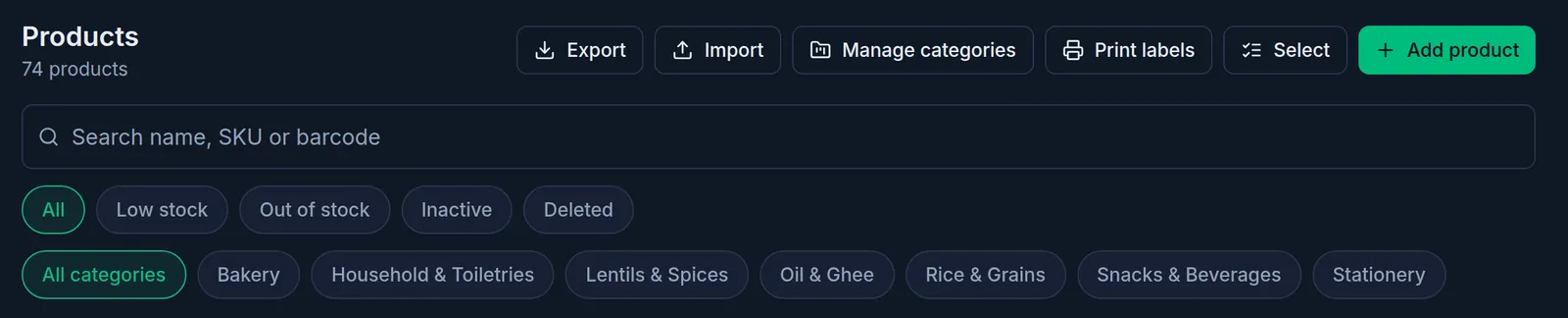
- Open Products in the menu on the left and click Import at the top. (On a phone it is the upload icon above the list.)
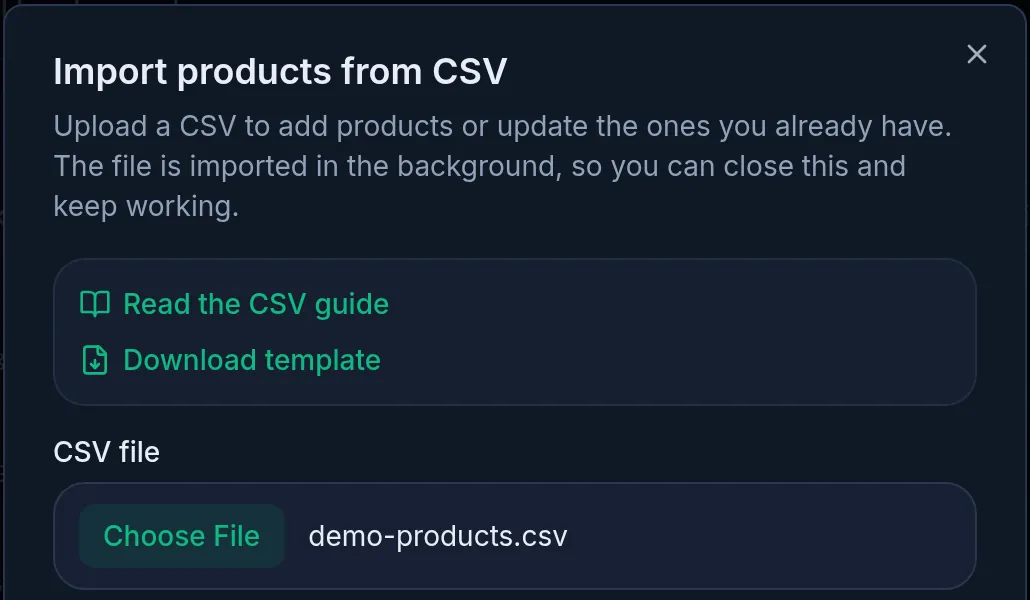
- If you need a starting point, click Download template; for what each column means, Read the CSV guide.
- Under CSV file, choose your file.
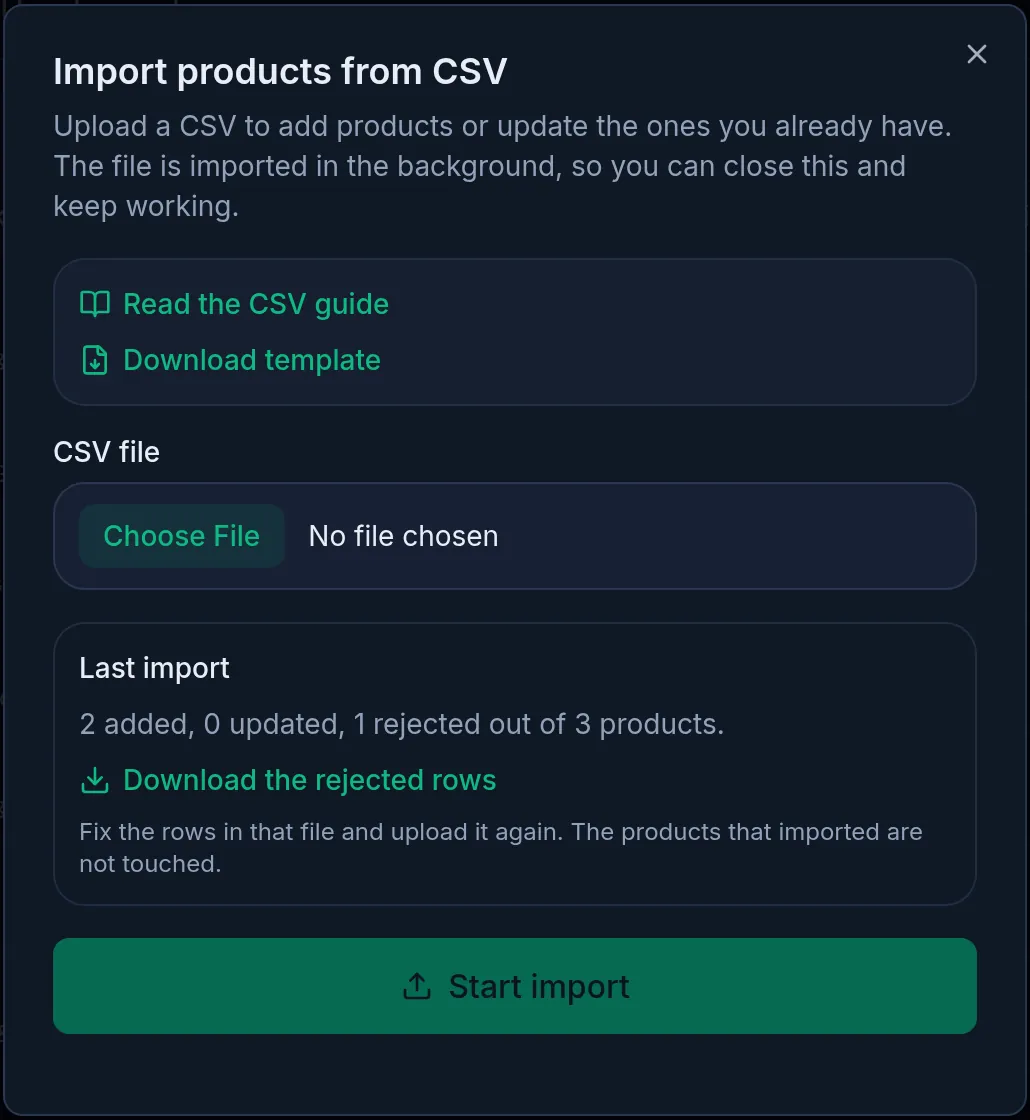
- Click Start import. The message "Import queued. We will tell you when it finishes." appears.
- The import runs in the background, so you can close the window and keep working. When it finishes, a "Product import finished" notification arrives under the bell at the top.
- Open Import again. Last import shows how many products were added, updated and rejected.
What an import does and does not do
- A product is matched by its SKU; when the SKU cell is empty or matches nothing, by its barcode. A match is updated; anything else is added as a new product. So importing the same file twice with both SKU and barcode empty adds those products twice.
- The file's stock is used only as the opening stock of a new product or variant. A file never changes the stock of a product you already have; use a purchase or a stock adjustment for that.
- An import never deletes products, variants or packs.
- A file cannot turn a plain product into one with variants or back, or switch batch and expiry tracking on or off; do those on the product screen. It also cannot change the unit of a product whose stock has already been bought or sold.
- Photos are not part of the CSV.
- Each product is imported on its own: if one is wrong, the others still go in.
Fix rejected rows
If any product was rejected, Last import shows Download the rejected rows. That file lists each rejected row with its number, the column and what is wrong, for example that the shop has no unit by that name. Fix the rows in that file and upload it again. The products that imported are not touched. Only the person who uploaded the file can download its report.
Export your whole list
On Products, click Export at the top (on a phone, the download icon). A CSV of every product in the shop downloads: active and inactive, everything except deleted products. It has exactly the columns the import reads, so you can change prices or names in it and import it back to update many products at once.
Let an AI build the file
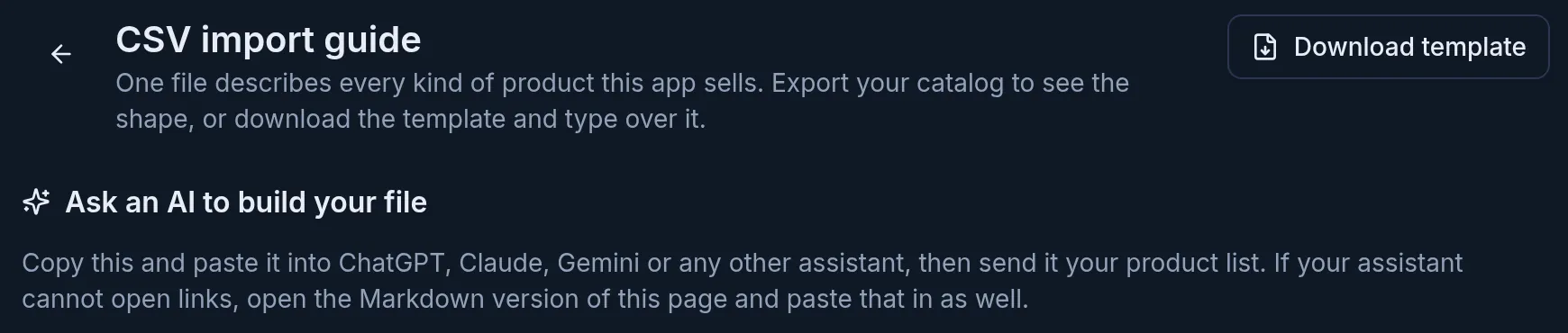
The CSV import guide has a section called Ask an AI to build your file with a ready-made prompt. Copy it into ChatGPT, Claude, Gemini or another assistant, then send your product list (typed, a supplier's price list or a photo of your notebook). Import the CSV it gives back. Check the prices and stock once before importing.
If something goes wrong
The import seems stuck. If the spinner under Last import keeps turning, wait a few minutes and open the window again. If it never moves, contact Tukri support.
It says "The uploaded file could not be read." or "The file is empty." Save the file again as a UTF-8 CSV and retry. If the first line (the header) is missing a required column, the whole file is refused; start from the template's header.
A row says "Your plan's product limit is full, so this product was not added." Your plan's number of products is full. For more, choose a bigger plan: Your plan.
A row says its SKU belongs to a deleted product. Restore that product (Edit, deactivate, delete or restore a product), or use a different SKU in the file.
There is no Import or Export button. Your role does not have the Bulk product tools permission. Ask the shop owner.
Watch the video
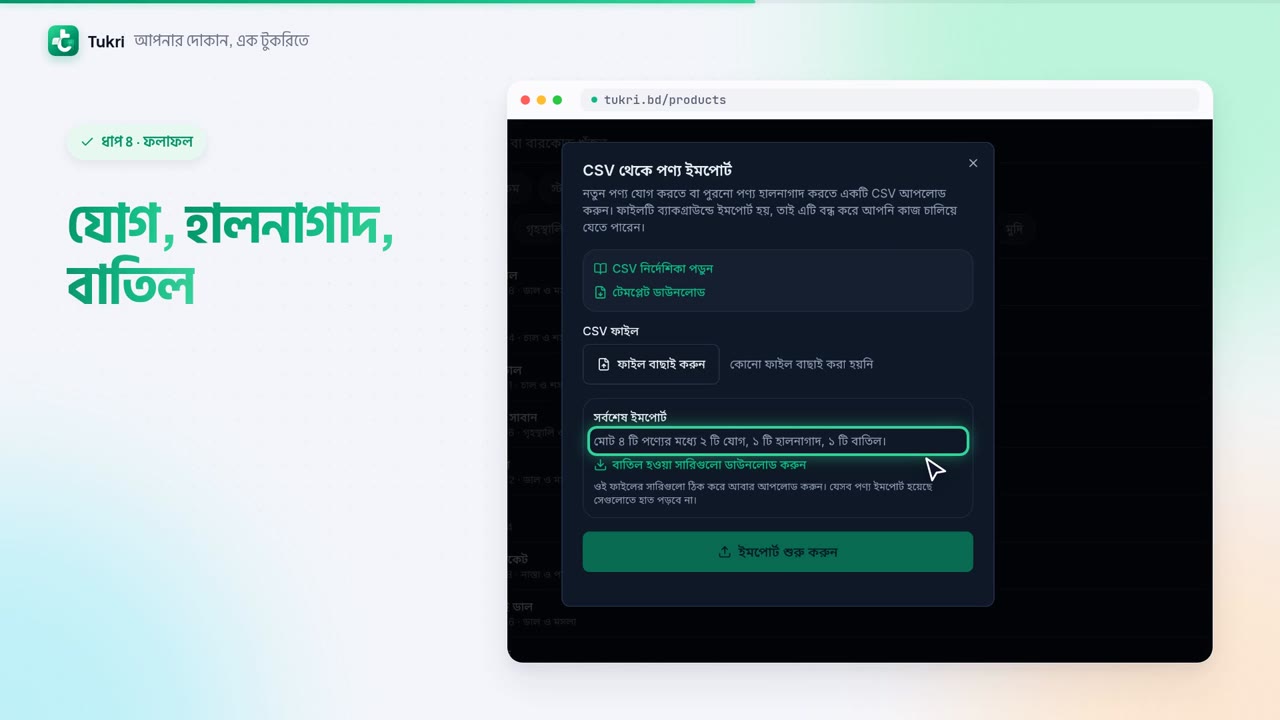
What the video says
Tired of adding products one by one? Add them all at once from an Excel list.
Open Products in the menu on the left, and click the Import button at the top. For a starting file, click Download template. The CSV guide explains what goes in each column.
One line for each product: name, unit, cost and sale price, stock. Make it in Excel or Google Sheets, and save it as a CSV. But each unit must already exist in your shop.
Now press Choose file and pick the file, then Start import. The import runs in the background, so you can keep working meanwhile.
When it's done, a notification arrives under the bell at the top. Open Import again to see how many were added, updated and rejected. Download the rejected rows to see what's wrong, then fix them and upload again.
Even if one row is wrong, the rest still go in. When the SKU matches, the product you already have is updated, but its stock doesn't change. For stock, use a purchase or a stock adjustment.
And Export downloads your whole list. Change the prices in it and import it, and everything updates. At first, only the Owner and Admins get these two buttons.
All your products at once, tukri.bd
Related articles
- Product variants: sell sizes, colours or pack sizes separately Versions of one product, such as sizes, colours or bottle sizes, each with its own price, SKU, barcode and stock. Turn them on in the Selling step.
- Create, rename and delete product categories Group products into categories such as rice, lentils or oil. Rename a category at any time, and delete one once it is empty.
- Enter opening stock Enter the goods you already have as opening stock when you add a product. After that, stock changes through purchases, sales and adjustments.
Still need help?
Write to us, call or send a WhatsApp message, and someone from Tukri will help you.
