

On this page
The Buying list is a running list of what to buy on your next trip to the market or the wholesaler. Add products one at a time, or every low-stock product in one tap, tick off what you have bought, and turn the items into a draft purchase order for a supplier. Nothing on the list changes your stock or your money.
Before you begin
- The buying list is an optional feature and starts switched off. To turn it on, open Settings › Features, switch on Buying list and tap Save. The Owner and Admins can do this. More in Turn optional features on or off.
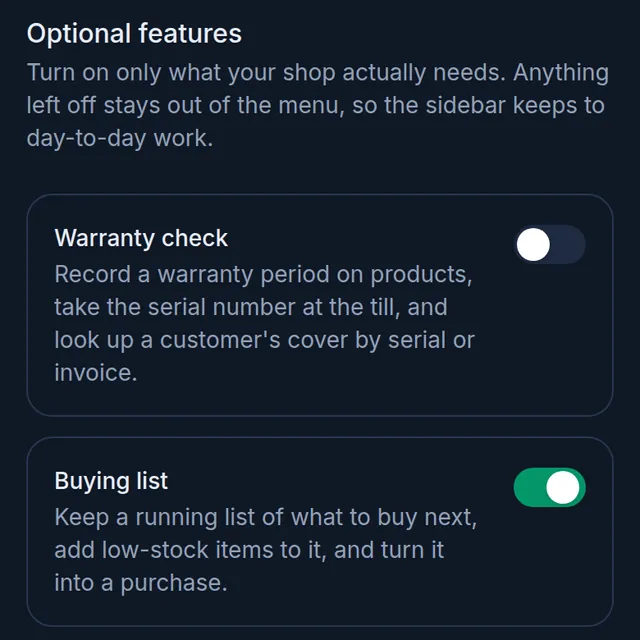
- Keeping the list needs the "Buying list" permission. The Owner, Admin and Staff roles all start with it, and only members who have it see Buying list in the menu.
- Turning items into a purchase order needs the "Purchase orders" permission, which the Owner and Admin roles have at first.
Add a product to the list
- Open the product search.
On a computer
Click Buying list in the menu on the left, under Sell & Stock, then Add item at the top right.
On a phone or tablet
Tap Menu in the bar at the bottom, then Buying list, and tap the round + button at the bottom.
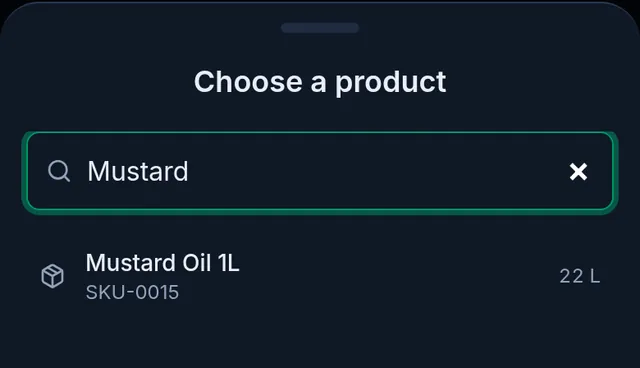
- In Choose a product, search by name, SKU or barcode and tap the product. The stock you have now is on the right.
- Fill in what helps; all of it is optional. Type the Quantity, choose the Priority (Low, Normal or High) and the Expected supplier, and add a Note. For a product with variants, choose the Variant first.
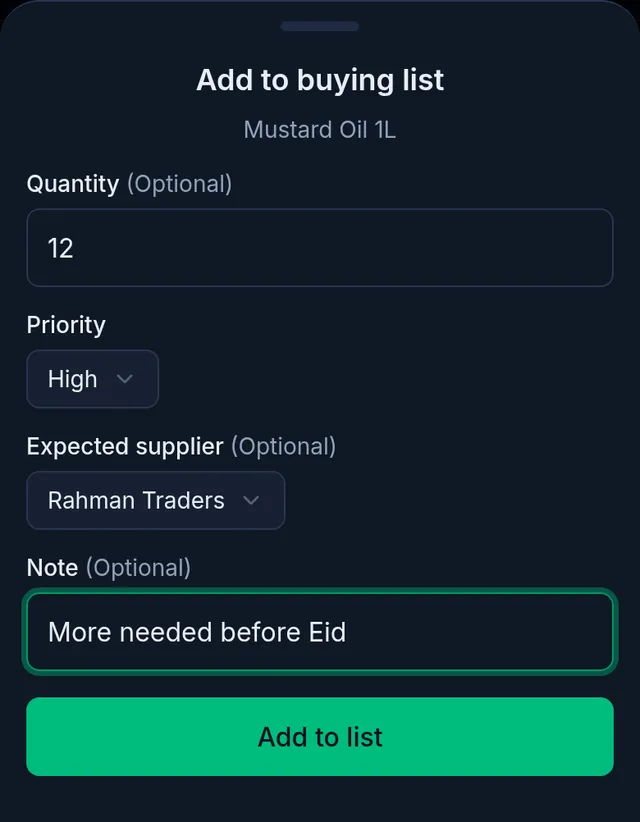
- Tap Add to list. Tukri shows "Added to your buying list." and the item is at the top of To buy, with a red High mark when you chose it.
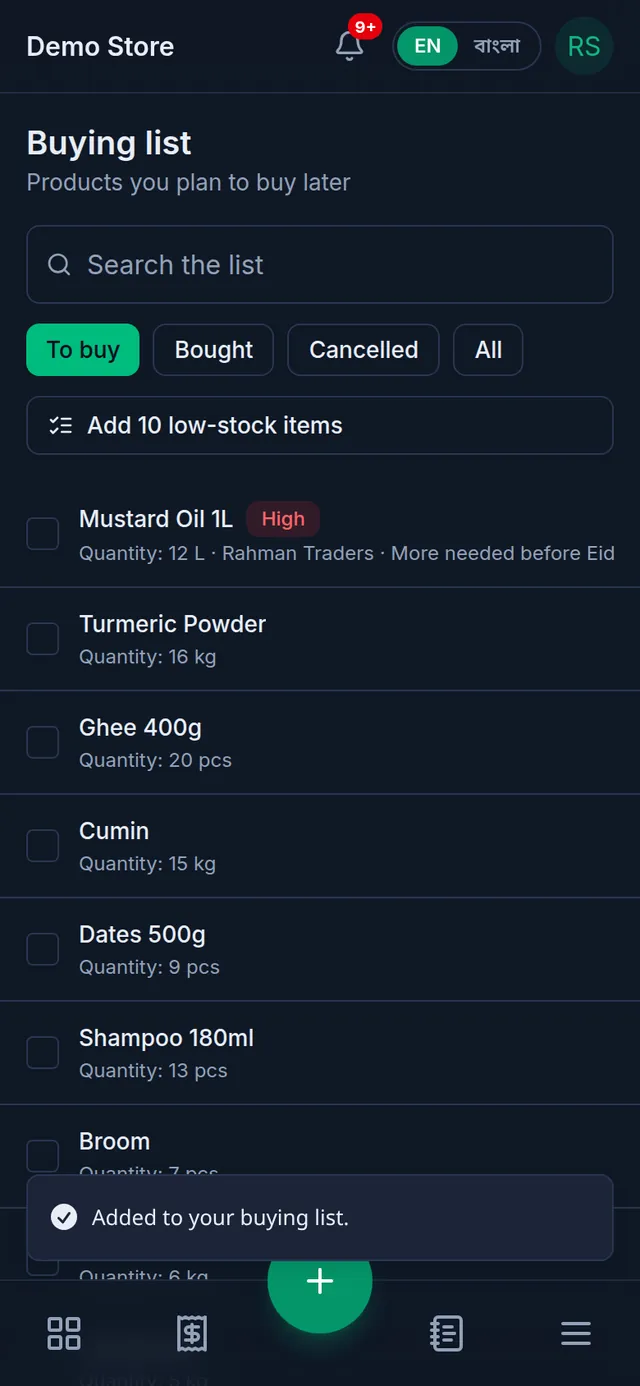
If the product is already on the list to buy, Tukri updates that item instead of adding it twice. While you edit a product, the list icon at the top of its page (Add to buying list) adds it too.
Add every low-stock product at once
A product is low when its stock is at or below its alert level (see Low stock alerts). To put all of them on the list in one go:
- On Buying list, under To buy, tap the button above the list that says how many products are low.
- Or on Stock, tap Add all to buying list at the bottom of the Reorder suggestions card.
Each product goes on the list with the suggested amount to buy: enough to bring its stock back to twice the alert level, and never less than the level itself. Tukri says how many it added. A product that is already on the list keeps its priority, supplier and note; only its quantity changes. Products with variants are not added this way: add them one at a time and choose the variant.
Tick off what you bought
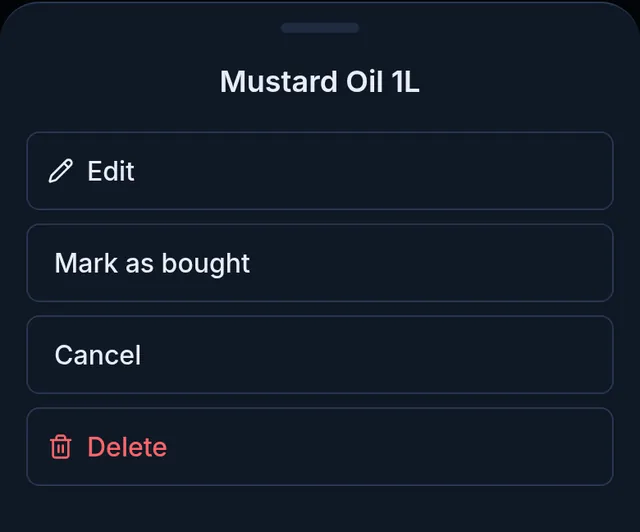
Tap an item to see what you can do with it:
- Edit: change the quantity, priority, supplier or note, then tap Save.
- Mark as bought: you have bought it. It moves to Bought.
- Cancel: you no longer need it. It moves to Cancelled.
- Delete: Tukri asks "Delete this item?"; tap Delete again. The item is removed from your buying list for good. Your products, stock and any purchase order made from it are not changed.
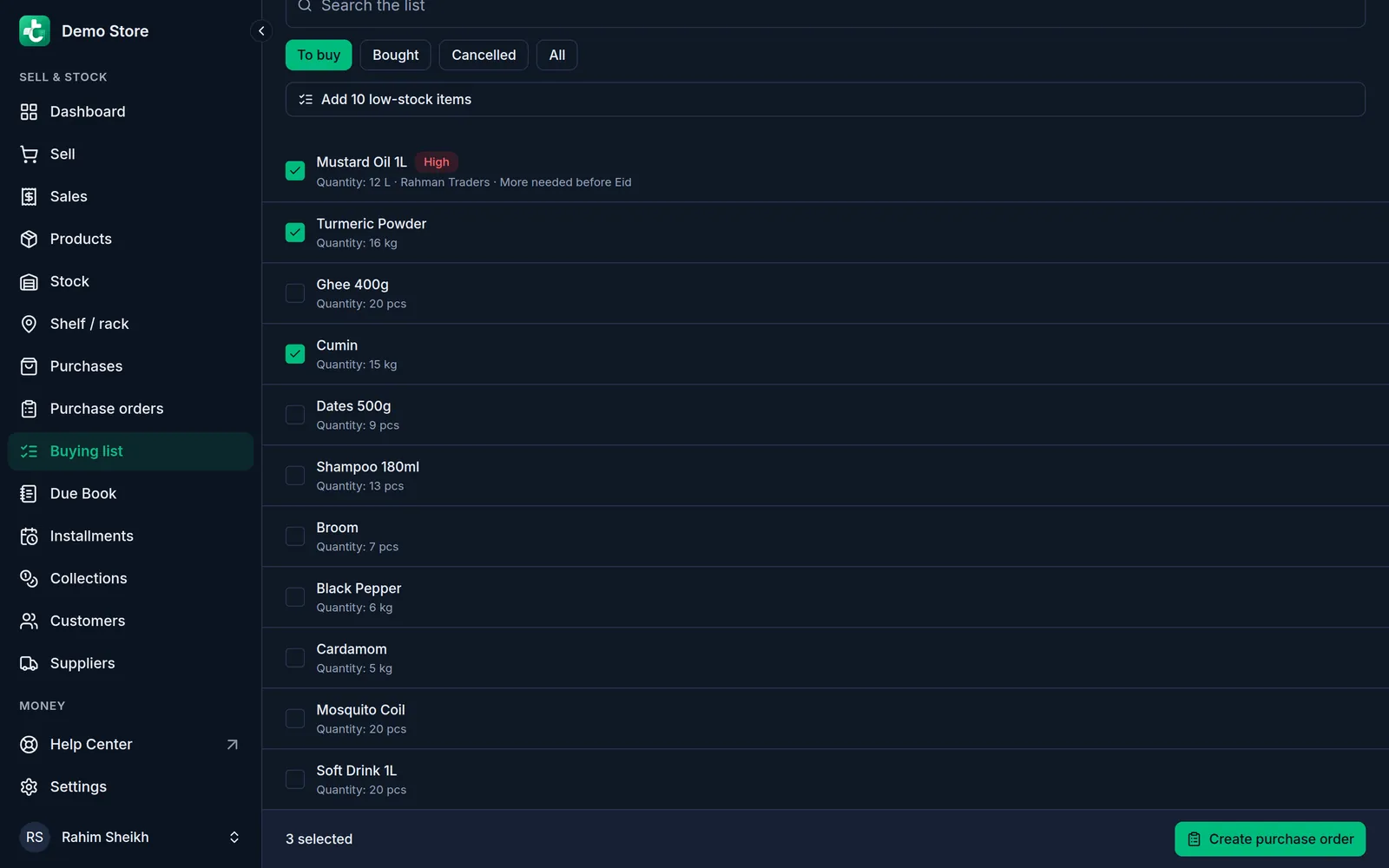
An item under Bought or Cancelled has Move back to buy instead, which puts it back on the list to buy. Use the To buy, Bought, Cancelled and All buttons to see each part of the list, and the Search the list box to find an item by its name or SKU.
Turn items into a purchase order
- Under To buy, tick the box beside each item you are ordering from one supplier. A bar at the bottom shows how many you have ticked.
- Tap Create purchase order in that bar.
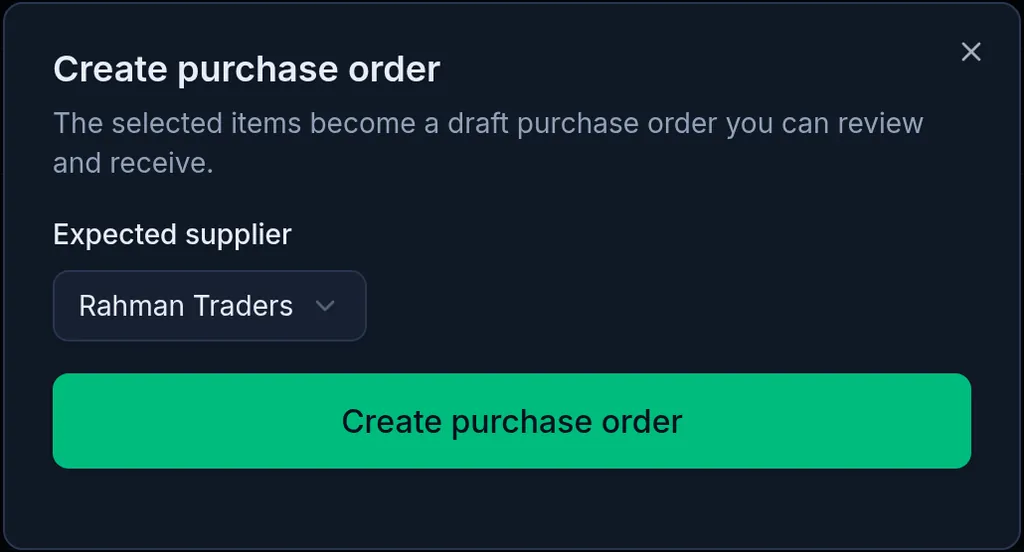
- Choose the supplier under Expected supplier and tap Create purchase order.
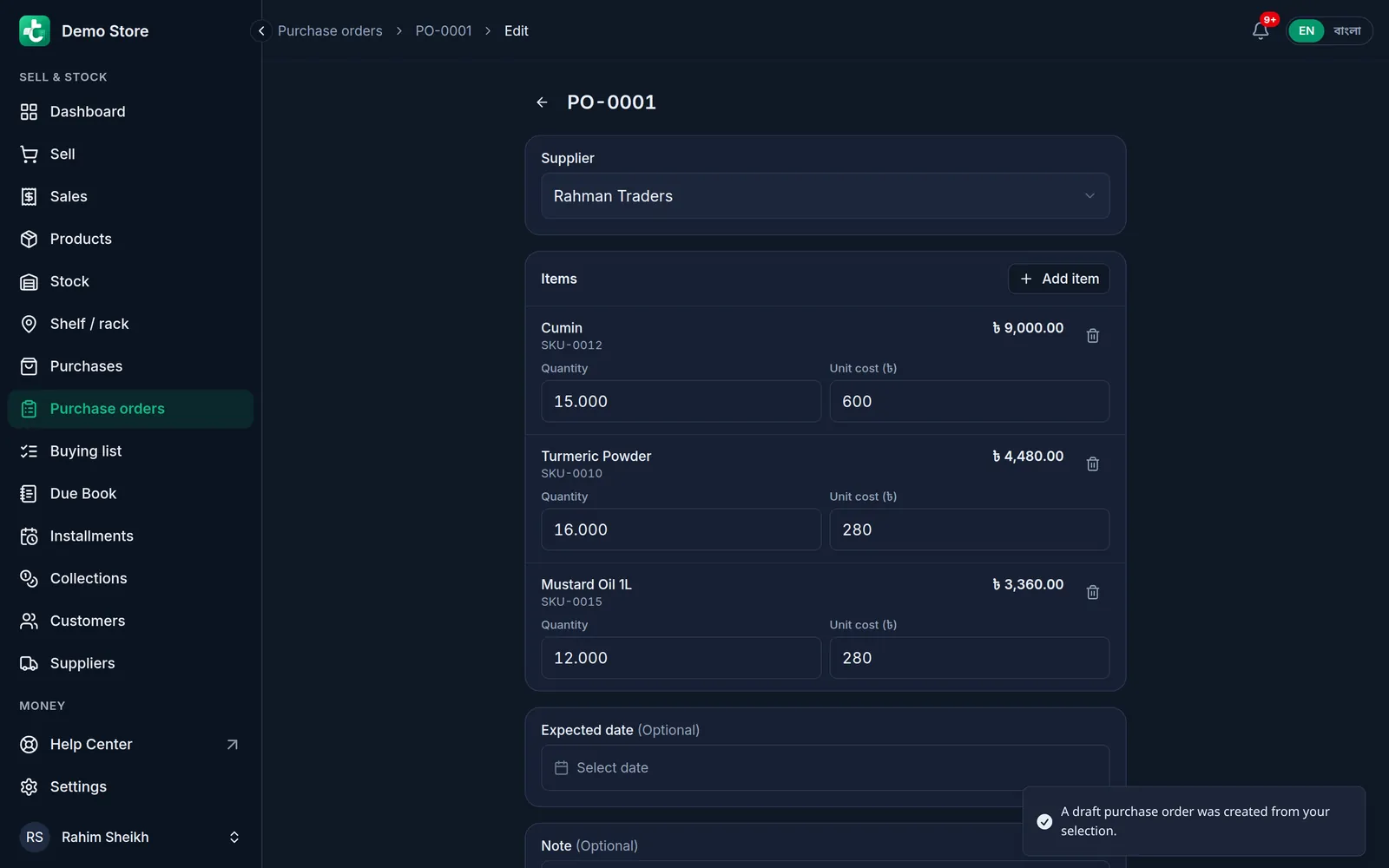
- Tukri shows "A draft purchase order was created from your selection." and opens the new purchase order, a Draft, for you to check. Each line's unit cost is what you last paid that supplier for the product, or else the product's cost price, and an item with no quantity gets 1. If a quantity or a cost is wrong, correct it and tap Save changes.
What happens next
- The items move to Bought, each with its purchase order number, which opens the order.
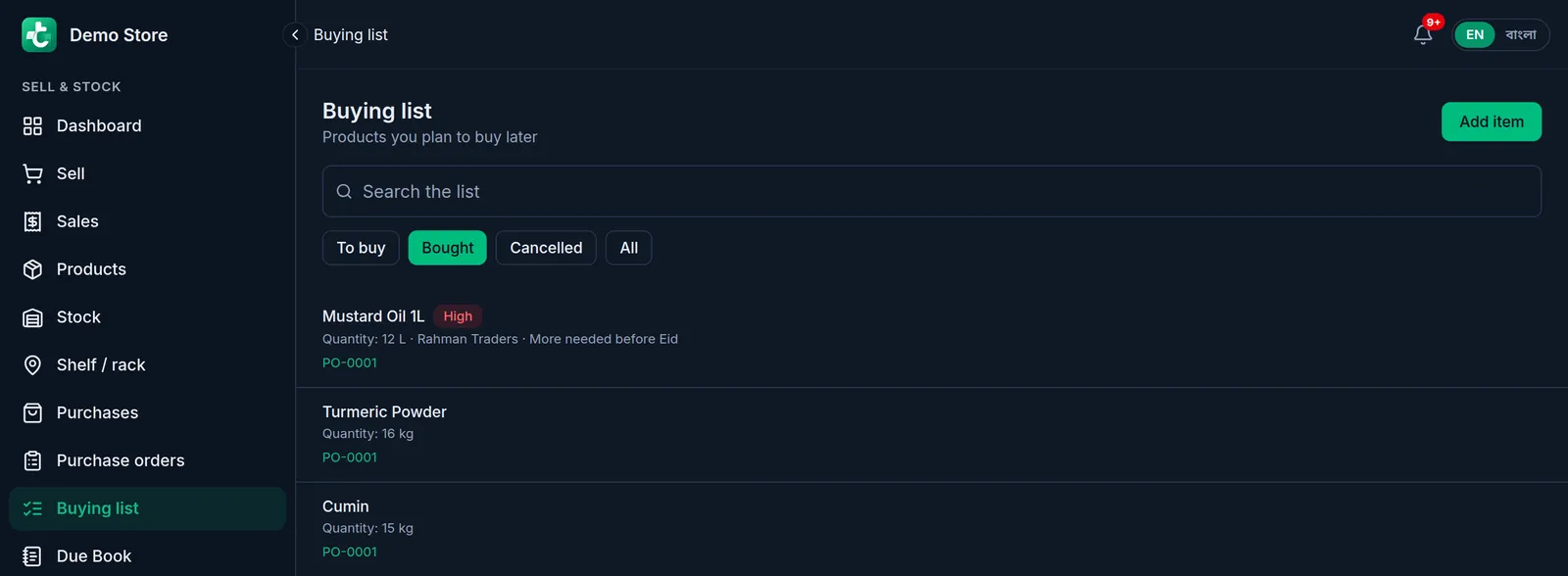
- Nothing changes in your stock, your money or what you owe the supplier yet. Tell the supplier about the order yourself, and receive the purchase order when the goods arrive: see Purchase order statuses: sent, received, cancelled.
- If you move such an item back to buy, it is no longer linked to that order. The order itself does not change.
If something goes wrong
Buying list is not in my menu. The feature is switched off, or your role does not have the "Buying list" permission.
There are no tick boxes beside the items. They show only beside items still to buy, and only for members with the "Purchase orders" permission; ask the shop's owner. The bar with Create purchase order appears only under To buy.
Create purchase order is greyed out in the window. Choose a supplier first. Only saved suppliers are listed; to add one, see Add and manage suppliers.
The low-stock button is not there, or a low product was not added. The button shows only under To buy, and only while at least one active product is at or below its alert level. A product with no alert level of its own, in a shop with no default level, never counts as low; see Low stock alerts. Products with variants are skipped: add them one at a time.
Add to list is greyed out. The product has variants: choose the Variant first.
I cannot find a product. Inactive and deleted products are not listed. Type more of the name, the SKU or the barcode: the search shows up to 50 products at a time.
I marked an item as bought, but the stock did not go up. The buying list never changes stock. Record the purchase, or receive the purchase order you made from the list.
Related articles
- Create a purchase order Write down what you are ordering from a supplier, how much and at what cost, before the goods arrive. Nothing changes in stock or money until you receive it.
- Low stock alerts and seeing what is running low Set a low stock level per product or for the whole shop, see what to reorder on the Stock page, and get an alert on the owner's and admins' phones.
- Purchase order statuses: sent, received, cancelled Mark a purchase order sent, receive all or part of the goods when they arrive, or cancel it, and what each status allows.
- Record a purchase and receive stock When goods arrive from a supplier, record the purchase: stock goes up, the cost price is updated, and what you did not pay is added to what you owe them.
Still need help?
Write to us, call or send a WhatsApp message, and someone from Tukri will help you.
