

On this page
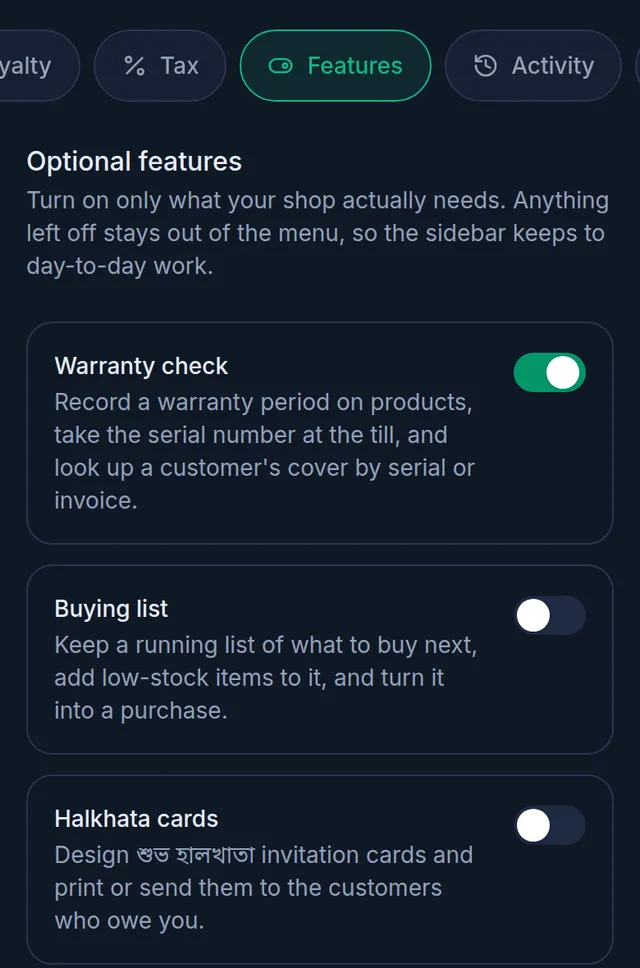
Some parts of Tukri are not needed by every shop, so they start switched off and stay out of the menu. In Settings › Features you turn on only the ones your shop uses. Turning a feature off later only hides it: nothing you saved is deleted.
Before you begin
- Only a member who can manage the shop settings can change this: by default the Owner and Admin roles.
The features you can turn on
- Warranty check: Record a warranty period on products, take the serial number at the till, and look up a customer's cover by serial or invoice. Adds Warranty check to the menu.
- Buying list: Keep a running list of what to buy next, add low-stock items to it, and turn it into a purchase. Adds Buying list.
- Halkhata cards: Design শুভ হালখাতা invitation cards and print or send them to the customers who owe you. Adds Halkhata Cards.
- Installments (কিস্তি): Sell on কিস্তি: agreements with a payment schedule, the collections desk, the কিস্তি report and the automatic overdue reminders. Adds Installments and Collections.
- Delivery Hub: send parcels with your own courier accounts. This row has its own rules (below).
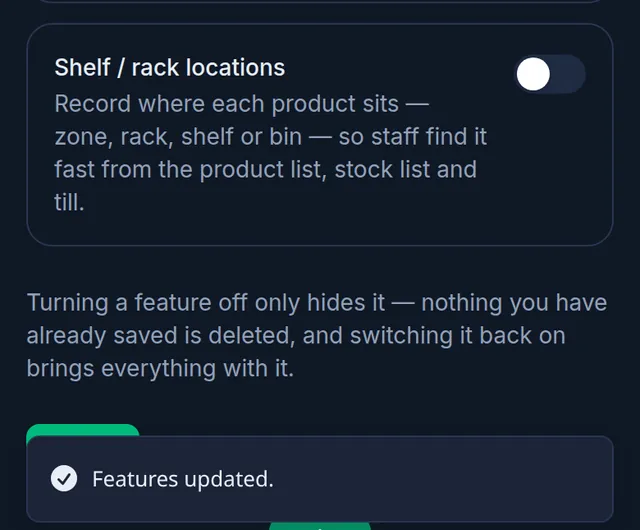
- Shelf / rack locations: Record where each product sits — zone, rack, shelf or bin — so staff find it fast from the product list, stock list and till. Adds Shelf / rack.
Turn a feature on or off
- Open Settings › Features:
On a computer
Click Settings in the menu on the left, then Features in the settings list.
On a phone or tablet
Tap Menu in the bar at the bottom, then Settings. In the row of buttons at the top, tap Features; slide the row sideways if you do not see it.
- Tap the switch on each row you want to change. You can change several rows before saving.
- Tap Save at the bottom of the page. Tukri shows "Features updated."
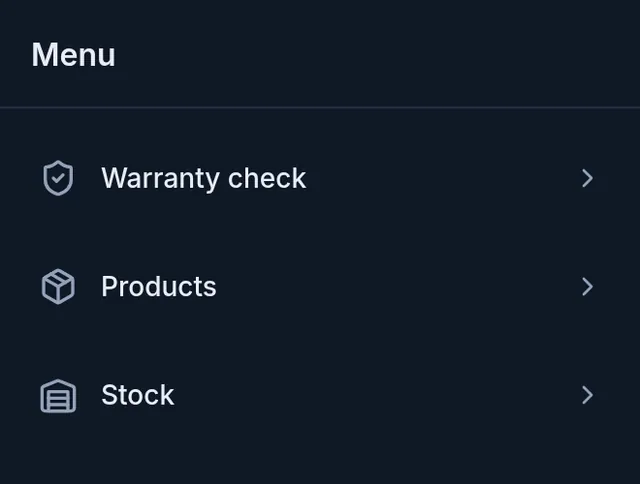
- The feature's entry now appears in the menu: on the left on a computer, in the Menu list on a phone.
Turning a feature off keeps your data
Turning a feature off hides its menu entry and its buttons, and its pages can no longer be opened. Nothing you saved is deleted, and switching it back on brings everything back: "Turning a feature off only hides it — nothing you have already saved is deleted, and switching it back on brings everything with it."
One thing does stop while a feature is off: with Installments (কিস্তি) off, the automatic overdue reminders for কিস্তি are not sent.
The Delivery Hub row
The Delivery Hub switch works differently from the others:
- Your plan must include the Delivery Hub before it can be switched on. A shop that has sent parcels before can always switch it back on to reach them.
- The first time, only the owner or an Admin can switch it on.
- It cannot be switched off while parcels still need action.
- When the plan or unfinished parcels stand in the way, a note under the row says so before you try.
- If the row is not on the page at all, no plan you can choose includes the Delivery Hub right now.
Full steps: Turn on the Delivery Hub.
If something goes wrong
I turned a feature on, but a team member does not see it. Each menu entry also needs that member's own permission. For example Halkhata Cards needs হালখাতা cards, which the Staff role does not have at first. The owner can change a role in Settings › Roles: see Roles and permissions.
There is no Features item in my Settings. Your role cannot manage the shop settings. Ask the shop's owner.
A page I saved in my browser now says it cannot be found. That feature has been switched off. Switch it back on to reach the page and its records again.
I want tile sizes and quotations. Those are not on this page: they come on by themselves in a shop set up with the shop type Tiles & Sanitary, which is chosen once when the shop is set up.
Watch the video
What the video says
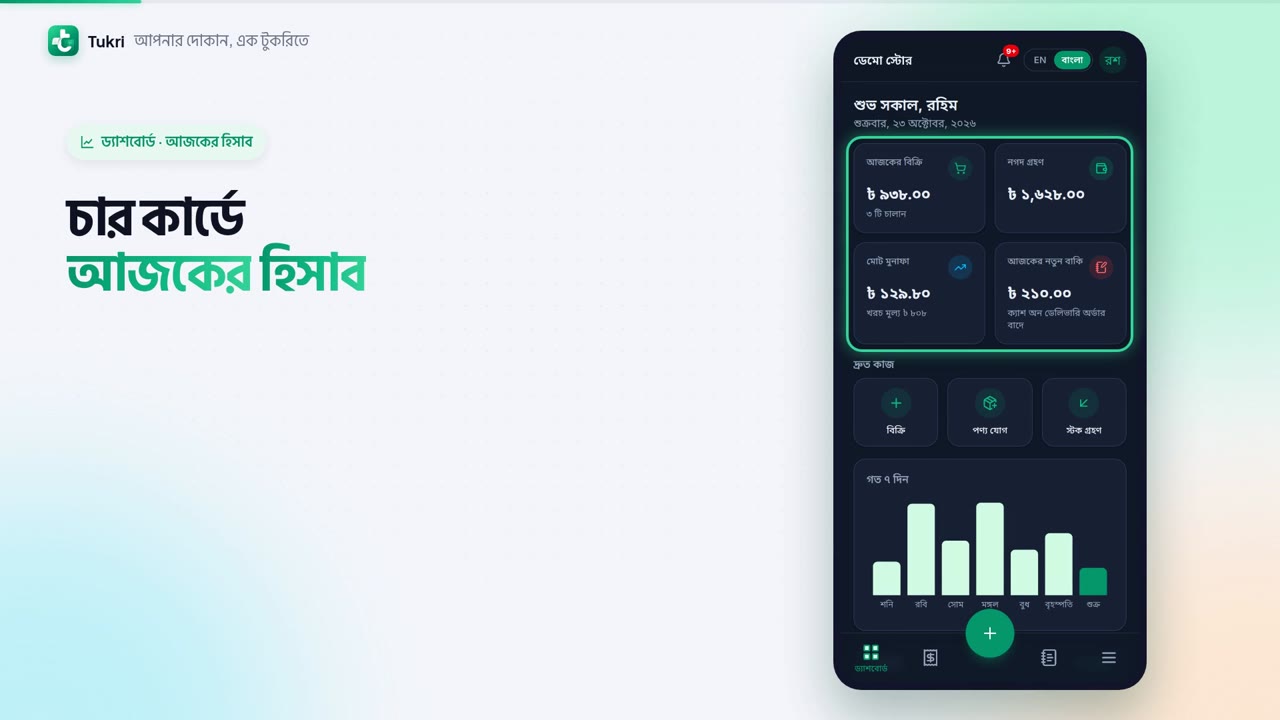
How much did the shop sell today? Which goods are running low? See it all on the Dashboard.
The four cards at the top show today's figures. Today's Sales, and how many invoices. Cash Received: the money that came in today. Gross Profit, and Due Added Today.
Below them, Quick actions: Sell, Add product and Receive stock.
The Last 7 days chart shows each day's sales. Tap a bar to see that day's figures. Low stock lists the products running low, and Out of stock means none is left. Press View all to see the full list.
You see only the cards your role allows. For example, Staff don't see the profit card.
Some features start switched off. When you need one, open Settings from the Menu, and go to the Features tab at the top. Warranty check, Buying list, Halkhata cards: turn on the switch for the one you need. Then press Save at the bottom.
That's it, the feature is now in the menu. Turning it off only hides it; nothing is deleted. The Owner and Admins can change this.
Your shop's figures at a glance, tukri.bd
Related articles
- Turn on the Delivery Hub To send parcels with your own courier accounts, turn on the Delivery Hub in Settings, Features. Also: why Delivery may be missing from the menu.
- Sell on installments (কিস্তি) Make an agreement with a down payment and a weekly or monthly schedule, then collect each installment. Turn installments on in Settings › Features first.
- Design and print শুভ হালখাতা cards Design a card once, then print a শুভ হালখাতা invitation for every customer who owes you, with their name and due amount, in one PDF.
- Warranty check by serial number Give a product a warranty period, type the serial or IMEI when you sell it, and later look up by serial, invoice, name or phone whether it is still covered.
Still need help?
Write to us, call or send a WhatsApp message, and someone from Tukri will help you.
