

On this page
Installments (কিস্তি) let a customer take the goods now and pay over time. In Tukri you make an agreement: a down payment, a number of installments, weekly or monthly. The goods leave stock at once, the down payment goes into a money account, and the rest is split into equal installments. Each payment fills the oldest unpaid installment first.
Before you begin
- Installments are an optional feature and start switched off. To turn them on, open Settings › Features, switch on Installments (কিস্তি) and press Save. The owner and Admins can do this. More in Turn optional features on or off.
- Once on, the menu gets Installments and Collections: under Sell & Stock on a computer, in Menu on a phone.
- All three roles (Owner, Admin, Staff) can see agreements and take payments. Creating, rescheduling or voiding an agreement ("Open or close a কিস্তি") starts with the owner and Admins only.
- Installments are kept apart from sales and the Due Book: agreements do not appear in Sales or the Due Book, and have their own pages.
Make a product sellable on installments
A product must be marked for installments first:
- Open the product from Products to edit it, and go to the Selling step at the top.
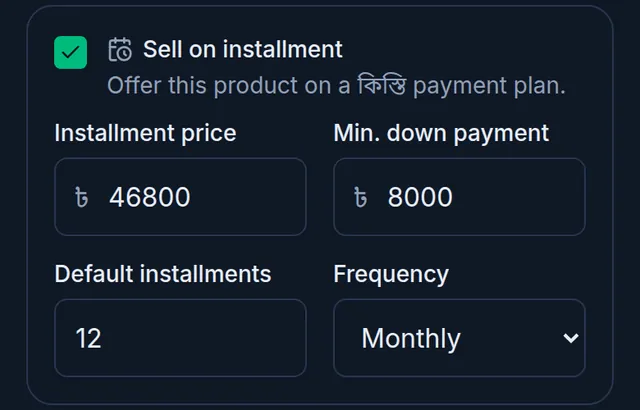
- Turn on Sell on installment. It only shows while the feature is on.
- Enter the Installment price (it cannot be lower than the product's normal selling price), then the Min. down payment, the Default installments and the Frequency.
- Press Save.
Products with variants, and products tracked by batch and expiry, cannot be sold on installments yet.
Make an installment agreement
- Open the installments page and start a new sale.
On a computer
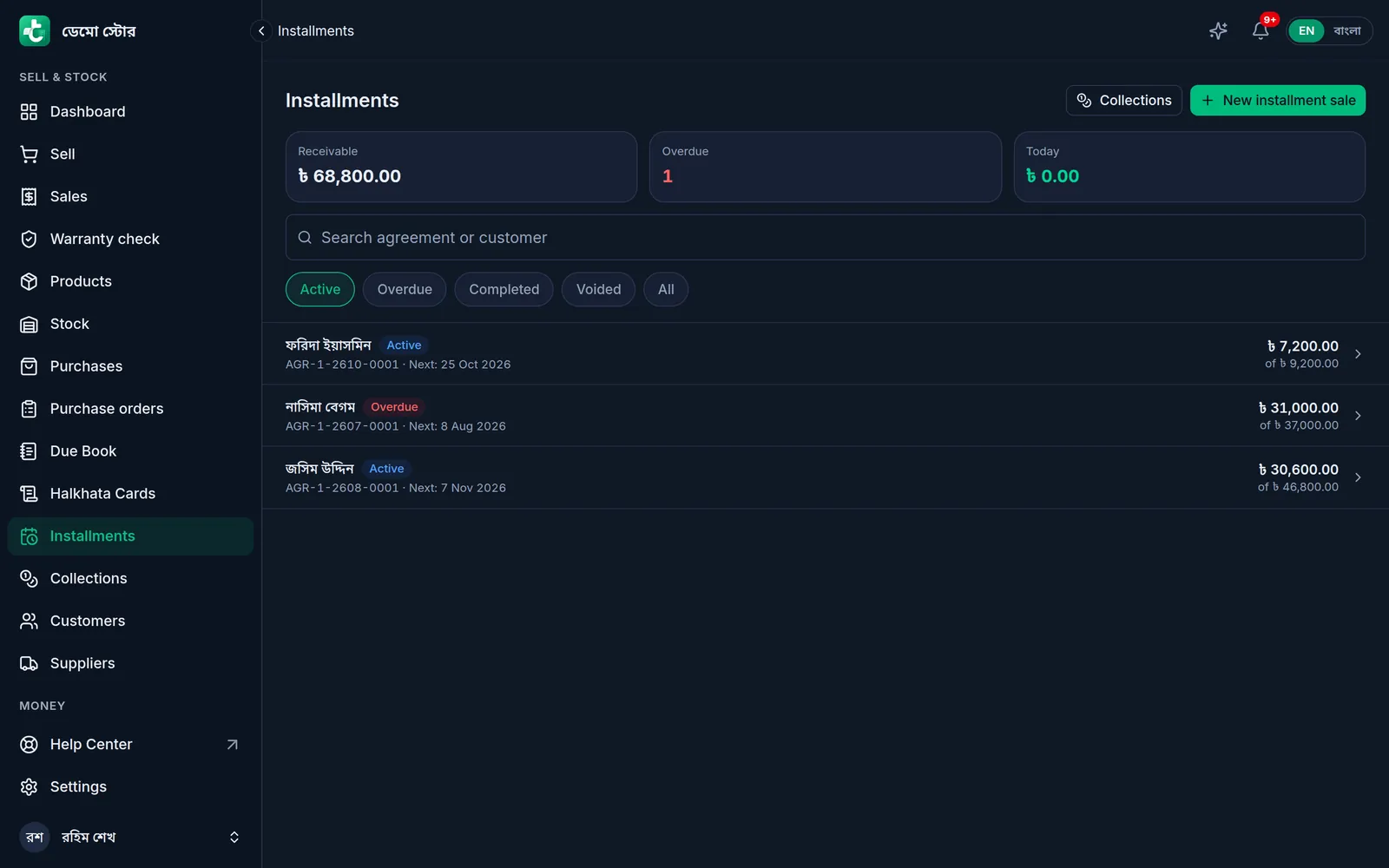
Open Installments in the menu on the left, then click New installment sale at the top right.
On a phone or tablet
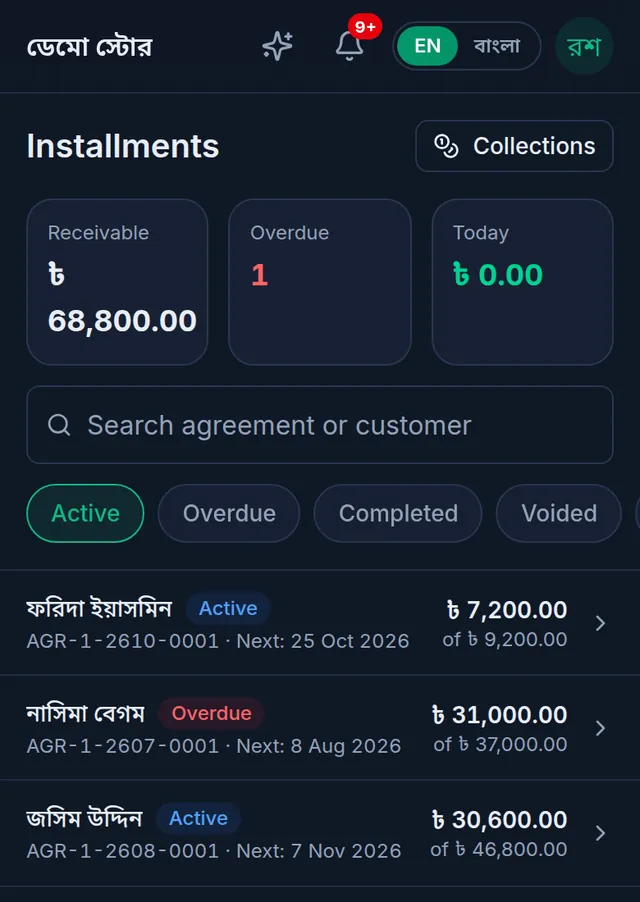
Open Installments from Menu, then tap the round + button at the bottom.
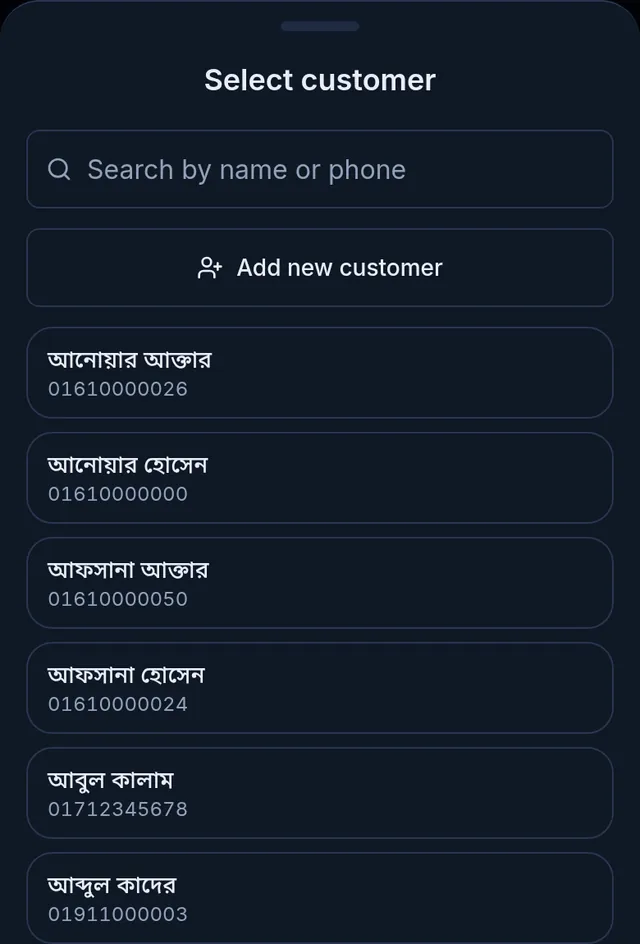
- Tap Select customer, search by name or phone, and pick the customer. For a new customer, tap Add new customer; there you can also record Installment details (NID, occupation, income, a guarantor and photos).
- Under Products, tap a product. Only products marked for installments are listed, at their installment price. Change the quantity with + and −.
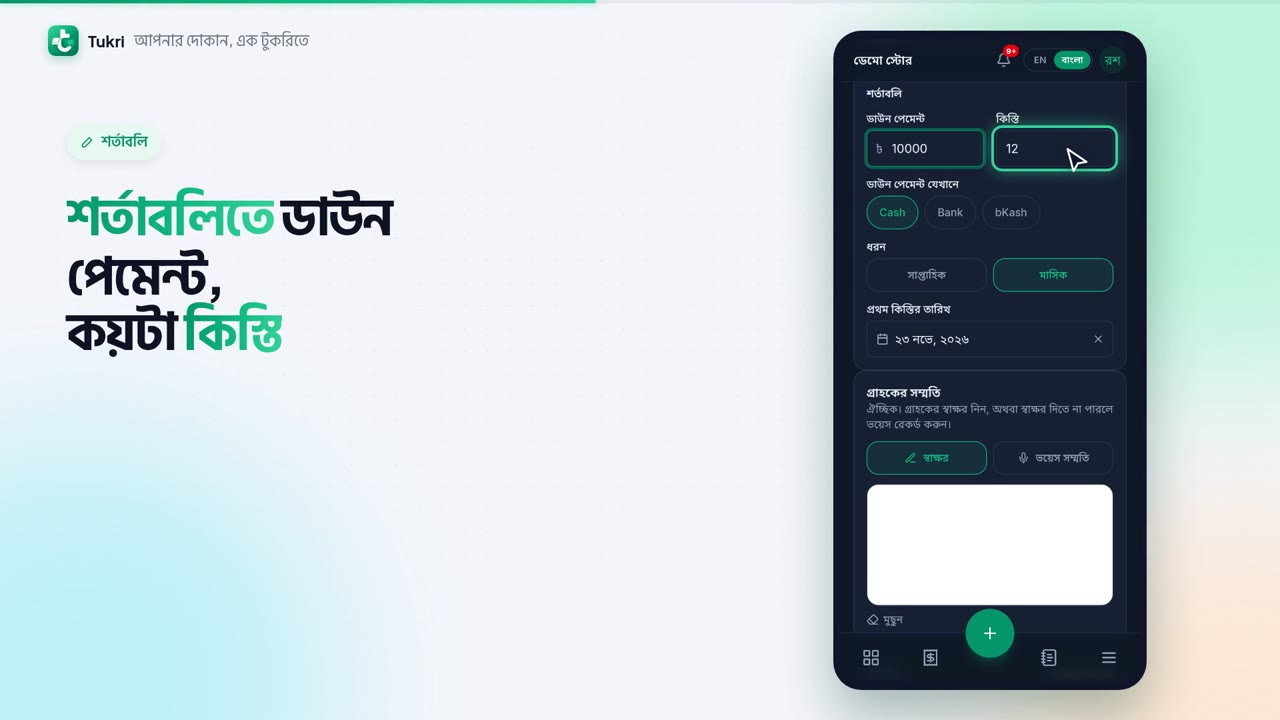
- Under Terms, enter the Down payment and the number of Installments. With a down payment, choose under Down payment to the account the money went into. Then set the Frequency (Weekly or Monthly) and the First due date.
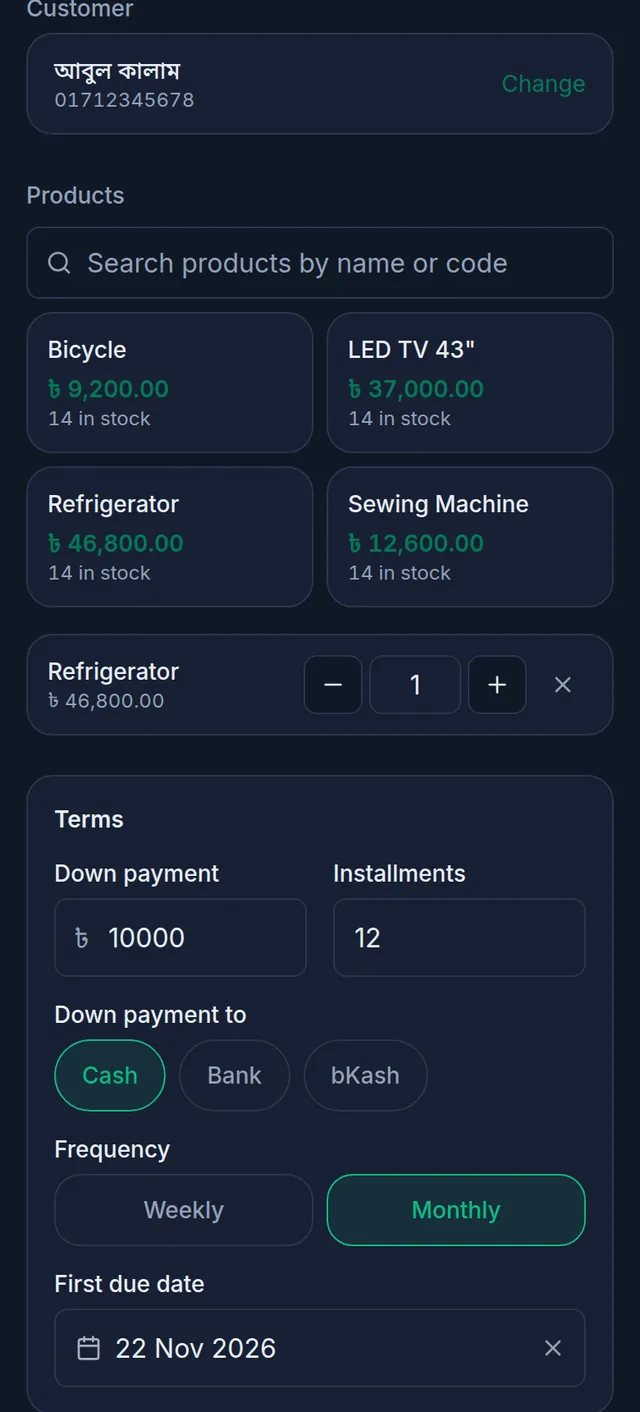
- If you like, capture Customer consent: the customer's signature or a voice clip. It is optional.
- Check the Contract value, Financed, Per installment and the Schedule preview at the bottom, then tap Create agreement.
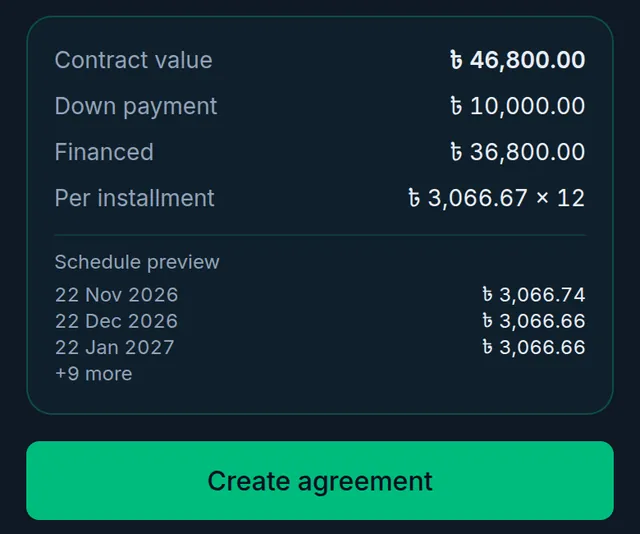
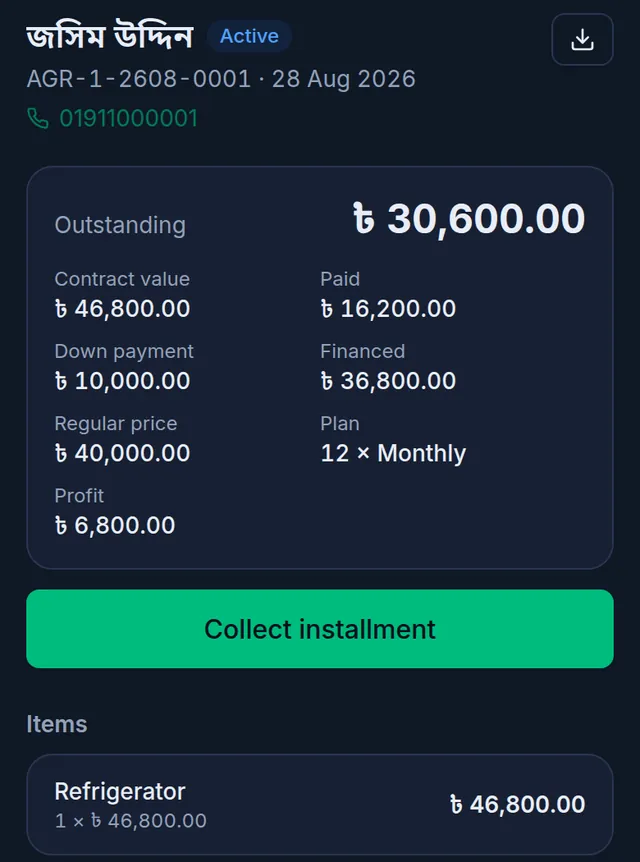
The new agreement opens on its own page. The download icon at the top right (Download PDF) gives you the agreement as a PDF for the customer to sign.
Collect an installment
- Open Collections from the menu. Agreements with the earliest unpaid installment come first; Overdue only shows only overdue ones. You can also collect from the agreement's own page.
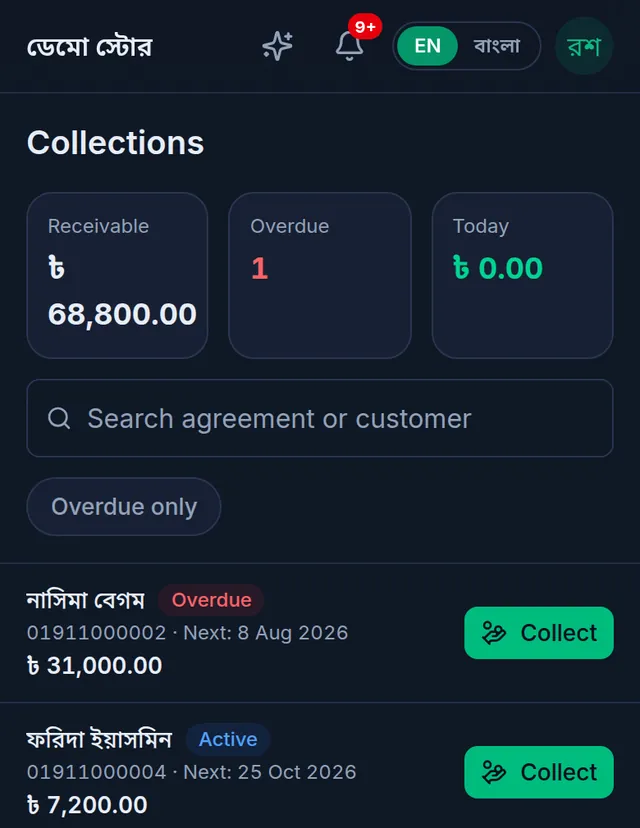
- Tap Collect beside the customer (on the agreement's page, Collect installment).
- Type the amount paid on the keypad, or tap the button for the full amount still owed. Opened from the agreement's page, the sheet also has a button for the next installment.
- Choose the Account the money went into, add a Note if you like, and tap Collect payment.
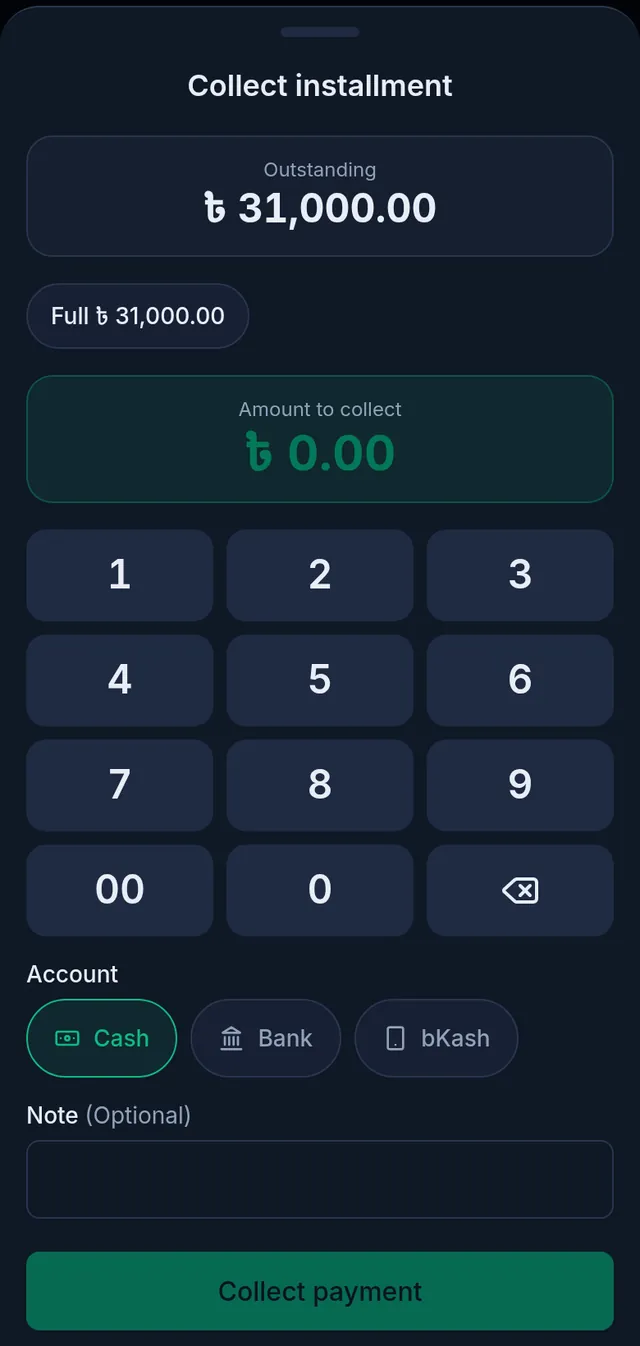
The payment is recorded at the current time, and a customer cannot pay more than what is left. When everything is paid, the agreement becomes Completed.
Reschedule or void an agreement
A saved agreement's items, prices and customer cannot be edited. At the bottom of the agreement's page there are two buttons:
- Reschedule spreads what is left over a new number of installments, frequency and first date. No money moves. Finish with Update schedule.
- Void agreement puts every item back in stock and pays the down payment and every installment collected back out of the accounts they came into. Write a Reason if you like, then press Void agreement.
What happens after
- The goods leave stock at once, and the down payment is added to the account you chose.
- The agreement appears under Installments. The top of that page shows the amount receivable, how many agreements are overdue and what was collected today; the Overdue filter lists the overdue ones.
- Each agreement counts towards your plan's monthly number of invoices, like a sale.
- If your shop has automatic due reminders on, customers with an overdue installment are reminded too. See Remind a customer about their due.
If something goes wrong
Installments are not in the menu. The feature is off, or your role does not have "See কিস্তি agreements". Ask the owner.
"No products are marked for installment sale. Enable it on a product first." No product is marked for installments yet; follow "Make a product sellable on installments" above.
"The down payment is below the minimum for these products." Raise the down payment; it cannot be less than the minimum set on the products.
"The down payment must leave an amount to finance." Keep the down payment below the contract value.
"Choose the account that received the down payment." Choose an account under Down payment to.
"The payment cannot exceed the outstanding balance." Use the full amount button, or type less.
"This agreement is closed and cannot take a payment." The agreement is already paid off or voided.
A Staff member cannot create an agreement. That needs "Open or close a কিস্তি", which the Staff role does not start with. The owner can add it in Settings › Roles.
Watch the video
What the video says
Do you sell costly items on installments? Keep every installment's record in Tukri.
Installments are an optional feature. From Settings in the menu, go to the Features tab, turn on the Installments switch and tap Save. And for each product you sell on installments, turn on Sell on installment in its Selling step.
Now open Installments from the menu and tap the round + button at the bottom. Tap Select customer and pick the customer. Then tap a product; only installment products show here.
Under Terms, enter the Down payment and the number of installments. Choose which account the money went into. Then Monthly or Weekly, and the First due date. Check the amount Per installment below, then tap Create agreement. The goods leave stock, and the down payment goes into the account.
To take an installment, open Collections. Tap Collect beside the customer. Enter the amount, choose the account, and tap Collect payment. When every installment is paid, the agreement is Completed.
By default, the Owner and Admin can make new agreements, and Staff can collect installments too.
Keep your installment records in order, tukri.bd
Related articles
- Add a new product Add a product in a four-step form: name, category, unit and prices, then opening stock, how it sells, and its SKU, barcode and photo.
- Remind a customer about their due Send reminder in a customer's খাতা opens a message with their due already written. Send it by SMS or WhatsApp from your own phone, or copy it.
Still need help?
Write to us, call or send a WhatsApp message, and someone from Tukri will help you.
