

On this page
If you sell items with a warranty, such as phones or electronics, use Warranty check. Give the product a warranty period, type each unit's serial or IMEI when you sell it, and when the customer comes back, look it up by serial, invoice number, name or phone to see whether it is still covered. The invoice prints the serial and the date the cover ends.
Before you begin
- Warranty check is an optional feature and starts switched off. To turn it on, open Settings › Features, switch on Warranty check and press Save. The owner and Admins can do this. More in Turn optional features on or off.
- Once on, Warranty check appears in the menu: under Sell & Stock on a computer, in Menu on a phone.
- Looking up a warranty needs "See sales history". All three roles (Owner, Admin, Staff) start with it, so staff at the counter can check without the owner.
Give a product a warranty
- Open the product from Products to edit it, and go to the Selling step at the top.
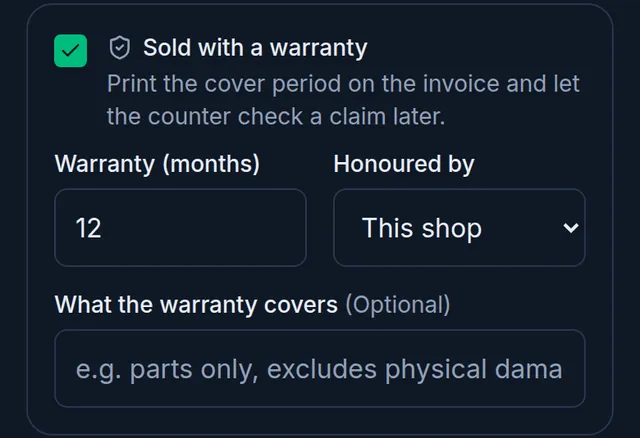
- Turn on Sold with a warranty. It only shows while the feature is on.
- Enter the Warranty (months) and choose who it is Honoured by: This shop or the Manufacturer.
- If you like, fill in What the warranty covers; it prints under the warranty line on the invoice.
- Tap Save.
Record the serial when you sell
- Add the product to the cart. On a phone, tap Checkout at the bottom to open the cart. The product's line has a serial box ("Type or scan the unit's serial") with the warranty months under it.
- Tap into the box and type the serial, or keep the cursor in it and scan the unit's barcode with a scanner.
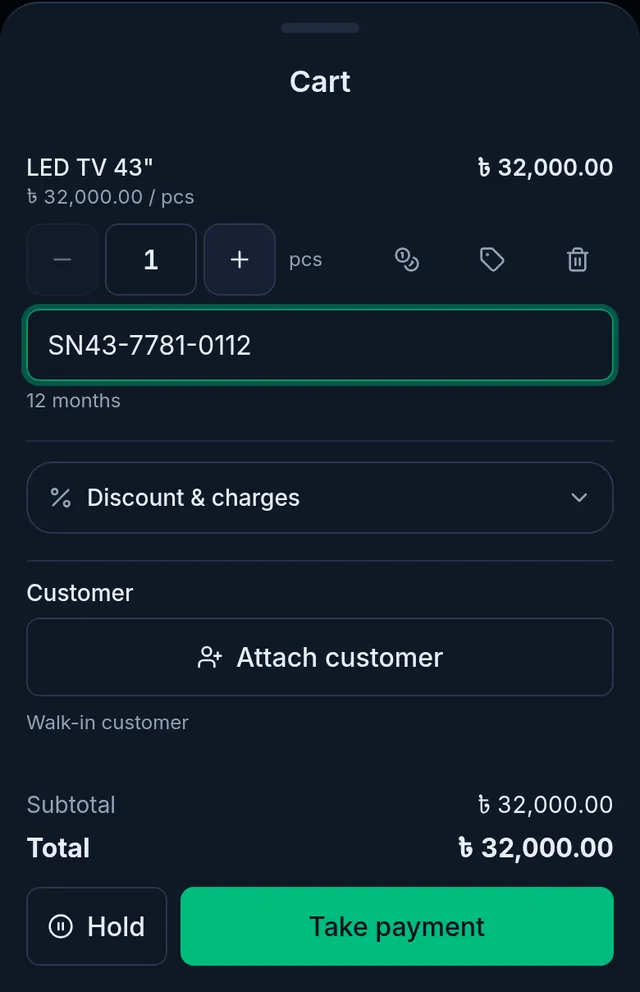
- Take payment and complete the sale as usual. See Make a sale at the till.
The serial is optional. Each cart line has one serial box, and adding the same product again only raises that line's quantity. So for two units of one product on one bill, type both serials in that box separated by a space (a lookup by either one finds the line), or sell each unit as its own sale. The cover ends the given number of months after the sale date.
Check a warranty
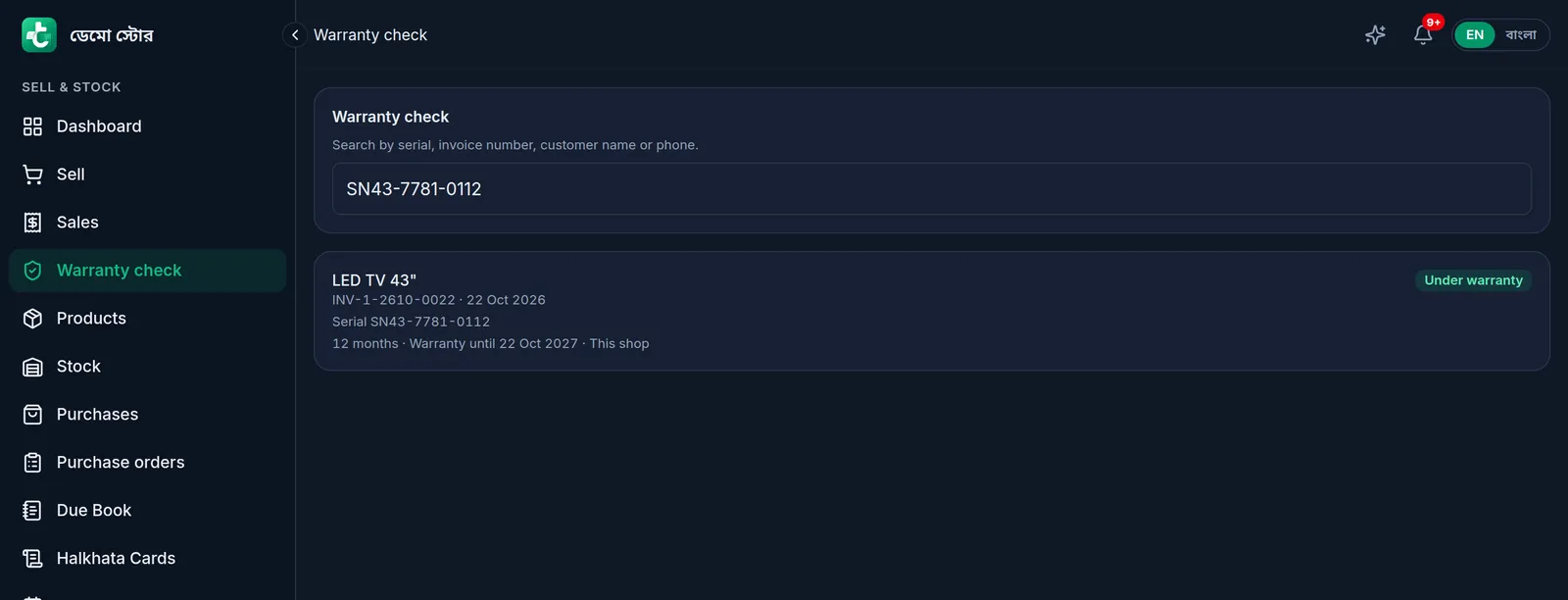
- Open Warranty check from the menu.
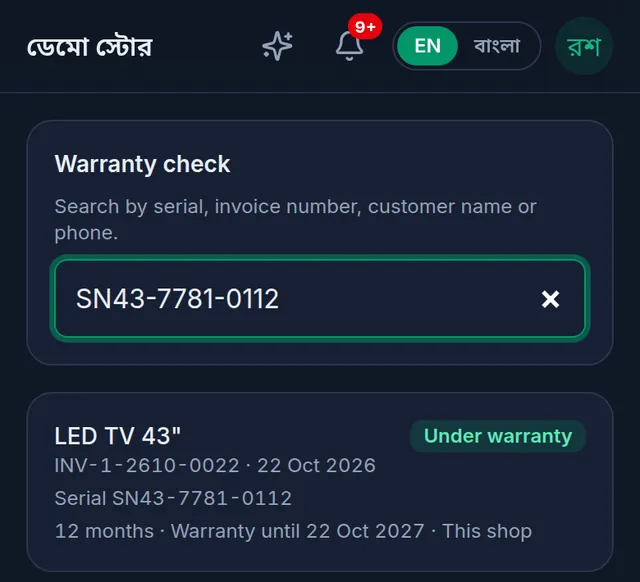
- Type a serial, an invoice number, the customer's name or phone into "Serial, invoice no, name or phone".
- Each matching item shows Under warranty or Expired, with the date and the sale it came from.
Good to know
- The warranty is fixed at the moment of sale. Changing a product's warranty later does not change items already sold.
- Turning the feature off hides Warranty check and the warranty part of the product form; nothing is deleted. Products that already have a warranty period keep it, so their serial box still shows at the till and their warranty still prints. To stop that, turn off Sold with a warranty on those products while the feature is still on.
If something goes wrong
Warranty check is not in the menu. The feature is off, or your role does not have "See sales history".
"Nothing found" Try the invoice number instead. Only items sold with a warranty period appear, and voided sales are left out.
An item sold earlier shows no warranty. The product had no warranty when it was sold; the warranty is taken from the product at the time of sale.
There is no serial box in the cart. The product has no warranty period.
Scanning into the serial box adds a product instead. Tap into the serial box first, then scan.
Watch the video
What the video says
The expiry of medicine or packaged goods, and the warranty on TVs and mobiles: handle both in Tukri.
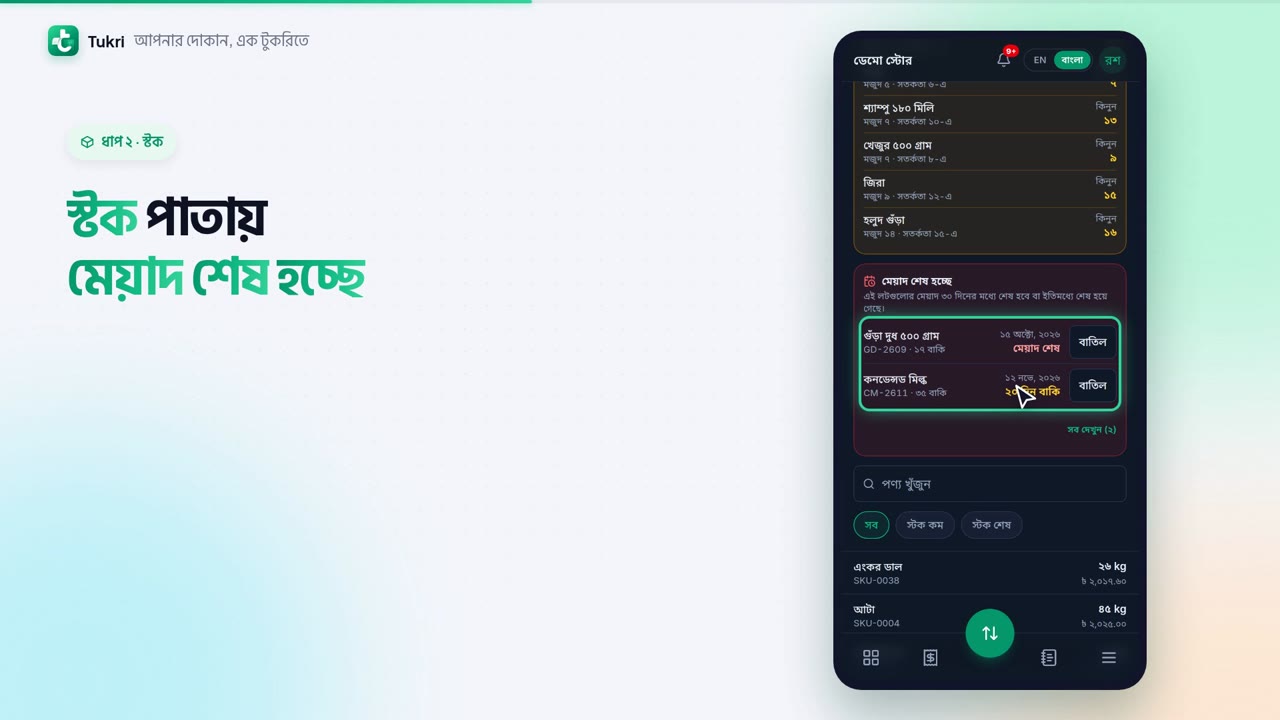
Edit the product and go to the Stock step at the top. Tick Track batches & expiry. Enter the batch number of the stock in hand and its expiry date, then Save. When you buy stock later, it asks for each lot's details too.
In a sale, stock comes first from the lot that expires soonest. The product card shows how many days are left, or Expired.
The Expiring soon card on the Stock page shows the urgent lots together. Once a lot has expired, tap Dispose, check the quantity and reason, then tap Write off. If you like, in the shop settings, you can block selling expired stock.
Now on to warranties. First turn on Warranty check in Features. Then, in the product's Selling step, tick Sold with a warranty, enter the months and who honours it, then Save.
When selling, in the cart, type or scan the unit's serial.
When the customer comes back, open Warranty check in the menu. Search by serial, invoice, name or phone. It shows whether it's Under warranty, and until when. Counter staff can look it up too.
Expiry and warranty, all on record, tukri.bd
Related articles
- Make a sale at the till Add products to the cart, take payment and complete the sale, step by step on a computer or a phone.
- Print, download and share an invoice Print the receipt straight after a sale, reprint or download an A4 or thermal PDF of any past sale, or send the customer a link to the invoice.
Still need help?
Write to us, call or send a WhatsApp message, and someone from Tukri will help you.
