

On this page
Halkhata Cards makes শুভ হালখাতা invitation cards. You design a card once; Tukri then makes one card for every customer who owes you, in a single PDF, with their name, their due amount, your shop's details and the event's date and venue. Print the PDF and hand the cards out.
Before you begin
- Halkhata cards are an optional feature and start switched off. To turn them on, open Settings › Features, switch on Halkhata cards and press Save. The owner and Admins can do this. More in Turn optional features on or off.
- Once on, Halkhata Cards appears in the menu on the left, under Sell & Stock. Members whose role has the permission below also get a Halkhata Cards button on the Due Book page.
- Designing and printing needs the "হালখাতা cards" permission. The Owner and Admin roles start with it; the Staff role does not.
- The designer is made for a computer's wide screen, so it is easiest there.
Design a card
- Open Halkhata Cards in the menu on the left.
- Click a ready-made card under Start from a template, or New design at the top right.
- Give the card a name in the box at the top. On the right, under Card, choose the Paper and a Card size: Full A4, 2 per A4, 3 per A4 or 4 per A4, or type your own Width and Height.
- Add to the card from the left: text, shapes and pictures from Elements; each customer's own details, such as Customer name and Due amount, from Fields; ready parts from Templates. Click anything on the card to change its text, colour or size on the right.
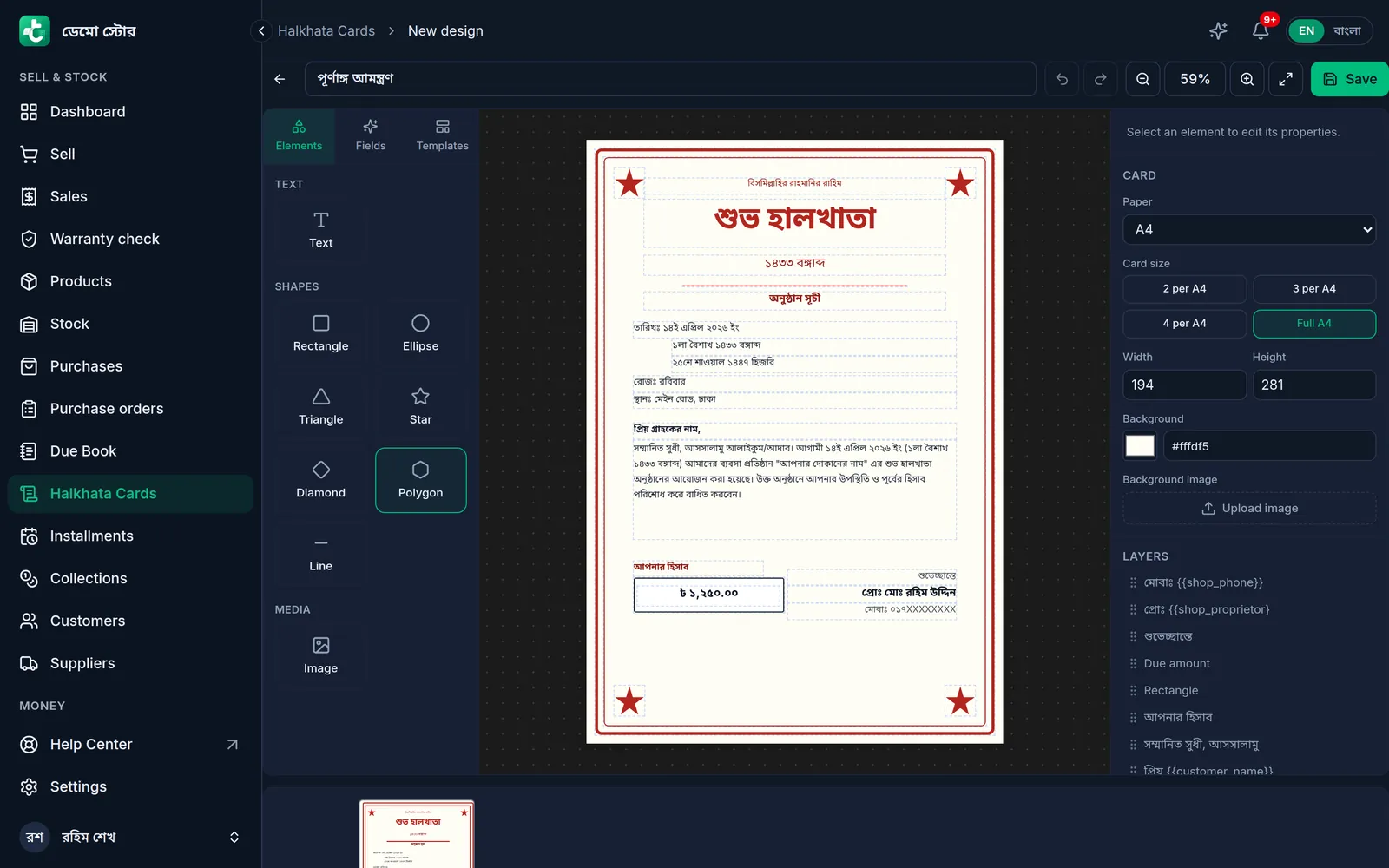
- Click Save at the top right. You see "Halkhata card design saved."
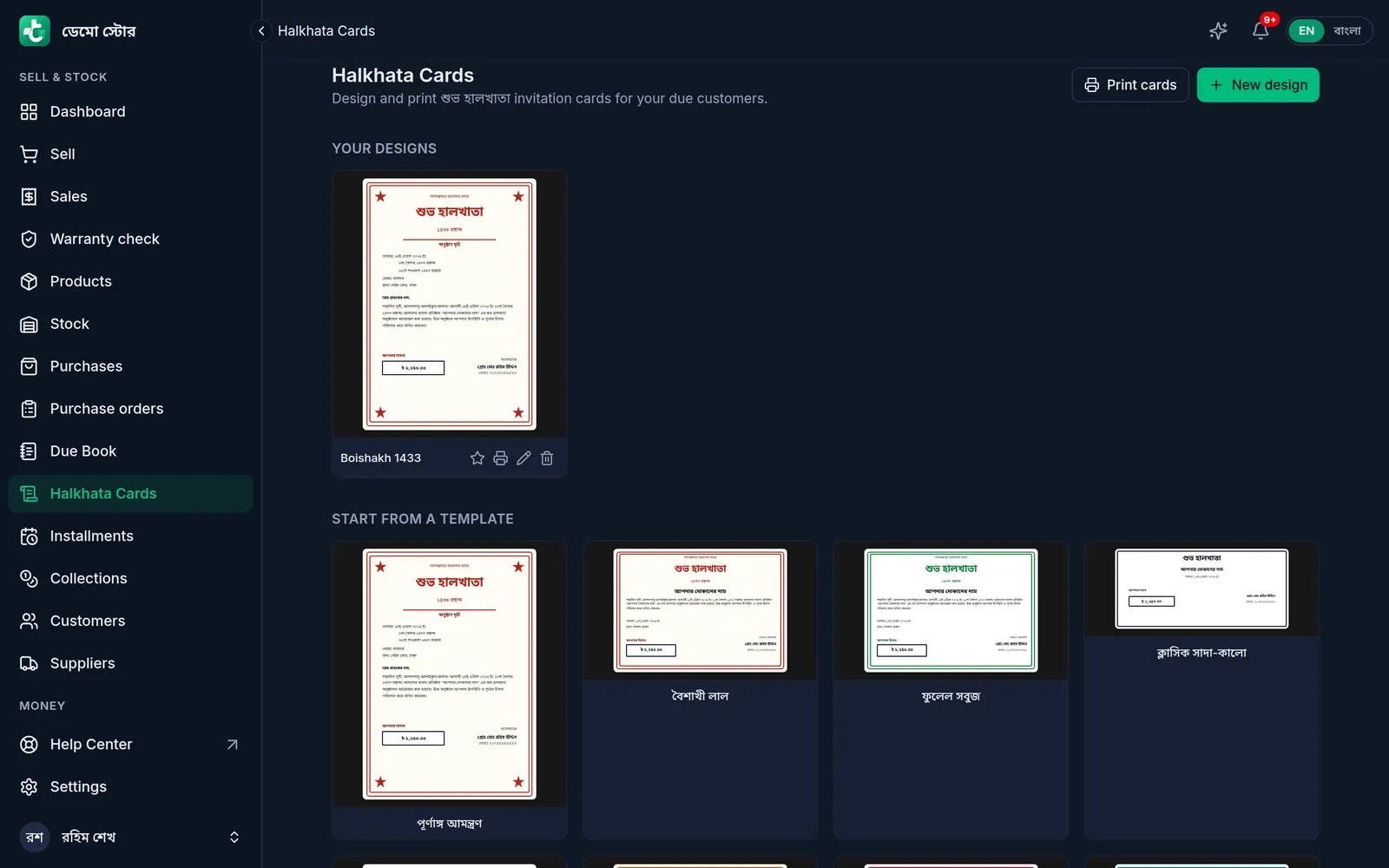
- Back on Halkhata Cards, the design is listed under Your designs. Its star icon (Set as default) makes it the one chosen first when you print.
Print the cards
- On Halkhata Cards, click Print cards at the top (it appears once a design is saved), or a design's own print icon. The top of the window says how many customers owe you.
- Choose the Design.
- Under Event details, pick the event date in Pick event date (auto-fill). It fills the English, Bengali (বঙ্গাব্দ), both years, the weekday and the Hijri date for you; change any line if you need to. Then fill in the Venue; left blank, the shop's address is printed. A Custom message box appears only when the design has a place for a message; the ready-made templates do not.
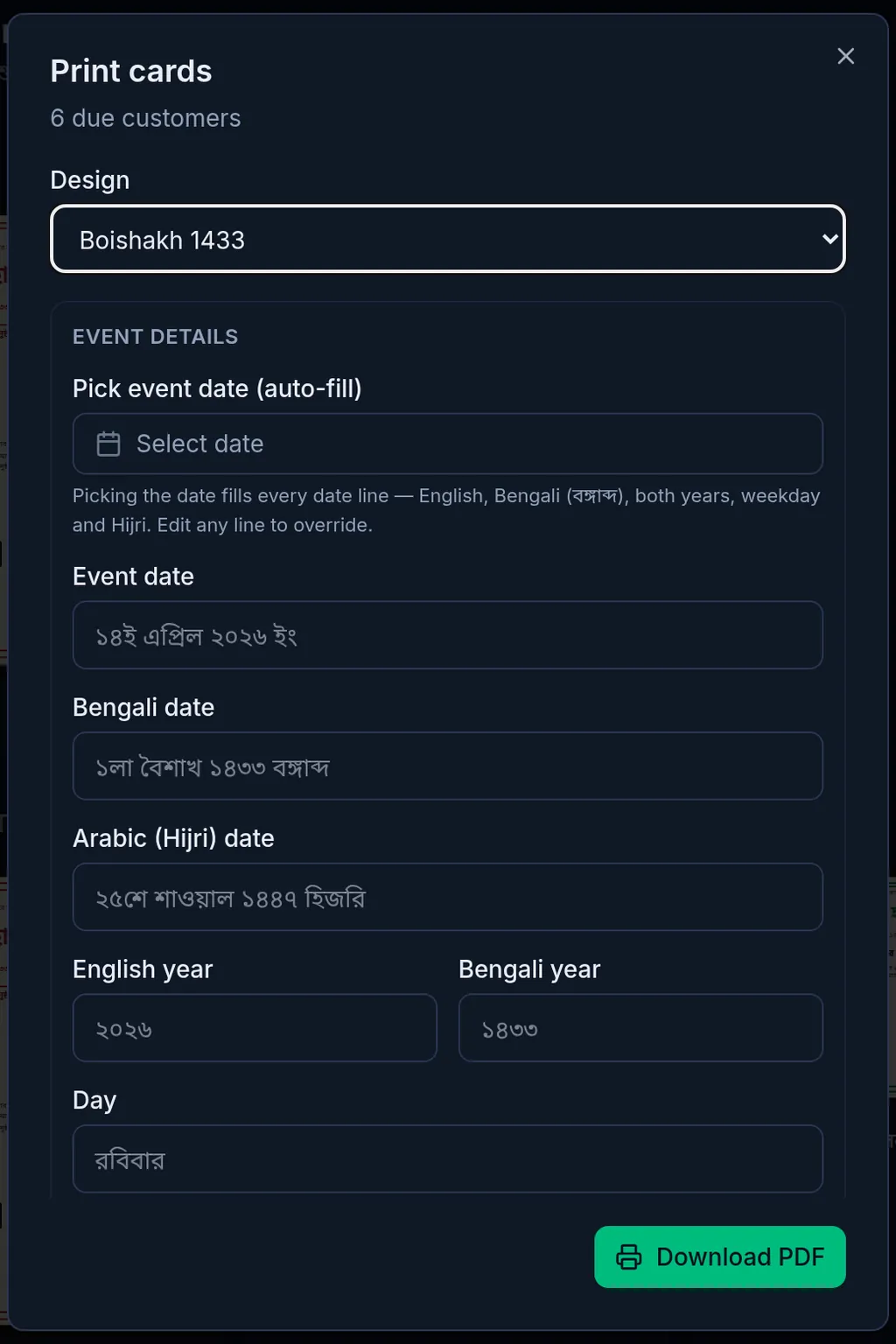
- Click Download PDF and print the PDF.
Who gets a card
- Every customer who owes you right now gets one card, sorted by name. There is no way to pick only some customers.
- Cash on delivery that a courier is still collecting does not count as their due.
- When nobody owes you, Download PDF is greyed out.
- When Tukri's WhatsApp messaging is available, a Send on WhatsApp button appears beside it. If it is not there, print the PDF and hand the cards out.
Delete a design
- On Halkhata Cards, click the bin icon (Delete) on the design. Nothing is deleted yet.
- Tukri asks "Delete this design?". Click Delete to delete it, or Cancel to keep it. Cards you already printed are not affected.
If something goes wrong
Halkhata Cards is not in the menu. The feature is off, or your role does not have "হালখাতা cards". Ask the owner.
There is no Print cards button. No design is saved yet. Create a design first, then print.
A customer has no card. They owe nothing right now, or all they owe is cash on delivery still with a courier.
Saving says "Please give the card a name." Type a name for the card in the box at the top and save again.
Watch the video
What the video says
Halkhata cards for Pohela Boishakh: writing every customer's name and due by hand? Tukri makes all the cards for you.
First, open Features in Settings. Turn on Halkhata cards and Save. The Owner and Admin can do this.
Now Halkhata Cards is in the menu. Pick a card from the templates below.
Give the card a name at the top. On the right, choose the Paper and Card size. The Customer name and Due amount go on each person's own card. Need more? Add it from Fields on the left. Click any text, and change its colour and size on the right. Finally, click Save at the top.
The design now shows in Your designs. Click its star, and it comes first when you print.
Now click the Print cards button. The top shows how many customers owe you. Just pick the event date, and the Bengali, English and Hijri dates all fill in. Change any line if you need to. Then click Download PDF.
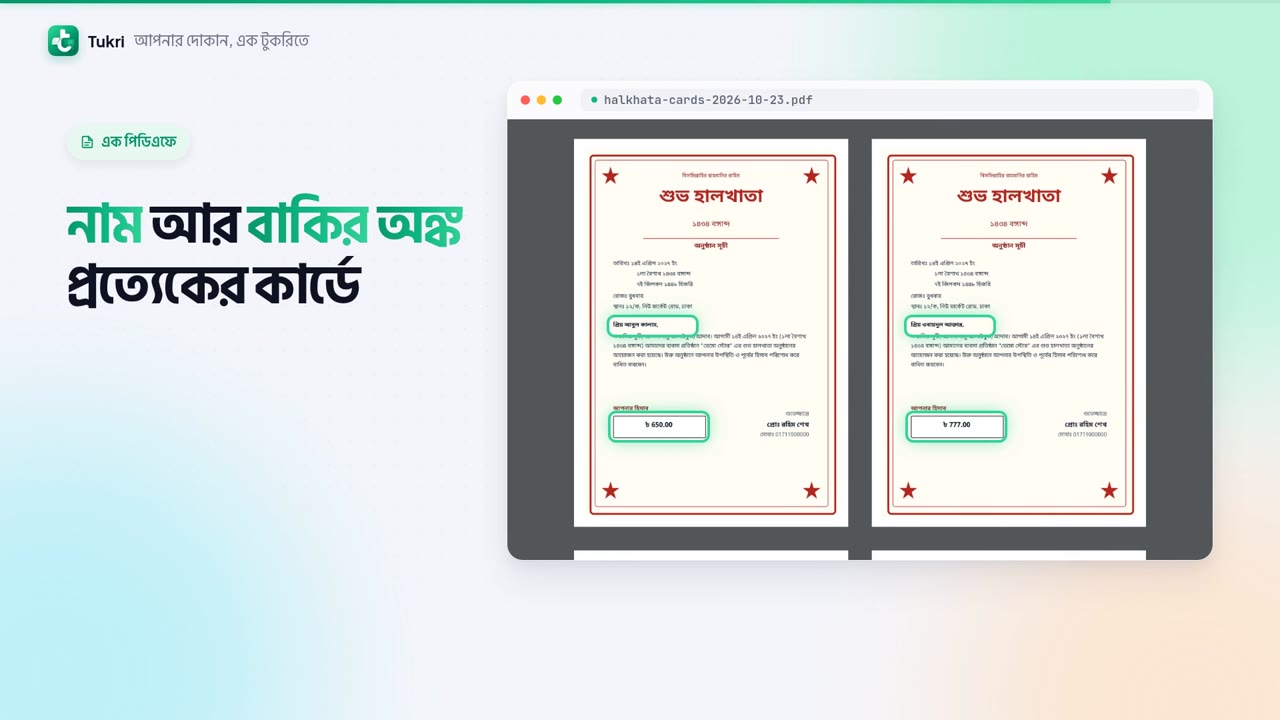
For everyone who owes you right now, with each one's name and due amount, one card each, all in one PDF. Print them and hand them out.
A hassle-free Halkhata, tukri.bd
Related articles
Still need help?
Write to us, call or send a WhatsApp message, and someone from Tukri will help you.
