

On this page
There are two ways to send a parcel. New delivery takes a phone or online order in six short steps and makes the sale and the parcel together. Send by courier sends a sale you already made, for example at the till. Either way the parcel is booked on your own courier account, and once the courier accepts it you get its consignment ID and a shipping label.
Before you begin
- The Delivery Hub is on and at least one courier account is connected and tested: see Turn on the Delivery Hub and Connect your courier account.
- The products must be in your catalog, with stock, as for a sale at the till.
- Your role must allow new deliveries and selling at the till, because a delivery order is a sale. Save & send also needs permission to book with a courier. The Owner, Admin and Staff roles have all three unless the owner changed them.
- To record money the buyer paid in advance, at least one money account (cash, bank or bKash) must be active.
New delivery, step by step
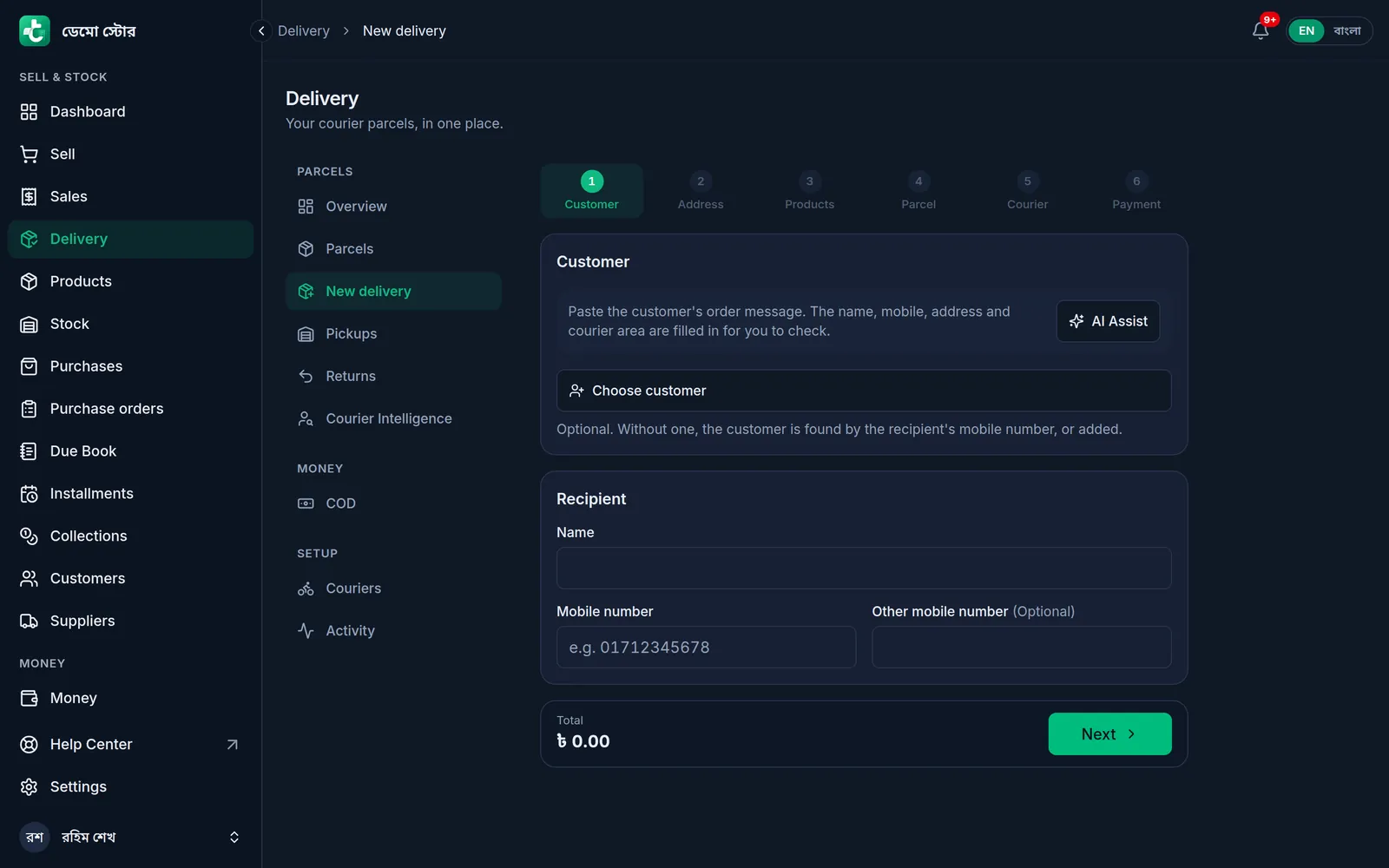
- Open New delivery.
On a computer
Click Delivery in the menu on the left, then New delivery (the button at the top of the Overview, or the tab beside the page). The six steps are along the top; you can click a step you have already been to, to go back to it.
On a phone or tablet
Tap Menu, then Delivery, then the round button in the middle of the bottom bar. The bar at the top shows which of the six steps you are on.
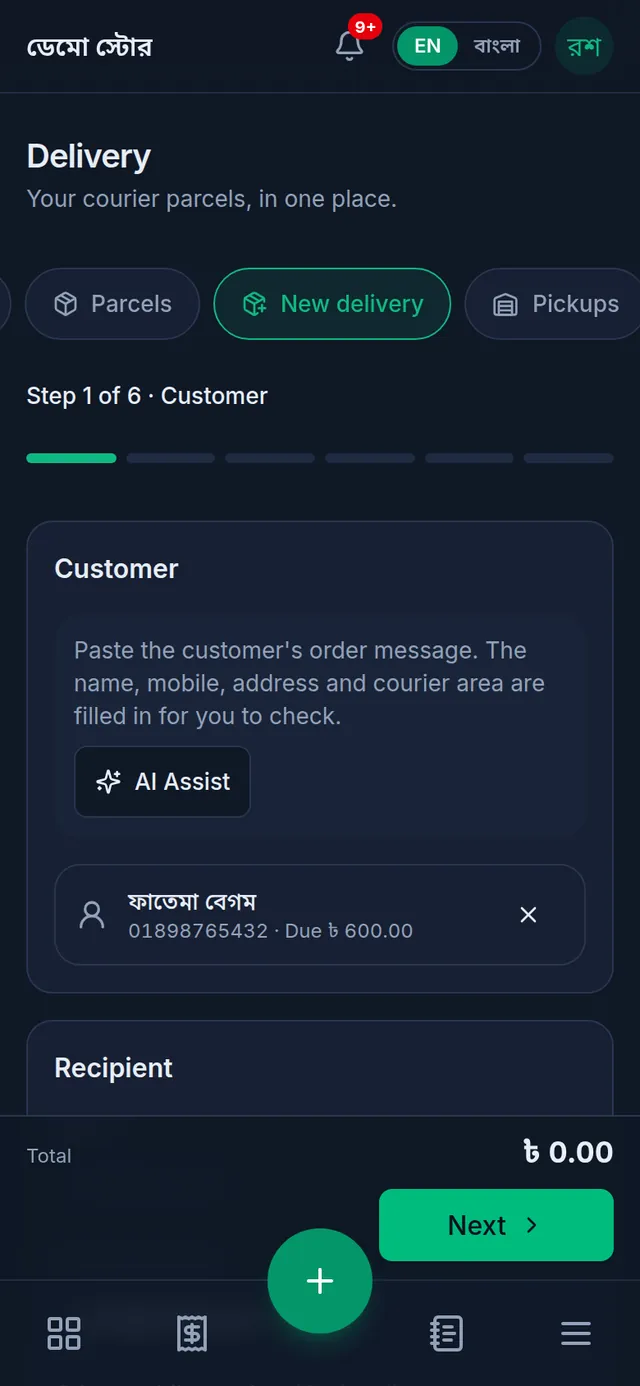
- Customer: tap Choose customer and pick the buyer, or skip it and type the recipient's Name and Mobile number (11 digits, starting with 01). If the number belongs to one of your customers, Tukri says the order goes on their ledger; tap Choose this customer to pick them. Then tap Next.
- Address: type the Full address (house, road, area) so the rider can find it. Area is optional. Mark it Home, Office or Other. For a chosen customer, their Saved addresses appear here to tap.
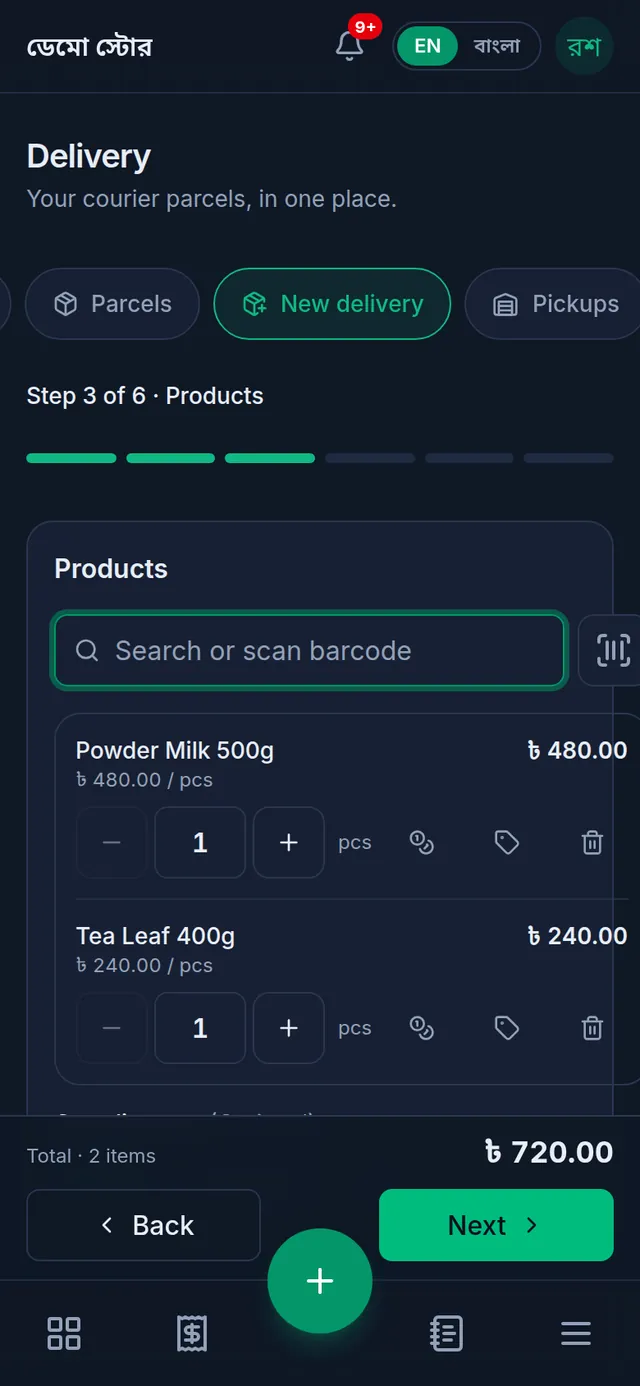
- Products: search or scan the products as at the till, and set each quantity with + and −.
- Parcel: enter the Number of items (needed). Weight (kg), Parcel description, Note for the rider and Declared value (৳) are optional: a blank description is written from the items, and a blank declared value uses the value of the goods. Templates beside the rider note has ready-made notes such as "Please call before delivery."
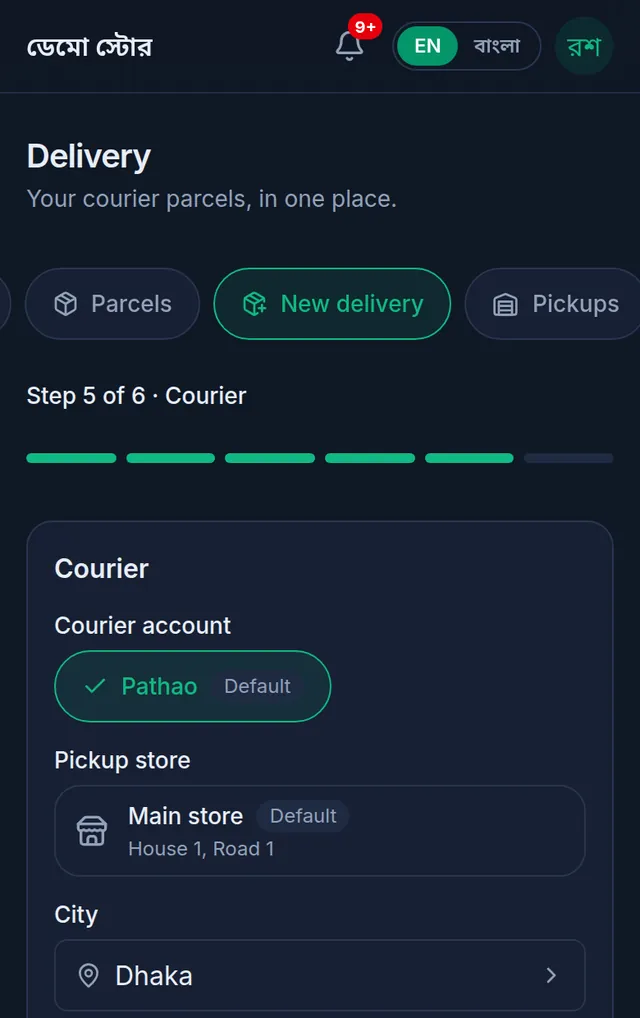
- Courier: choose the Courier account (your default comes first) and, for couriers that have them, the Pickup store; then choose where the parcel goes, from the courier's own lists, top to bottom. Pathao and CarryBee ask for City, Zone and Area; REDX for the Area; Steadfast for the District and Thana. Paperfly has no list here.
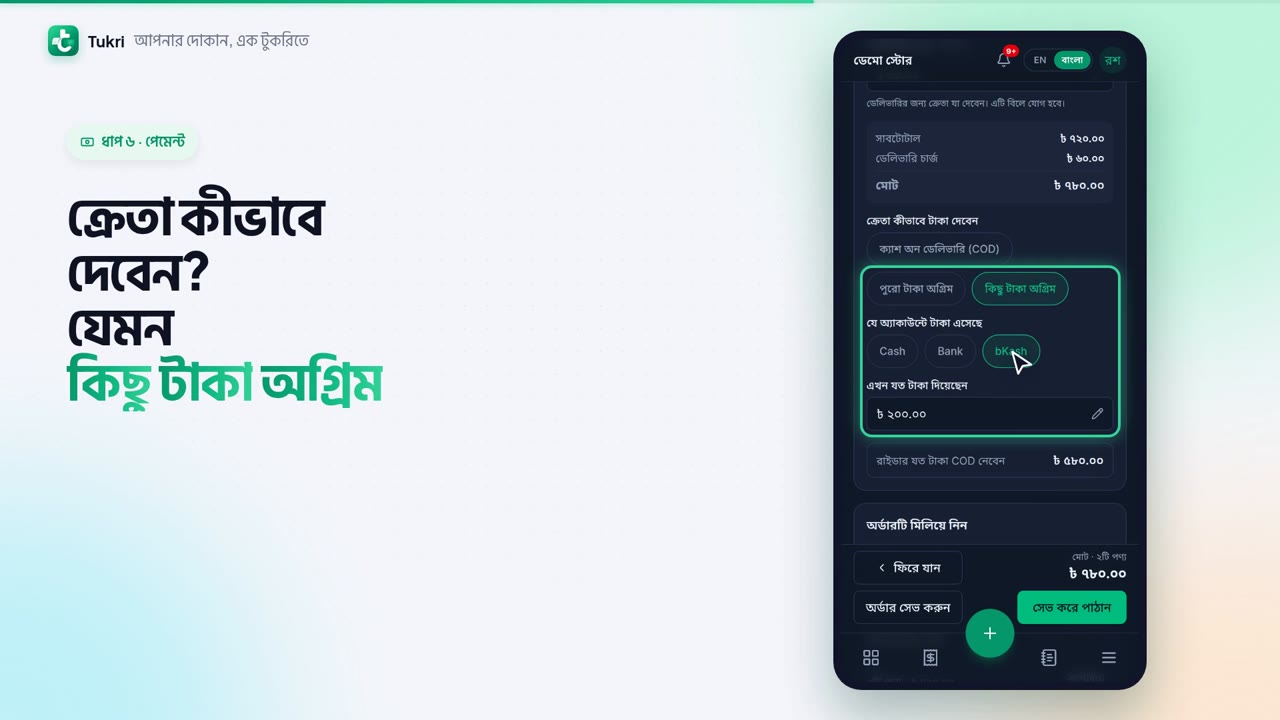
- Payment: add a Delivery charge if the buyer pays for delivery, and choose How the buyer pays. The box underneath shows how much the rider will collect. How this is worked out is in Delivery charge and cash on delivery.
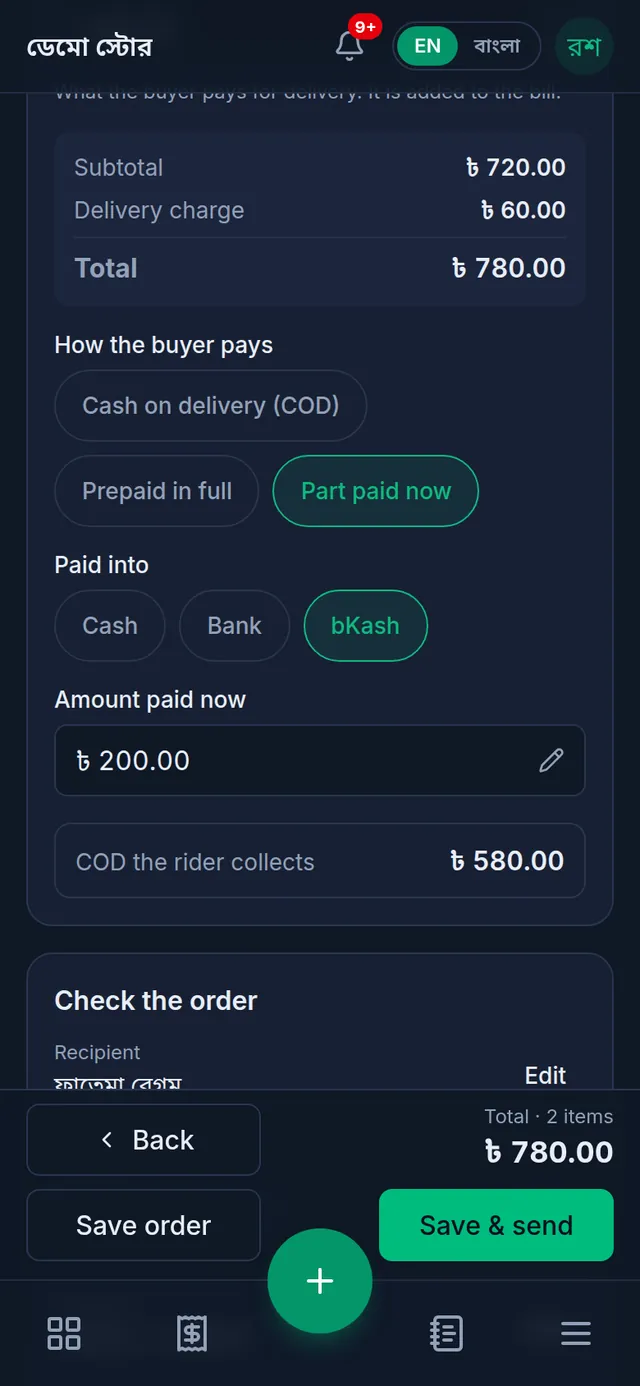
- Read Check the order below it. To change something, tap Edit beside that part.
- Tap Save & send to book it with the courier now, or Save order to keep it as Ready to send and send it later, for example once it is packed.
What happens when you save
- The sale is made at once: the products leave your stock and the unpaid part goes on the customer's due, even before the courier collects the parcel. If you did not choose a customer, Tukri finds them by the mobile number, or adds them as a new customer.
- The parcel's page opens. With Save & send it says the parcel is being sent ("This usually takes a few seconds. The page updates by itself."). When the courier accepts it, the status becomes Booked, the courier's Consignment ID appears, and Shipping label prints the label for the parcel.
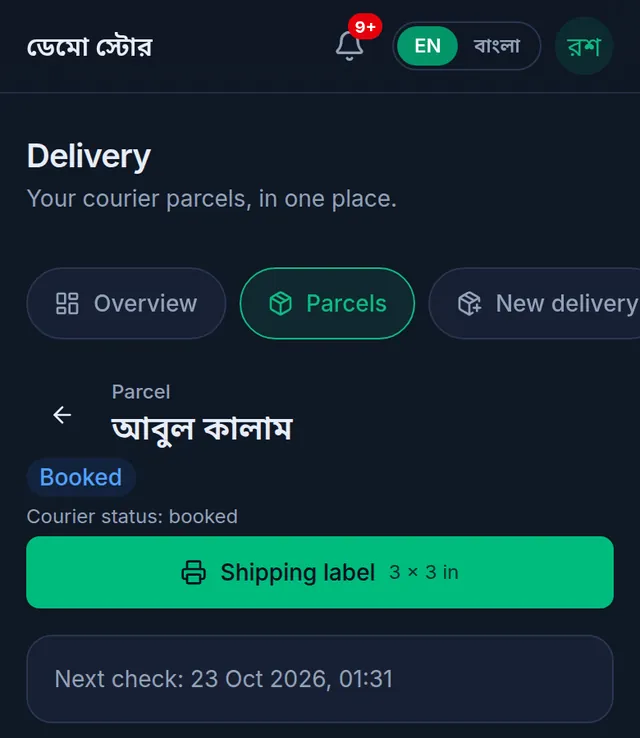
- A parcel saved with Save order waits under Delivery › Parcels. Open it and tap the send button, which names your courier.
- While the parcel is waiting or with the courier, the sale itself cannot be returned or voided: "Return and void are off while this sale's parcel is waiting to go or with the courier." To follow the parcel, see Parcel statuses, tracking and returns.
Send a sale you already made
- Right after a sale at the till, tap Send by courier on the Sale complete screen. For an earlier sale, open it from Sales and find its Delivery card.
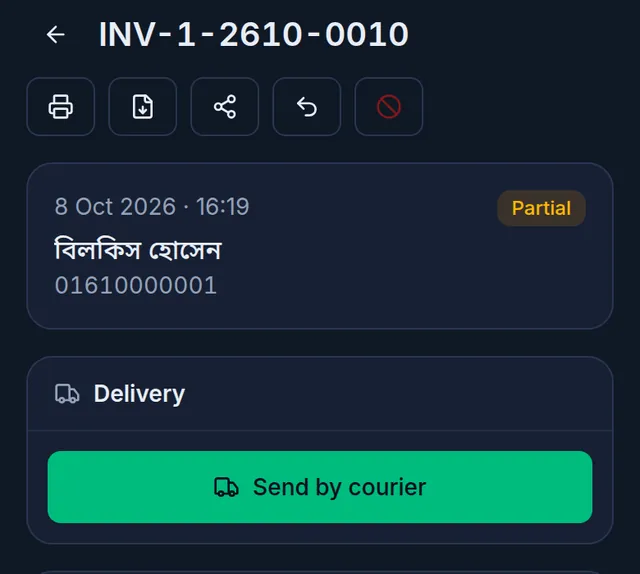
- Tap Send by courier. Check the recipient (filled in from the sale's customer), the courier and where it goes, and the parcel details.
- COD to collect starts at what the customer still owes on this sale. You can lower it, but not go above it.
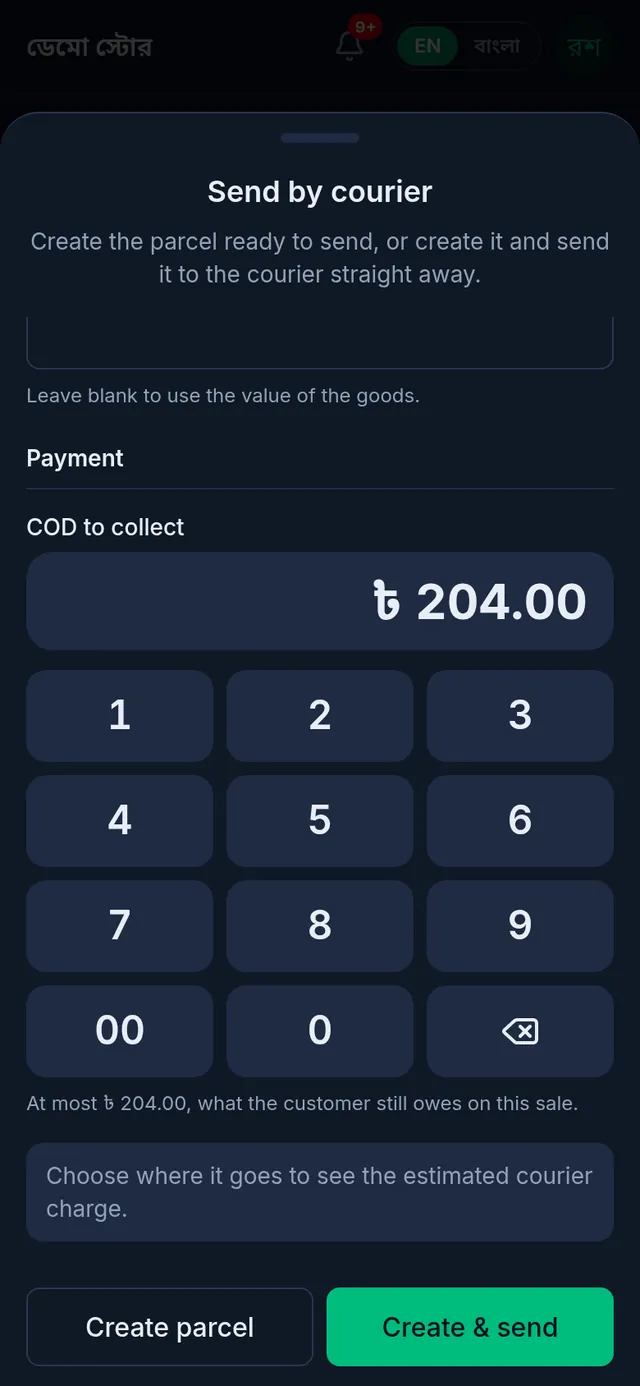
- Tap Create & send to send it now, or Create parcel to send it later.
No second sale is made. The button shows only on a completed sale that still has its goods, has no return, and has no parcel on the way or delivered.
If something goes wrong
"Enter a Bangladeshi mobile number: 11 digits starting with 01." Type the buyer's mobile number again, 11 digits starting with 01.
"Some details need fixing. The steps marked red show where." Open each step marked red and fix the message under the field.
"This courier's list is empty for now." Wait a moment and open the list again. If it stays empty, ask whoever manages your courier accounts to check the account under Couriers.
I cannot choose Prepaid in full or Part paid now. "No money account is active, so an amount paid in advance cannot be recorded." Turn on a money account first.
There is no Save & send button. Your role cannot book with a courier. Tap Save order; someone who can book sends it later.
The page says "You also need permission to sell". A delivery order is a sale, so your role also needs permission to sell at the till. Ask the shop owner.
The page says "Connect your courier account" or "Your courier account cannot take a parcel right now". No courier account is connected and turned on, or it needs its login again. See Connect your courier account.
The parcel shows Booking failed. Nothing was booked. The parcel's page says why: fix the cause and send it again. If your plan's courier bookings for the month are used up, the parcel stays saved: send it next month, or move to a bigger plan.
The parcel shows Booking unclear. The courier's answer was not clear, so the parcel may or may not exist there. Do not just send it again: tap Check and resolve on the parcel's page and search the courier's own panel for the order reference first, so the parcel is not booked twice.
Watch the video
What the video says
Got an order by phone or on Facebook? How do you book the parcel with a courier? Let's see it in Tukri.
First turn on the Delivery Hub and connect a courier. Then open Delivery from the menu and tap the round button at the bottom.
In the first step, choose the customer, or type a name and mobile number. Then tap Next.
Now type the full address, so the rider can find it easily. Next, find the products and add them, and enter how many items are in the parcel.
In the Courier step, your default account is already filled in. Check the pickup store, and from the courier's list choose the City, Zone and Area.
In the Payment step, enter the delivery charge; it is added to the bill. Choose how the buyer pays, for example Part paid now, by bKash. How much the rider collects you don't have to type in; Tukri works it out for you.
Check the order, then tap Save & send. To send it later, tap Save order. When the courier takes it, the status becomes Booked, and you can print the shipping label. The sale is made right away too: stock goes down, and the unpaid amount goes on the customer's খাতা.
Handle online orders with ease, tukri.bd
Related articles
- The Delivery Hub Send and follow courier parcels with your own Pathao, Steadfast, REDX, Paperfly or CarryBee account. What each tab does and who can see it.
- Delivery charge and cash on delivery How the delivery charge and the COD are worked out on a delivery order, how to confirm what the rider collected, and how to record a courier's payout.
- Parcel statuses, tracking and returns What each parcel status means, how Tukri keeps it up to date, confirming a delivery, cancelling an order, and handling parcels that come back.
Still need help?
Write to us, call or send a WhatsApp message, and someone from Tukri will help you.
