

On this page
The delivery charge is what the buyer pays you for delivery; it goes on the bill. Cash on delivery (COD) is what the rider collects from the buyer at the door. Tukri works the COD out for you from the bill and anything paid in advance, so you never type it on a new delivery. When the courier later pays you the COD less its own fees, you record that payout, and the money goes into your account.
Before you begin
- You send the parcel itself as in Book a parcel with a courier.
- Confirming the COD and the COD tab need permission to see courier money. Recording a courier payout also needs permission to manage money accounts. The Owner and Admin roles have both; Staff do not, unless the owner changed the role.
- A money account must be active to take money in advance, and to receive a courier's payout.
Set the delivery charge and how the buyer pays
- On the Payment step of New delivery, tap Delivery charge and enter what the buyer pays for delivery. Leave it empty if delivery is free. It is added to the bill: Subtotal plus the delivery charge makes the Total.
- Under How the buyer pays, choose one:
- Cash on delivery (COD): the rider collects the whole bill.
- Prepaid in full: the buyer has already paid everything. Choose the account under Paid into. The box then says "Nothing to collect: the parcel goes prepaid."
- Part paid now: choose Paid into and enter the Amount paid now; the rider collects the rest.
- Read the box underneath: COD the rider collects and the amount. This is what goes to the courier as the COD.
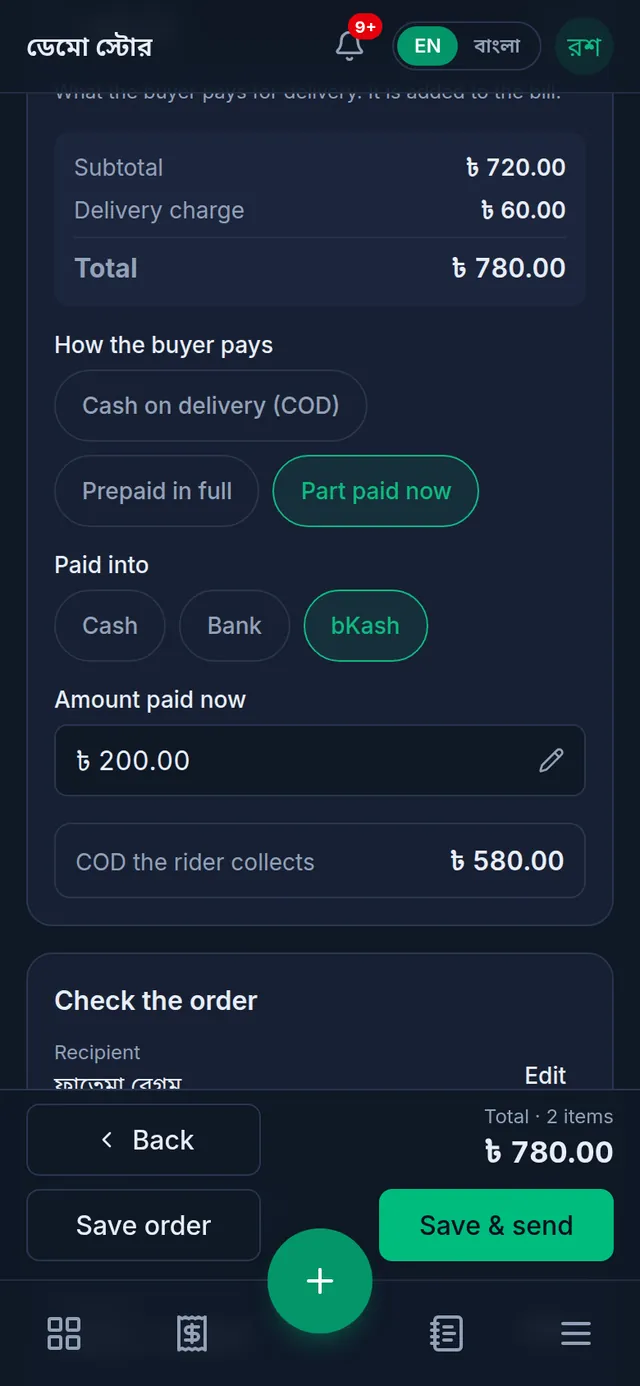
How the COD is worked out
- COD = the total, less what the buyer paid now.
- It is never more than the buyer owes you in all. If the buyer already has money in advance with your shop, the COD is lower by that much.
- It is rounded down to whole taka, as the couriers accept. If that leaves a few paisa, the box says how much stays on the customer's due.
- On Send by courier (a sale you already made), COD to collect starts at what the customer still owes on that sale. You can lower it; whatever the rider does not collect stays on the customer's due.
While the parcel is on its way
The COD is already on the buyer's due, because the sale was made when you saved the order. Tukri does not chase that part while the courier has the parcel: due reminders and হালখাতা cards leave it out, and when you collect a due at the counter you can take only what the buyer owes beyond it. If the buyer really paid you instead of the rider, tick "The buyer paid the shop instead of the rider" there, and tell the courier not to collect that COD.
Confirm the COD the rider collected
- When the courier reports the parcel delivered, its page shows Delivered · not confirmed yet and a COD to confirm box.
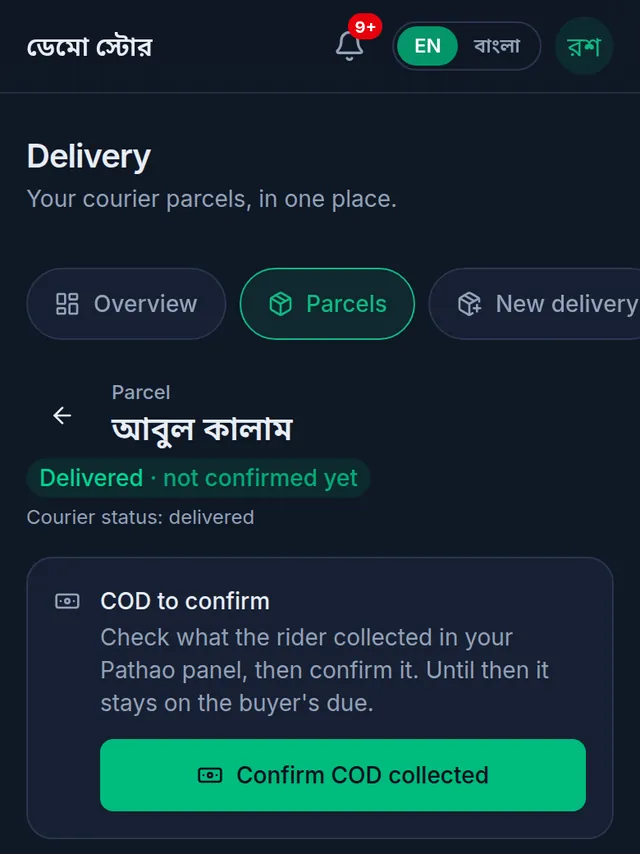
- Check in the courier's own panel or app how much the rider collected.
- Tap Confirm COD collected. The sheet shows COD on the parcel, what the courier reported, and The buyer owes in total.
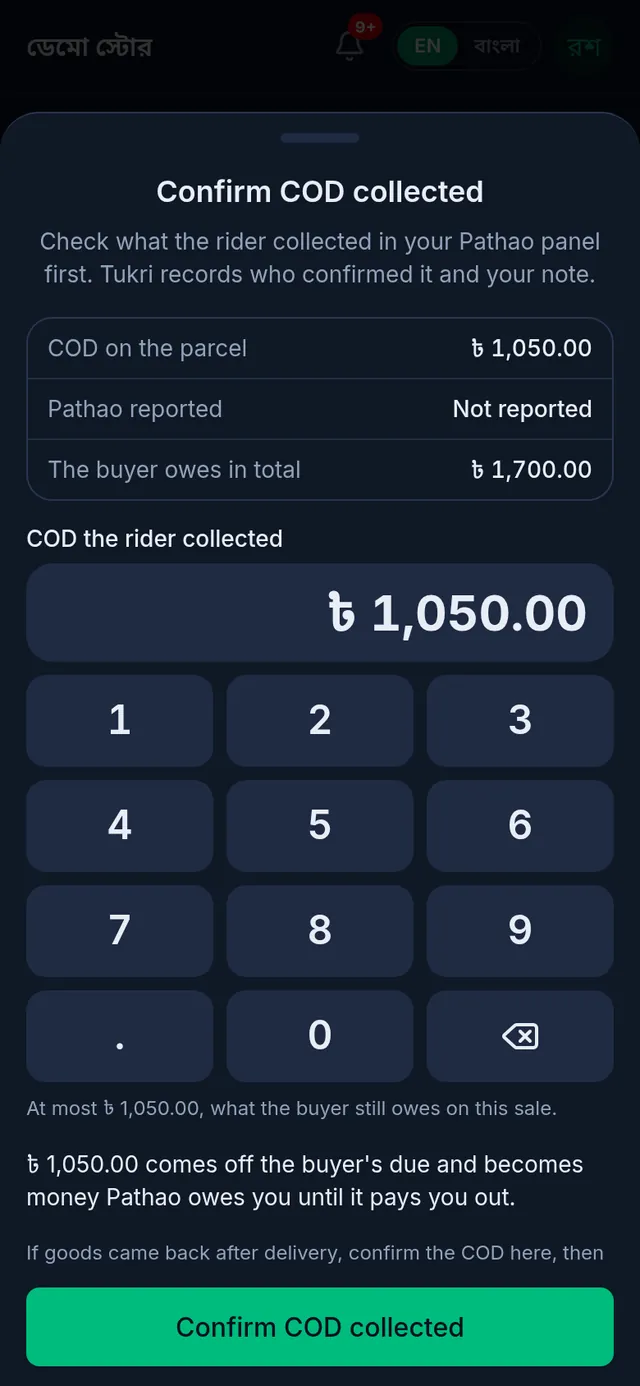
- Check COD the rider collected. It starts at the parcel's COD; change it if the rider collected a different amount, even ৳0. It can be at most what the buyer still owes on this sale.
- Write a Note saying what the courier's panel shows (it is required), then tap Confirm COD collected.
Tukri says "COD collected confirmed. The buyer's due is updated." The amount comes off the buyer's due (their Due Book shows "Paid to courier") and becomes money the courier owes you. No money account changes yet. Confirming the COD also confirms the delivery.
If the courier's figure turns out different later, the parcel shows Check the COD collected: tap Correct COD collected, enter the right amount and a note. You can correct it until a recorded courier payout has settled the parcel.
Record the courier's payout
- Open Delivery › COD. At the top, COD in transit, COD collected, not settled and Settled this month (recorded) show what your couriers hold for you. None of these is money received yet.
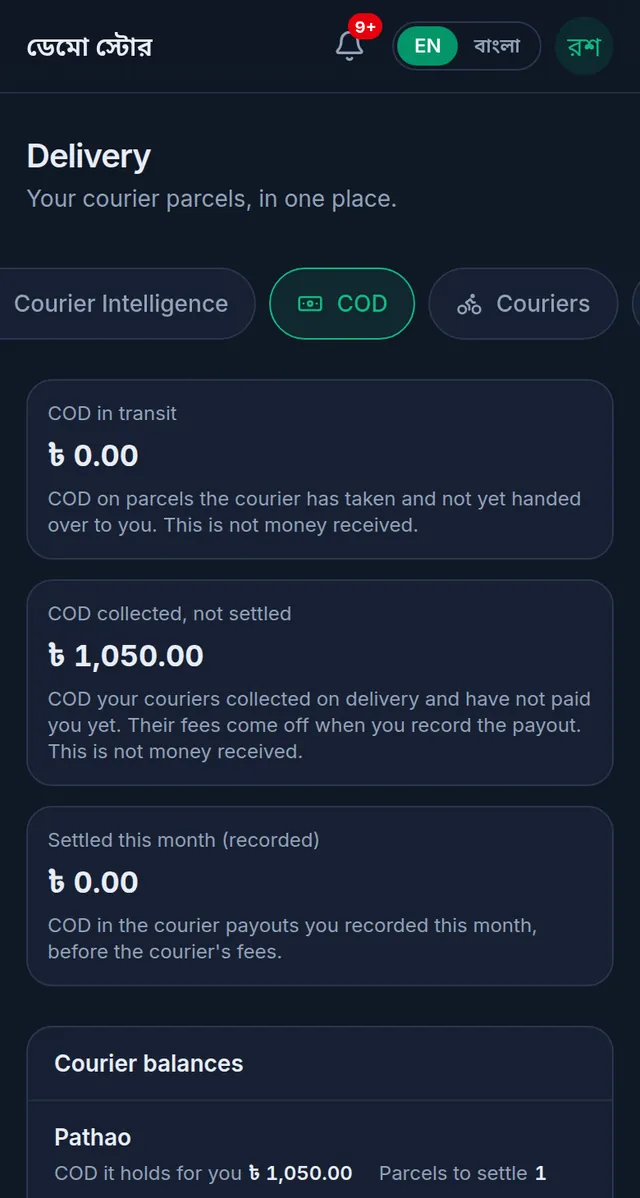
- Tap Record payout: under Courier balances each courier has its own button, and on a phone the round button at the bottom opens it too.
- Choose the courier account. Under Parcels this payout covers, tick the parcels on the courier's statement (Tick all ticks every one). Enter the Payout reference (the payment ID or invoice number on the statement) and the Settled on date.
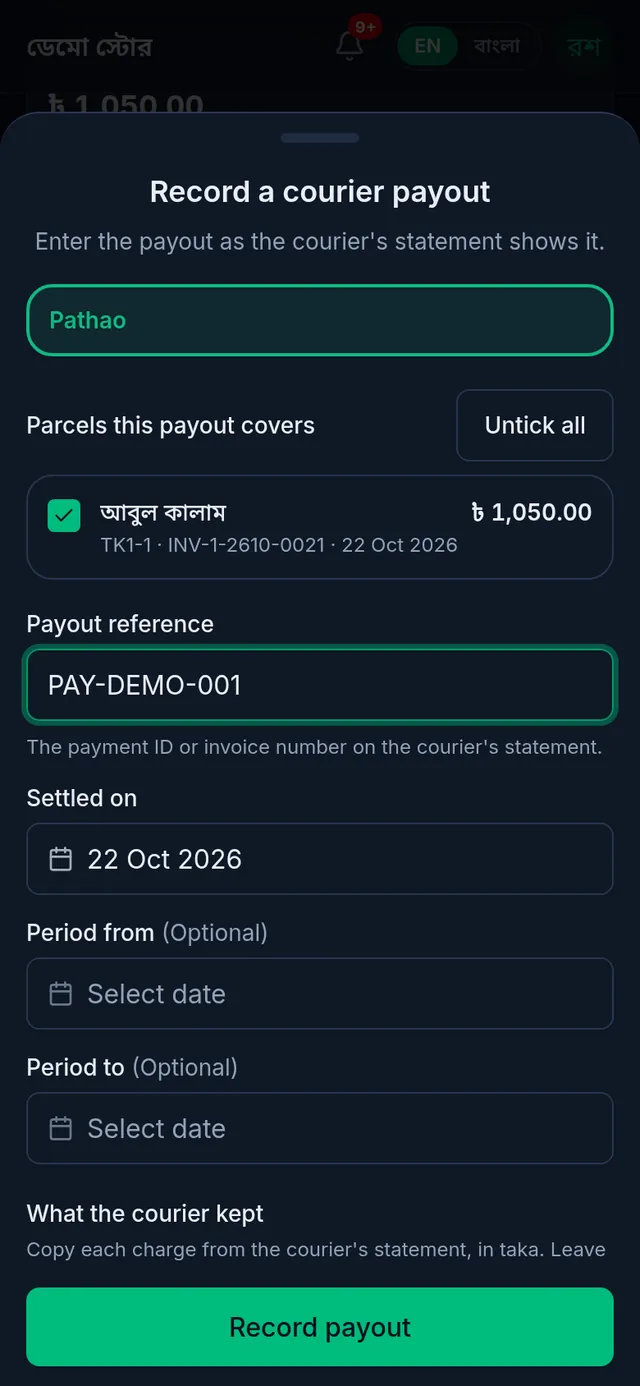
- Under What the courier kept, copy each charge from the statement in taka: Delivery fee, COD fee, Return fee, Other deduction. Leave a box empty for none.
- Choose the account the money came into, check the net amount at the bottom, and tap Record payout.
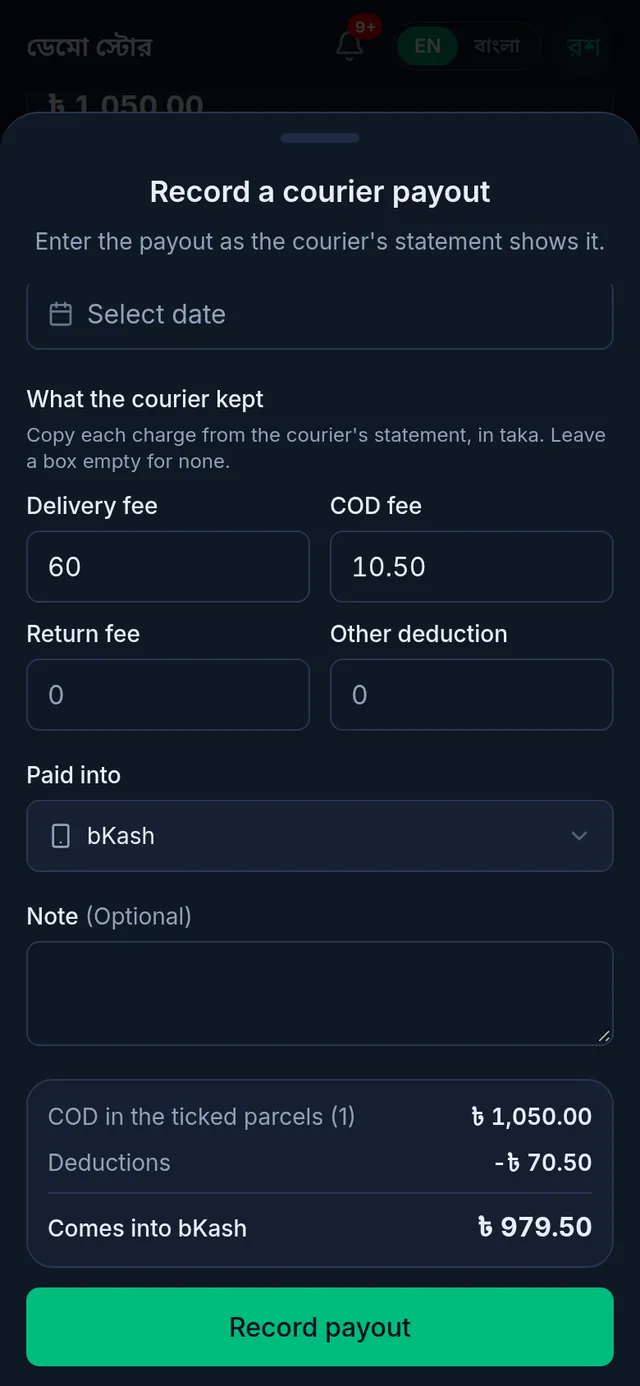
Tukri says "Payout recorded: the COD it paid and the courier's fees are in the books." and opens the payout's page.
What a payout changes
- The COD of the ticked parcels goes into the account you chose, and each courier fee is recorded as an expense, so the account goes up by the net amount.
- If the fees are more than the COD, nothing comes into the account; the rest stays owed to the courier, and a later payout takes it back.
- The delivery charge the buyer paid stays part of the sale. The courier's own fees are recorded separately, as expenses.
If something goes wrong
I cannot type the COD on New delivery. It is worked out from the bill and the payment. To change it, change the delivery charge, the products or How the buyer pays.
"That covers the whole bill: choose Prepaid in full instead." The amount paid now covers the whole bill. Choose Prepaid in full instead.
The parcel is delivered, but the buyer still owes. The COD has not been confirmed yet. Open the parcel and tap Confirm COD collected.
There is no Record payout button. Your role cannot manage money accounts, or the shop is paused because the subscription has run out. Ask the shop owner.
A parcel says "The COD on this parcel needs your answer first. Open the parcel to confirm it." Open it and confirm or correct its COD first, then record the payout.
"A payout with this reference is already recorded for this courier account." You may be recording the same payout twice. Check the payouts already listed on the COD tab.
Watch the video
What the video says
Got an order by phone or on Facebook? How do you book the parcel with a courier? Let's see it in Tukri.
First turn on the Delivery Hub and connect a courier. Then open Delivery from the menu and tap the round button at the bottom.
In the first step, choose the customer, or type a name and mobile number. Then tap Next.
Now type the full address, so the rider can find it easily. Next, find the products and add them, and enter how many items are in the parcel.
In the Courier step, your default account is already filled in. Check the pickup store, and from the courier's list choose the City, Zone and Area.
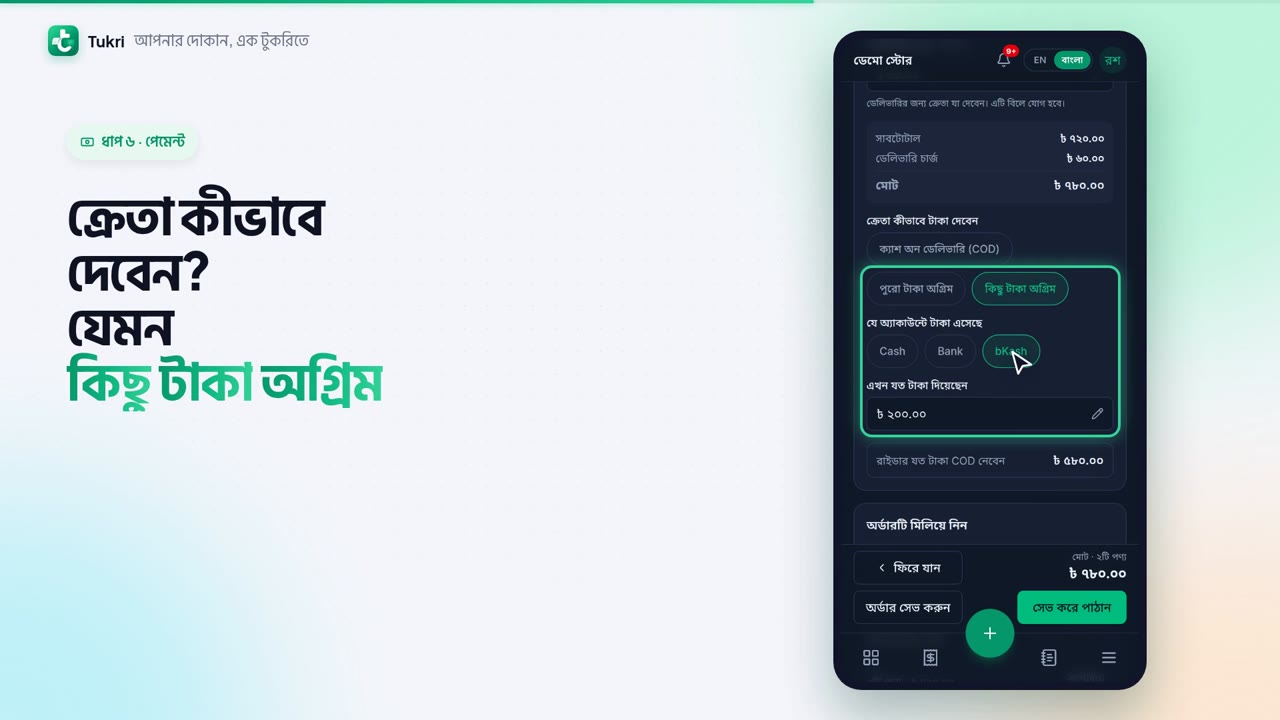
In the Payment step, enter the delivery charge; it is added to the bill. Choose how the buyer pays, for example Part paid now, by bKash. How much the rider collects you don't have to type in; Tukri works it out for you.
Check the order, then tap Save & send. To send it later, tap Save order. When the courier takes it, the status becomes Booked, and you can print the shipping label. The sale is made right away too: stock goes down, and the unpaid amount goes on the customer's খাতা.
Handle online orders with ease, tukri.bd
Related articles
- The Delivery Hub Send and follow courier parcels with your own Pathao, Steadfast, REDX, Paperfly or CarryBee account. What each tab does and who can see it.
- Parcel statuses, tracking and returns What each parcel status means, how Tukri keeps it up to date, confirming a delivery, cancelling an order, and handling parcels that come back.
- Collect a customer's due When a customer pays their due, record it in their খাতা: how much, and whether it came in cash, to the bank or by mobile banking. The due drops at once.
Still need help?
Write to us, call or send a WhatsApp message, and someone from Tukri will help you.
