

On this page
The Delivery Hub is the Delivery section of Tukri. From it you book parcels with your own courier merchant account (Pathao, Steadfast, REDX, Paperfly or CarryBee), follow each one until it is delivered or comes back, and keep track of the cash on delivery the courier owes you. Every parcel belongs to a sale, so your stock and your customers' dues stay right without entering anything twice.
Before you begin
- The Delivery Hub must be included in your plan and turned on for your shop: see Turn on the Delivery Hub.
- Connect at least one courier account: see Connect your courier account. Until one passes its test, the hub opens on Connect your courier account, with a button for each courier.
- What you see inside depends on your role (see Who sees what, below).
Find your way around
- Open the Delivery Hub.
On a computer
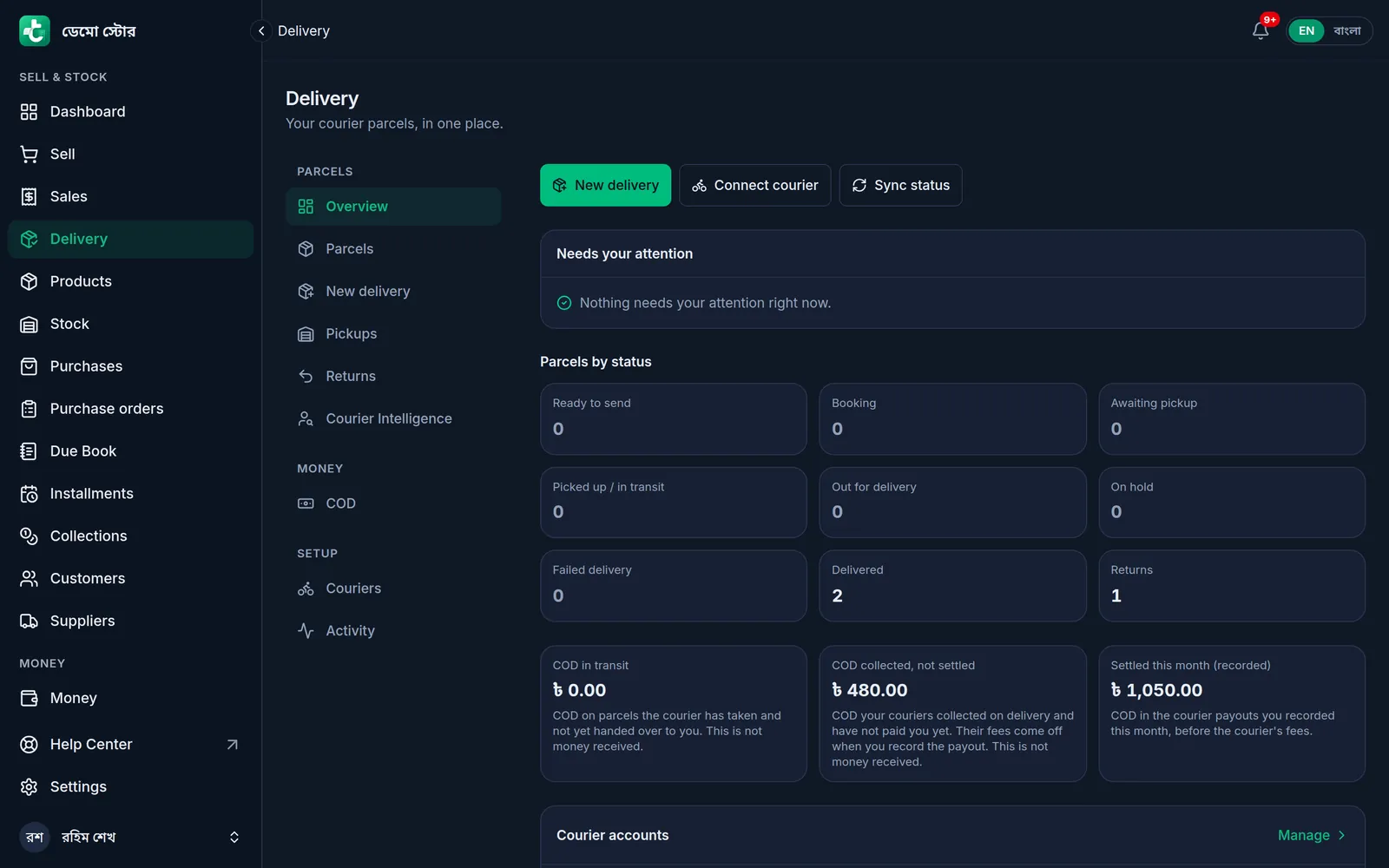
Click Delivery in the menu on the left, under Sell & Stock. The hub's tabs are listed beside the page in three groups: Parcels, Money and Setup.
On a phone or tablet
Tap Menu at the bottom right, then Delivery. The tabs are a row of buttons at the top of the page: swipe the row sideways to see them all.
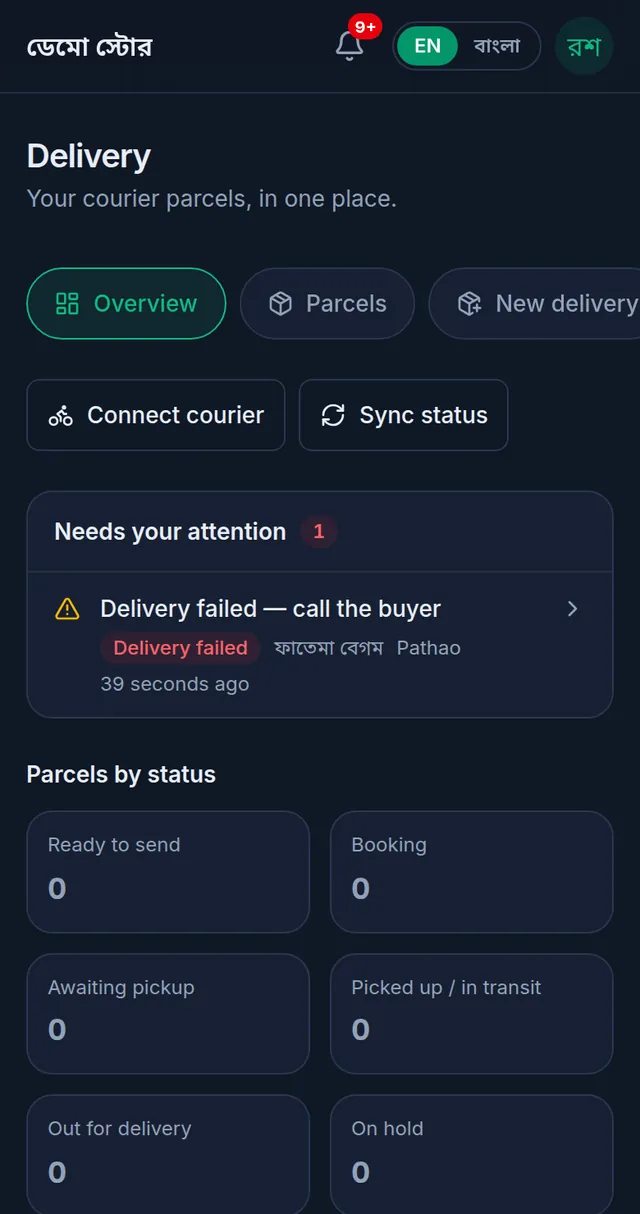
- You start on Overview. Look at Needs your attention first: it lists the parcels a person has to act on, such as "Delivery failed — call the buyer". Tap a row to open that parcel.
- Under Parcels by status, each box counts your parcels at one stage, from Ready to send to Returns. Tap a box to see those parcels.
- To send a new parcel, tap New delivery: on a computer it is the button at the top of the Overview; on a phone, tap the round button in the middle of the bottom bar, or the tab in the row at the top. The steps are in Book a parcel with a courier.
What each tab is for
| Tab | What it is for |
|---|---|
| Overview | Parcels that need you, the parcel counts by status, the cash on delivery figures, your courier accounts' health, and the latest parcels and returns. Sync status asks the couriers for the latest status of all your parcels. |
| Parcels | Every parcel. Search by phone, tracking ID, invoice or name, and open one to see its status, its history and its money. See Parcel statuses, tracking and returns. |
| New delivery | Enter a phone or online order and send it by courier. See Book a parcel with a courier. |
| Pickups | Parcels booked with a courier and not collected yet, by courier and pickup store. It is for reading only: pickups are arranged in the courier's own panel. |
| Returns | Parcels a courier is bringing back to your shop. You confirm them here when they arrive. |
| Courier Intelligence | Look up a buyer's mobile number to see their delivery history, from your own parcels and the courier accounts you connected. |
| COD | The cash on delivery your couriers hold for you, and the courier payouts you record. See Delivery charge and cash on delivery. |
| Couriers | Connect, test, turn off or choose the default courier account. See Connect your courier account. |
| Activity | Each request Tukri sent to your couriers, and each update they sent back. |
Who sees what
Each tab shows only to the members whose role allows it. Unless the shop owner has changed the roles:
| Role | In the Delivery Hub |
|---|---|
| Owner | Everything. |
| Admin | Everything. |
| Staff | See parcels, make new deliveries, send them to the courier and refresh their status. Staff do not see the COD, Couriers and Activity tabs or the courier money figures, and cannot cancel orders or confirm returns. |
A new delivery is also a sale, so a member must be allowed to sell at the till as well. The owner changes what a role may do in Settings › Roles, in the Delivery section.
How stock and money move
- A delivery order is a sale. The moment you save it, the goods leave your stock and the unpaid part goes on the customer's due, before the courier even collects the parcel.
- A courier's status never moves stock or money on its own. Goods go back into stock only when you confirm a return, and the cash on delivery comes off the buyer's due only when you confirm what the rider collected.
If something goes wrong
There is no Delivery in the menu. The hub is off, your plan does not include it, or your role does not allow it. See Turn on the Delivery Hub.
The page says "Connect your courier account". No courier account has passed its test yet. Connect one: Connect your courier account.
The page says "Your plan does not include the Delivery Hub right now". Your plan does not include the Delivery Hub. The shop owner can choose a plan that does in Settings › Plan.
There is no New delivery tab. Your plan does not include new deliveries right now, or the subscription has run out. Parcels already sent can still be followed, returned and settled. If others see the tab and you do not, your role does not allow new deliveries: ask the shop owner.
I cannot see the COD or Couriers tab. Your role does not include courier money or courier accounts. Ask the shop owner.
Watch the video
What the video says
Online orders keep coming in, but delivery is a struggle?
A separate panel for every courier, separate logins, separate records. Just finding which parcel is where eats up all your time.
Now it's all in one place. Tukri's online Delivery Hub.
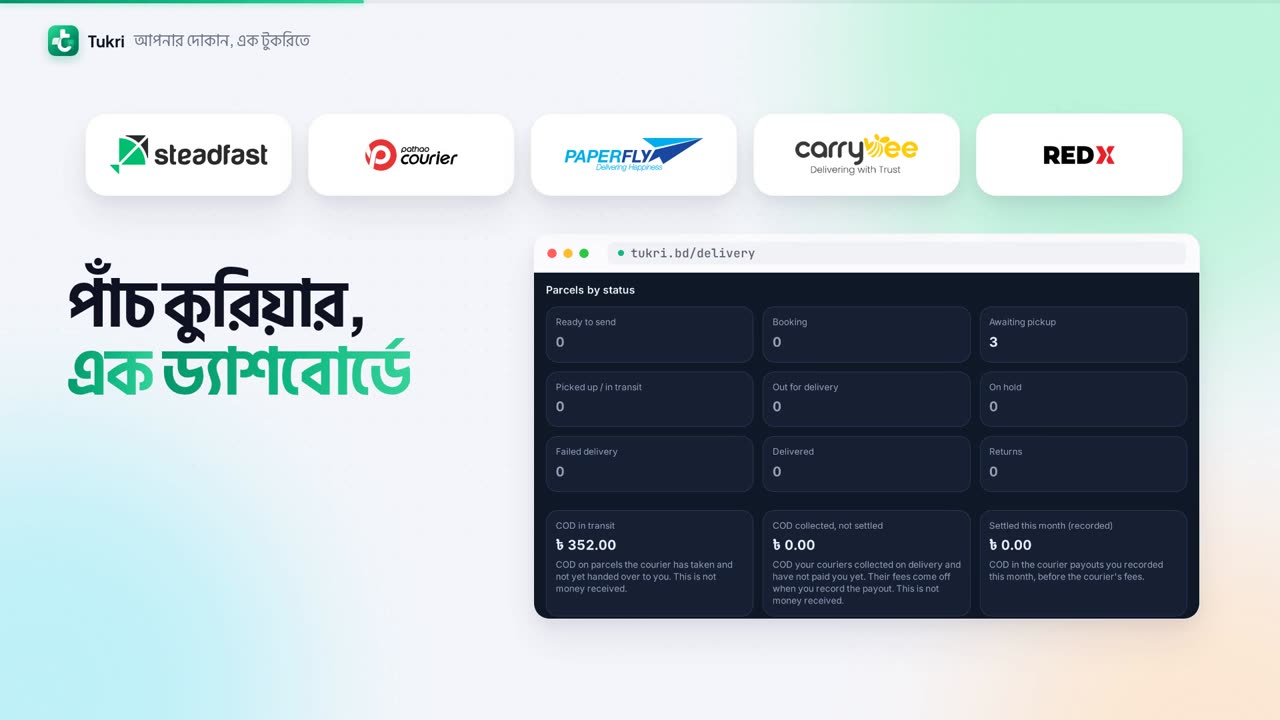
Steadfast, Pathao, Paperfly, CarryBee and REDX, five couriers, one dashboard.
Connect your own courier account, and book parcels right from Tukri.
Open New delivery, enter the customer, address and products.
If you like, paste the customer's message, and AI Assist fills in the name, number and address.
Now choose the courier. Tukri works out the COD amount itself.
Tap Save & send, and the parcel is booked with the courier, while stock and accounts update right away.
Parcels from every courier in one list. Search by phone number or tracking ID.
From Booked to Delivered, every parcel's status is right there. Tukri brings the updates from the courier itself.
Print the Shipping label from Tukri too, and track the COD money in one place.
Orders, stock, dues and delivery, all in one Tukri now.
Online delivery management is easier now, with Tukri!
Start today: tukri.bd
Related articles
- Connect your courier account Connect your own Pathao, Steadfast, REDX, Paperfly or CarryBee merchant account: copy its login from the courier's panel, test the connection, and save.
- Book a parcel with a courier Enter a phone or online order in New delivery, or send a sale you already made, and book it with your own courier account in a few taps.
- Delivery charge and cash on delivery How the delivery charge and the COD are worked out on a delivery order, how to confirm what the rider collected, and how to record a courier's payout.
- Parcel statuses, tracking and returns What each parcel status means, how Tukri keeps it up to date, confirming a delivery, cancelling an order, and handling parcels that come back.
Still need help?
Write to us, call or send a WhatsApp message, and someone from Tukri will help you.
