

Tukri sends parcels with your own courier merchant account. Copy its login from the courier's panel into Tukri, test the connection, then save. Tukri never shares a courier account between shops.
Before you begin
- The Delivery Hub must be on: Turn on the Delivery Hub.
- Your shop needs its own merchant account with the courier.
- The shop's Owner and Admin can connect couriers. Staff never see courier logins, but can send parcels with accounts already connected.
What each courier asks for
| Courier | What you need |
|---|---|
| Steadfast | API key and Secret key |
| Pathao | Client ID, Client secret, Pathao login email and Pathao login password |
| REDX | API access token |
| Paperfly | the sign-in user name and password, the Paperfly key and the store name |
| CarryBee | Client ID, Client secret and Client context |
You find these in the courier's own merchant panel.
Connect a courier
- Open Delivery from the menu and go to the Couriers tab. Each courier has its own card.
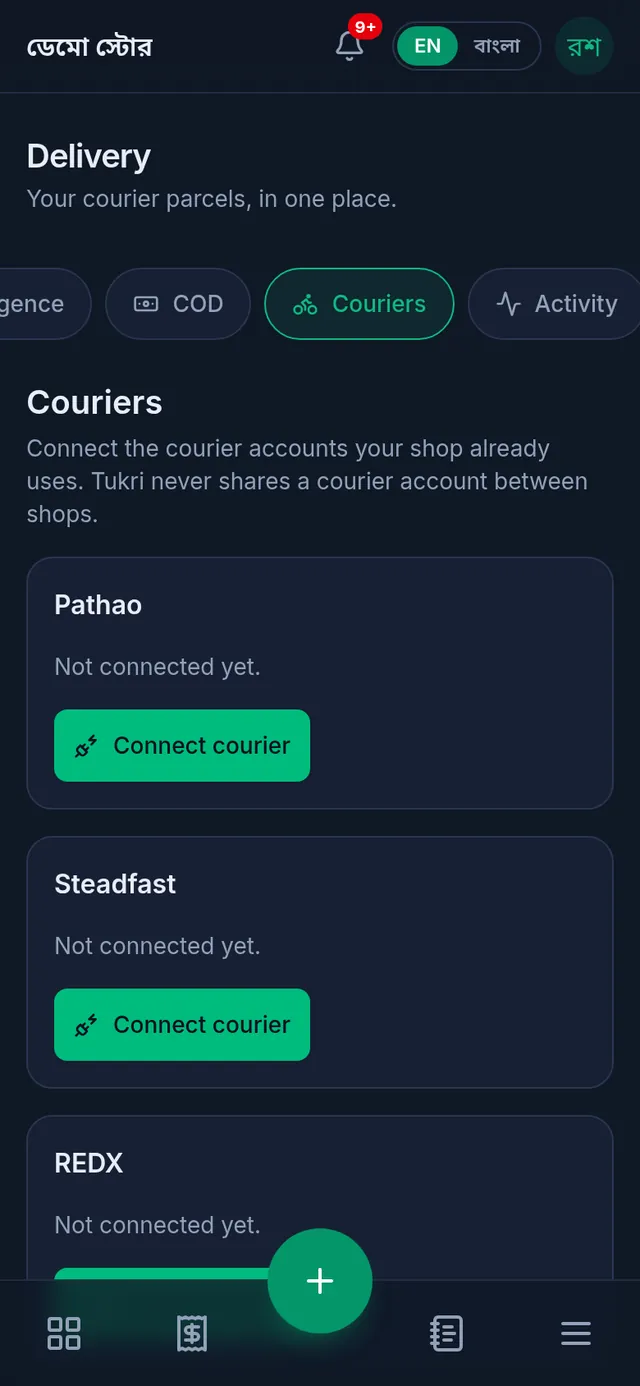
- On your courier's card, tap Connect courier.
- Step 1, Courier login: copy the login fields from the courier's panel. You can also give a Name for this account and the courier's Merchant ID, which prints on shipping labels.
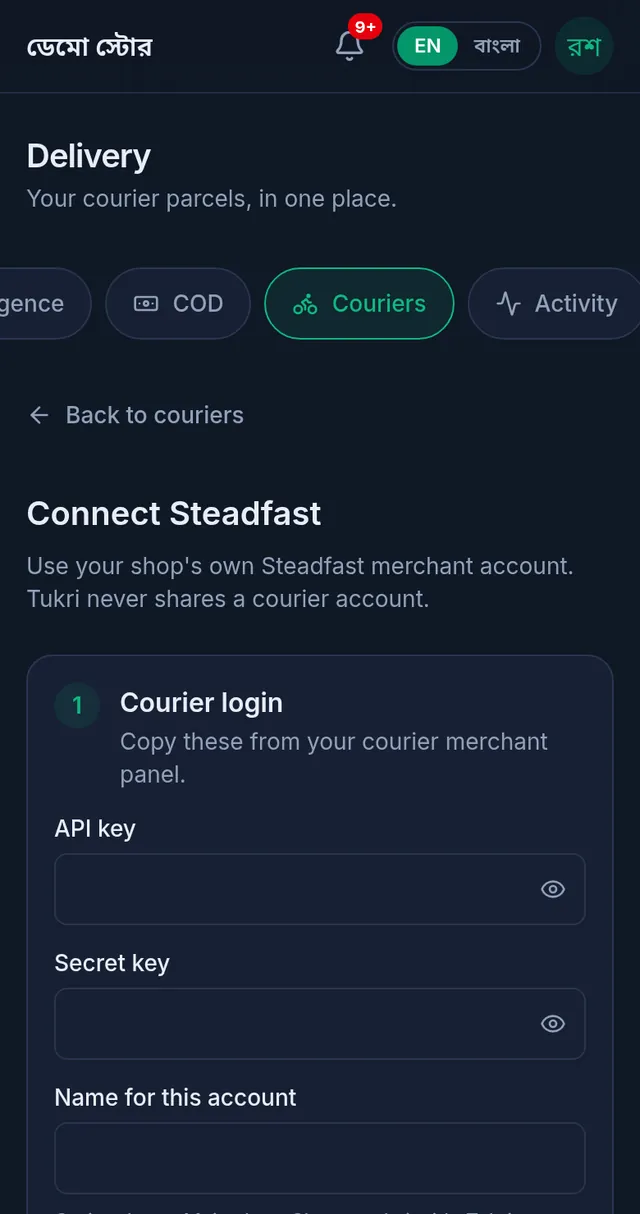
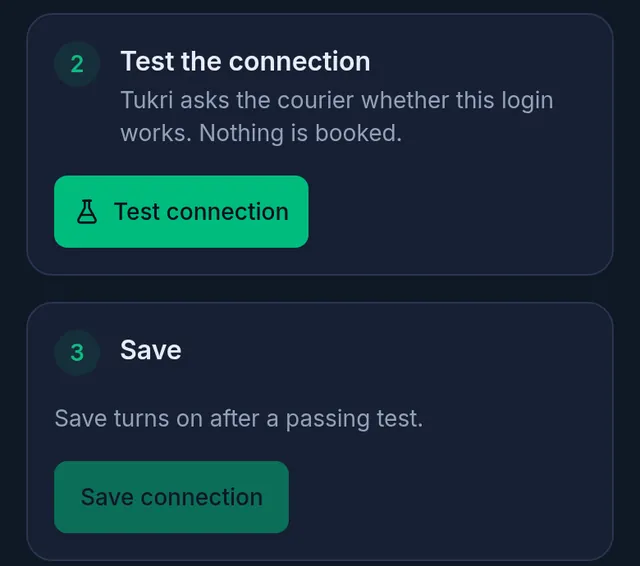
- Step 2: tap Test connection. Tukri asks the courier whether the login works; nothing is booked. When it does, it says "The connection works."
- For Pathao, REDX and CarryBee, choose the Default pickup store: where the courier collects your parcels.
- Tap Save connection. You return to the Couriers tab with "Courier connected."
The shop's first courier becomes the default, the one a new parcel opens on. With several connected, tap Set as default on another card to change it.
If something goes wrong
Save connection cannot be tapped. Tap Test connection first; saving turns on only after a passing test. If you change a login field after testing, test again.
It says "The connection did not work." The reason is shown under it. Usually a key was copied wrongly, or it was changed in the courier's panel. Copy it again from the panel, without spaces at the start or end.
It says "The courier returned no pickup store. Add one in the courier's panel, then test again." Create a pickup store in the courier's own panel first, then test again.
There is no Delivery menu or Couriers tab. The Delivery Hub is off, or your role does not allow courier accounts: Turn on the Delivery Hub.
Watch the video
What the video says
Want to send parcels with your own courier account? First, let's turn on the Delivery Hub, then connect a courier.
Open Settings from the menu, and go to the Features tab. Turn on the Delivery Hub switch, then tap Save at the bottom. Your plan must include the Delivery Hub, and the first time, the Owner or an Admin turns it on.
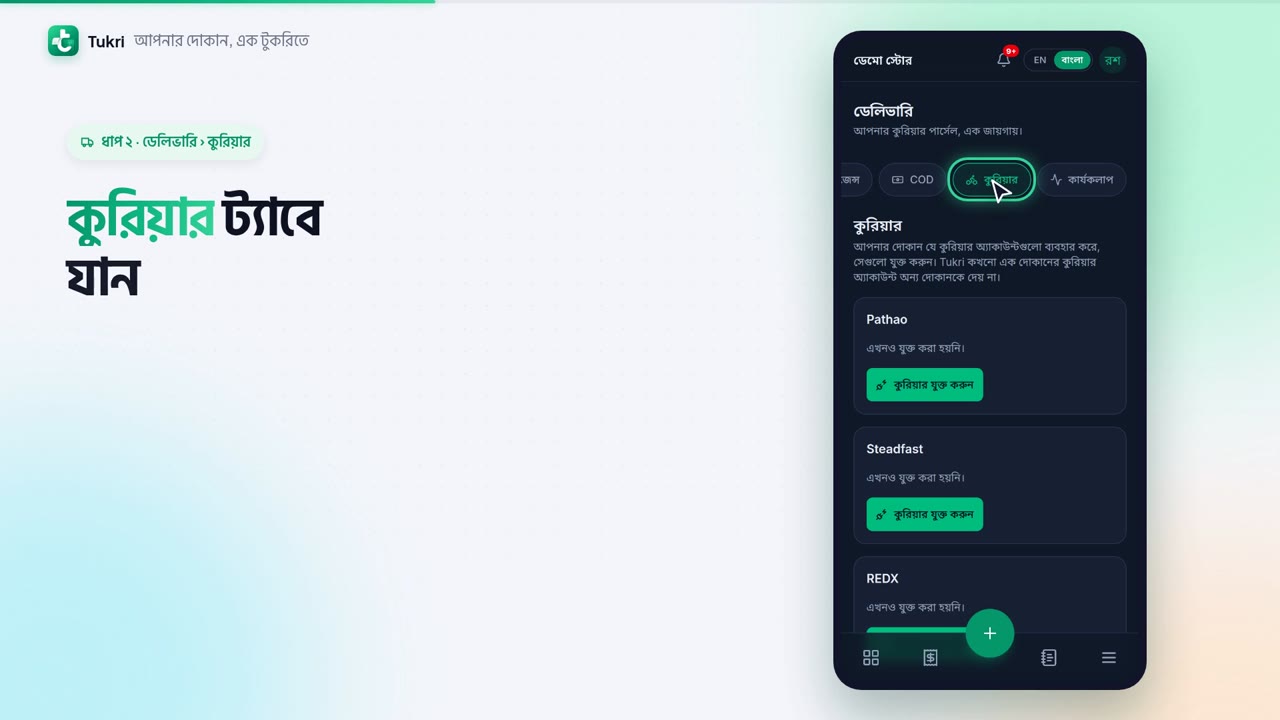
Now Delivery appears in the menu. In Delivery, go to the Couriers tab. Pathao, Steadfast, REDX, Paperfly, CarryBee, each has its own card. On your courier's card, tap Connect courier.
Here you need the login from the courier's merchant panel. For Steadfast, that's the API key and the Secret key. Copy them from the panel and paste here. You can also give the account a name.
Now tap Test connection. Tukri checks the login with the courier; no parcel is booked. If it's right, you'll see "The connection works." Then tap Save connection. Saving stays off until the test passes. With Pathao, REDX and CarryBee, you also choose a pickup store.
That's it, now send parcels with your own account, tukri.bd
Related articles
Still need help?
Write to us, call or send a WhatsApp message, and someone from Tukri will help you.
