

On this page
The Profit & Loss report shows on one page how much your shop sold in a period, what the goods you sold had cost you, what the shop spent, and whether that adds up to a profit or a loss. You can see it for today, this week, this month or dates you choose.
Before you begin
- The Owner and Admin roles can see this report. The Staff role has no reports at all.
- A role you made yourself needs both Open reports and See profit & cost price. With only the first, the other reports open but Profit & Loss is not in the list.
- For the profit to be right, your products need a Cost price, and the shop's expenses need to be recorded in Tukri.
See your profit and loss
- Open the list of reports.
On a computer
Click Reports in the menu on the left.
On a phone or tablet
Open Reports from Menu.
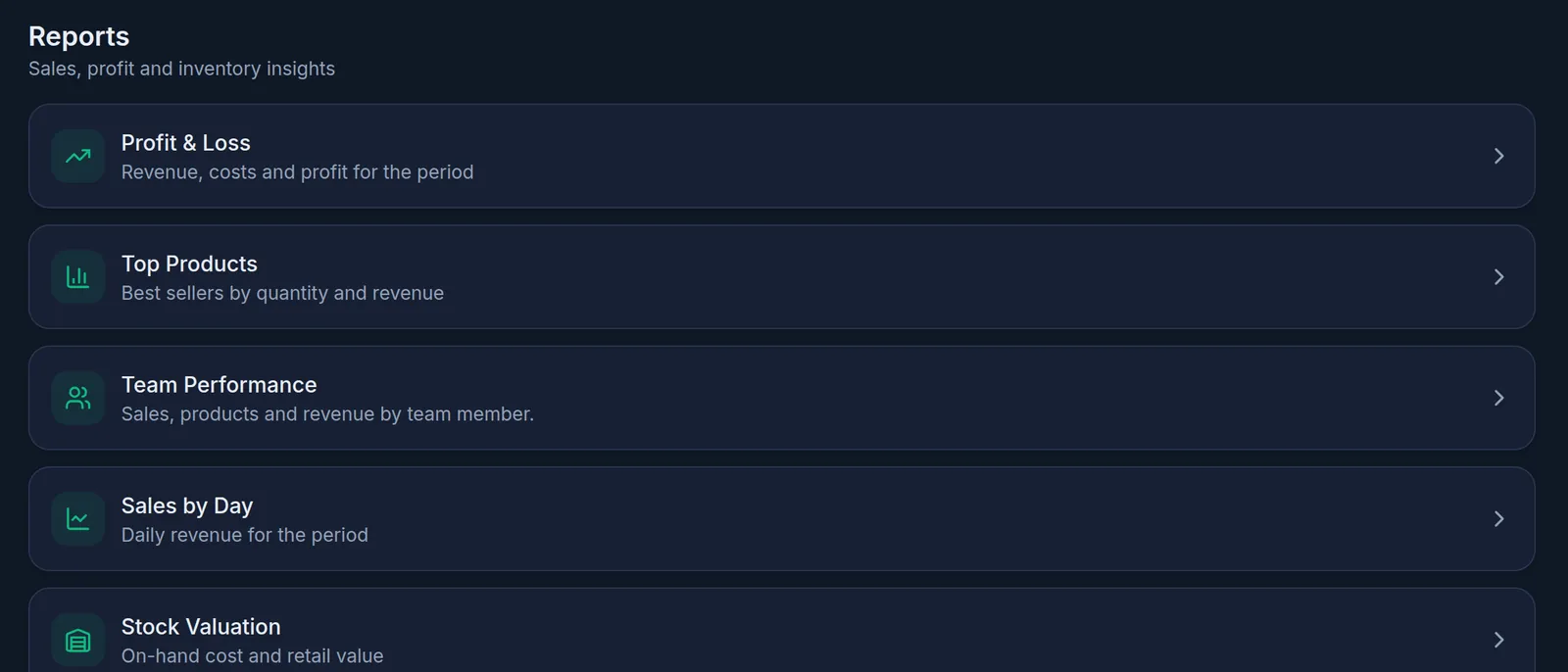
- Tap Profit & Loss, at the top of the list.
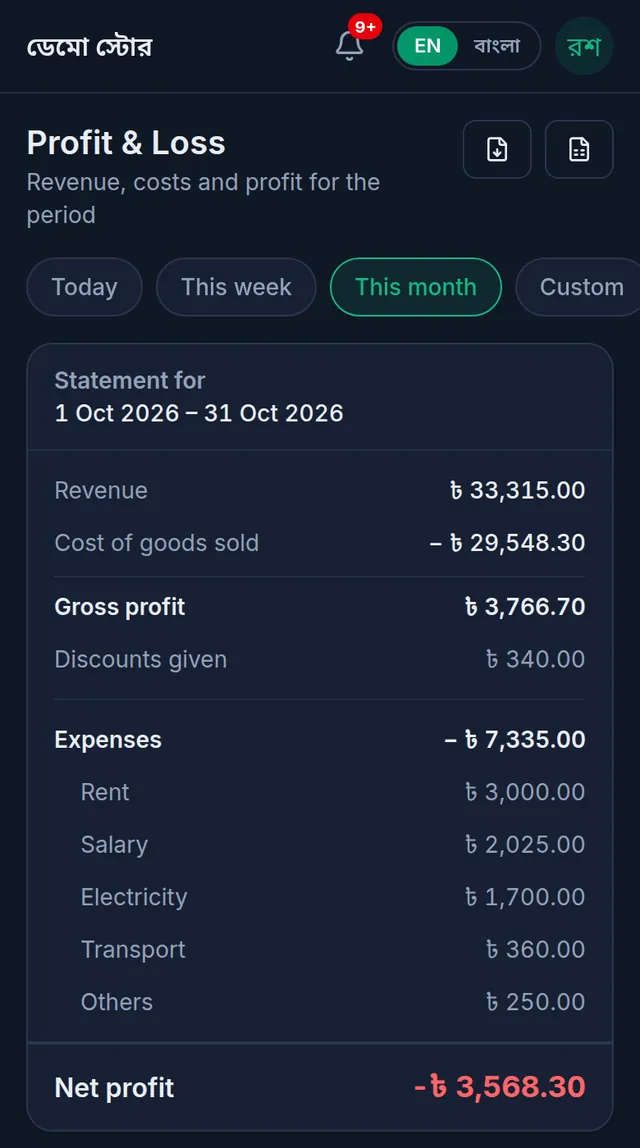
- Choose the period with the buttons at the top: Today, This week or This month. It opens on this month.
- Read the statement. Under Statement for you see exactly which dates it covers.
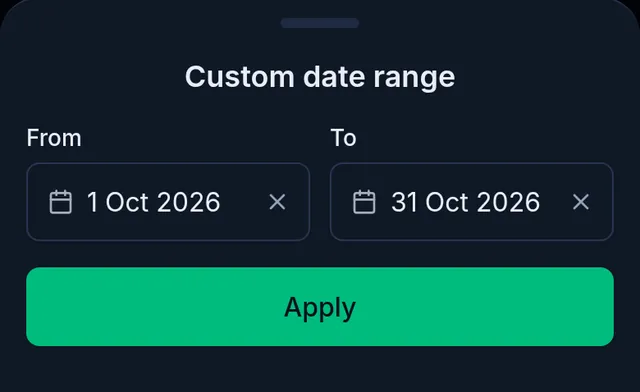
For other dates, tap Custom, choose the From and To dates and tap Apply.
What each line means
- Revenue: the completed sales in the period, minus goods returned from them. Cancelled (voided) sales are left out, and so are tips.
- Cost of goods sold: what the goods you sold had cost, at the cost price on record when each sale was made. Returned goods are taken off.
- Gross profit: revenue minus the cost of goods sold.
- Discounts given: for information only. These discounts are already taken off revenue and are not taken off again.
- Expenses: the shop expenses dated in the period, by category (rent, salary, electricity and so on).
- Net profit: gross profit minus expenses. Green for a profit; red with a minus sign for a loss.
What counts and what does not
- A sale counts on the day it was made, paid or on due. Days run midnight to midnight, Bangladesh time. Goods returned later come off that same sale day.
- Buying stock is not an expense. What goods cost shows up when they are sold, as the cost of goods sold.
- Nothing written in the Due Book changes this report: a due you forgive is not taken off revenue, and credit given without a sale is not revenue.
- Money added to or taken out of an account is neither income nor an expense.
- Installment agreements are not included; they have their own report.
Download it
At the top right of the report are Download PDF and CSV. On a phone only their icons show (the PDF icon first, then the CSV). The file covers exactly the period on screen. A CSV opens in Excel or Google Sheets.
If something goes wrong
There is no Reports in the menu. Your role does not have Open reports. Ask the owner.
Profit & Loss is not in the list of reports. Your role does not have See profit & cost price. Without it, cost and profit columns are also left out of the other reports.
The profit looks too high. A product with no cost price adds no cost when it is sold. Fill in its Cost price; that counts for sales made from then on, not for sales already made.
Expenses look too low. Only expenses recorded in Tukri count, and their date must fall in the period. To record them, see Record shop expenses.
I want today's figures at a glance. The Dashboard shows today's sales and gross profit. For an earlier day, use Custom in this report.
Watch the video
What the video says
At the end of the month, a profit or a loss? Who owes you, and for how long? Tukri's reports have every answer.
Click Reports in the menu on the left. The list of all reports opens.
Profit & Loss is at the very top. Choose the period at the top: Today, This week or This month. For other dates, tap Custom. Revenue minus what the goods cost is the Gross profit, then minus the shop's expenses, the Net profit. Green for a profit, red for a loss.
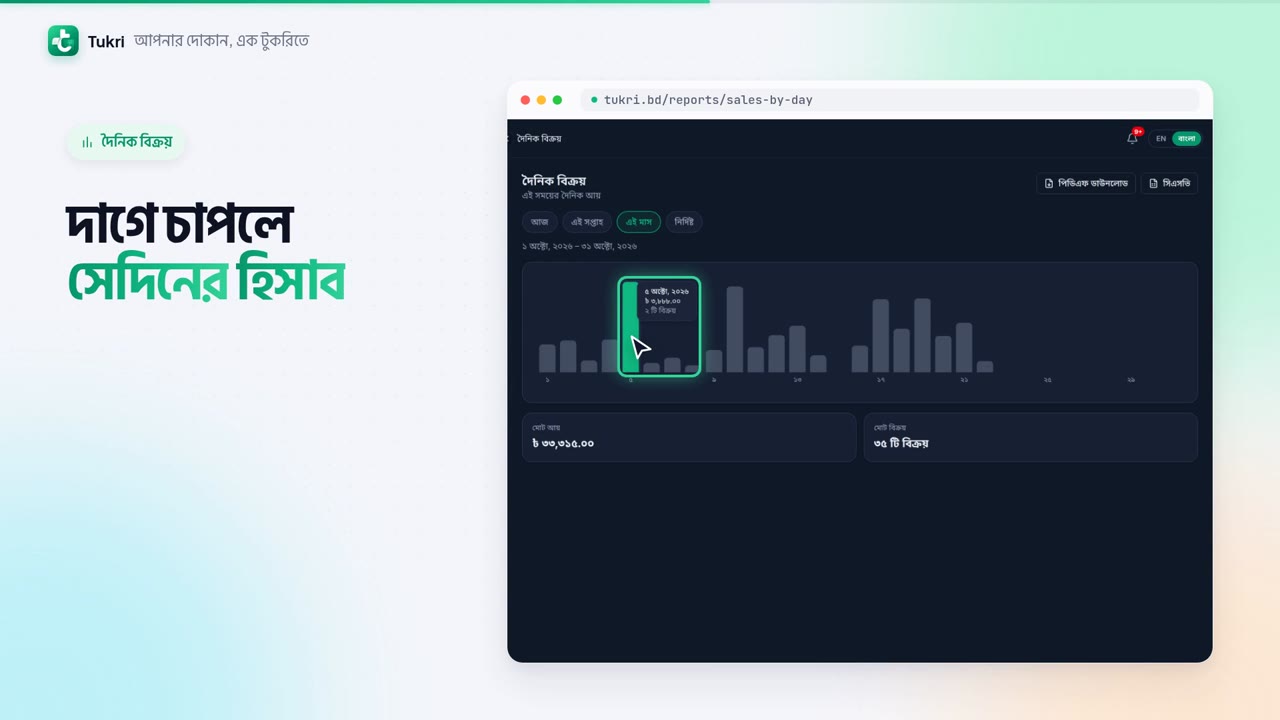
Sales by Day shows each day's sales in a chart. The best day for sales is green. Tap a bar to see that day's figures. Below are the Total revenue and the number of sales.
Stock Valuation shows what your goods cost you, and what they would sell for. If you keep batches and expiry dates, there is an expiry report too.
In Receivables aging you see who owes how much, and for how long. Remind those with the oldest dues first.
There are download buttons at the top right, too. Reports are for the Owner and Admin.
See your accounts at a glance, tukri.bd
Related articles
- Daily sales report The Sales by Day report charts how much you sold on each day of any period, with the period's total revenue and number of sales. Download it as a PDF or CSV.
- Record shop expenses Write down rent, electricity, salaries and other costs with a category and the account they came from. The account goes down and profit and loss counts it.
- Stock reports: stock value and expiring stock See what the stock you hold cost, what it would sell for and the potential profit, and which lots have expired or will expire soon.
Still need help?
Write to us, call or send a WhatsApp message, and someone from Tukri will help you.
