

On New delivery, the Parcel step has a Parcel description box: one line that says what is inside the parcel. Write with AI, the sparkle button at the right end of that box, writes it for you from the order's products and their quantities. Check it, change anything you like, and it is kept with the parcel when you save the order.
Before you begin
- The Delivery Hub must be on, which needs a plan that includes it, and at least one courier account must be connected: see Turn on the Delivery Hub and Connect your courier account.
- As for any new delivery, your role must allow new deliveries and selling at the till. The Owner, Admin and Staff roles have both unless the owner changed them.
- The button shows only while Tukri's AI writing is available, and only once the order has at least one product. Without it, type the description yourself, or leave the box empty: when you save, Tukri writes a plain description from the products.
Write the description
- Open New delivery and fill in the customer, the address and the products, as in Book a parcel with a courier.
On a computer
Click Delivery in the menu on the left, then New delivery. The six steps are along the top.
On a phone or tablet
Tap Menu, then Delivery, then the round button in the middle of the bottom bar.
- On the Parcel step, check the Number of items.
- Press Write with AI: the sparkle button inside the Parcel description box, at its right end. On a computer, its name shows when you point at it.
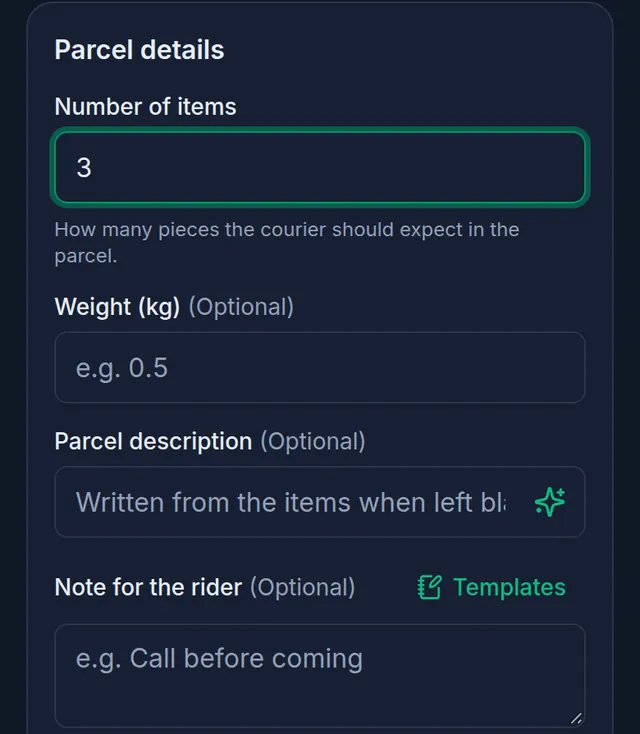
- A spinner turns in the button while it writes. When it is ready, which can take a little while, the description appears in the box: each product with its quantity, in the language the app is showing. You can go on to the next step meanwhile; the description still fills in.
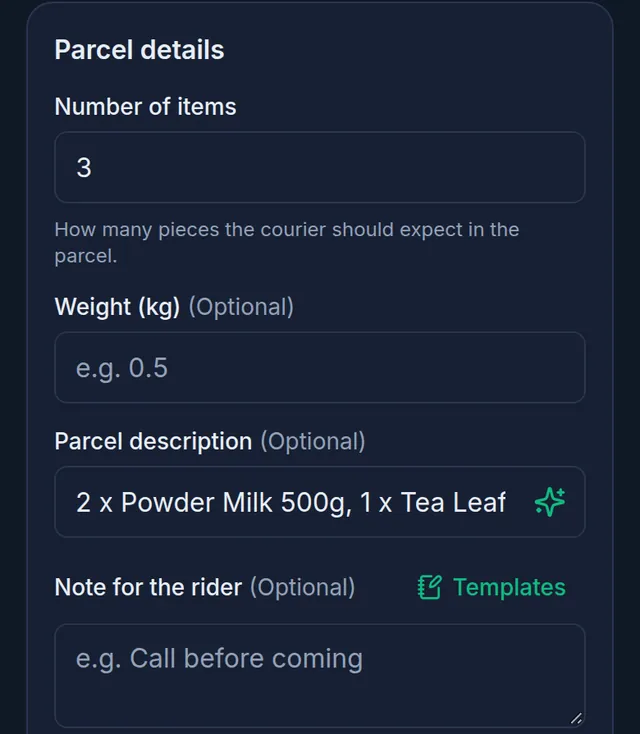
- Read it. If anything is wrong or missing, correct it in the box, as you would a description you typed.
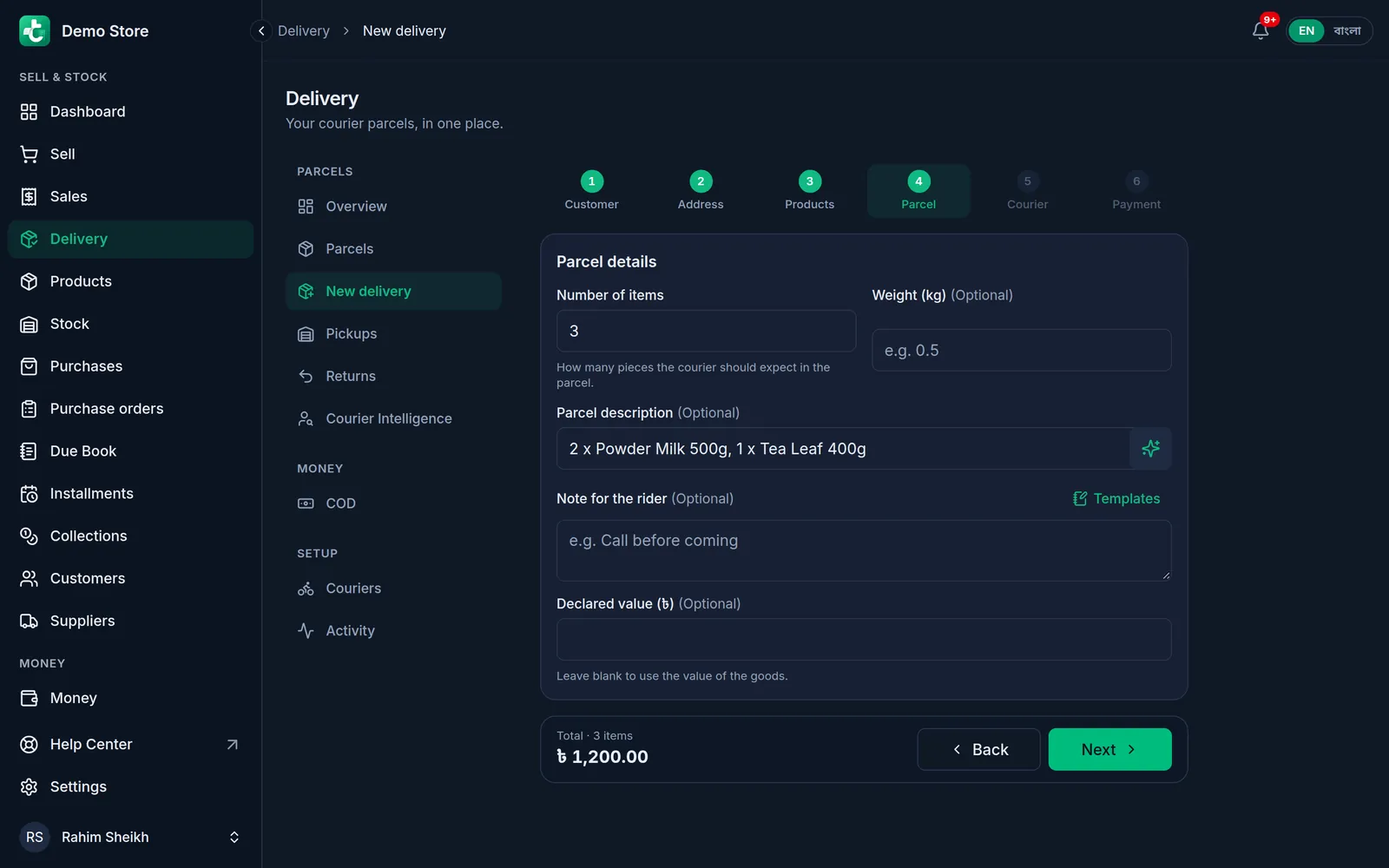
- Tap Next, finish the courier and payment steps, and save with Save order or Save & send as usual.
What happens next
- Nothing is kept until you save the order. The description in the box at that moment is the one the parcel keeps, and you can see it on the parcel's page under Parcel description.
- Pressing Write with AI again writes a new description in place of whatever is in the box, including anything you typed.
- It is asked to keep to one line: for a long order, the main products and how many more there are.
- Only the products' names and quantities are used to write it: never prices, and nothing about the buyer, such as their name, number or address.
- It is offered on New delivery only. When you send a sale you already made with Send by courier, type the description or leave it empty.
If something goes wrong
There is no Write with AI button. First add at least one product on the Products step. If the button is still missing, AI writing is not available right now: type the description, or leave the box empty.
"The AI could not write a description right now. Try again, or type it yourself." The AI could not write one this time. Press the button again, or type the description.
"Writing with AI is not set up yet. Type the description instead." AI writing is not available right now. Type the description, or leave the box empty.
It says there were too many attempts. Each person can press it up to six times a minute, and a shop up to 60 times a day. Wait a minute and press it again; if the shop's day is used up, type the description.
"Could not reach Tukri. Check the internet connection and try again." Check that the phone or computer is online, then press the button again.
Related articles
- Turn on the Delivery Hub To send parcels with your own courier accounts, turn on the Delivery Hub in Settings, Features. Also: why Delivery may be missing from the menu.
- Connect your courier account Connect your own Pathao, Steadfast, REDX, Paperfly or CarryBee merchant account: copy its login from the courier's panel, test the connection, and save.
- Check a buyer before sending cash on delivery Before you send a cash-on-delivery parcel, look up the buyer's mobile number: how your parcels to it went, and what your connected couriers report.
Still need help?
Write to us, call or send a WhatsApp message, and someone from Tukri will help you.
