

Team Performance, one of the reports, shows who sold what: each sale counts for the team member who was signed in when it was made. Pick a period to see the whole team's totals, a bar for each day, and every member side by side with the best seller first; or pick one member to see only their sales.
Before you begin
- The Owner and Admin roles can open reports; the Staff role cannot. A role you made needs Open reports.
- The Gross profit card and the Profit columns show only for a role with See profit & cost price. Without it, the rest of the report is the same.
- Each person needs their own sign-in, so that their sales are recorded under their name: see Invite a team member. While only you sell, the report shows only you.
Open the report
- Open the list of reports.
On a computer
Click Reports in the menu on the left.
On a phone or tablet
Open Reports from Menu.
- Tap Team Performance.
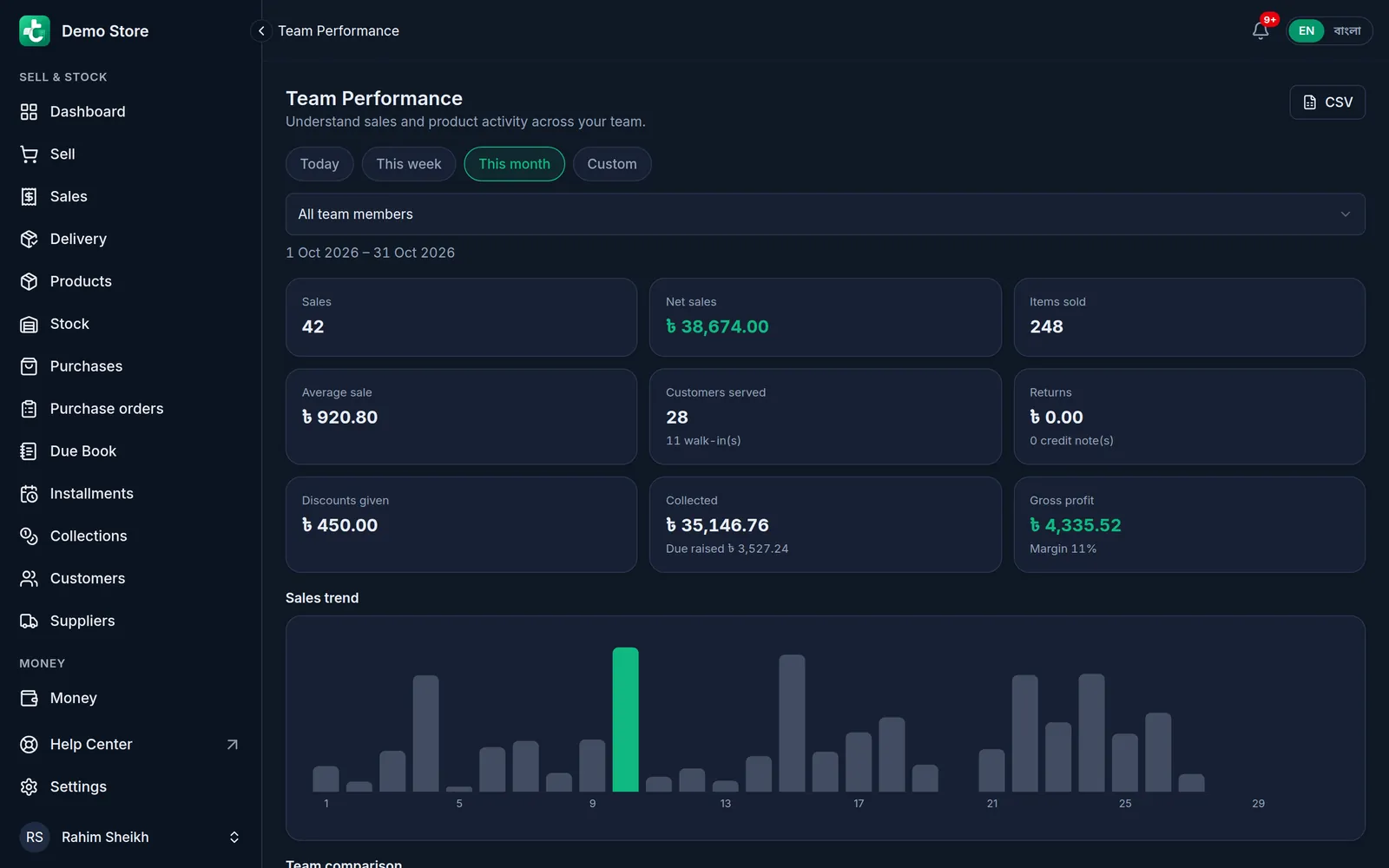
- Choose the period with the buttons at the top: Today, This week, This month or Custom. It opens on this month. With Custom, choose the From and To dates and tap Apply.
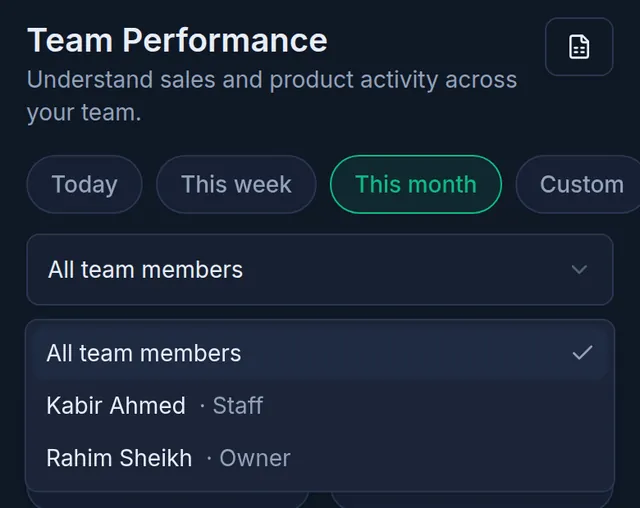
- Leave All team members for the whole team, or open the list and choose one person. The dates the report covers are shown under it.
- The cards show the period's totals: Sales, Net sales, Items sold, Average sale, Customers served, Returns, Discounts given and Collected, plus Gross profit if your role may see profit. Under them, Sales trend has a bar for each day.
- With All team members chosen, scroll down to Team comparison: one row for each member, the highest Net sales first, and the first marked Top by sales. On a phone, swipe the table sideways to see every column.

- Further down are Day by day, What they sold (each product's quantity, returns and net sales) and Transactions: every sale behind the totals. Tap an invoice to open it.
How it counts
- A sale belongs to the team member who was signed in when it was made, at the till or on a new delivery order.
- A return comes off the original sale, its seller and its day, not off the person who took the goods back or the day they came back. Returns shows the value returned and how many credit notes.
- Cancelled (voided) sales are left out. A parked cart is not a sale until it is completed.
- Net sales is what the sales came to, less returns, without tips.
- Collected is what has been paid on those sales, less any refunds; a cash-on-delivery amount counts once the courier's collection of it is recorded. The line under it is what was put on customers' dues. A due collected later in the Due Book does not change either figure.
- Customers served counts the different customers attached to the sales; the line under it counts the sales made with no customer (walk-ins).
- Every active team member has a row in the comparison, even with no sales. A deactivated member has a row only if they sold in the period; in the team member list they are marked Deactivated.
- A sale with no recorded seller is shown as Unknown / System.
- Days run midnight to midnight, Bangladesh time.
Download it
CSV is at the top right; on a phone only its icon shows. The file has one row for each product line sold, with the team member, their role, the date, the invoice, the customer, the product and its SKU, the quantity, the gross, discount, refund and net amounts and the payment method, for exactly the period and member on screen. For a very long period the file can stop at its row limit, and its last row then says so: choose a shorter period.
If something goes wrong
There is no Reports in the menu. Your role does not have Open reports. Ask the owner.
"No sales were found for this team member during the selected period." No completed sale was made in this period by the person chosen, or by anyone when All team members is chosen. Choose a longer period, or All team members.
A staff member's sales show under my name. Each sale counts for whoever was signed in. If they sell on your sign-in, invite them so they have their own: see Invite a team member.
There is no Team comparison. It shows only with All team members chosen.
There is no profit. Your role does not have See profit & cost price. Ask the owner.
Related articles
- Daily sales report The Sales by Day report charts how much you sold on each day of any period, with the period's total revenue and number of sales. Download it as a PDF or CSV.
- The profit and loss report See your revenue, the cost of the goods you sold, your expenses and your net profit or loss for any period, and download it as a PDF or CSV.
- Roles and permissions: what Owner, Admin and Staff can do Every team member has one role that decides what they can do in Tukri. See what Owner, Admin and Staff can do, and change a member's role.
Still need help?
Write to us, call or send a WhatsApp message, and someone from Tukri will help you.
