

On this page
With Shelf / rack locations you set up your shop's layout once (zones or sections, racks, shelves, bins or boxes) and give each product its place. The place then shows on Products, on Stock and on the till's product cards, so anyone can walk straight to the item. Searching for a place's name finds everything kept there.
Before you begin
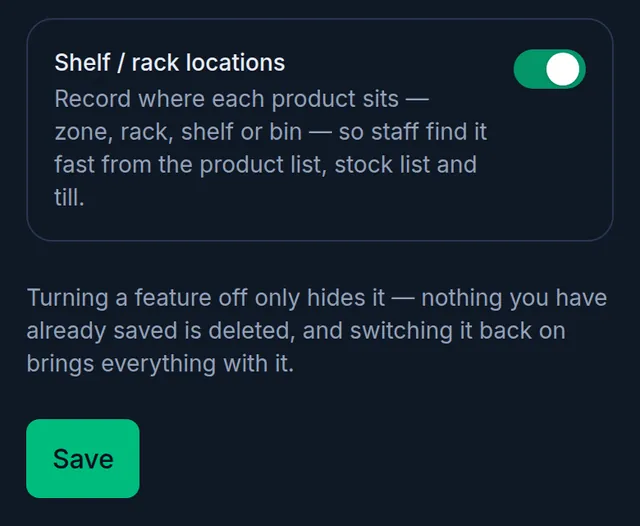
- Shelf and rack locations are an optional feature and start switched off. To turn them on, open Settings › Features, switch on Shelf / rack locations and tap Save. The Owner and Admins can do this. More in Turn optional features on or off.
- Setting up places and giving products a place needs "Add & edit products". The Owner, Admin and Staff roles all start with it, and only members who have it see Shelf / rack in the menu.
Set up your zones, racks and shelves
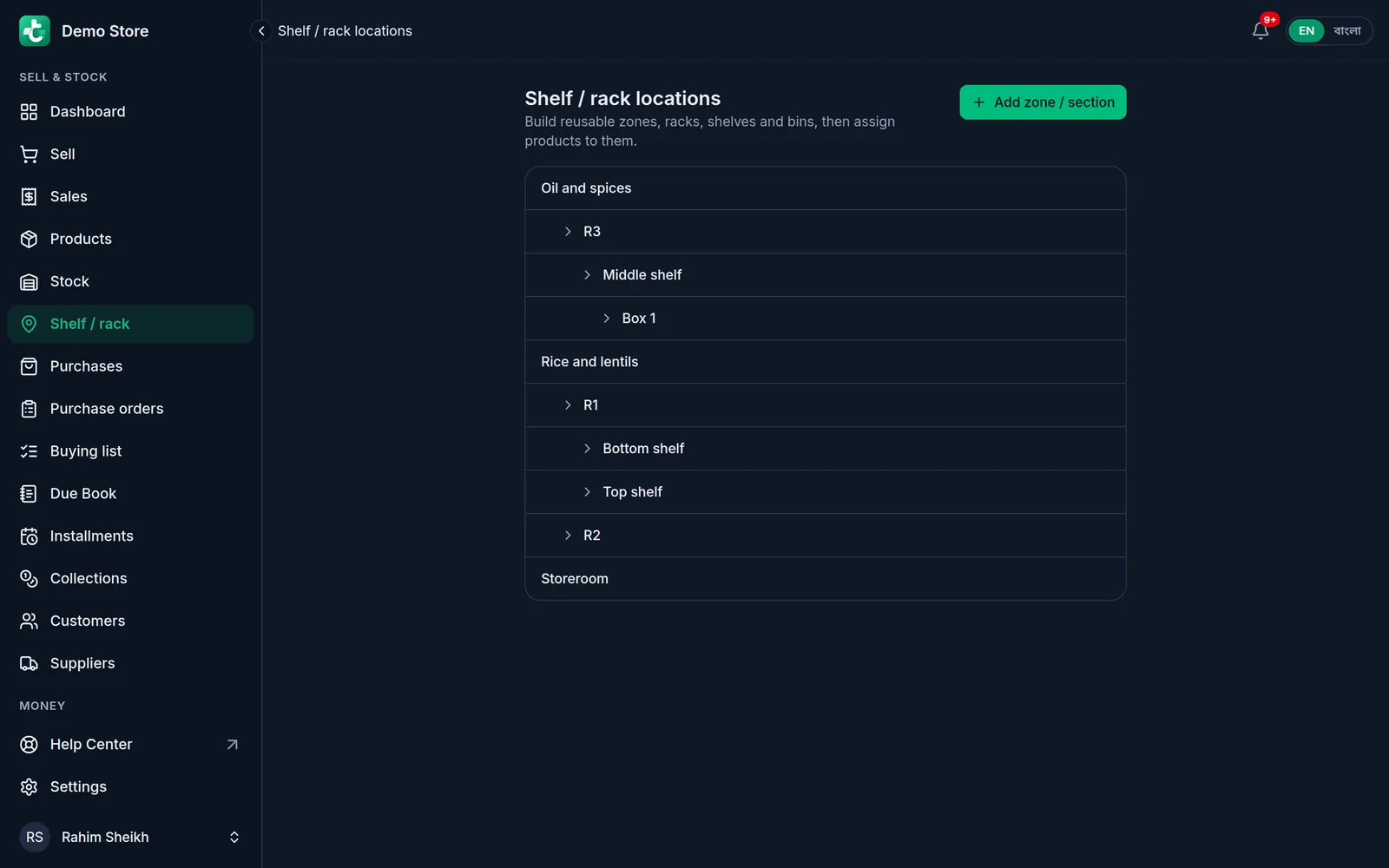
- Open Shelf / rack.
On a computer
Click Shelf / rack in the menu on the left, under Sell & Stock.
On a phone or tablet
Tap Menu in the bar at the bottom, then Shelf / rack.
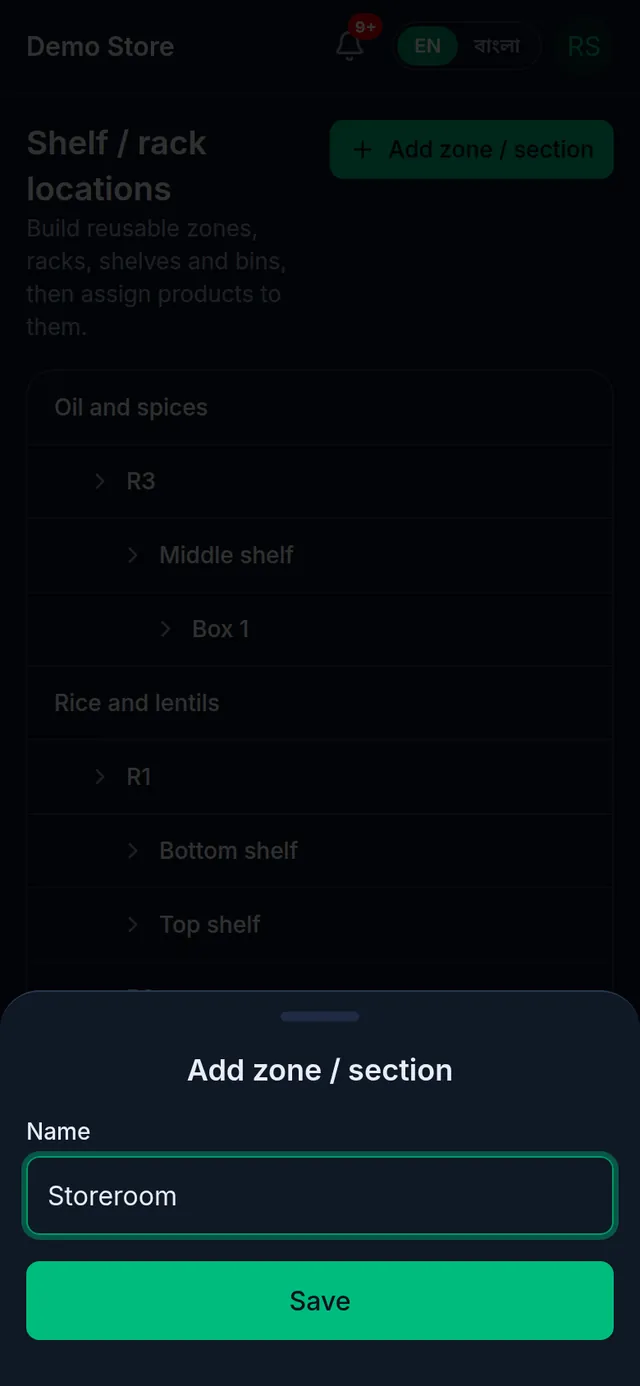
- Tap Add zone / section, type a name, for example a part of the shop or a room, and tap Save.
- The zone appears in the list and Tukri shows "Location added."
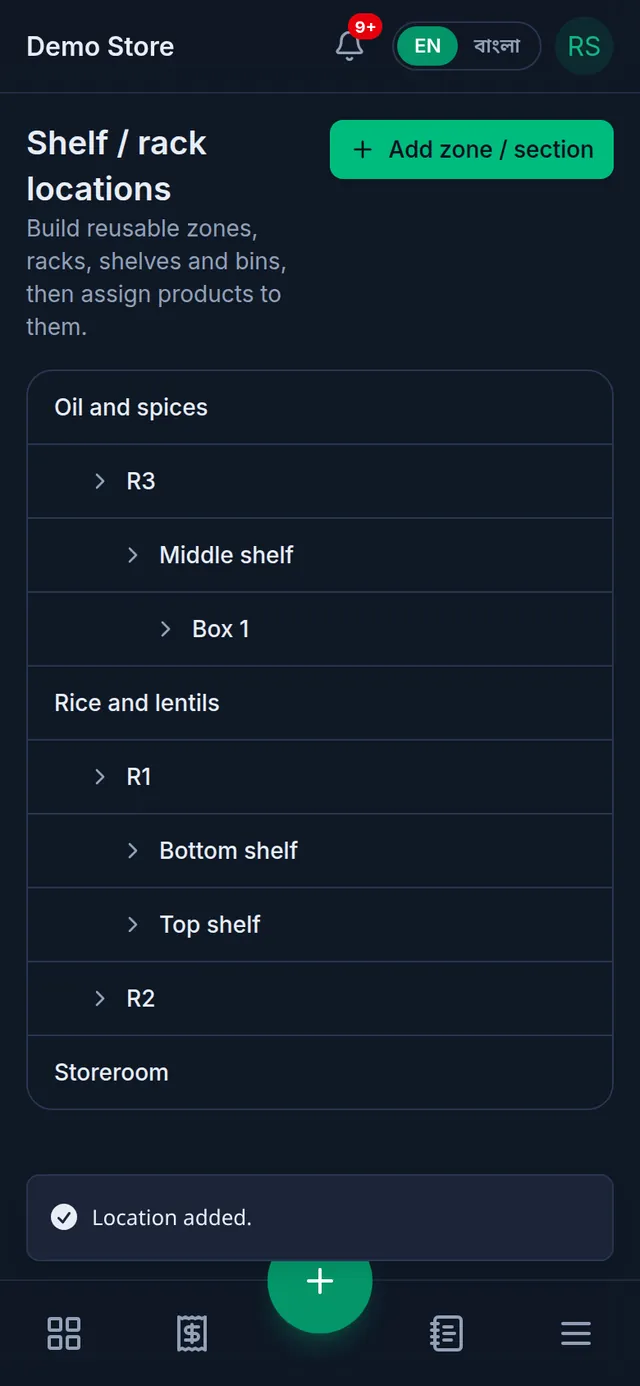
- To put a rack in a zone, tap the zone and choose Add rack. In the same way, tap a rack for Add shelf, and a shelf for Add bin / box.
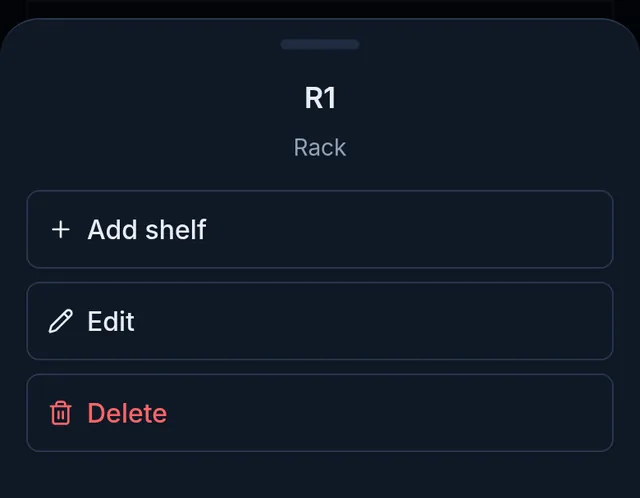
The levels always go zone, rack, shelf, bin, but you do not have to use them all: a zone and a rack may be enough. To rename a place, tap it, choose Edit, change the name and tap Save.
Two places side by side cannot share a name, but the same name is fine under another rack or zone: every rack can have its own "Top shelf".
Give a product its place
- Open the product from Products and tap the Details step at the top.
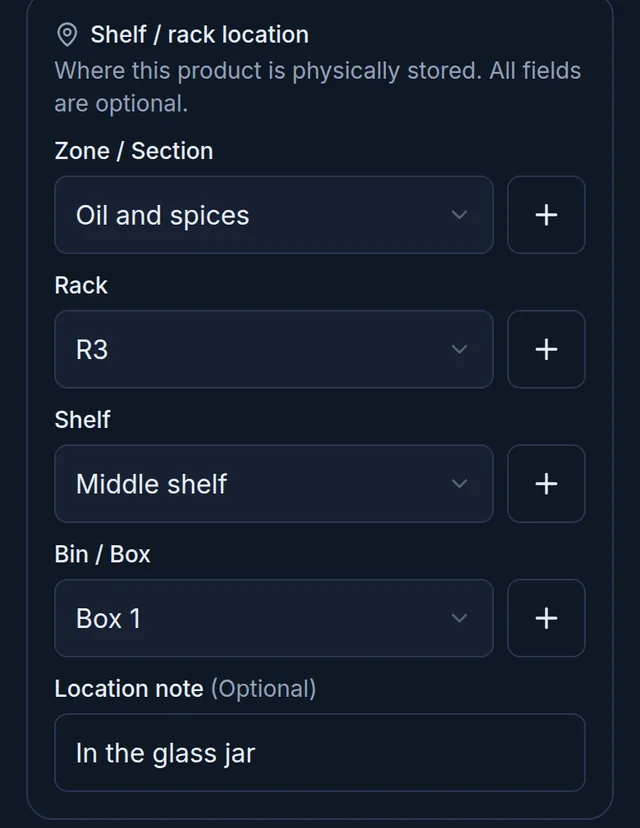
- Under Shelf / rack location, choose the Zone / Section, then the Rack, Shelf and Bin / Box, as deep as you need. Each box lists only the places inside the one above it. If a place is missing, add it on the spot with the + button beside the box.
- If it helps, add a Location note, such as "top drawer" or "in the glass jar".
- Tap Save.
The same section is in the Details step when you add a new product.
To give many products a place at once, the product CSV file has a shelf location column. It only uses places that already exist; it does not create new ones. See Import and export products with a CSV file.
Find a product by its place
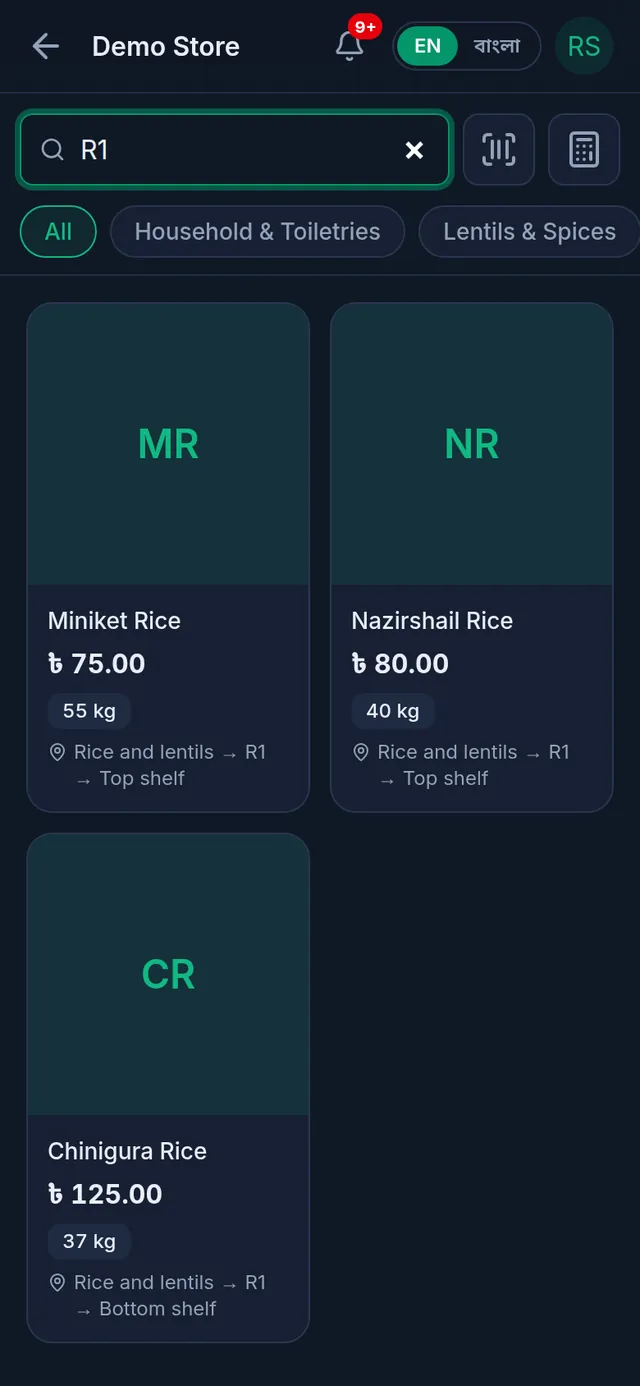
- The place shows under the product's name on Products, on Stock and on the till's product cards, as zone → rack → shelf → bin.
- Type a place's name in the search on any of these screens to see what is kept there, including everything in the places inside it. A word from the location note finds the product too.
If something goes wrong
Shelf / rack is not in my menu. The feature is switched off, or your role does not have "Add & edit products".
A place will not delete. Delete first asks "Delete this location?". When the place cannot go, the reason stays in that window and only Close is left:
- "Remove the sub-locations inside it first, then delete this location." Delete from the bottom up: bins first, then shelves, racks and the zone.
- "This location cannot be deleted because products are using it." Give those products another place first. Deleted products count too, so a place can stay in use even when no product in the list shows it. Then restore that product, give it another place and delete it again; see Edit, deactivate, delete or restore a product.
"A location with this name already exists here." A place next to it already has this name. Choose another name.
I want to move a rack to another zone. A place can be renamed or deleted, but not moved under another zone, rack or shelf. Create it where you want it, give its products the new place, then delete the old one.
I want a different place for each variant or batch. A product has one place for all its variants and batches.
Related articles
- Add a new product Add a product in a four-step form: name, category, unit and prices, then opening stock, how it sells, and its SKU, barcode and photo.
- Edit, deactivate, delete or restore a product Edit a product to change its price or name. Make it inactive to stop selling it. Delete a product that was never sold, and restore it if needed.
- Import and export products with a CSV file Add or update many products at once from a CSV file made in Excel or Google Sheets, and download your whole product list as a CSV.
Still need help?
Write to us, call or send a WhatsApp message, and someone from Tukri will help you.
