

On this page
Tukri can reward regular customers in two ways. Loyalty points: a customer earns points on what they pay, and spends them to pay part of a later bill. Member discounts: put a customer in a group (VIP 5%, for example) and the group's discount comes off the bill by itself whenever they are chosen at the till. The two are separate; you can use either without the other.
Before you begin
- Changing the points and group settings needs permission to manage shop settings: the Owner and Admin roles by default, not Staff.
- The customer must already be in Tukri. See Add a customer.
- Anyone who can sell at the till can spend a customer's points on a bill.
Turn loyalty points on
- Open Settings › Loyalty. On a phone, pick Loyalty from the tabs at the top of Settings.
- Turn on Enable loyalty points.
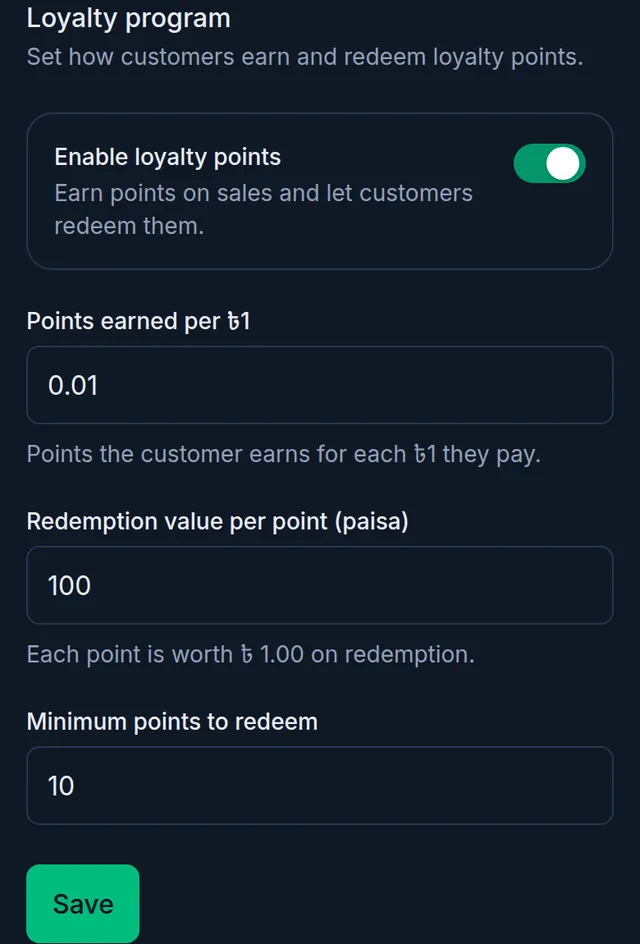
- Fill in the three numbers:
- Points earned per ৳1: how many points a customer earns for each taka paid. Fractions work: 0.01 gives one point per 100 taka. Points are whole numbers, so any part of a point is dropped.
- Redemption value per point (paisa): what one point is worth when spent, in paisa (100 paisa make one taka). The line under the box shows it in taka.
- Minimum points to redeem: the fewest points a customer can spend on one bill.
- Press Save.
How points are earned
- A sale with a customer chosen earns points on the money paid at that sale. A walk-in sale earns none.
- The part of a bill left as due earns nothing, and collecting that due later does not add points.
- A customer's profile shows their Loyalty points and Points history. Points are not printed on the receipt.
Spend points on a bill
- At the till, add the products (on a phone, tap Checkout to open the cart), then tap Attach customer and choose the customer from the list. Their points show under the name, with a Redeem points row.
- Tap Redeem points. Tukri checks the customer's points again first.
- In Points to redeem on this bill, type how many points to use, or tap the button beside the box to use the most this bill allows.
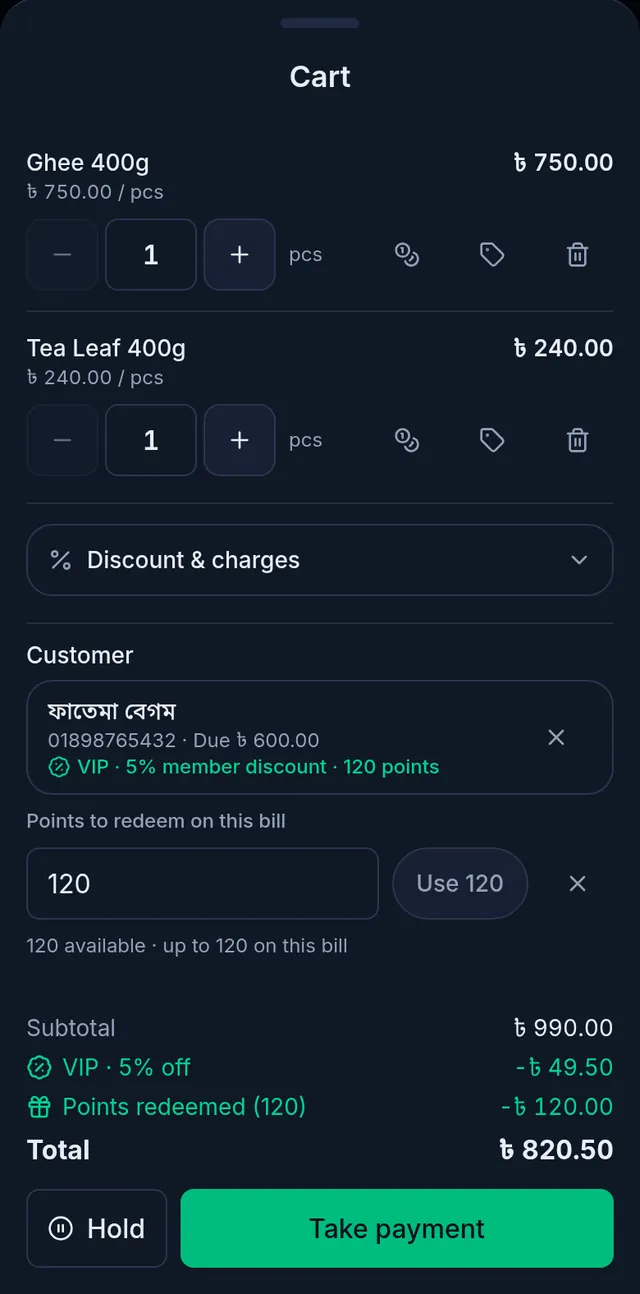
- The totals show the points taken off. Then tap Take payment and complete the sale as usual.
- To take the points off before completing, tap the ✕ beside them (Remove points).
The rules for spending points:
- Online only. Without internet, the row says "Points can be redeemed only online".
- Only for a customer chosen from the list. A walk-in, or a customer created offline on this bill, cannot spend points.
- Points pay only for goods, after the member discount and any bill discount. They never pay a service charge, a delivery charge or a tip.
- A parked cart does not keep the points; choose them again after you resume it.
- Voiding a sale gives back the points it used and takes back the points it earned; a return does the same in proportion. There is no screen to add or remove points by hand.
Member discounts: customer groups
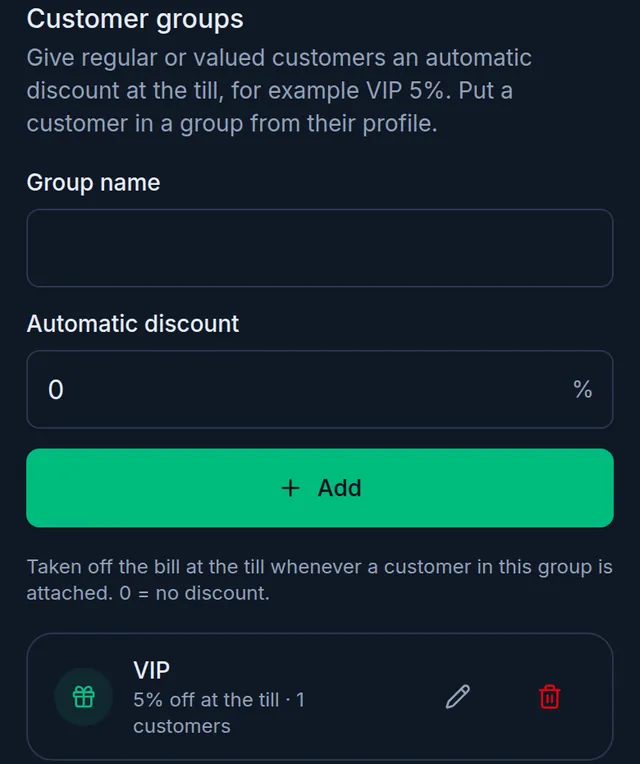
- On Settings › Loyalty, go to Customer groups at the bottom.
- Enter a Group name (for example VIP) and an Automatic discount percent, then tap Add.
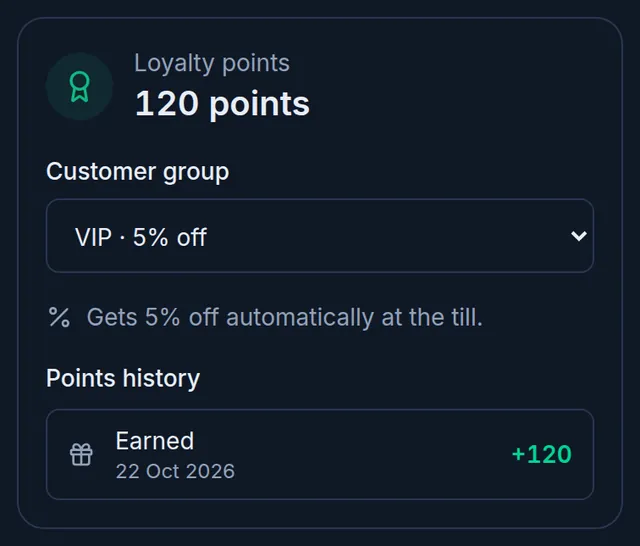
- Open the customer's profile from Customers and choose the group under Customer group.
- At the till, choose that customer from the list and the group's percent comes off the bill by itself, before any discount the cashier gives.
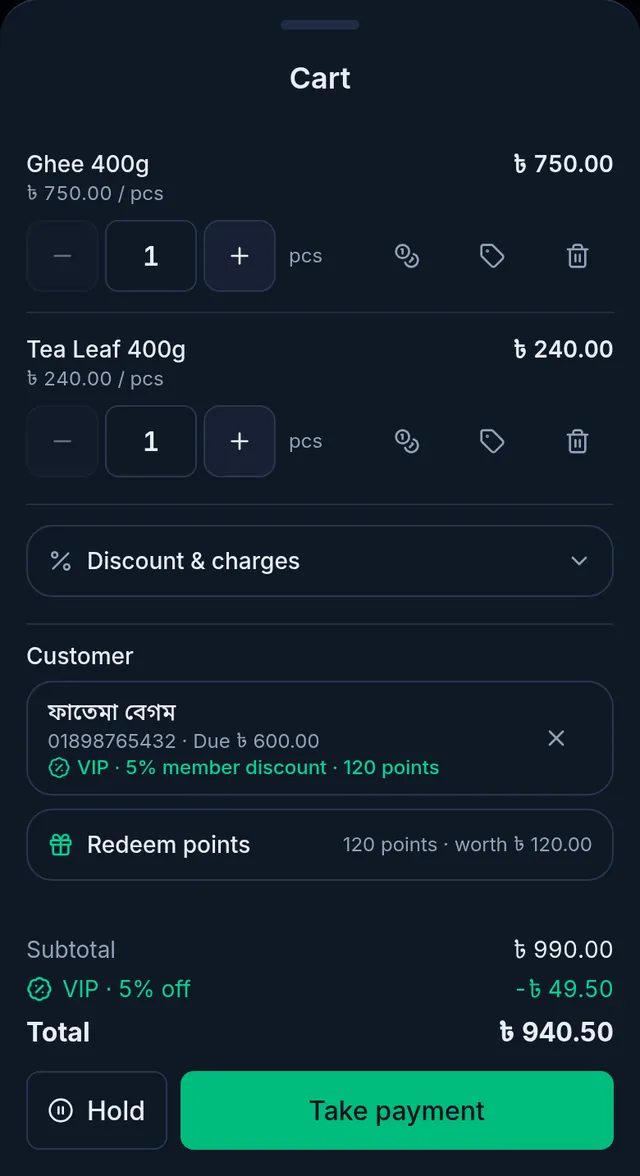
- A cashier cannot change a member discount. Putting a customer in a group, or changing a group's discount, also needs permission to manage settings.
- The invoice keeps the group's name and percent of the day, so changing a group later never changes old invoices. A group at 0% gives no discount.
- To delete a group, tap the bin icon on its row, then Delete. Its customers stay; they leave the group and stop getting its discount.
If something goes wrong
There is no Redeem points row. The points program is off, no customer is chosen, the customer was created offline on this bill, or their points are below the minimum.
No member discount came off. The customer must be chosen from the list and be in a group. A walk-in, or a customer created offline, gets none.
Selling with points and no internet. "This bill redeems points, and points can be redeemed only online. Remove the points to save the sale offline, or wait for the connection."
The sale was refused with one of these messages. Nothing was saved, and Tukri reads the customer's points or discount again. Check the total and tap Take payment again.
- "The points program has been switched off for this shop, so points cannot be redeemed. Nothing was saved."
- "The value of a point has changed since this bill was made. Nothing was saved."
- "The points are worth more than the goods on this bill. Points cannot pay a delivery charge, service charge or tip. Nothing was saved."
- "This customer no longer has a member discount, but this bill used one. Nothing was saved."
Watch the video
What the video says
Want to keep your regular customers? Give points on purchases, and give members an automatic discount.
In Settings, open the Loyalty tab. Turn on Enable loyalty points.
Enter how many points each taka earns. 0.01 means one point per 100 taka. Then what one point is worth, in paisa, and the fewest points used at a time. Left at the starting numbers, customers get back everything they pay, so change them to suit you, then Save.
Below, create a customer group, for example VIP, 5% off. Then tap Add.
When you sell to a chosen customer, they earn points on what they pay. Their profile shows their points and history. Here, choose VIP as the Customer group.
Now, in the sale's cart, tap Attach customer, and choose the customer. The VIP discount came off by itself.
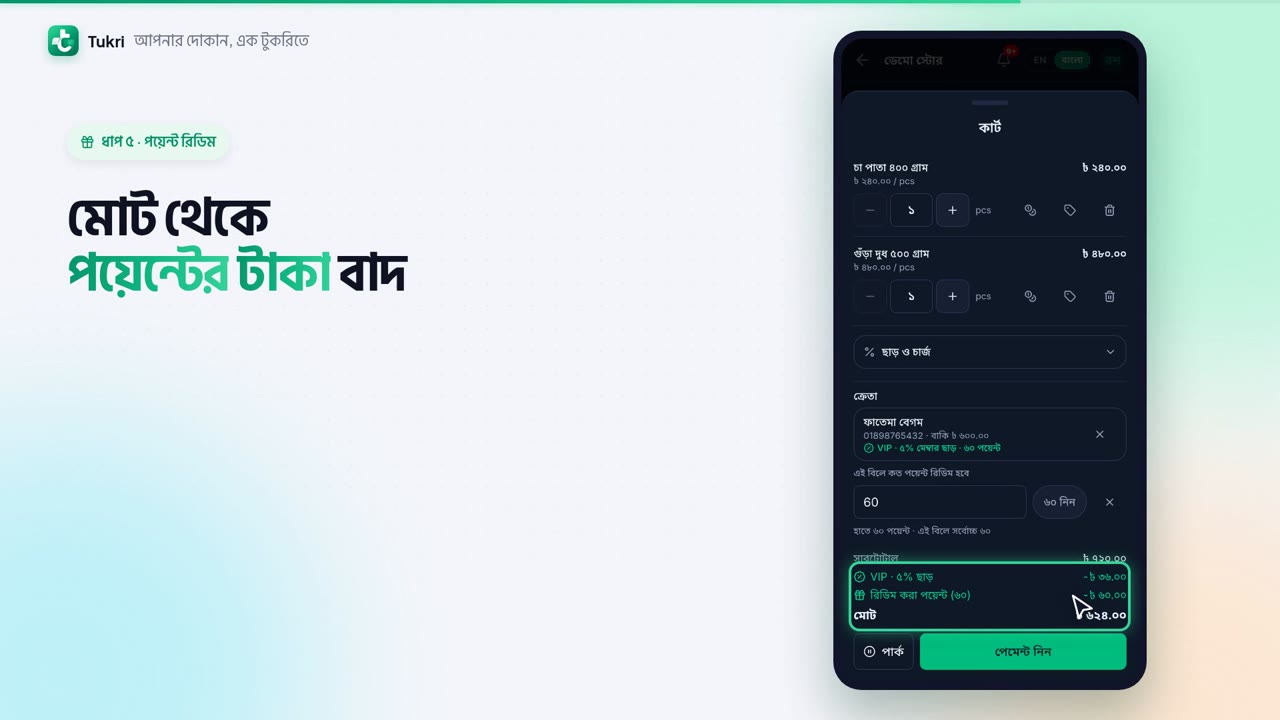
Their points show under the name too. Tap Redeem points, type how many, or use the most allowed. The points' value comes off the total. Then Take payment and finish the sale.
Remember, points are spent only online. And the points and discount rules can be changed by the Owner and Admin.
Happy customers keep coming back, tukri.bd
Related articles
Still need help?
Write to us, call or send a WhatsApp message, and someone from Tukri will help you.
