

On this page
In Settings › Integrations you can connect an AI app you already use, such as Claude, ChatGPT or Gemini, or an automation tool like n8n, to your shop over MCP (Model Context Protocol). The app can then answer questions about your sales, stock, dues, expenses and profit: the same answers the Tukri shop assistant gives. If you allow it, it can also propose three changes, and nothing is saved until you say yes.
Before you begin
- Your shop's plan must include the AI assistant, and its paid period must not have run out. The free trial does not include it. A plan that has it lists "AI shop assistant" in Settings › Plan. Without it, the page says: "Connecting your own AI is part of a paid plan. A connection you create now will start working the moment you upgrade." More in Your plan: trial, renewing and paying.
- Only a member who can manage the shop settings ("Shop settings") can create or revoke a connection: at first the Owner and Admin. For everyone else Integrations is not in Settings at all.
- You need an AI app or automation tool that can connect to an MCP server. The page shows how to set up Claude Code, and gives a settings block for Claude Desktop, n8n and others.
Create a connection
- Click Settings in the menu on the left, then Integrations in the settings list.
- Under New connection, fill in What is connecting? with a name you will recognise later, for example the app and the computer it runs on.
- Under What may it do?, choose Read only or Read and ask to change. What each one allows is explained below.
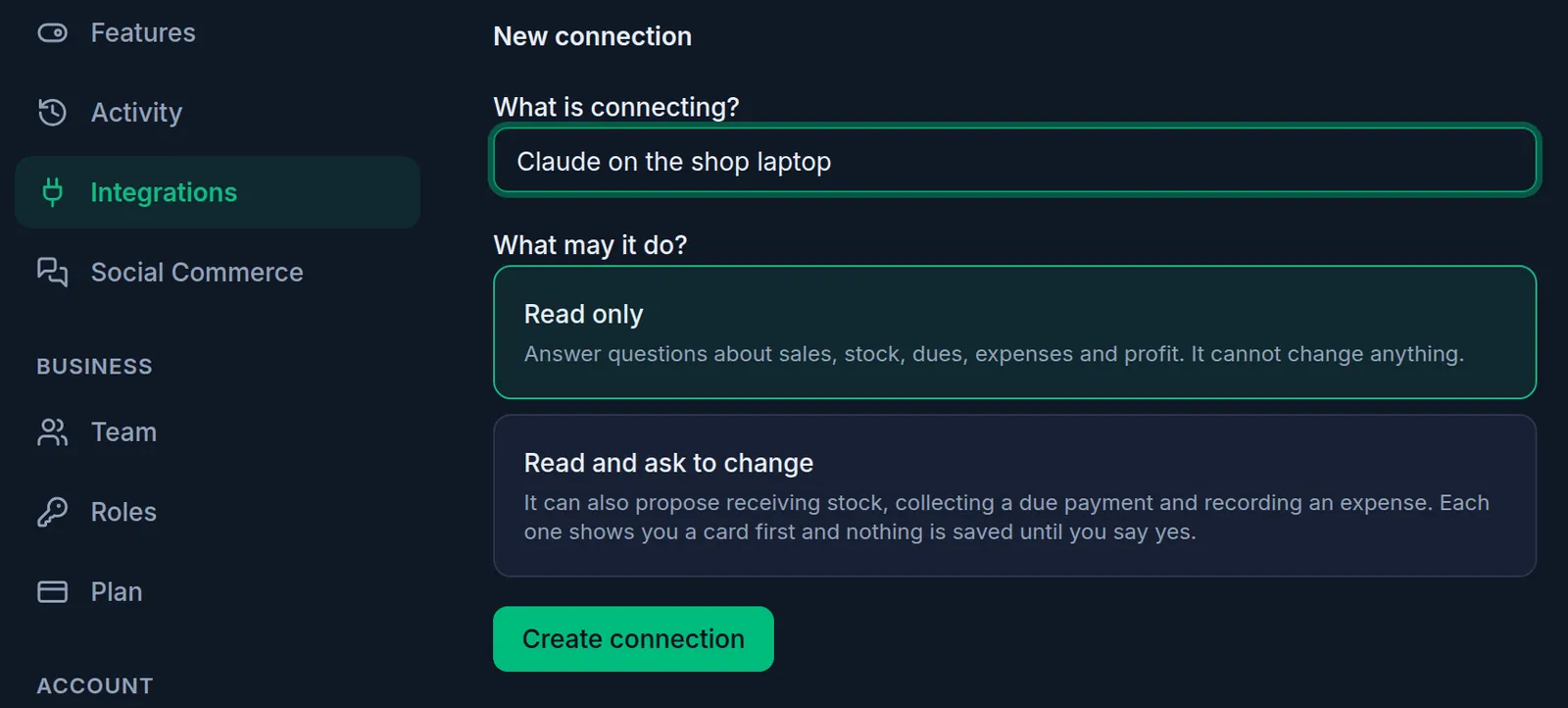
- Click Create connection.
- A window opens, "Copy your token now", with the Access token. This is the only time it is shown. Copy it with the copy button beside it and keep it somewhere safe, then click Done.
- Under How to connect, copy what your app needs: the command under "Claude Code — run this, with your token in place of YOUR_TOKEN", or the settings block under "Claude Desktop, n8n and others — paste this, with your token in place of YOUR_TOKEN". Put your token where the text asks for it, and add it to your AI app. The Server address is at the top of the page, with its own copy button.
Read only, or read and ask to change
- Read only: Answer questions about sales, stock, dues, expenses and profit. It cannot change anything.
- Read and ask to change: It can also propose receiving stock, collecting a due payment and recording an expense. Each one shows you a card first and nothing is saved until you say yes.
With the second choice, each change starts as a proposal naming the exact product, customer or amount. Your AI app is asked to show it to you first, and nothing is saved until it is confirmed. Give this access only to an AI app you trust.
Neither choice can make a sale, change a price, or add a product, customer or expense category.
What happens next
- The connection is listed under Connections with what it may do. It says "Never used" until your AI app first connects, and after that when it was last used.
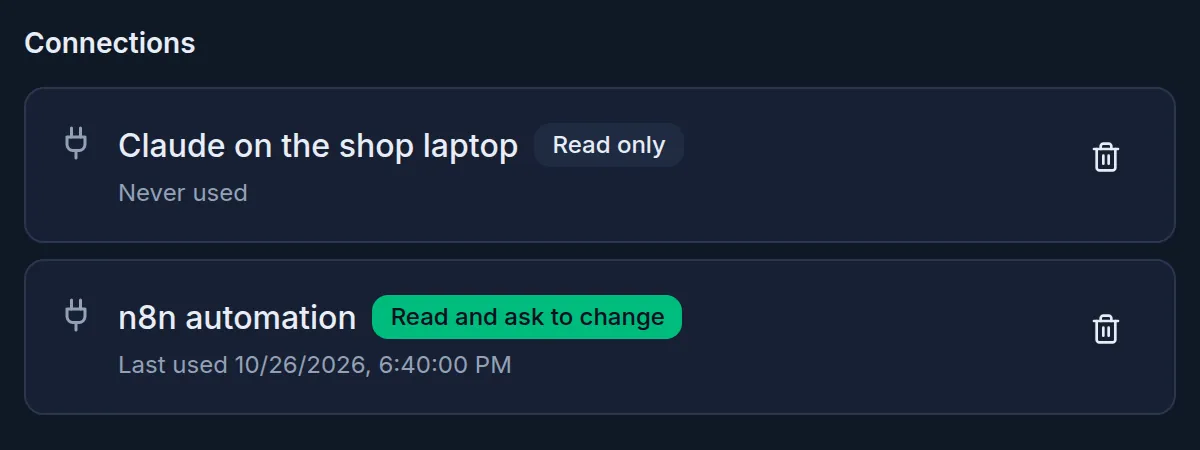
- Ask your AI app about your shop, for example today's sales or who owes you the most. It can see only what the member who created the connection may see in Tukri: a report or profit figure that member cannot open, the app is not told either.
- Creating and revoking connections are recorded in Settings › Activity as "AI connection created" and "AI connection revoked".
Stop a connection
- In Settings › Integrations, find the connection under Connections.
- Click its bin button (Revoke).
- Click Revoke to confirm, or Keep it to leave it as it is.
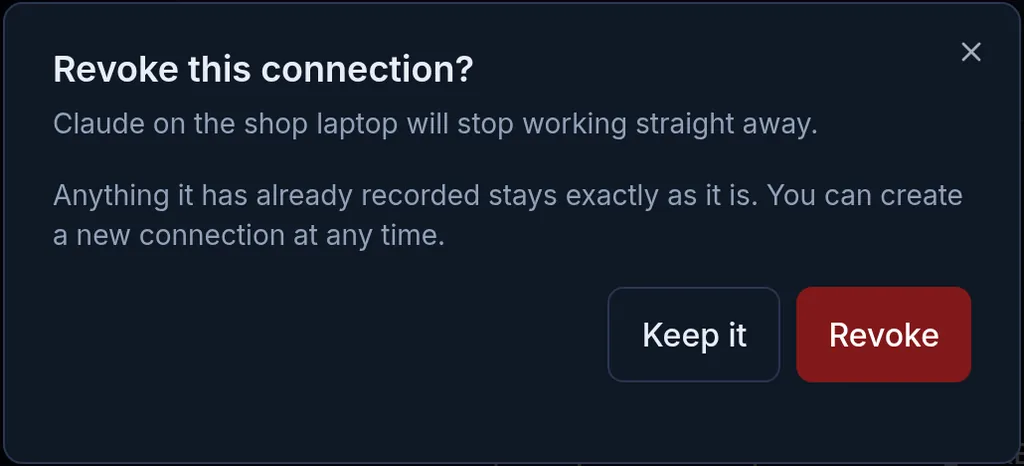
It stops working straight away, and Tukri shows "Connection revoked. It can no longer reach this shop." Anything it has already recorded stays exactly as it is. You can create a new connection at any time. A revoked connection stays in the list marked Revoked and cannot be switched back on; create a new one instead.
If something goes wrong
I lost the token. It is never shown again. Revoke that connection and create a new one.
My AI app says "This access token is not valid, or it has been revoked or has expired. Create a new one in Tukri under Settings → Integrations." The token was copied wrongly, or the connection has been revoked. Create a new connection.
My AI app says "Connecting your own AI to Tukri is part of a paid plan. Upgrade your plan to use it." Your plan does not include it, or its paid period has run out. Renewing or upgrading brings the same connection back; you do not need a new one.
"The Tukri account this token belongs to is no longer active in this shop." or "This account no longer holds one of the shop plan's user seats. Ask the shop owner to upgrade the plan." The member who created the connection can no longer use the shop: their account was switched off, or the plan no longer has a user seat for them. An Owner or Admin can create a new connection. A connection stopped for a missing seat also works again once the plan has a seat for that member, for example after an upgrade.
"The Tukri account this token belongs to has not verified its email address. Sign in to Tukri and verify it, then try again." The member who created the connection has to verify their email address first; after that the same connection works again. See Verify your email address.
"That proposal is too old to confirm — the figures on it may have moved. Propose the change again." A proposed change waited too long for your yes. Ask your AI app to propose it again.
Create connection is greyed out. Type a name first. If a note above the button says the shop already has its maximum number of connections, revoke one you no longer use.
The page says "Connections are switched off at the moment." Tukri has switched connections off for now, so they do not answer. Everything else in Tukri works as usual.
There is no Integrations in my Settings. Your role cannot manage the shop settings. Ask the shop's owner.
The AI app is refused a report or profit figure. The member who created the connection does not have that permission. See Roles and permissions.
The AI app is turned away after many quick questions. A connection that asks too much in a short time is paused for a moment; it works again shortly after.
Creating or revoking does not go through, and connections stop answering. Your plan has run out and the shop is read-only. Renew it first; see Your plan: trial, renewing and paying.
Related articles
- Ask the AI shop assistant Open the shop assistant with the sparkle button in the top bar and ask about sales, dues, stock or how to use Tukri, in Bangla or English. Paid plans.
- Your plan: trial, renewing and paying See your plan, trial days and usage in Settings, Plan; learn what happens when it ends, and renew, upgrade or switch plan with bKash or the Free plan.
- Roles and permissions: what Owner, Admin and Staff can do Every team member has one role that decides what they can do in Tukri. See what Owner, Admin and Staff can do, and change a member's role.
Still need help?
Write to us, call or send a WhatsApp message, and someone from Tukri will help you.
