

On this page
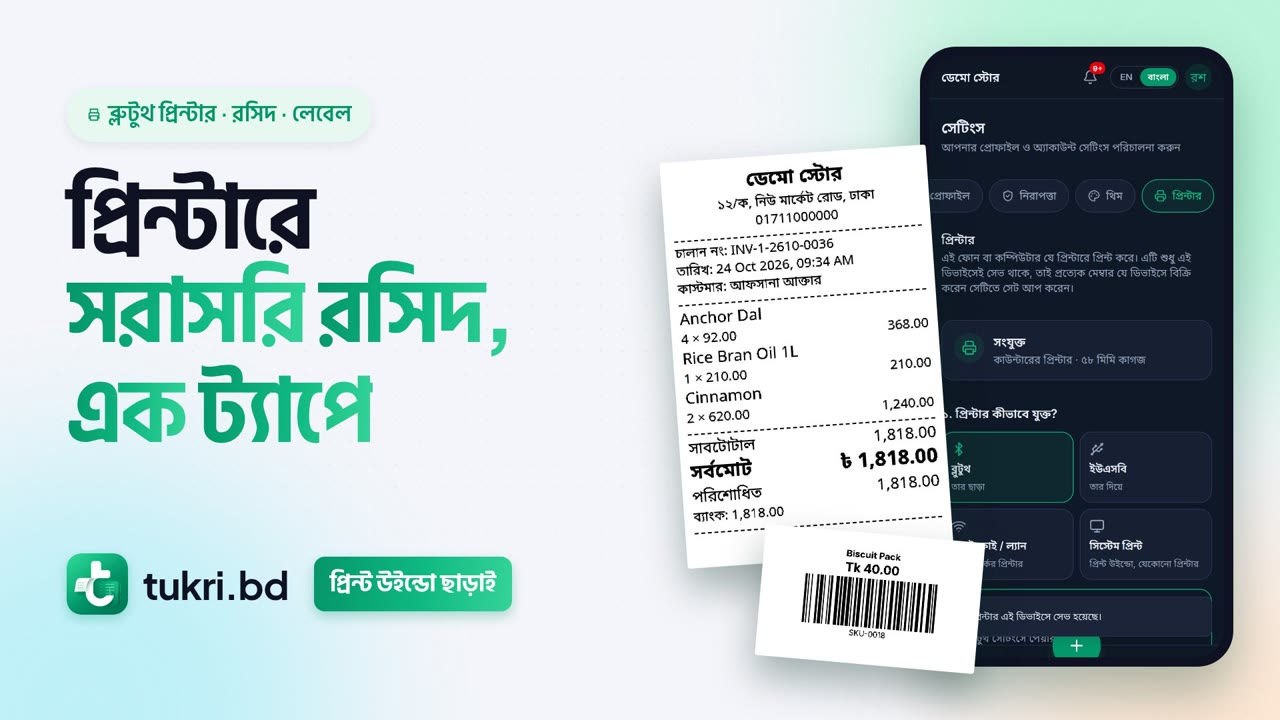
Tukri can print receipts and barcode labels straight to a Bluetooth or USB printer, with no print window, from Chrome on an Android phone or from Chrome or Edge on a computer. The printer is set up on each phone or computer separately, under Settings › Printer: it is saved on that device only, so every member, staff included, sets up the device they sell on. If Settings is not in your menu, tap your name or picture and choose Settings; the Sale complete screen also has a Printer settings link.
Before you begin
- Switch the printer on and charge it. Load a receipt roll for receipts, or label paper for labels.
- Use Chrome on a phone, Chrome or Edge on a computer. For a printer paired over Bluetooth on Android, Chrome needs to be version 138 or newer; for a USB printer that shows up as a serial port on a phone, version 148 or newer.
- For a Bluetooth printer, pair it first in the phone's or computer's own Bluetooth settings. The PIN is often 0000 or 1234. A Bluetooth LE printer does not need pairing.
- For a USB printer on a phone, you need an OTG adapter. If your computer already installed a driver for the printer, use System print instead.
Connect the printer
- Open Settings › Printer.
- Under 1. How is the printer connected?, tap Bluetooth or USB.
- Choose the kind of printer. For most Bluetooth receipt printers it is Paired Bluetooth printer.
- Tap Connect and choose your printer in the list the browser shows. The top of the page says Connected. If a Bluetooth printer is not in the list, choose Bluetooth LE printer and tap Connect again.
- Under 3. Paper, choose 58 mm or 80 mm. Receipts sent to this printer use this width, not the shop's Receipt size.
- Tap Test receipt. Look at the paper: both edge marks of the ruler, the Bangla line and the barcode should be clear.
- Tap Save printer.
From now on, Print invoice on this device prints the receipt straight to this printer. When Auto-print receipt is on in your shop settings, the receipt prints by itself after each online sale. If the browser needs a tap to reach the printer again, a message says so: tap Print invoice.
Wi-Fi printers and iPhone
A web page cannot reach a Wi-Fi printer by its address. Add the printer to your phone or computer first (the printer settings on Windows or Mac, AirPrint on iPhone, a print service app on Android), then choose System print: Tukri prints through the print window.
On an iPhone or iPad, Safari and the other browsers cannot reach a Bluetooth or USB printer, so the printer choices under Bluetooth and USB are switched off there, with a note saying why. Print with System print to an AirPrint printer, or print from an Android phone or a computer at the counter.
Print barcode labels
- Put the printer in label mode. On the 632-L58P this is done on the printer: load label paper, and the printer prints which mode it is in ("Shift to Label mode"). Press the feed button once to check. If labels stop in the wrong place, hold the feed button for about 3 seconds in label mode so it measures the gap again. Another printer may work differently: check its manual.
- On Printer, under 4. Labels (for label printers), switch on This printer also prints labels. It is off at first, so a receipt printer is never sent labels. Then choose Label commands: TSPL for most label printers, including the 632-L58P.
- Tap Test label. If the frame is too far to the left, raise Move right; if the label comes out upside down, switch on Turn the label around. Save.
- Print labels as usual from Products › Print labels, on a label roll size: they go straight to the printer. A size for A4 sheets still uses the print window, and so does a printer without This printer also prints labels. See Scan barcodes, find products and print barcode labels.
If something goes wrong
"Could not reach the printer. Check that it is on, charged and close by, then try again." Switch the printer on, charge it and bring it close.
"This printer does not accept printing over this connection. Try the other Bluetooth option, or System print." Try the other Bluetooth choice, or System print.
"The printer stopped in the middle of printing. Look at the paper before printing again, so a second copy is not printed by mistake." Look at the paper before printing again.
The paper comes out blank. Thermal paper prints on one side. Turn the roll over so the shiny side faces the print head.
The totals or the right edge are cut off. Lower Dots across the paper (most 58 mm printers print 384, some 360) and print the test receipt again.
Bangla prints as boxes. Open Tukri once with the internet on, so the Bangla font is saved on the device, then print again.
A receipt failed to print. The message offers Print window, to print through the print window instead. For labels, use Download PDF on the label screen. Printing never changes the sale, so printing again is safe.
Watch the video
What the video says
Print receipts on a Bluetooth printer, with no print window, in one tap? Let's set up the printer.
First, in your phone's Bluetooth settings, pair the printer. The PIN is usually 0000, or 1234. And keep Chrome on your phone up to date.
Now open Settings, then Printer, in Tukri. Choose Bluetooth, then tap Connect. Pick your printer from the list, and it shows Connected at the top.
For 58 mm paper, nothing needs changing. Tap Test receipt, and check both edge marks and the Bangla text. If it all looks right, tap Save printer. The printer is saved on this phone only.
Now open any sale and tap Print invoice, and the receipt goes straight to the printer. With Auto-print receipt on in the shop's settings, the receipt prints as soon as a sale is done.
Printing labels too? Turn on This printer also prints labels, and save. Load the label roll and put the printer in label mode. Then print straight from Print barcode labels.
On an iPhone, Bluetooth printers don't work: Apple doesn't allow it. There, use System print with an AirPrint printer.
Print receipts in one tap, tukri.bd
Related articles
- Print, download and share an invoice Print the receipt straight after a sale, reprint or download an A4 or thermal PDF of any past sale, or send the customer a link to the invoice.
- Logo, invoice and receipt settings Choose the receipt paper size, add a tagline, terms, thank-you line and footer, show your logo, set print copies and turn on auto-print.
- Scan barcodes, find products and print barcode labels Search by name at the till, or scan with the camera or a barcode scanner. Print barcode labels for your products, or save them as a PDF.
Still need help?
Write to us, call or send a WhatsApp message, and someone from Tukri will help you.
