

On this page
When a shop's owner invites you to Tukri, you get a join link by email or in a message. Open it, create your own account, and tap Accept invitation: you join that shop with the role the owner chose.
Before you begin
- Create your account with the email address or mobile number the invitation was sent to. Another account cannot accept it.
- An account belongs to one shop only. If your account already has a shop of its own, you need a new account with a different email address.
Accept the invitation
- Open the join link from the email or message.
- If you are not signed in, the Create an account page opens. Create your account with your name, the invited email address, your mobile number and a password. If you already have an account with no shop, tap Log in at the bottom instead.
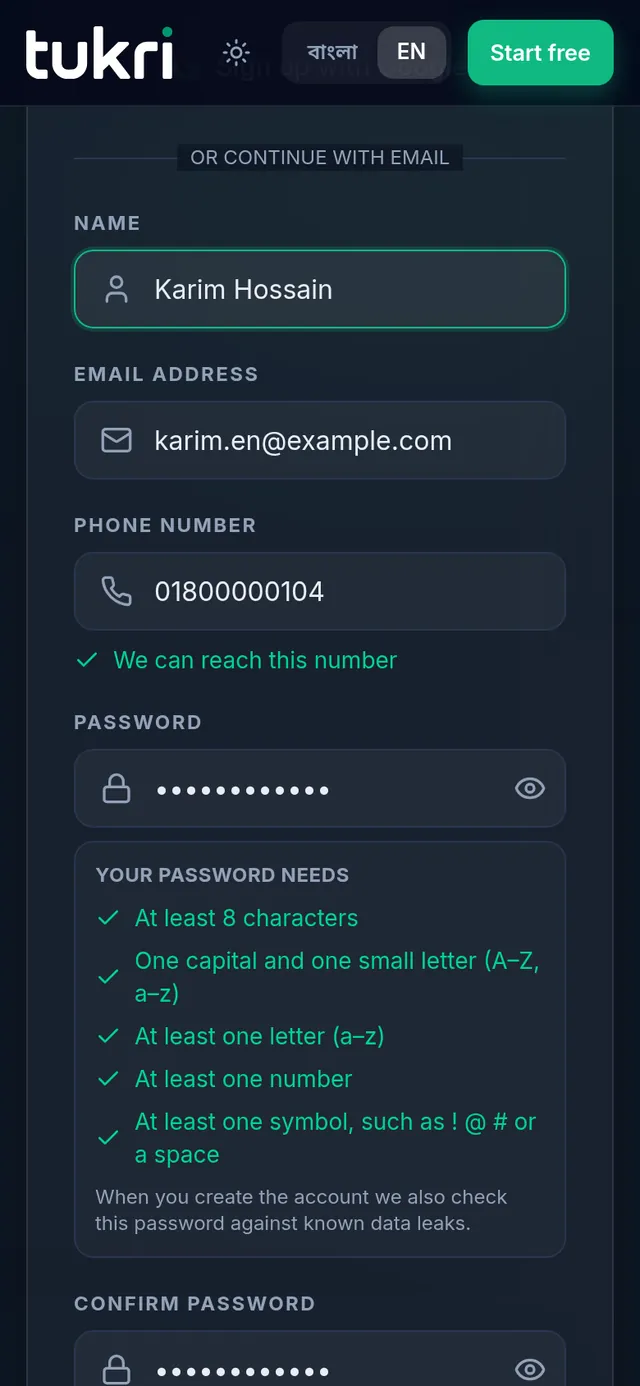
- If you were invited by email, verify your email address first by typing the code from the verification email. How: Verify your email address.
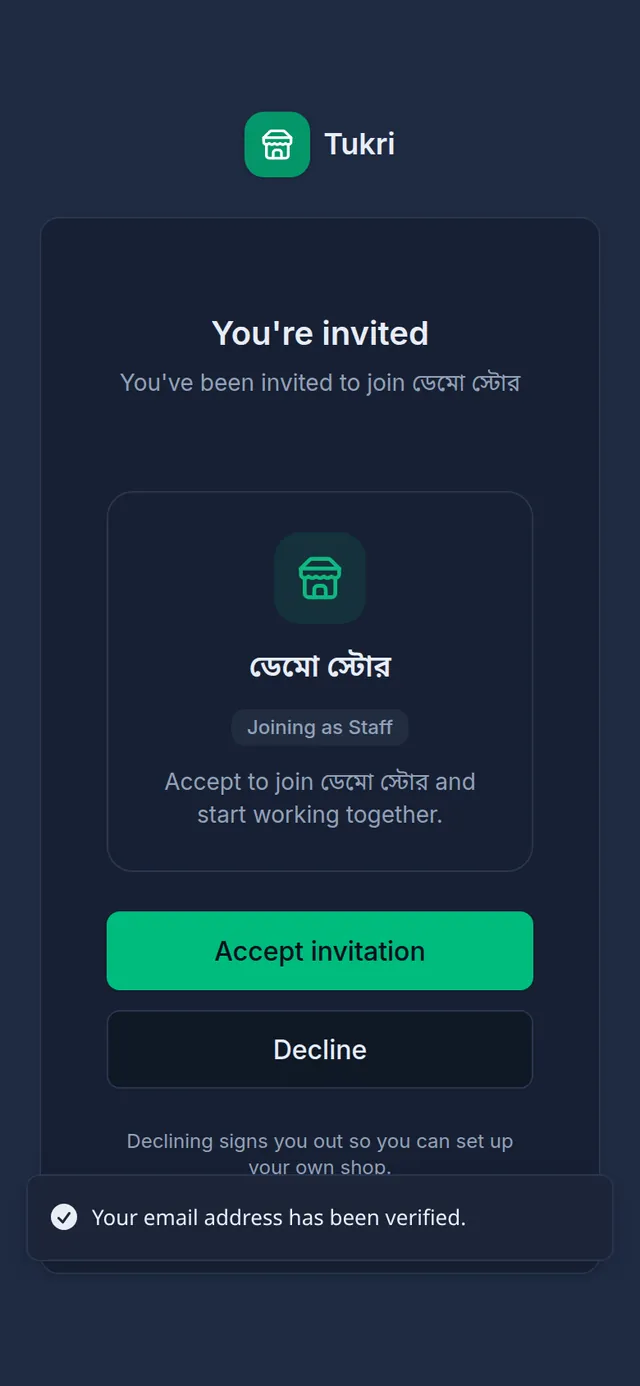
- You're invited shows the shop's name and the role you are joining as. Tap Accept invitation.
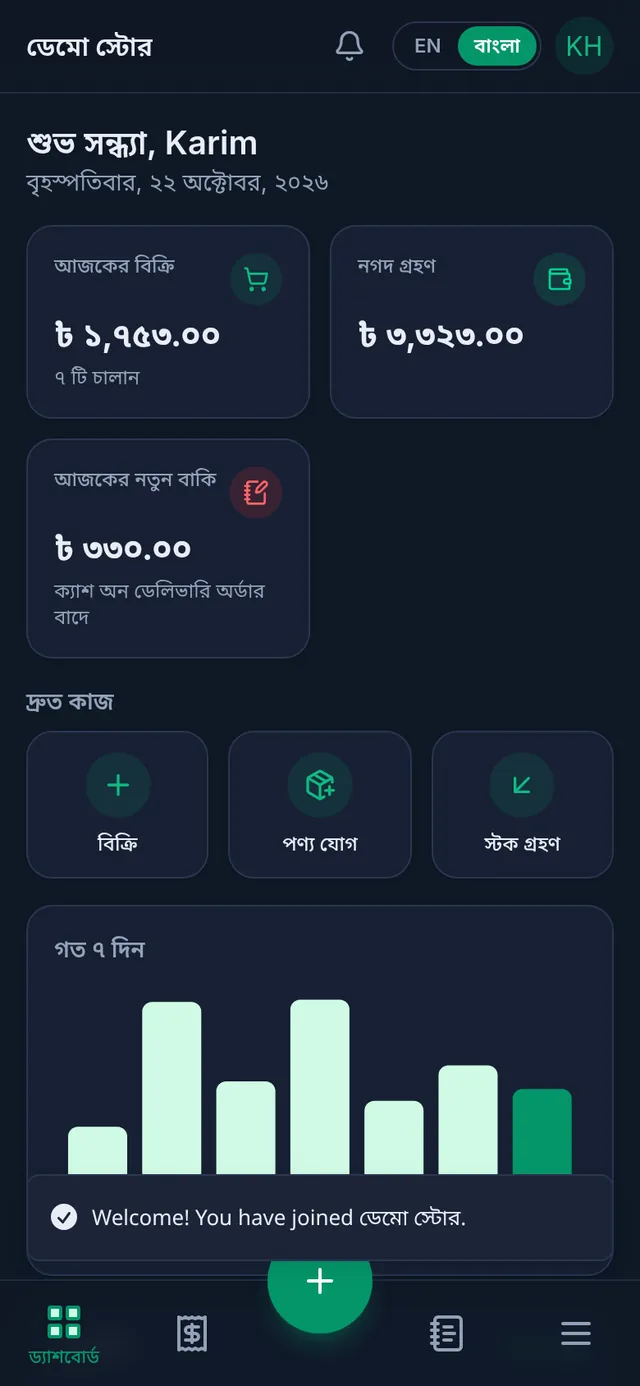
- The shop's dashboard opens with a message that you have joined. You can now sell and do the rest of the work your role allows.
If you do not want to join
Decline signs you out, so you can set up your own shop instead. The invitation stays pending for the owner until they cancel it.
If something goes wrong
It says "Verify your email address first, then accept the invitation." Your email address is not verified yet. Tap Verify my email, verify it, then open the link again.
It says the invitation was sent to another account. You are signed in with an account whose email address or number was not invited. The page shows the invited address partly hidden. Tap Sign out and sign in with that account, or ask the owner to invite this account's email address or number instead.
The link opens my own dashboard and says "You already belong to a shop." Your account already belongs to a shop. Create a new account with a different email address and ask the owner to invite that one.
The link opens a "Page not found" screen. The invitation was cancelled or has already been accepted. Ask the owner to send a new one.
Accepting says the shop has reached its user limit. The shop's plan has no room for another user. Tell the shop's owner.
Watch the video

What the video says
Hired new staff for your shop? Instead of sharing your own password, give them a sign-in of their own.
As the shop's owner, open Settings from the Menu. Then go to the Team tab. The top shows how many users your plan allows. Now tap the Invite button.
Enter the staff member's email or phone number, the one they will sign up with. Then choose the Role, such as Staff or Admin. The role decides what they can do. Finally, tap Send invitation.
The invitation waits below as Pending. The join link goes to their email. If you like, tap Copy link and send it on WhatsApp yourself too.
Now it's the staff member's turn. Open the join link on your phone. On the Create an account page, enter your name, and the email the invitation came to. Add your phone number and a password, and tap Create account.
A 6-digit code is sent to your email. Enter the code and tap Verify my email.
Now you see the shop's name and your role. Tap Accept invitation, and you go to the shop's Dashboard. From now on, with your own sign-in, you can work as your role allows.
Run your shop easily with your team, tukri.bd
Related articles
- Create a Tukri account, log in and log out Open a free account with your email and phone or with Google, log in, reset a forgotten password and log out.
- Verify your email address After opening your account, verify your email with the 6-digit code or the button Tukri emails you. You can also do it later from Settings.
- Roles and permissions: what Owner, Admin and Staff can do Every team member has one role that decides what they can do in Tukri. See what Owner, Admin and Staff can do, and change a member's role.
Still need help?
Write to us, call or send a WhatsApp message, and someone from Tukri will help you.
