

On this page
With Social Commerce you connect your shop's own Telegram bot to Tukri. When a customer messages the bot, the AI answers from your own products, prices and shop information, and can take an order for you to approve. Every chat appears in the Social Inbox, where you or your team can answer by hand at any time. The AI never makes a sale, takes money, books a courier or changes stock by itself.
Before you begin
- Opening and changing Settings › Social Commerce needs "Shop settings": the owner and Admins by default.
- AI replies come with the plans that include the AI assistant (Your plan). Without one you can still connect the bot and answer every message yourself from the Social Inbox.
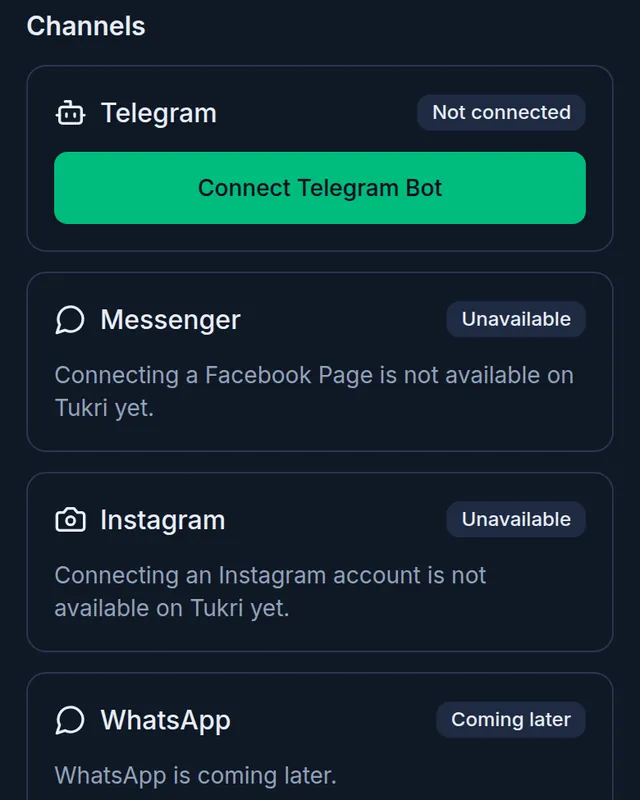
- Telegram is the channel you can connect today. While the Messenger and Instagram cards say Unavailable, a Facebook Page or Instagram account cannot be connected. If the Messenger card says Pending approval, Meta is still reviewing Tukri and only Tukri's test accounts can connect. WhatsApp is coming later.
- If Social Commerce is not on for your shop, the page says "Social Commerce is not available on Tukri yet."
Connect a Telegram bot
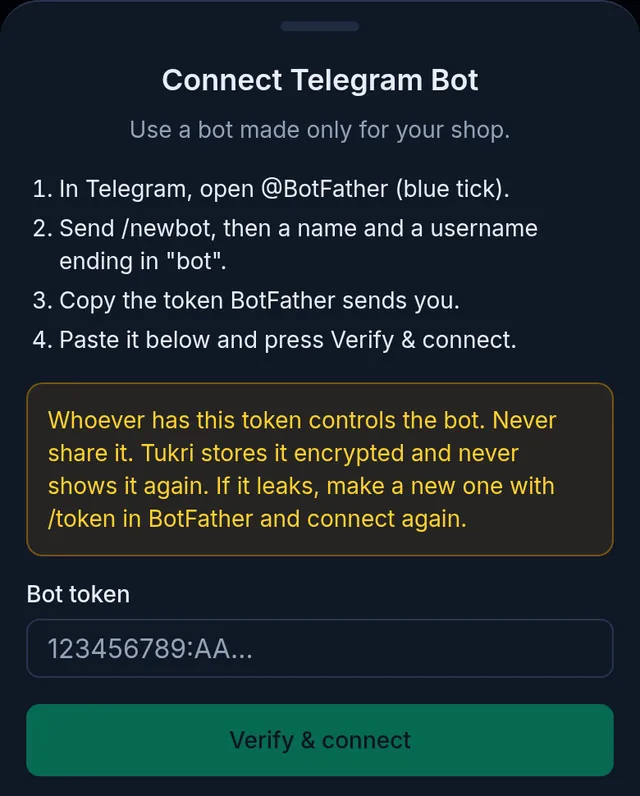
- In the Telegram app, open @BotFather (it has a blue tick) and send /newbot.
- Give the bot a name, then a username ending in "bot". The username cannot be changed later.
- Copy the token BotFather sends you.
- In Tukri, open Settings › Social Commerce. On a phone, pick Social Commerce from the tabs at the top of Settings.
- Under Channels, tap Connect Telegram Bot on the Telegram card.
- Paste the token into Bot token and tap Verify & connect.
- The card shows your bot's username and Connected. Test it from a different Telegram account: open the bot, press Start and ask about a product.
Turn the AI on and tell it what to say
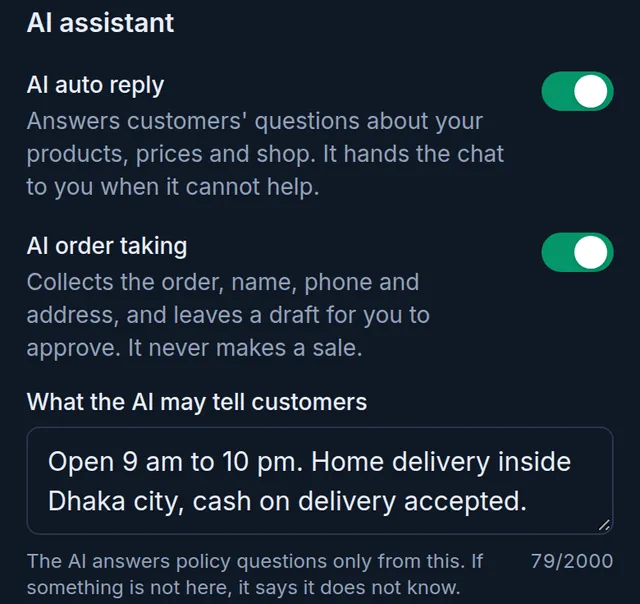
- On the same page, under AI assistant, switch on AI auto reply. While it is off, messages still arrive in the inbox but nothing is sent automatically.
- Switch on AI order taking if the AI may collect orders for you to approve. It comes with the plans that include AI order taking.
- In What the AI may tell customers, write what customers often ask: opening hours, where you deliver, cash on delivery, returns. If something is not there, the AI says it does not know.
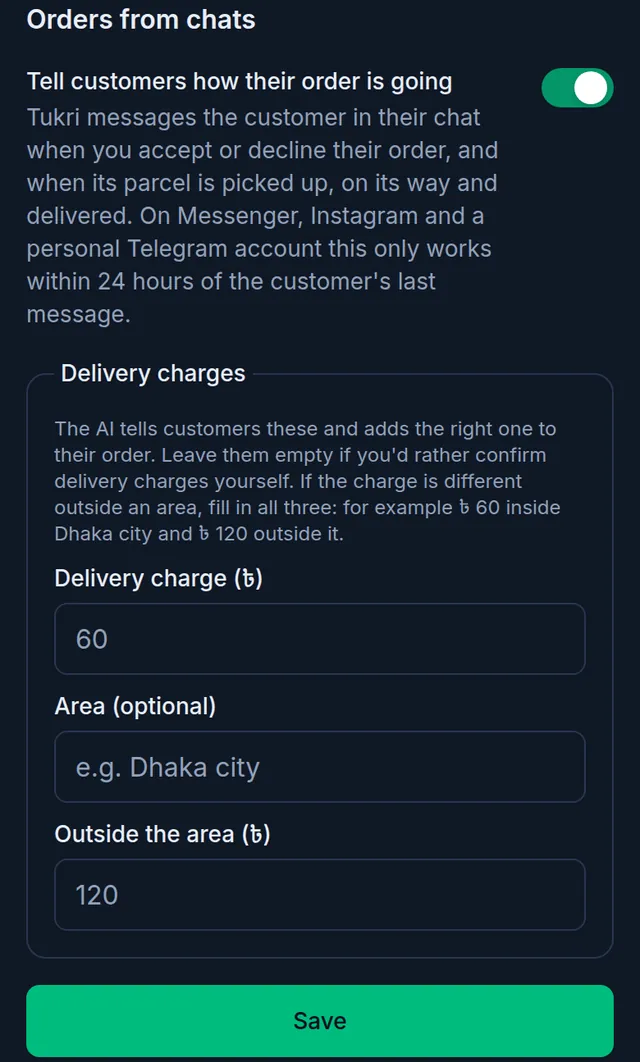
- Under Orders from chats, fill in Delivery charges. One charge everywhere: only Delivery charge (৳). A different charge outside one area: all three, Delivery charge (৳), Area (optional) and Outside the area (৳). Left empty, the AI says the shop will confirm the charge.
- Tap Save.
Each connected bot's card also has AI replies on this channel; switching it off quiets the AI on that bot only.
What the AI tells customers, and what it does not
- Prices and stock come from your products at that moment. It says whether something is in stock, never how many you have, and never your cost price.
- It replies in the customer's language; Banglish gets a reply in বাংলা.
- It understands photos and voice messages customers send, and can send your products' photos into the chat.
- Its first reply says it is the shop's automated assistant.
- It never tells anyone a due or a parcel's status just because they typed a name, phone number or tracking code.
- It hands the chat to you when the customer asks for a person, complains, wants a refund or a better price, or asks something it cannot answer.
See the chats and orders
- Open Social Inbox from the menu (on the left on a computer, in Menu on a phone). Reading chats needs "See customers"; replying needs "Add & edit customers".
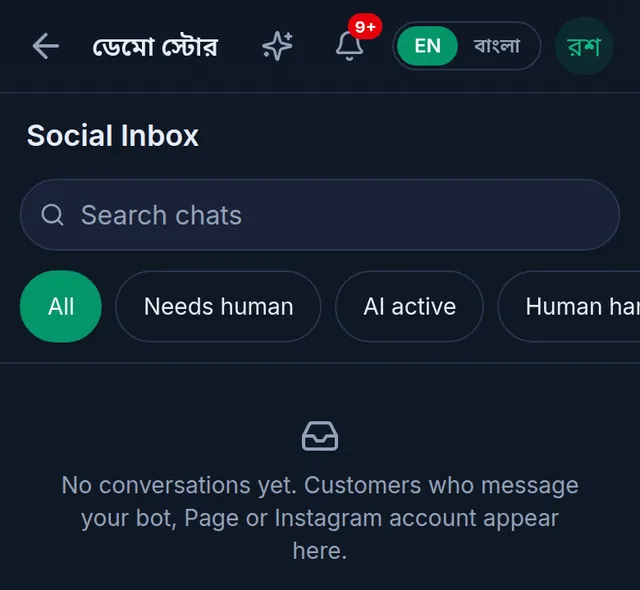
- Open a chat, type in the box at the bottom and tap Send: your reply goes out and the AI stays quiet in that chat. To hand it back, tap Resume AI at the top; to stop the AI without writing, tap Take over.
- Orders the AI took wait in Social Orders (also linked at the top of the Social Commerce settings). Until you approve one it is not a sale: no stock moves and nothing goes on anyone's due. Approve makes an ordinary sale at today's prices, with the whole amount on the customer's due as cash on delivery. Reject declines it. Reviewing and approving orders needs permission to sell ("Sell at the till").
Limits
- Your plan sets how many AI replies the shop can send in a day, all channels together; the count refills at midnight. The top of the settings page shows how many went out today. When the limit is reached, the customer is told someone from the shop will reply, and the chat waits for you.
- On Telegram, only private chats with the bot are answered; group chats are not. A bot cannot message a customer first.
- Stickers, videos and other files are not read.
If something goes wrong
"Telegram did not accept this token. Copy the whole token from BotFather and try again." Copy the whole token from BotFather and try again.
"This bot is already connected to another Tukri shop. Create a new bot for this shop with BotFather."
"This bot currently sends its messages to another service." The bot is still connected to another service. To bring its messages to Tukri, tick Move this bot to Tukri and connect again; the other service then stops receiving them.
The card says Connection error. Usually a new token was made in BotFather. Disconnect, then connect again with the new token.
The AI is not replying. Check that AI auto reply and the bot's AI replies on this channel are on, that your plan includes the AI, and that today's limit is not used up. The note at the top of the chat in the inbox gives the reason.
Watch the video
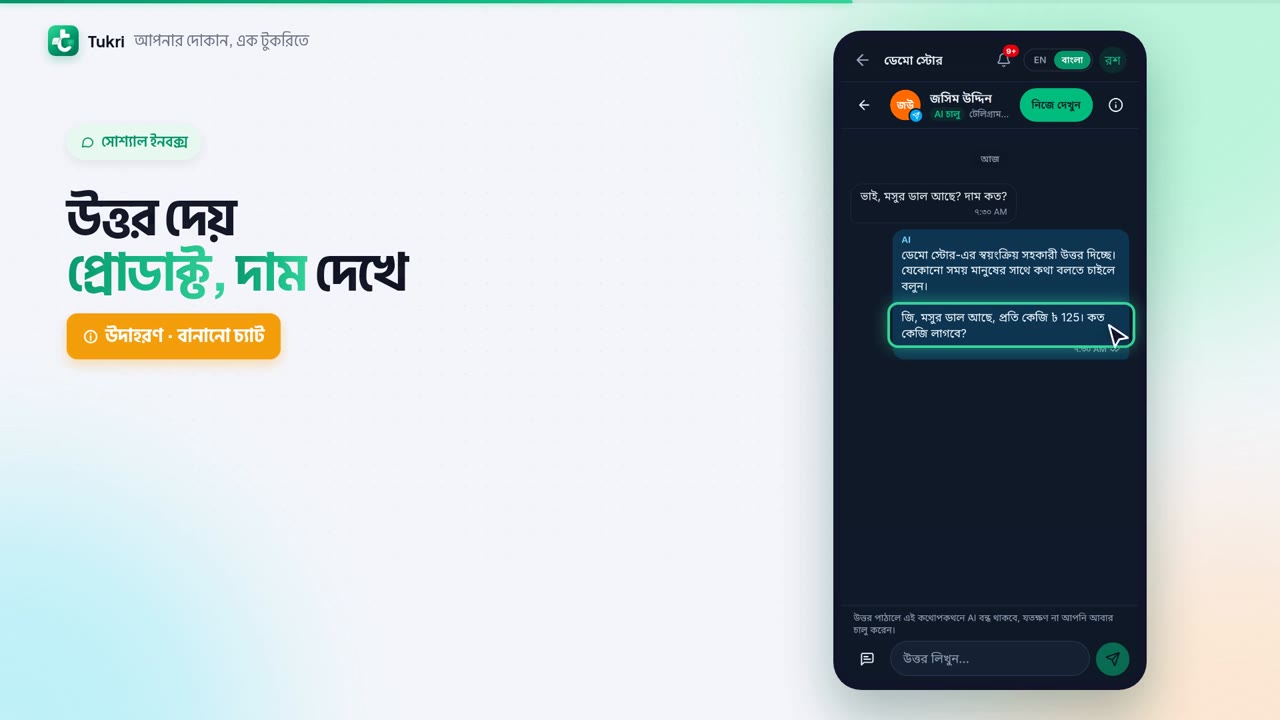
What the video says
A customer messages on Telegram at night. Who will reply? Tukri's AI, through your own bot.
In Settings, open the Social Commerce tab. Under Channels, only Telegram can be connected for now. Messenger and Instagram aren't available yet.
Tap Connect Telegram Bot. The steps to make a bot in BotFather are written right here. Paste the token BotFather gives you here, then tap Verify & connect.
The card shows the bot's name and Connected. But never give the token to anyone.
Now turn on AI auto reply. And AI order taking too, if you like. In the box below, write your hours, delivery terms and return rules: the AI tells customers only what is here. Add the delivery charge and tap Save.
Every chat arrives in the Social Inbox. The AI answers from your products and prices, and says first that it's the shop's automated assistant. Tap Take over, and you answer yourself.
The AI never makes a sale or takes money. The orders it takes go to Social Orders, and become a sale only when you approve. AI replies come with the plans that include the AI assistant. The Owner and Admin can change these settings.
Let your shop run in chats too, tukri.bd
Related articles
Still need help?
Write to us, call or send a WhatsApp message, and someone from Tukri will help you.
